SCIM User Provisioning in Clazar
Last updated: August 13, 2025
SCIM (System for Cross-domain Identity Management) allows for the automatic provisioning and de-provisioning of users in your Clazar account. When users are added or removed in your Identity Provider (IdP), SCIM ensures these changes are reflected in Clazar—automatically and securely.
Prerequisites
Before enabling SCIM provisioning, make sure:
✅ Single Sign-On (SSO) is already configured in your Clazar account.
If not, refer to the SSO Setup Guide for setup instructions.
SCIM Setup in Clazar Dashboard
Step 1: Enable SCIM in Clazar
Go to Settings > Security > SSO in your Clazar dashboard.
Select the default roles that will be automatically assigned to newly provisioned users.
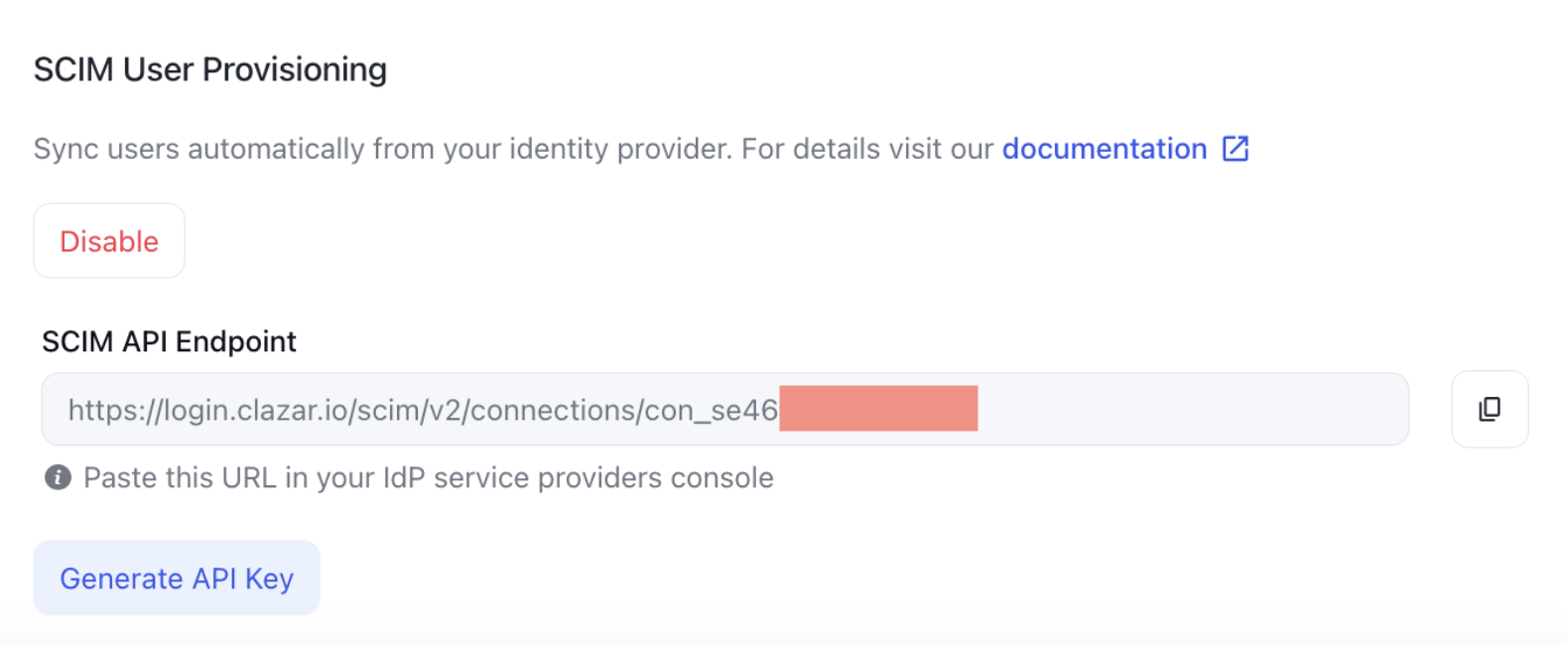
Enable the SCIM User Provisioning toggle.
Once enabled:
You will see a SCIM API endpoint and a button to Generate API Key.
Copy both the endpoint and API key — these will be required in your IdP configuration.
SCIM Setup in Okta
✅ Step 1: Enable SCIM in the Clazar App
Open the Clazar application in your Okta dashboard (created during SSO setup).
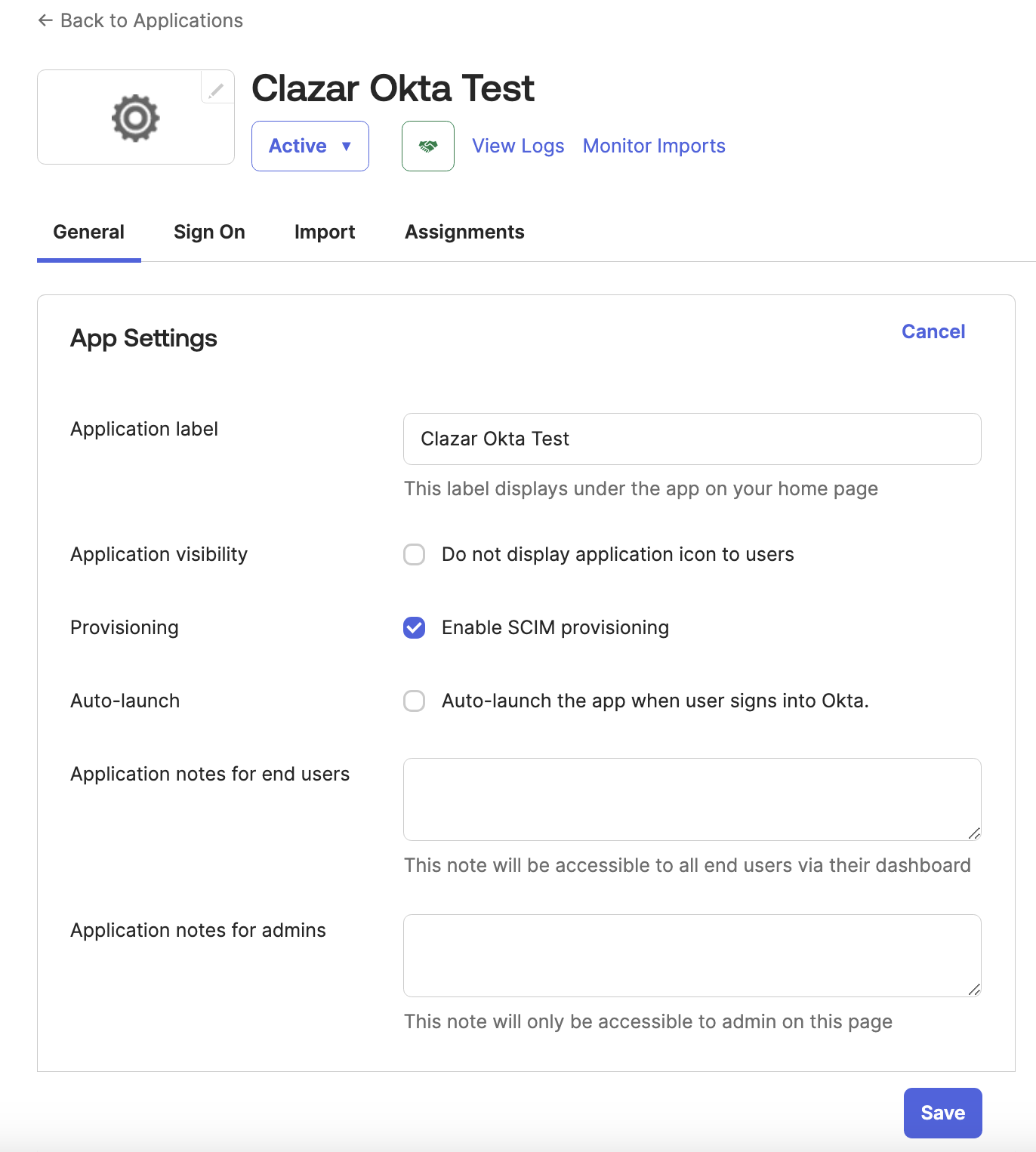
In the General tab:
Enable SCIM Provisioning
Click Save
The Provisioning tab should now be visible.
✅ Step 2: Configure the SCIM Connector
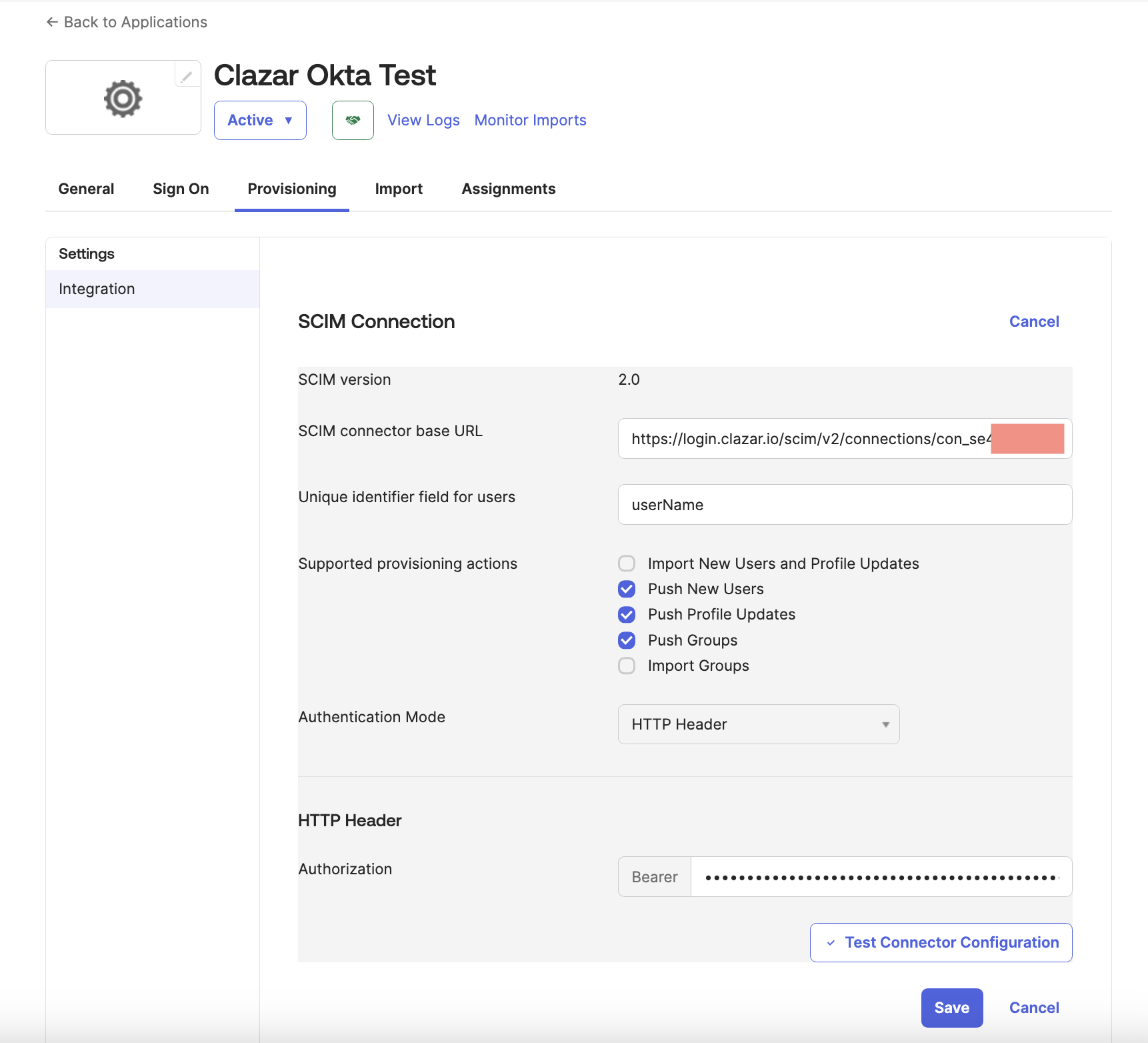
In the Provisioning tab:
Paste the SCIM API endpoint from Clazar into the appropriate field.
Set Unique Identifier Field for users to
userName.Choose the recommended provisioning actions (see visual guide or reference documentation).
Set Authentication Mode to HTTP Header.
Paste the API key you copied from Clazar.
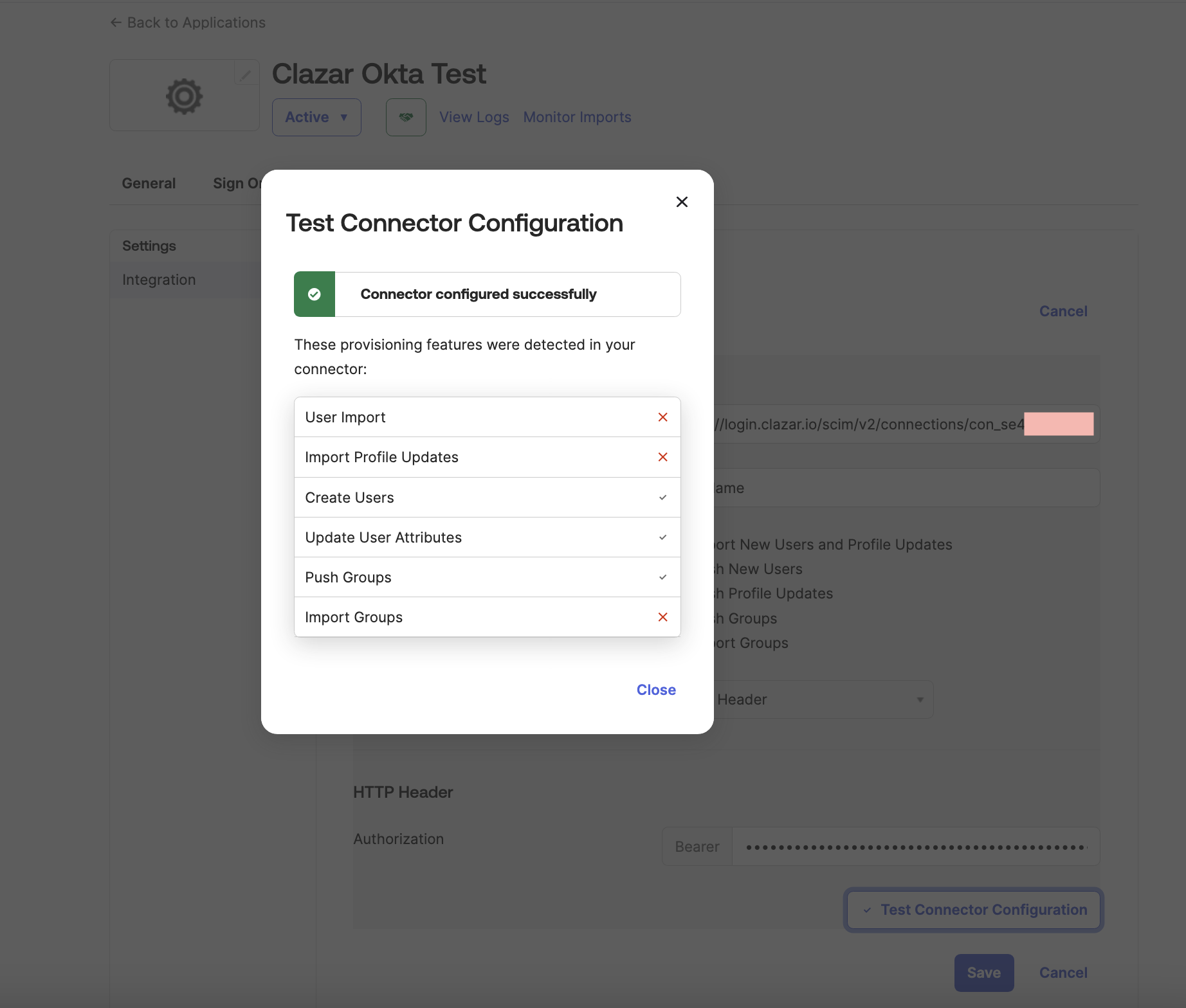
Click Test Connector Configuration to verify.
Click Save.
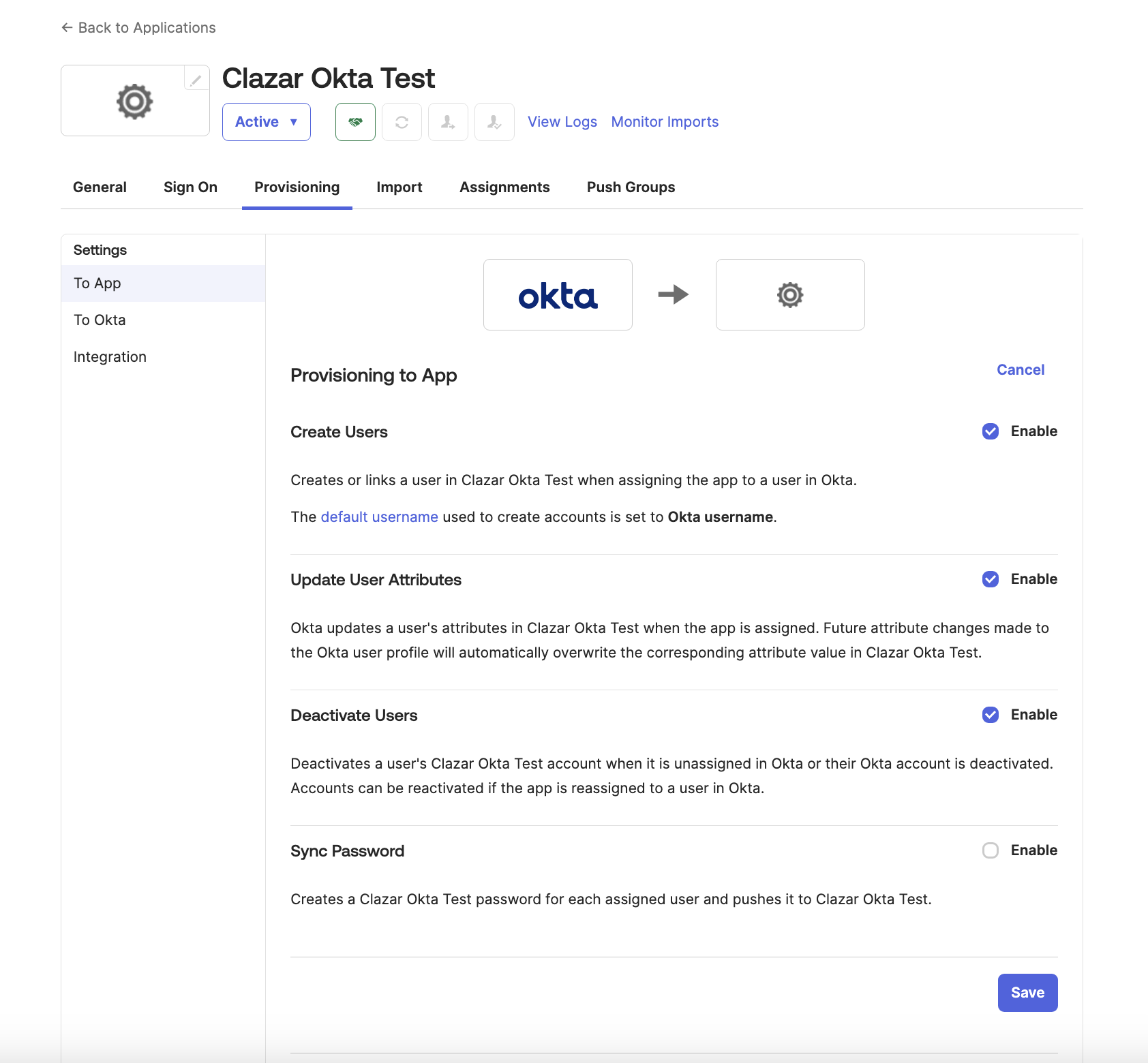
✅ Step 3: Enable To App Provisioning
Under To App settings, enable:
✔ Create Users
✔ Update User Attributes
✔ Deactivate Users
Then click Save to apply the changes.
Final Step: Sync Existing Users
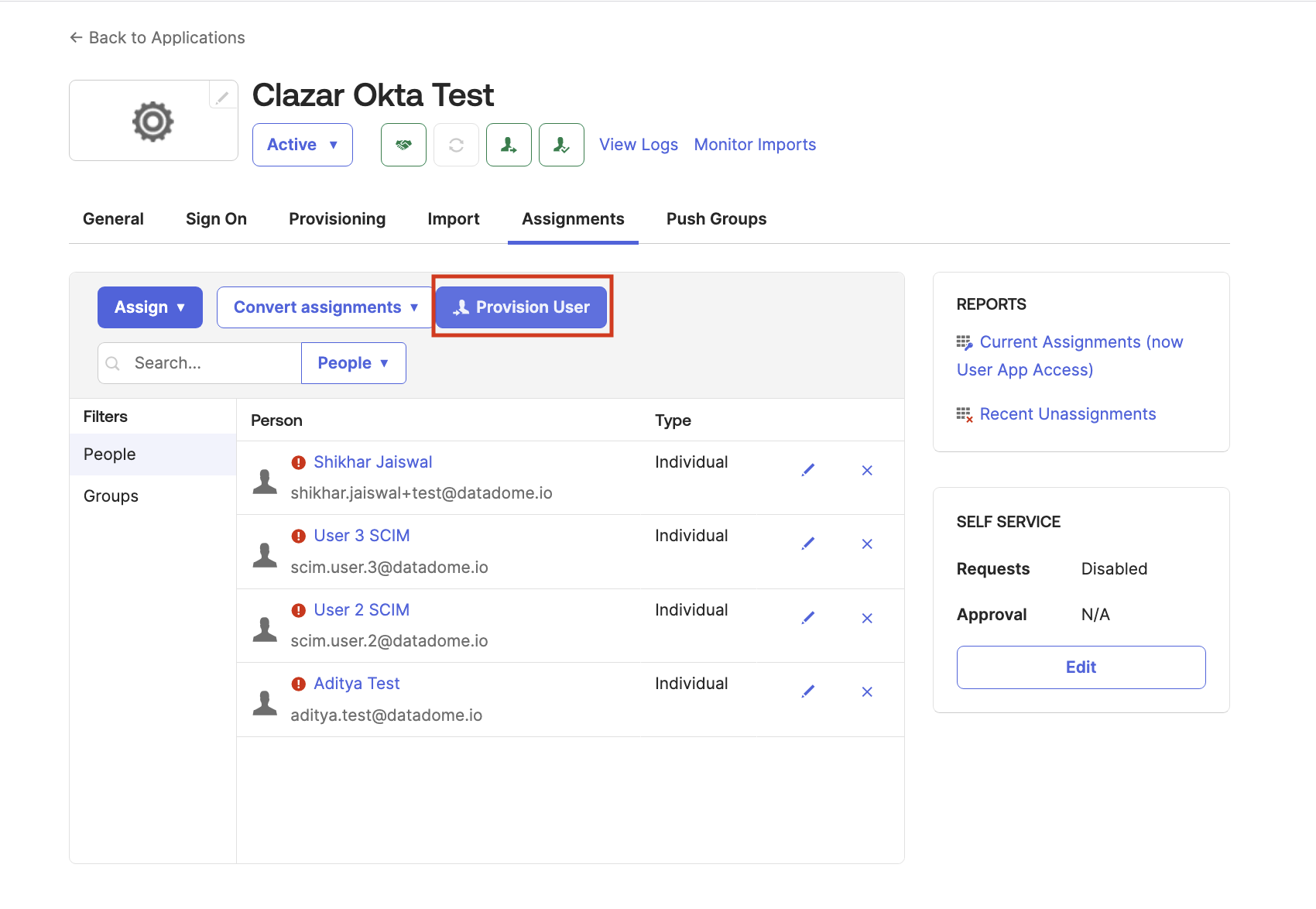
Navigate to the Assignments tab in Okta:
If users were already assigned to the Clazar app, you might see a red warning icon next to their names.
Click Provision User to sync those users with Clazar immediately.