Set Up Single Sign-On (SSO) in Clazar
Last updated: August 6, 2025
Single Sign-On (SSO) simplifies the login process for your team by allowing users to authenticate using a single set of credentials through your organization’s Identity Provider (IdP). Clazar supports SAML (Security Assertion Markup Language) for SSO.
What is SAML?
SAML is an open authentication standard that enables secure transmission of authentication data between an Identity Provider (IdP) and a Service Provider (SP).
In Clazar, SAML-based SSO can be configured to streamline access and enforce authentication policies across the platform.
Good to Know
SSO should be configured by an IT administrator familiar with creating applications in your organization’s Identity Provider (IdP).
SSO Setup Guide
Step 1: Create an Application in Your Identity Provider (IdP)
Log in to your IdP account (e.g., Okta, Azure AD, Google Workspace).
Navigate to the Applications section.
Create a new application for Clazar.
Obtain the following values from Clazar to configure your application:
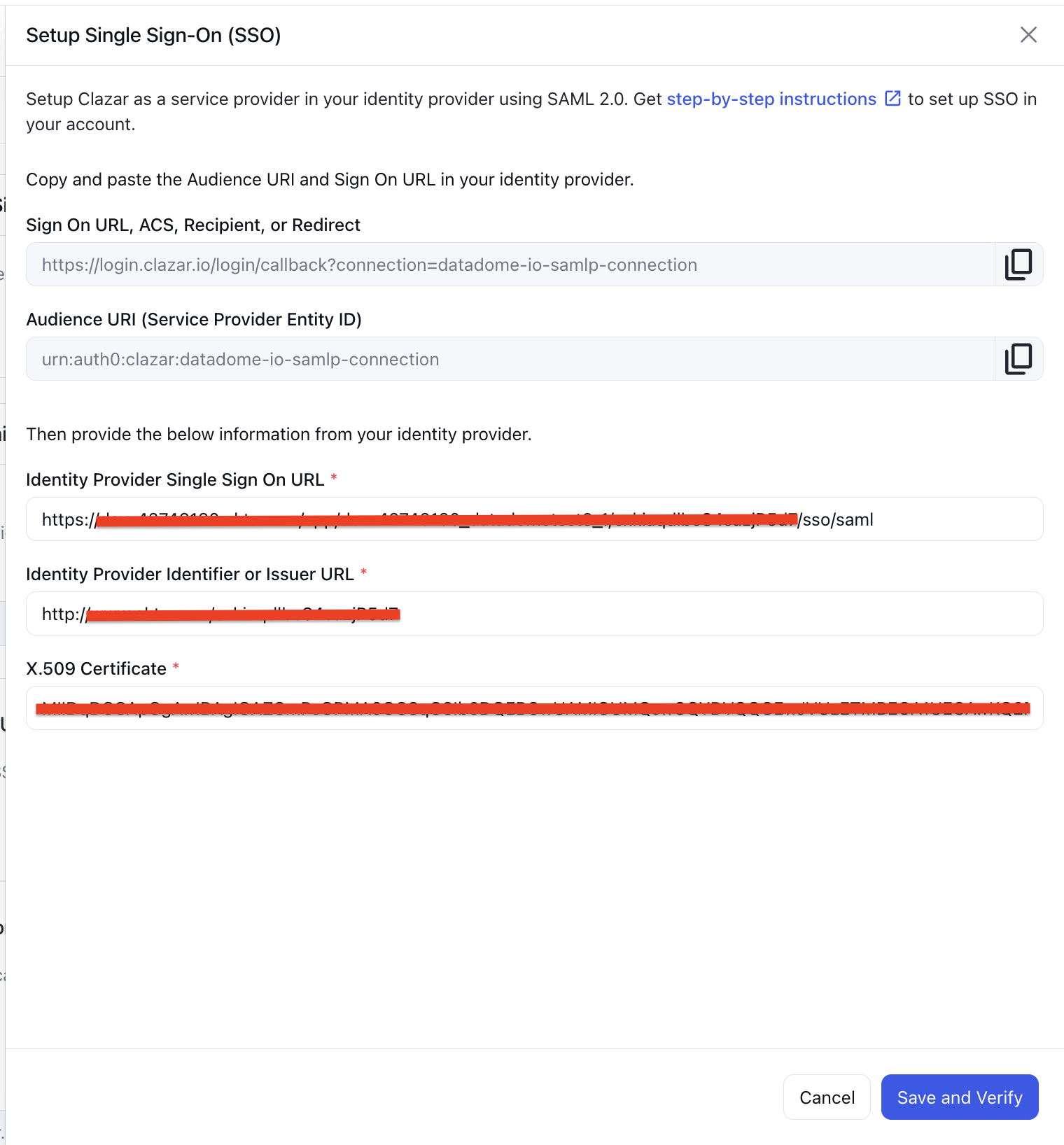
Audience URI
Sign-on URL (ACS, Recipient, or Redirect URL)
Step 2: Configure SSO in Clazar
Log in to your Clazar account.
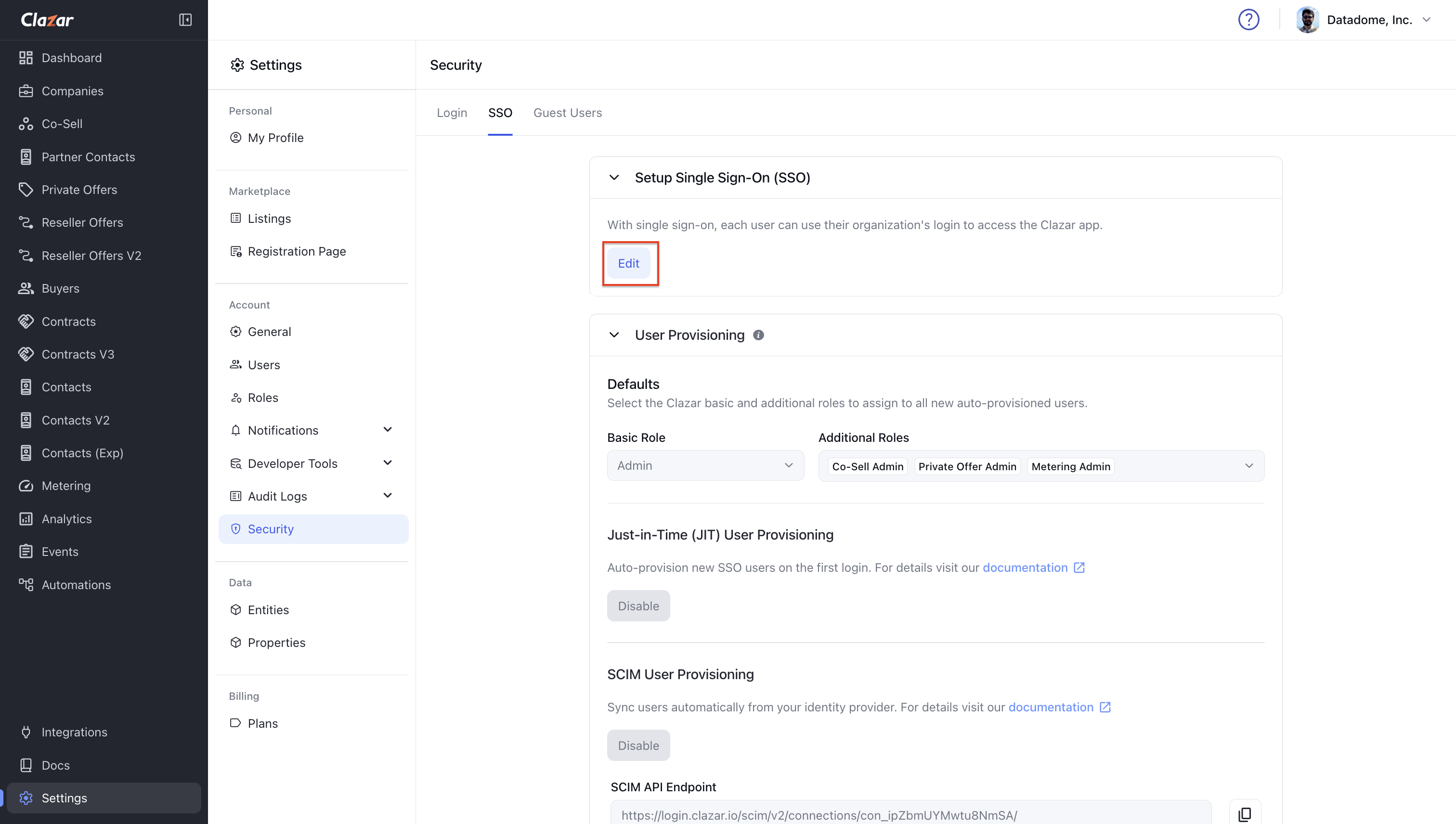
Go to Settings > Security.
In the SSO tab, click Edit.
Step 3: Save and Verify
Paste the Audience URI and Sign-on URL from your IdP into the appropriate fields.
Click Save and Verify.
Step 4: Confirm Connection
If verification is successful, a "Connected" status indicator will appear—confirming your SSO setup is live.
Login via SSO
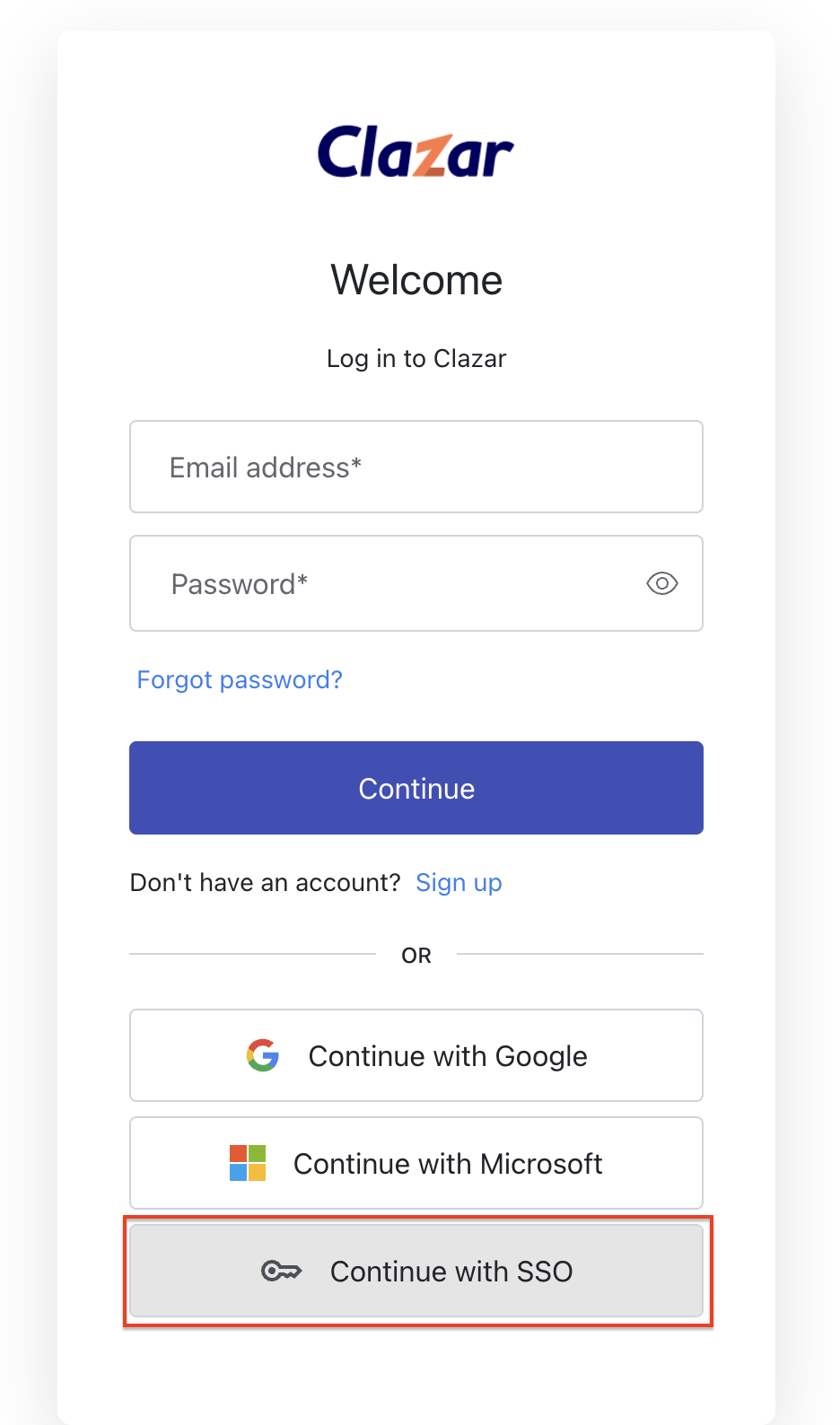
🔐 Step 1: Click “Continue with SSO”
On the login page, select Continue with SSO.
📨 Step 2: Enter Email Address
Enter the email address linked to your Clazar account. This helps route you to the correct IdP.
🔁 Step 3: Redirect to Identity Provider (IdP)
If SSO is set up, you’ll be redirected to your organization's IdP login page for authentication.
✅ Step 4: Authenticate and Redirect to Clazar
After successful login via your IdP, you’ll be redirected back to Clazar with an active session.
Important to Note!
Clazar only supports Service Provider (SP)-initiated logins.
IdP-initiated logins are not supported.
This ensures all authentication flows are securely controlled through Clazar.
Login via SP (Service Provider) Sign-On URL
The SP Sign-On URL provides a direct way to authenticate users through their IdP.
Base URL:
https://app.clazar.io/sso-loginAccepted URL Parameters:
login_domain→ Domain associated with your Clazar accountlogin_email→ User’s email address
Examples:
How It Works:
User accesses the SP Sign-On URL with appropriate parameters.
Redirection to IdP for authentication.
IdP validates credentials and redirects back to Clazar.
Email Validation:
If
login_emailis included, Clazar verifies the authenticated user's email matches it.If both
login_domainandlogin_emailare included, Clazar ensures the email domain matches the login domain.Mismatches will result in an error message.
Manage Login Methods for Users and Admins
In your Clazar account:
Navigate to Settings > Security.
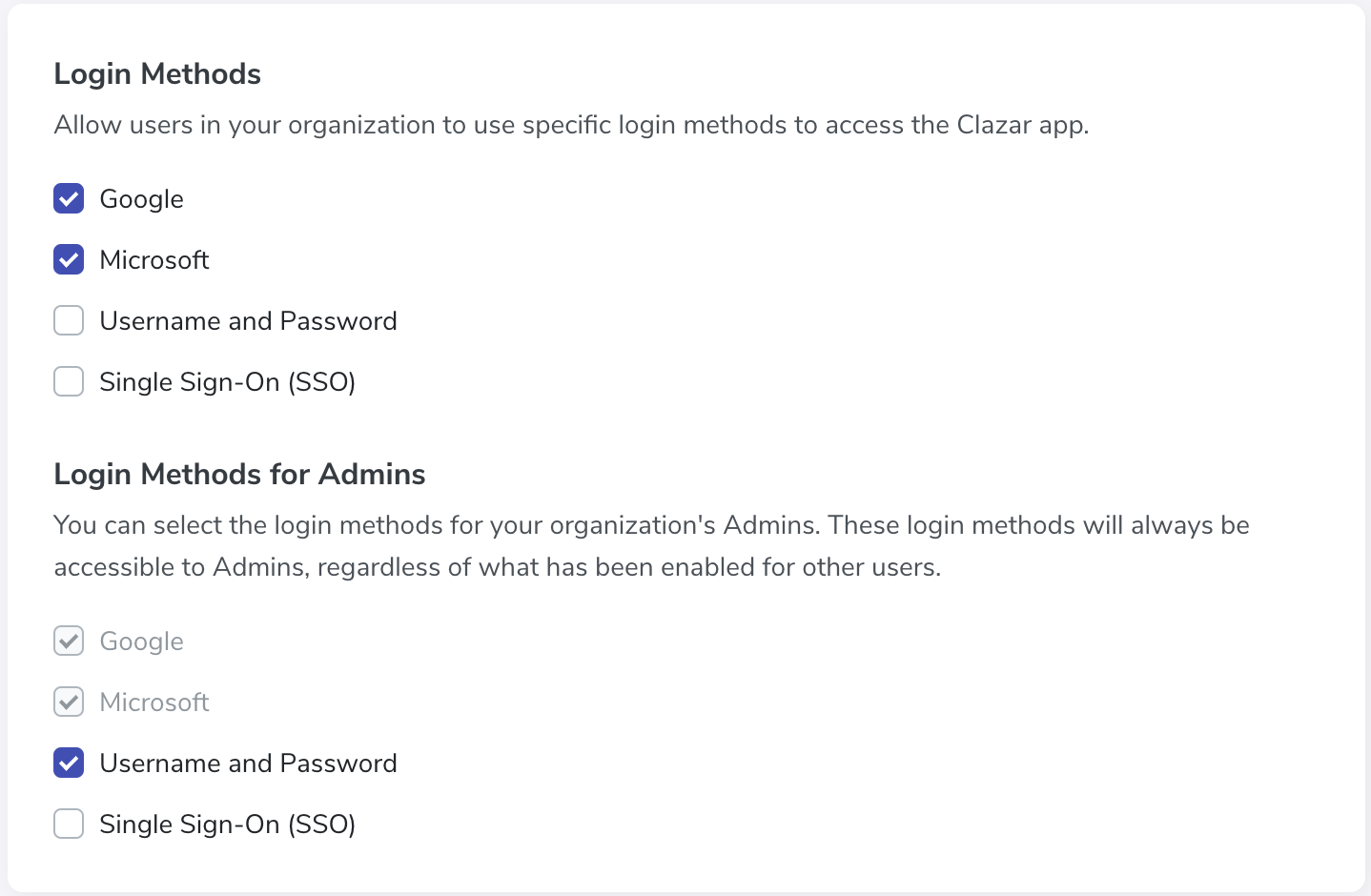
Under Login Methods, choose the allowed login options.
🔐 To enforce SSO for all users:
Select: Single Sign-On (SSO)
Unselect: All other login methods
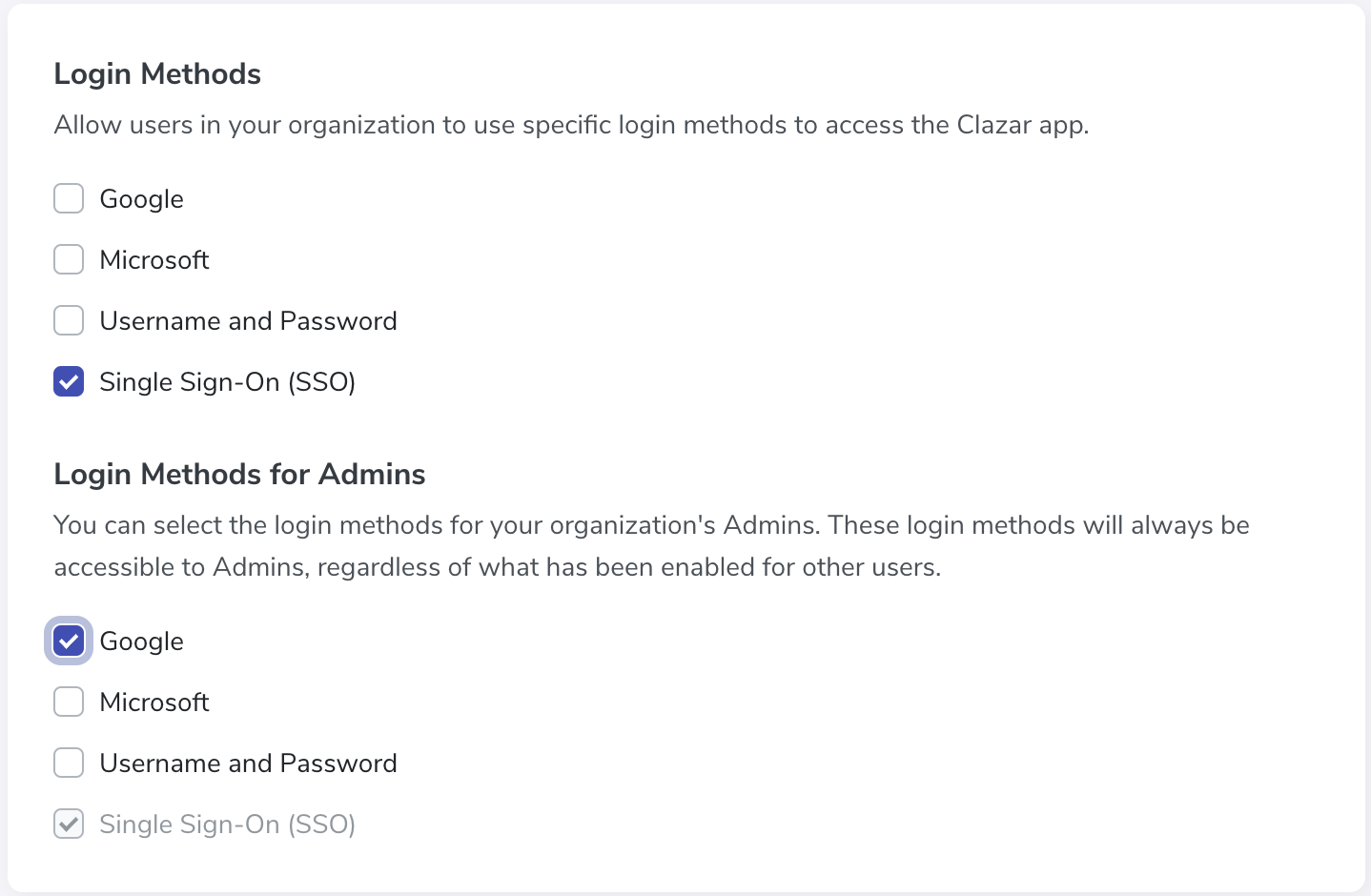
This ensures SSO is the only login option for standard users.
Login Methods for Admins
Admins always retain access to their designated login methods, regardless of what is enforced for regular users. This helps ensure administrative access during troubleshooting or emergency access needs.