Creating and Managing API Credentials in Clazar
Last updated: August 6, 2025
Integrating your application with Clazar’s platform requires a secure and reliable method of authentication. This is achieved by generating API credentials, specifically a Client ID and Client Secret, which authorize and authenticate API requests.
This article walks you through the steps to create, rotate, and delete API credentials within the Clazar platform, ensuring secure communication between your systems and Clazar’s APIs.
Overview
API credentials serve as secure access tokens for your application to interact with Clazar’s APIs. These credentials:
Authenticate your application
Authorize access to protected endpoints
Enable integration between your backend and Clazar services
Prerequisites
To manage API credentials, the logged-in user must have either:
Super Admin role, or
Admin role
This ensures that only authorized personnel can generate or modify sensitive API access credentials.
How to Create API Credentials
Follow these steps to generate a new set of API credentials:
Log in to the Clazar Platform.
Navigate to the Settings section.
In the Integration area, click on Machine to Machine.
Select Create API Credentials.
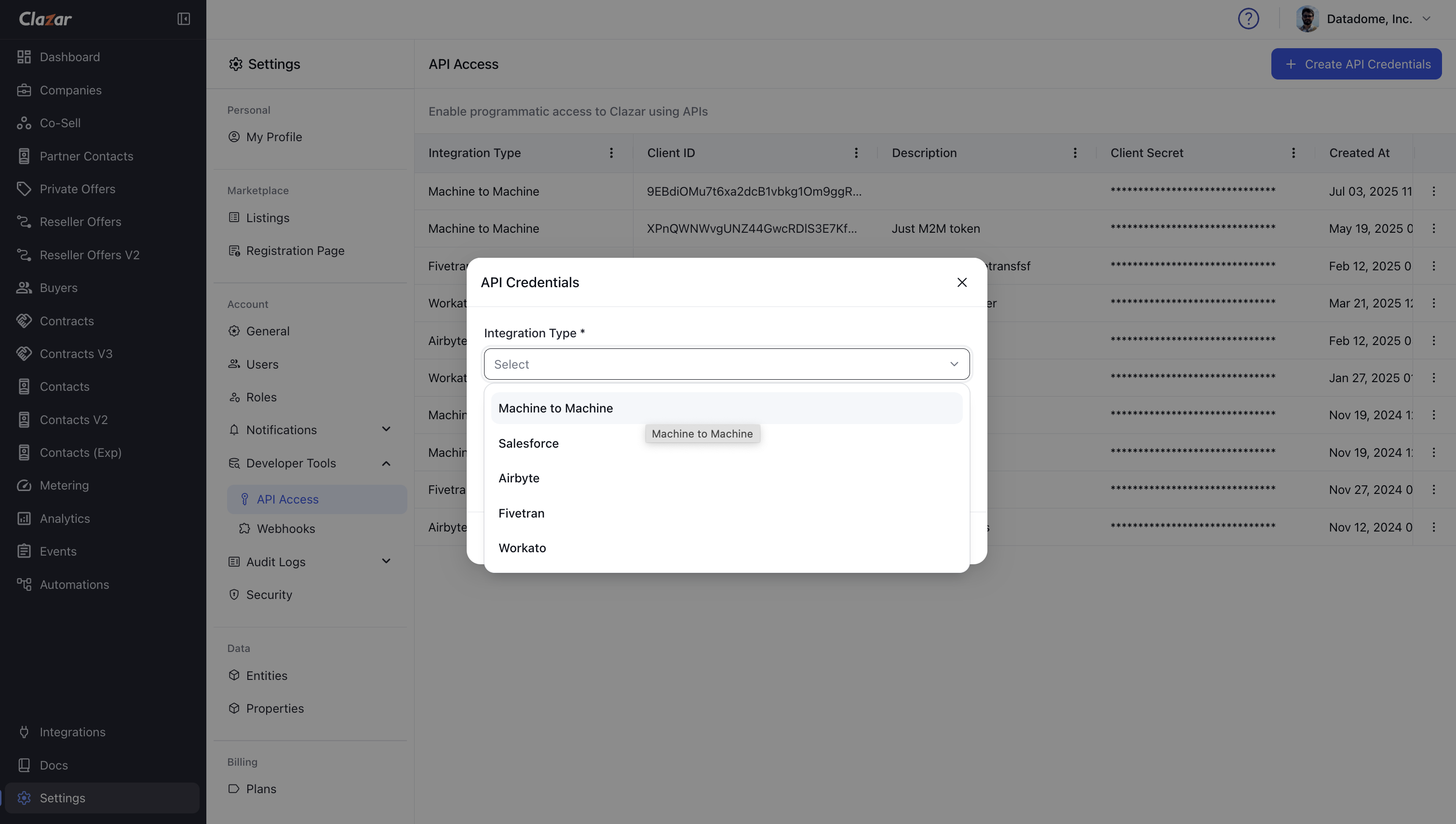
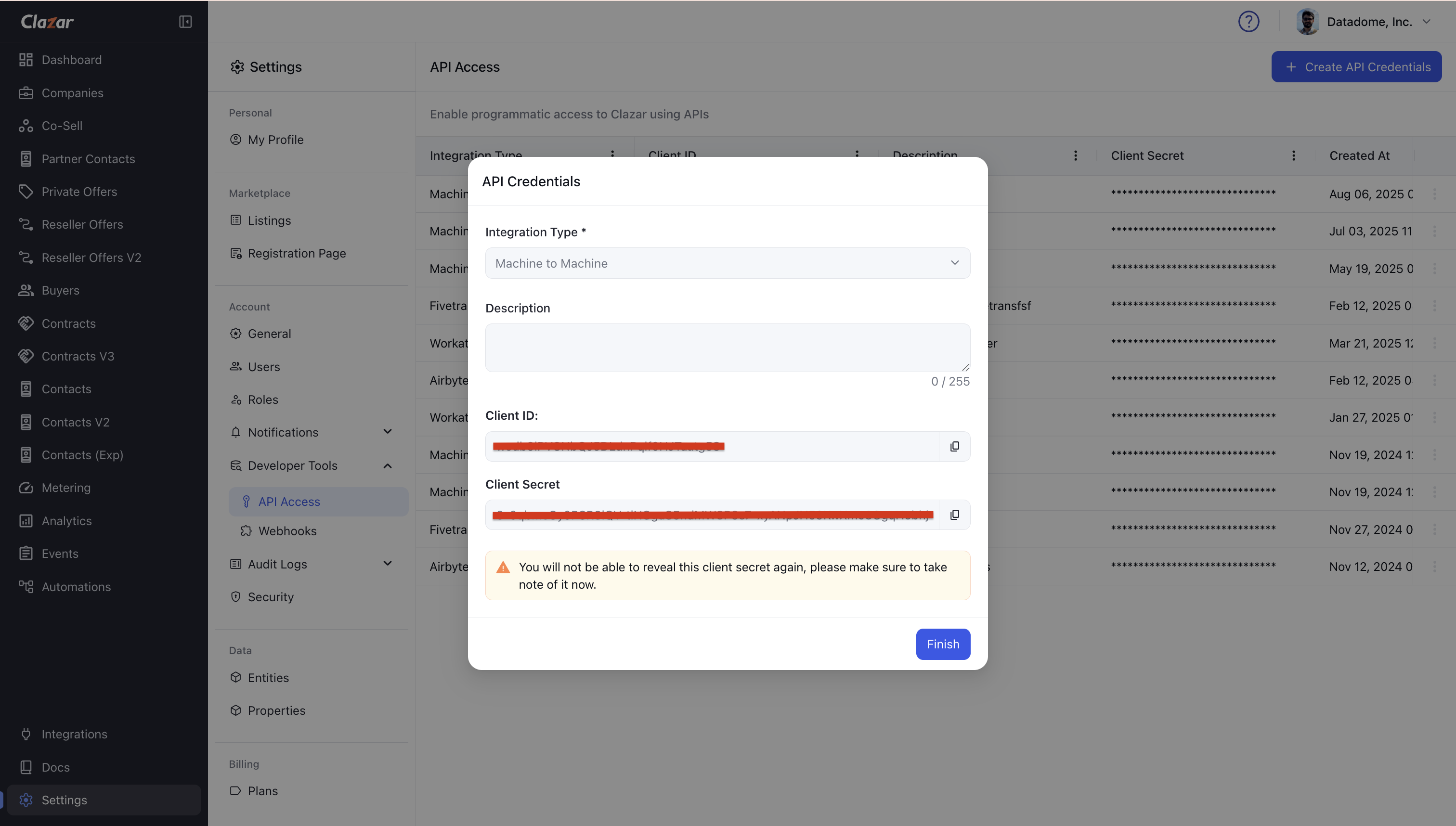
Once completed, a new application will be generated with:
A unique Client ID
A newly issued Client Secret
Be careful
The Client Secret is only visible once, immediately after generation.
Save it securely—you won’t be able to retrieve it later.
Using the Credentials
Once created, your API credentials are ready to use for integrating Clazar APIs into your application.
The Client ID remains visible for reference.
The Client Secret should be stored in a secure location and used cautiously.
Rotating the Client Secret
Rotating your Client Secret periodically enhances your application's security posture. To rotate the secret:
On the API Access page, locate the desired API credential and click the three vertical dots (⋮) on the far right. Then select Rotate from the dropdown menu.
A new Client Secret will be generated exclusively for your application.
Be careful
After rotation, the old Client Secret becomes invalid and cannot be recovered.
Again The Client Secret is only visible once, immediately after generation.
Save it securely—you won’t be able to retrieve it later.
Any system or client relying on the old secret will fail until reconfigured with the new one.
Promptly update your application’s configuration with the new credentials.
Good to know
Rotating your client secret regularly mitigates unauthorized access and reduces exposure in case of a breach.
Deleting API Credentials
To permanently remove an API credential:
Go to the API Access page.
On the API Access page, locate the desired API credential and click the three vertical dots (⋮) on the far right. Then select Delete from the dropdown menu.
❗ You need to know
Once deleted, the associated Client Secret is unrecoverable.
Deleting credentials can break any integrations using them, so proceed with caution.
Summary
ActionVisibility of SecretCan be Undone?Important Note
Action | Visibility of Secret | Can be Undone? | Important Note |
Create | Visible only once | No | Save securely |
Rotate | Visible once | No | Update your app immediately |
Delete | Not recoverable | No | May break integrations |