Self-serve Agreement Cancellation on AWS
Last updated: June 23, 2026
If you need to cancel a buyer's agreement on AWS Marketplace, you can submit a cancellation request directly from your AWS console — without raising a support case with AWS. This is the fastest way to terminate an agreement when the buyer no longer requires the subscription or when both parties have agreed to end the contract.
This guide walks you through the complete process, from navigating to the Agreements section through submitting the cancellation request.
Prerequisites
Before you begin, make sure you have:
The agreement ID of the buyer's agreement you want to cancel (recommended). Other identifiers such as buyer AWS account ID or offer ID also work.
A clear reason for the cancellation — this is required during submission.
Any supporting context (buyer request reference, internal ticket ID, prior coordination notes) that should accompany the request.
Assumption: This guide assumes you are already signed in to your AWS console and starting from the console dashboard.
Step 1: Navigate to the Agreements Section
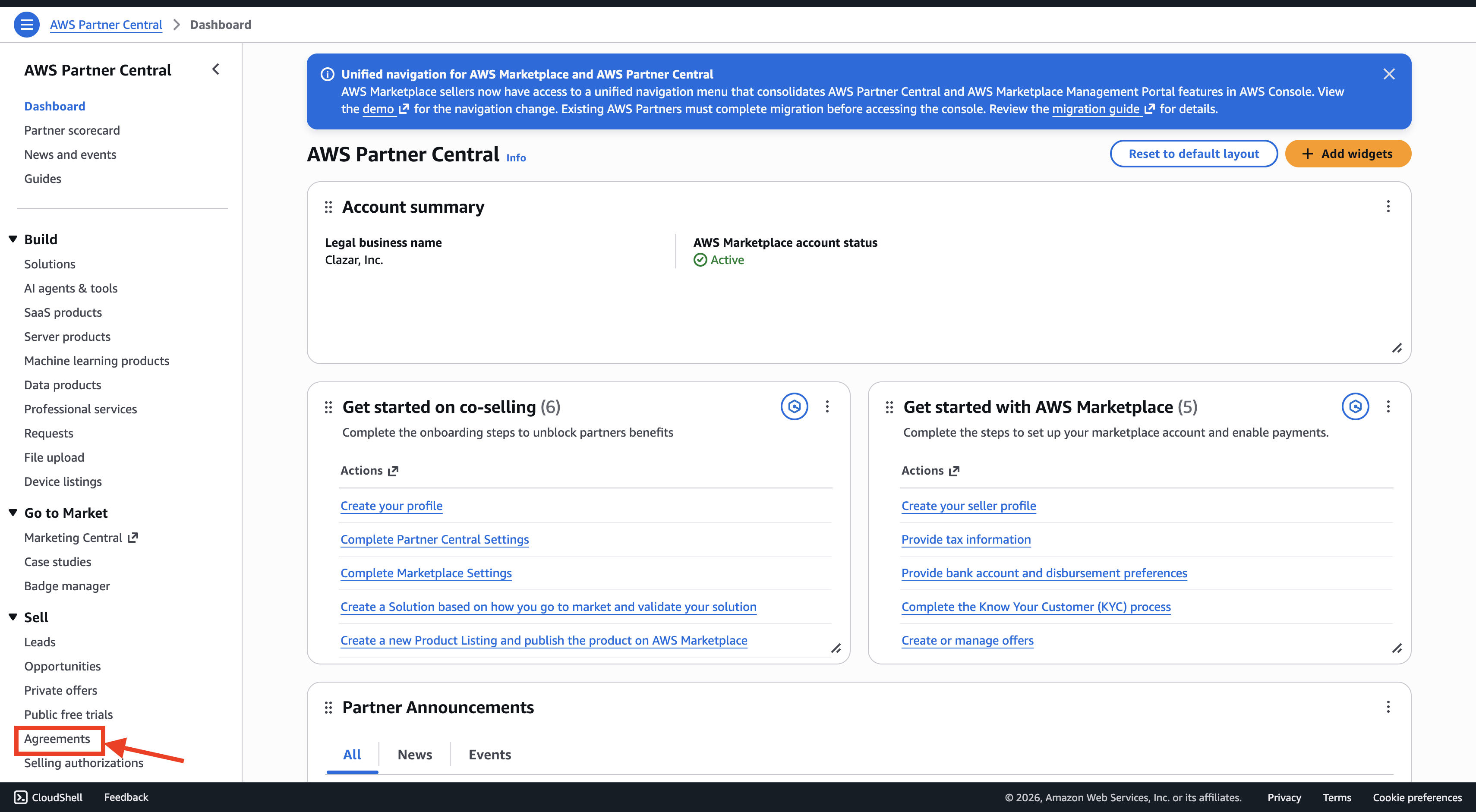
From your AWS console dashboard, navigate to the Agreements section under the Sell menu in AWS Marketplace.
This is the same Agreements section used for billing adjustments. All your active and historical agreements with buyers are listed here.
Step 2: Locate the Buyer's Agreement
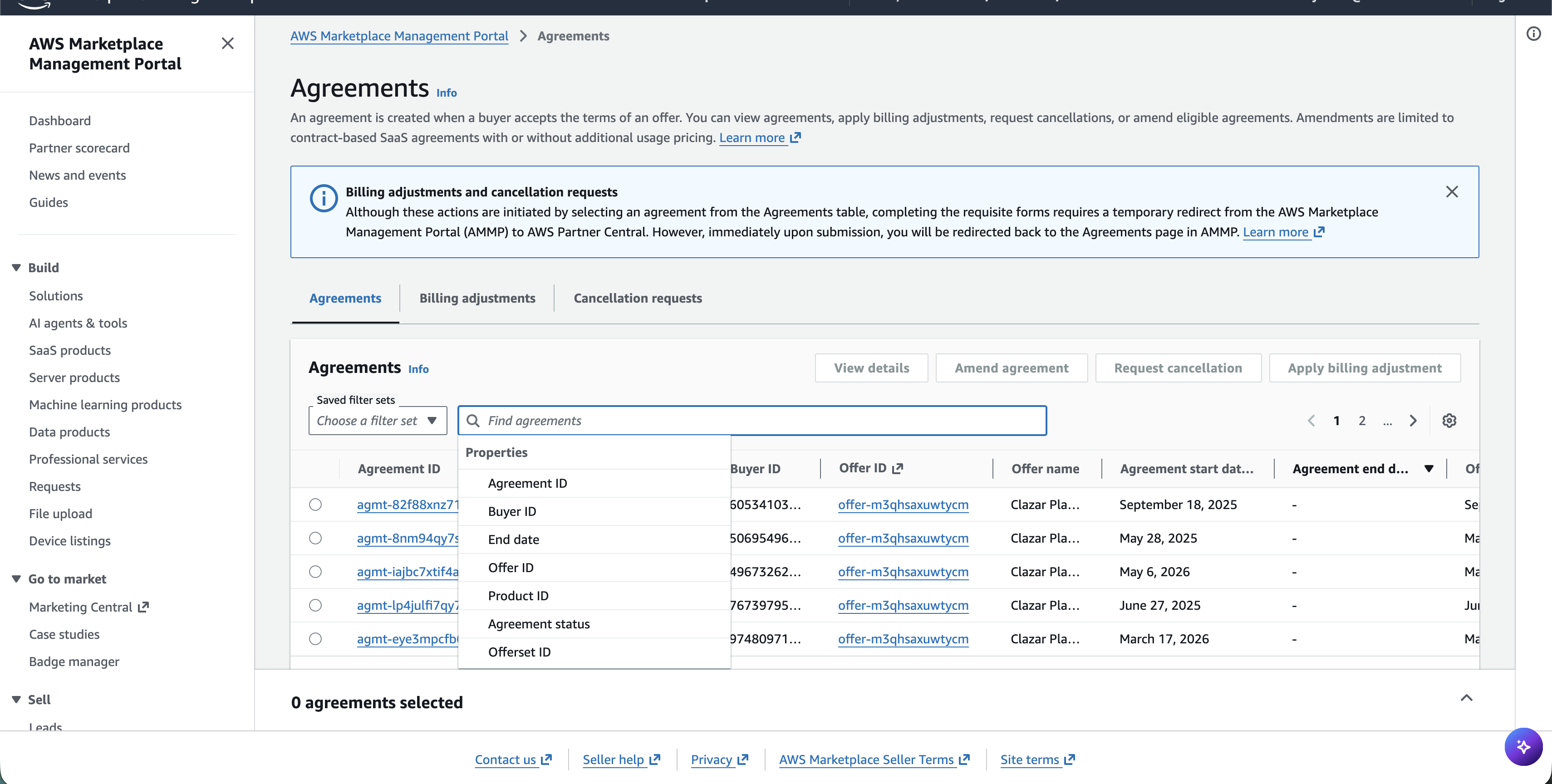
Use the filter options to find the specific agreement you want to cancel. You can filter by:
Agreement ID (recommended)
Buyer ID
Offer ID
Other agreement-specific details
Tip: Filtering by Agreement ID is the most reliable option because it uniquely identifies a single agreement and automatically populates all related buyer and seller details. Other identifiers can return multiple matches if the buyer has more than one agreement with you.
Click on the agreement to open it.
Step 3: Click "Request Cancellation"
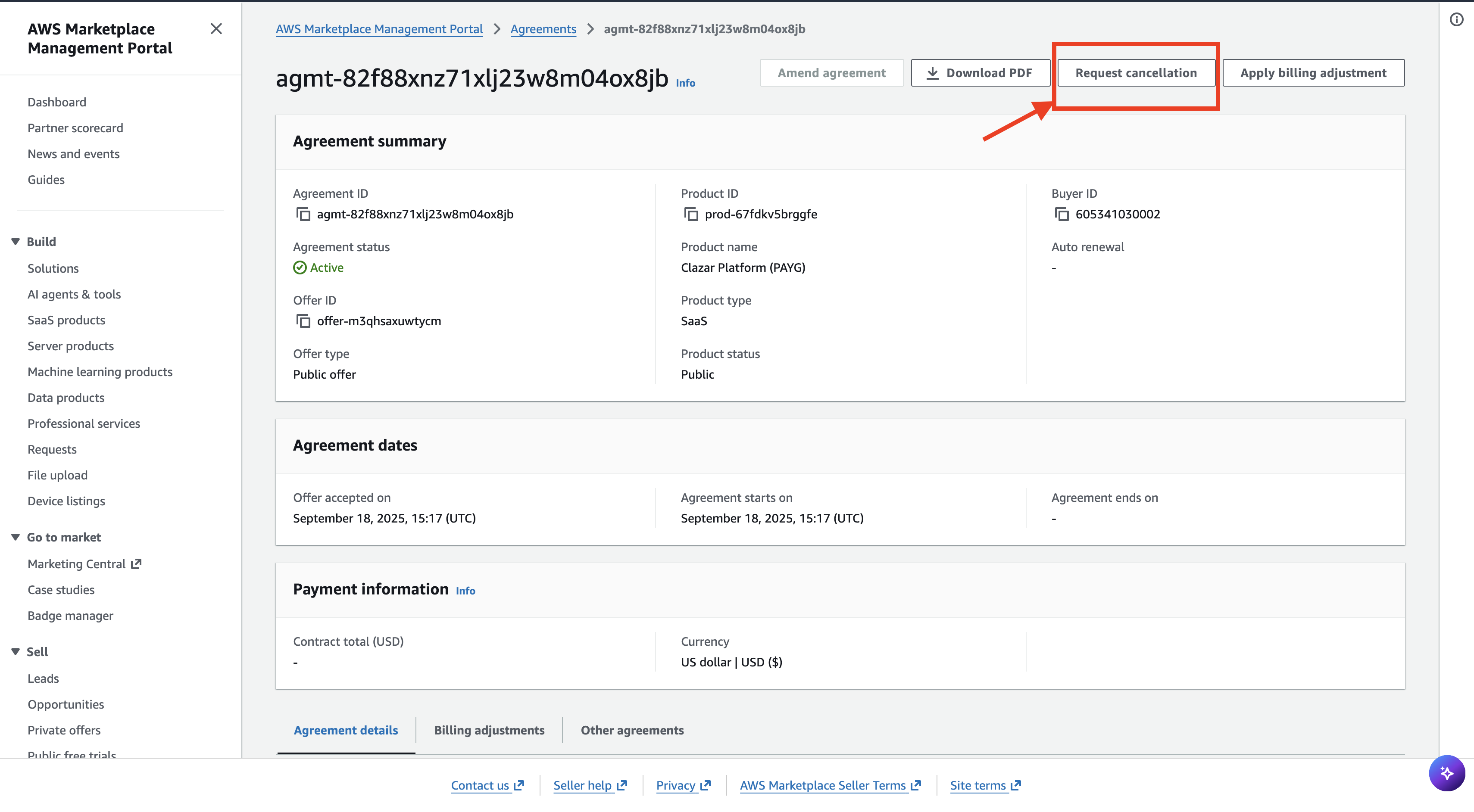
Once the agreement window is open, click the Request Cancellation button.
Make sure you select this option and not the billing adjustment option — the two actions are distinct:
Request Cancellation — terminates the agreement entirely.
Apply Billing Adjustments — issues a refund or correction against a specific invoice while keeping the agreement active.
If the buyer wants to receive a refund without ending their subscription, use the billing adjustment flow instead. Cancellation should only be used when the agreement itself needs to be terminated.
Step 4: Enter the Cancellation Reason
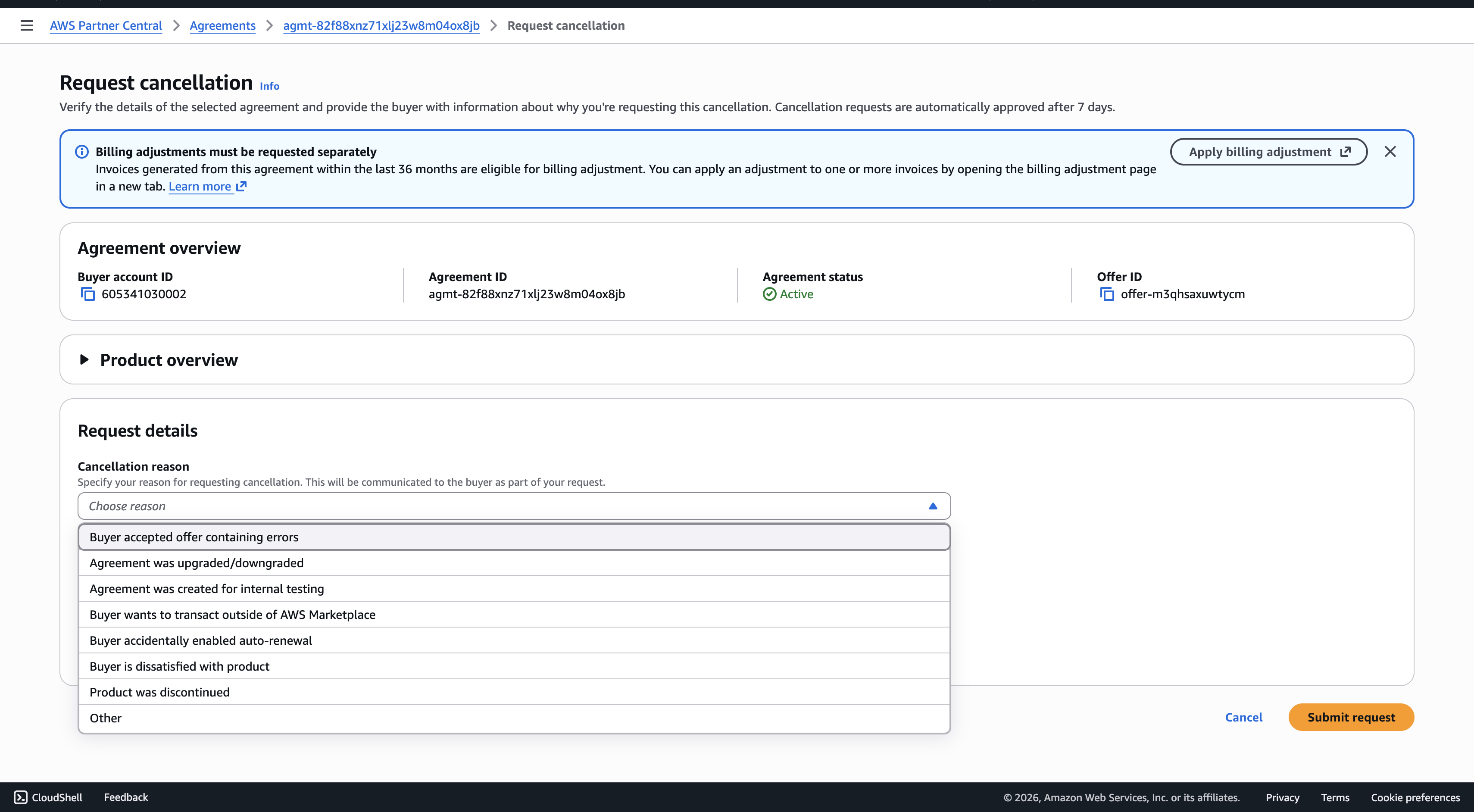
In the cancellation window, enter a clear reason for the cancellation.
The reason should be specific and reference the underlying cause. For example:
"Buyer migrating to a different product offer."
"Mutual agreement to terminate contract early."
"Buyer no longer requires the subscription."
"Replacing with a new private offer (offer ID: [new-offer-id])."
Avoid vague reasons like "cancellation requested" or "no longer needed" — a specific reason makes the cancellation easier to trace later and supports any future audit or query from AWS.
Step 5: Add Additional Details Explaining the Goal
Fill in any additional details that provide context for the cancellation. This typically includes:
The related support case ID (if applicable)
The buyer's request reference (email, ticket, etc.)
The intended next step (e.g., replacing with a new offer, full exit, etc.)
Notes about prior coordination with the buyer or your finance team
The more context you provide, the easier it is for AWS to process the request without follow-up questions, and the easier it is for your team to trace the cancellation later.
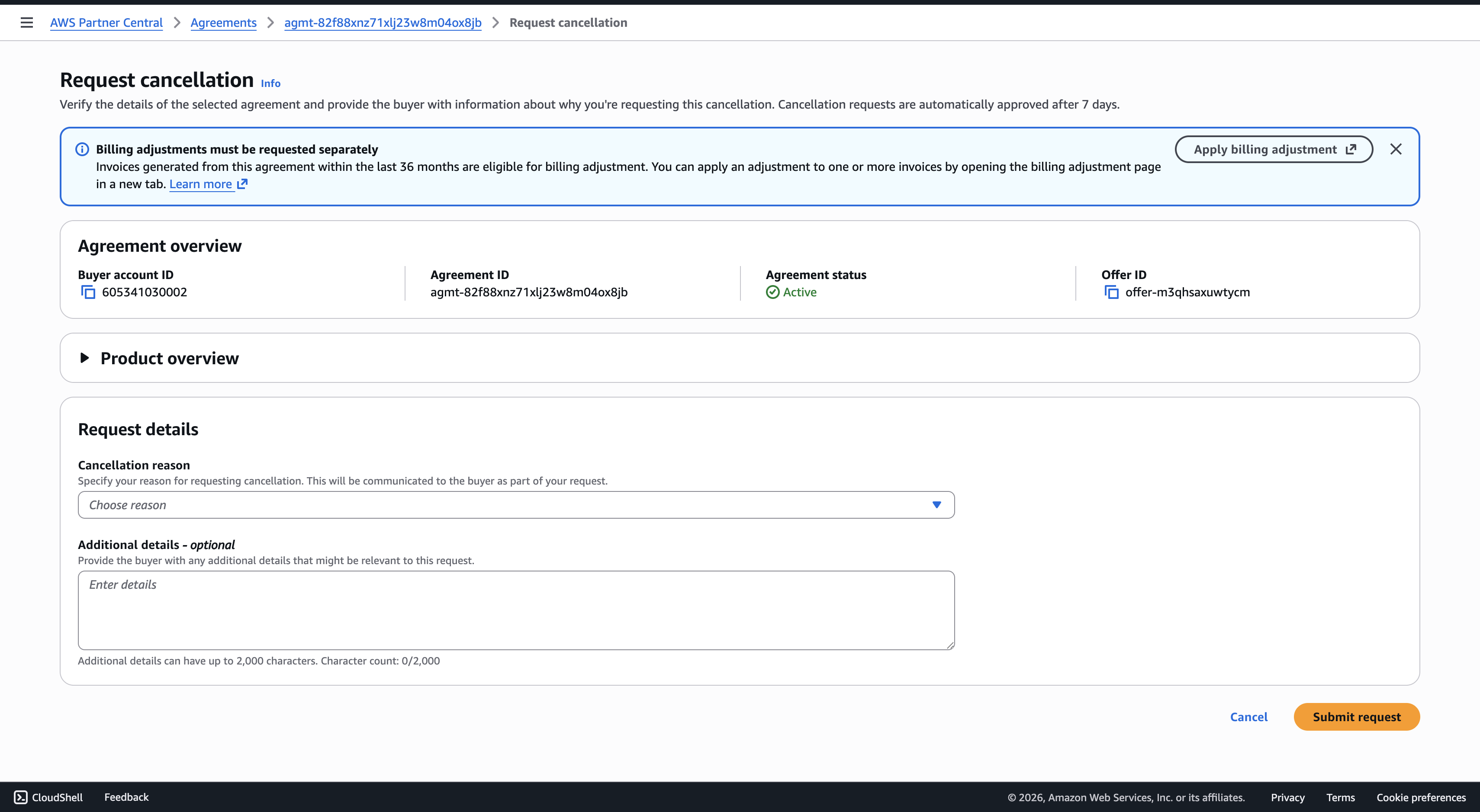
Step 6: Submit the Cancellation Request
Once you've filled in the reason and additional details, submit the cancellation request.
You'll receive a confirmation message indicating that the request has been submitted to AWS for processing.
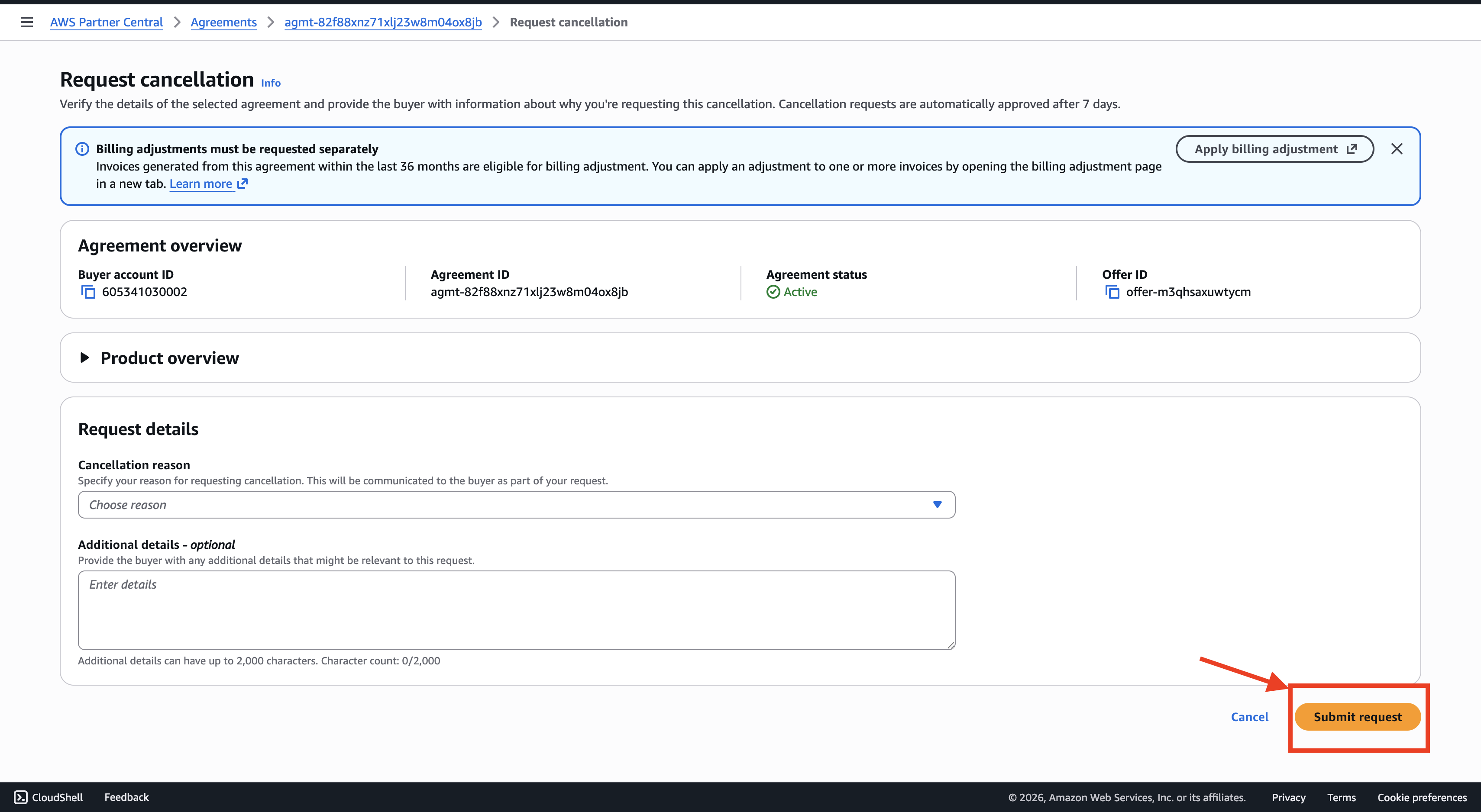
You will also get a URL link for Cancellation confirmation from the buyer, you can share the link with the buyer to expedite the process.
If not approved within 7 days , the contract will be cancelled automatically.
After Submission
Processing time — The cancellation is typically reviewed and processed by AWS after a confirmation from the buyer's side. The agreement status will update on both the seller and buyer sides once processed.
Refund handling — Cancellation does not automatically issue a refund for amounts already paid. If the buyer is entitled to a refund, you'll need to submit a separate billing adjustment using the self-serve billing adjustment process.
Record-keeping — Log the cancellation in your internal records, including the agreement ID, cancellation reason, and any related support case or buyer request reference. This ensures the cancellation is traceable for reconciliation and any future buyer queries.
Important Notes
Cancellation ≠ refund. Cancelling an agreement terminates it but does not automatically refund previously paid amounts. Use a billing adjustment if a refund is also required.
Contract-based and private offers. For contract-based subscriptions — especially private offers or those beyond the initial 48-hour window — cancellation may require coordination between buyer, seller, and AWS. AWS may engage both parties before finalizing.
Use the Agreement ID for filtering. It's the only filter that uniquely resolves to a single agreement.
Verify before submitting. Once submitted, reversing a cancellation typically requires creating a new offer and agreement — there is no simple undo. Confirm the agreement and reason before clicking submit.
If interested in following the traditional method here is the steps to be followed :
How to Cancel an AWS Marketplace Subscription via the AWS Marketplace Management Portal (AMMP)
If you need to cancel a subscription purchased through the AWS Marketplace, you can do so using the AWS Marketplace Management Portal (AMMP). This guide walks you through each step to ensure your cancellation request is handled efficiently.
Step 1: Gather Necessary Information
Before you initiate a cancellation, make sure to have the following details on hand:
Subscriber’s AWS account ID
Product and offer identifiers (these can typically be found on the Agreements and Renewals or Billed Revenue dashboards)
Seller AWS account ID (if applicable)
Relevant billing period and invoice details
A clear reason for the cancellation (e.g., switching to a different offer, customer request, etc.)
Step 2: Access the AWS Marketplace Management Portal
Log in to the AWS Marketplace Management Portal using your AWS credentials.
Step 3: Open the Refund or Cancellation Request Form
Within the portal:
Navigate to the Support section
Select Request Refund – this form is used for both cancellations and refund requests
Step 4: Fill Out the Form
Provide the required information in the form, including:
Subscriber’s AWS account number
Product and offer IDs
Billing period and invoice reference
Requested refund amount (if applicable)
In the Additional Comments section, clearly specify the request for cancellation. For example:
"Please cancel this agreement effective [Insert Date]."
Include any relevant context or justification for the request.
Step 5: Submit the Request
Once completed, submit the form. A support case will be automatically created in the AWS Support Center. You can use this case to monitor progress and provide any follow-up information if needed.
Make a note of the support ticket ID for future tracking.
The support ticket ID will appear on the confirmation page immediately after submission. It's recommended to save or note this ID for future reference, as it will also be accessible within your AWS Support Center dashboard.
Step 6: Track the Request Status
The support case will reflect the current status, which may be one of the following:
Completed – The cancellation has been processed; no further action is required
Pending – Processing will occur after the current billing cycle
Action Required – Additional input is needed from your side; you can respond directly via the support case
Step 7: Final Notes and Timeline
Once approved and processed, any associated refund will appear in the customer’s AWS billing account within 24 to 48 hours. However, the refund may take up to 5 business days to be reflected in the bank account.
Note: For contract-based subscriptions—especially private offers or those beyond the initial 48-hour window—cancellation typically requires approval from both the buyer and the seller, coordinated through AWS.
Important Distinction: Vendors can only withdraw offers that are published but not yet accepted. Once an offer is accepted by a buyer, vendors cannot cancel it from their side - the cancellation must be initiated through the AWS Marketplace Management Portal following the process outlined above.
Note: For contract-based subscriptions—especially private offers or those beyond the initial 48-hour window—cancellation typically requires approval from both the buyer and the seller, coordinated through AWS.
Important: For contract-based subscriptions—especially those involving private offers or those beyond the initial 48-hour window—cancellations must be initiated by the seller through the AMMP. AWS Customer Service may engage with both the buyer and the seller to coordinate final approval.
Was this helpful? If you have any questions or run into any issue, reach out to us on Slack or at support@clazar.io - we're happy to help.