Microsoft Entra ID Integration Guide
Last updated: June 17, 2025
Overview
Connect your Microsoft Entra ID account to Clazar to automatically identify SaaS applications used across your organization. Clazar uses Azure AD App to detect all apps configured in your Microsoft Entra ID environment, creating a unified application inventory, uncovering shadow IT, and enabling license optimization and security insights.
Connection Setup
Prerequisites
The user should have the "Global Administrator" role.
Integration Steps
Log in to your Azure portal.
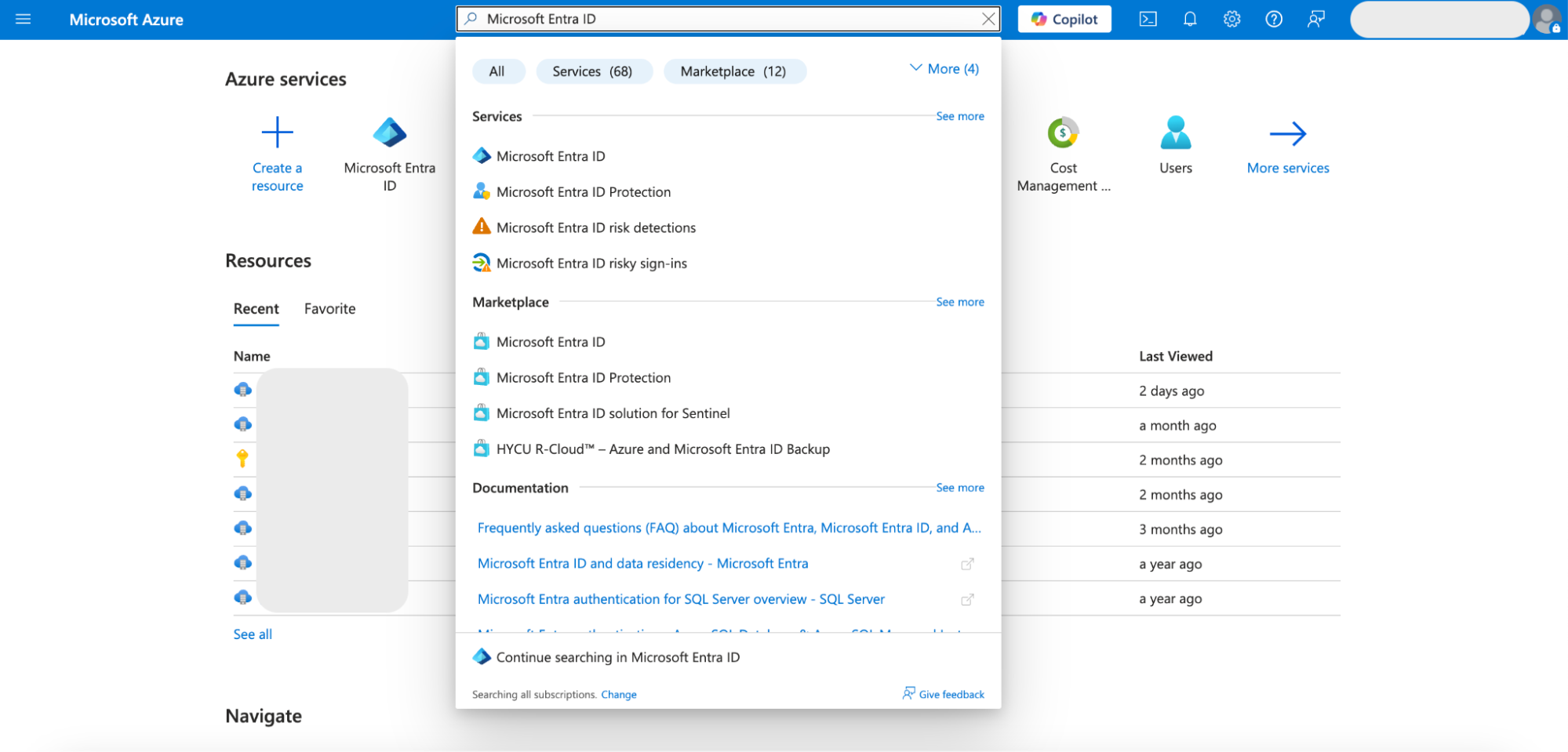
Search and select "Microsoft Entra ID" from the top search bar.
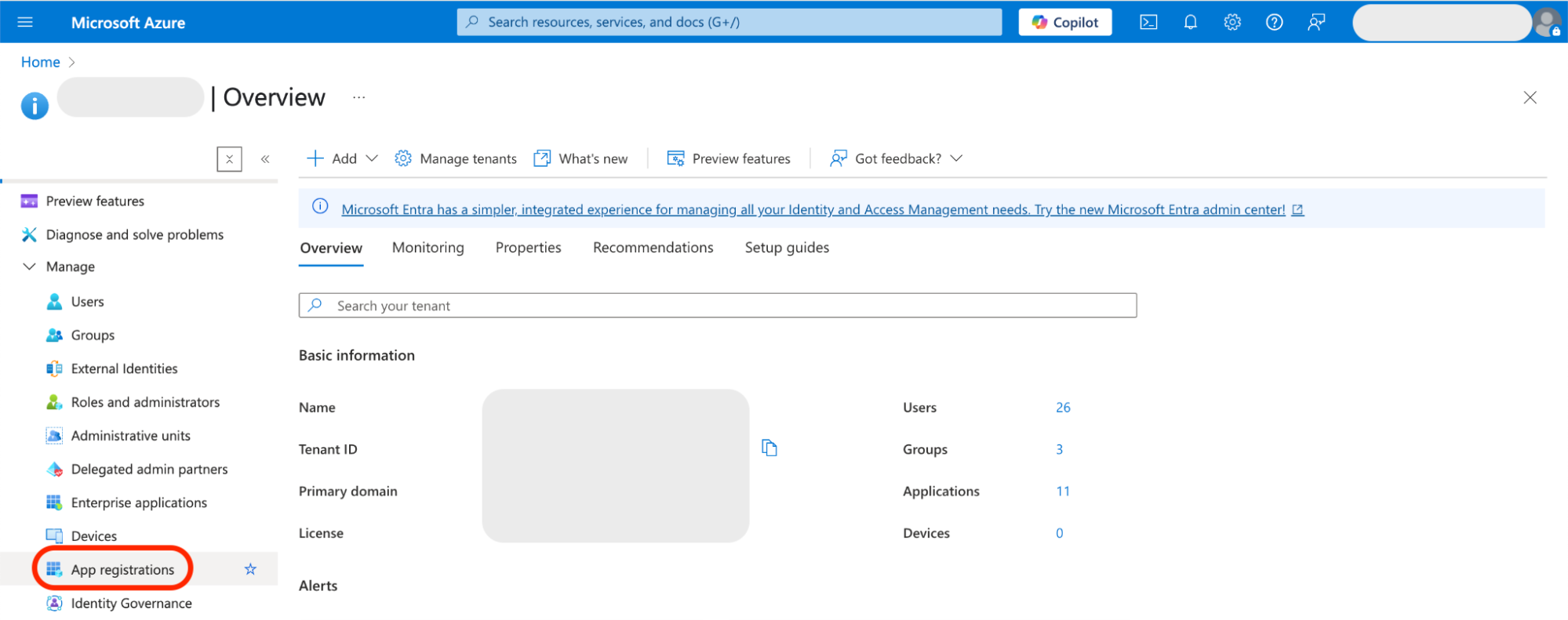
Go to "App registrations" under "Manage" on the left navigation bar.
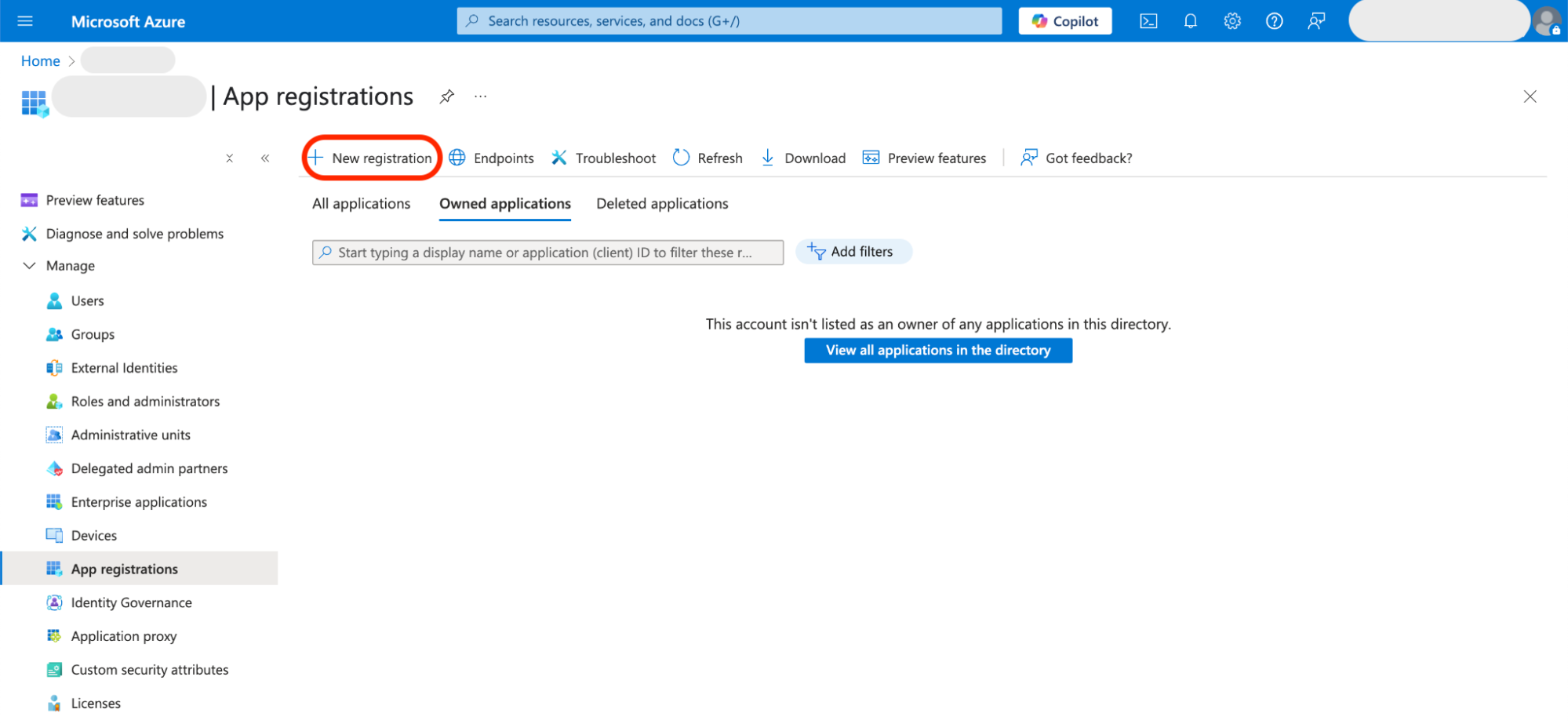
Click on "New registration".
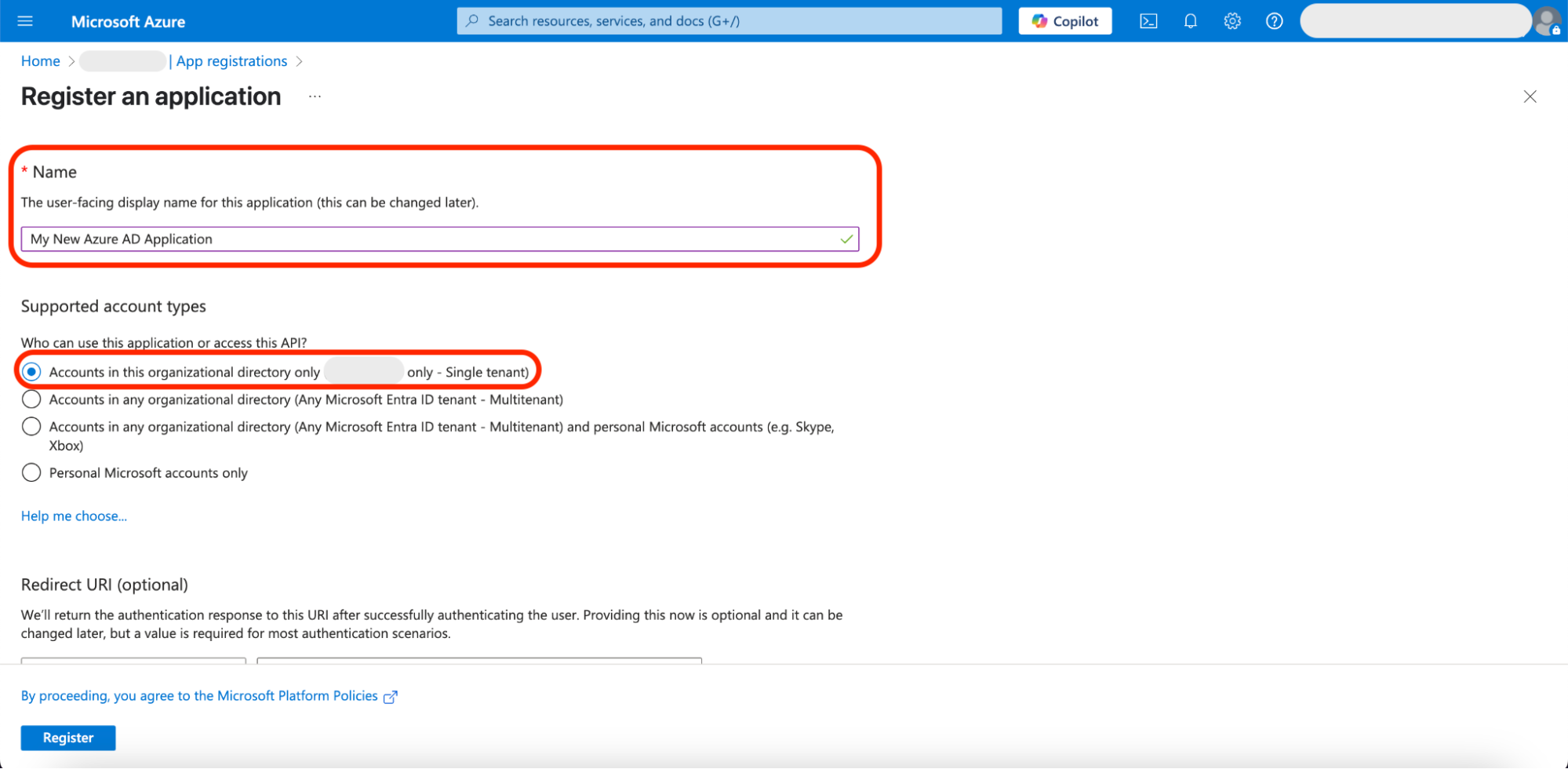
On the "Register an application" form:
Enter the name of the application.
Select the "Accounts in this organizational directory only (<domain> - Single tenant) option under "Supported account types".
Leave "Redirect URI" empty.
Click on "Register".
Your new application will be created.
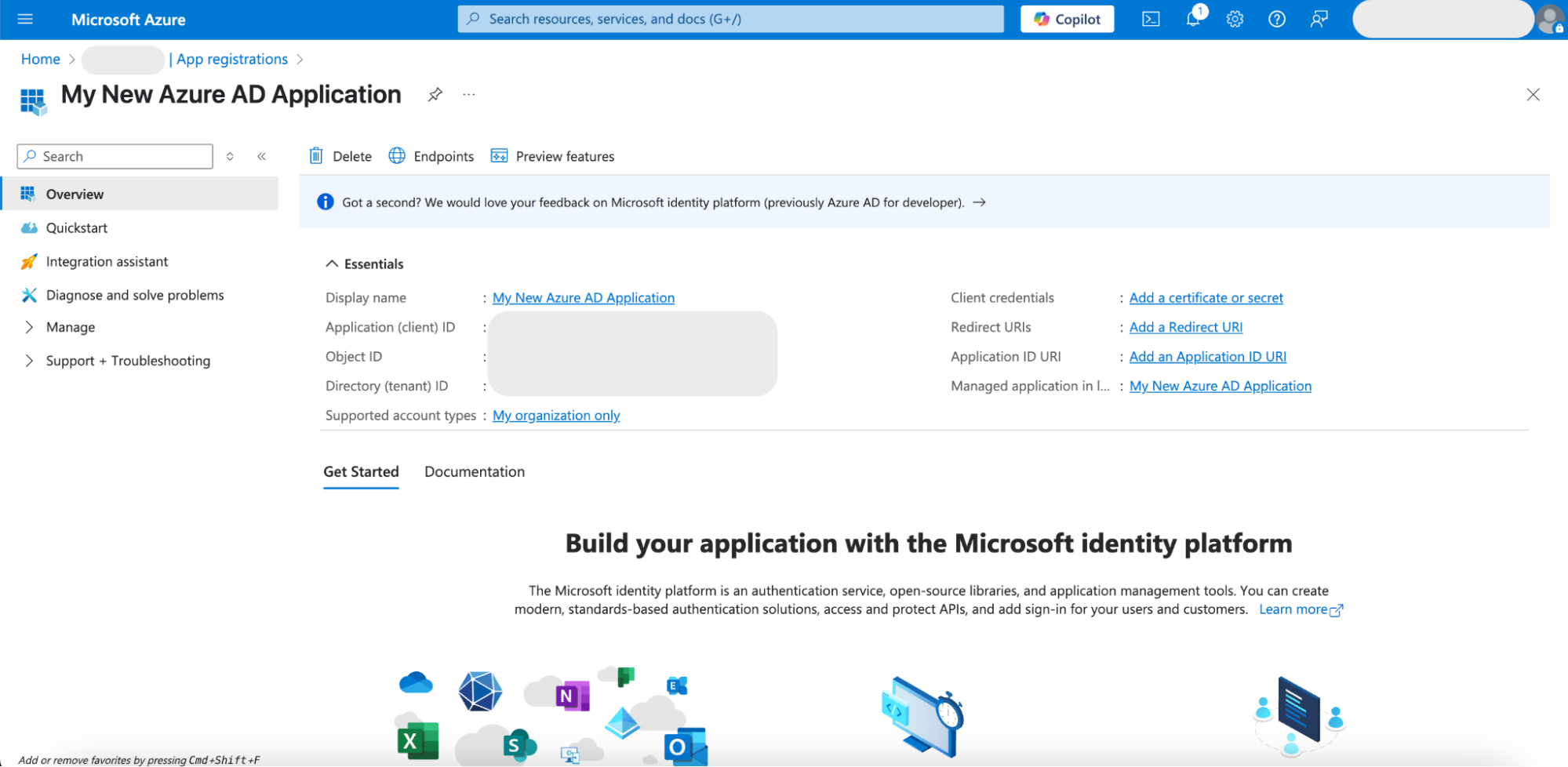
Go to "API permissions" in the newly created application under "Manage" on the left navigation bar.
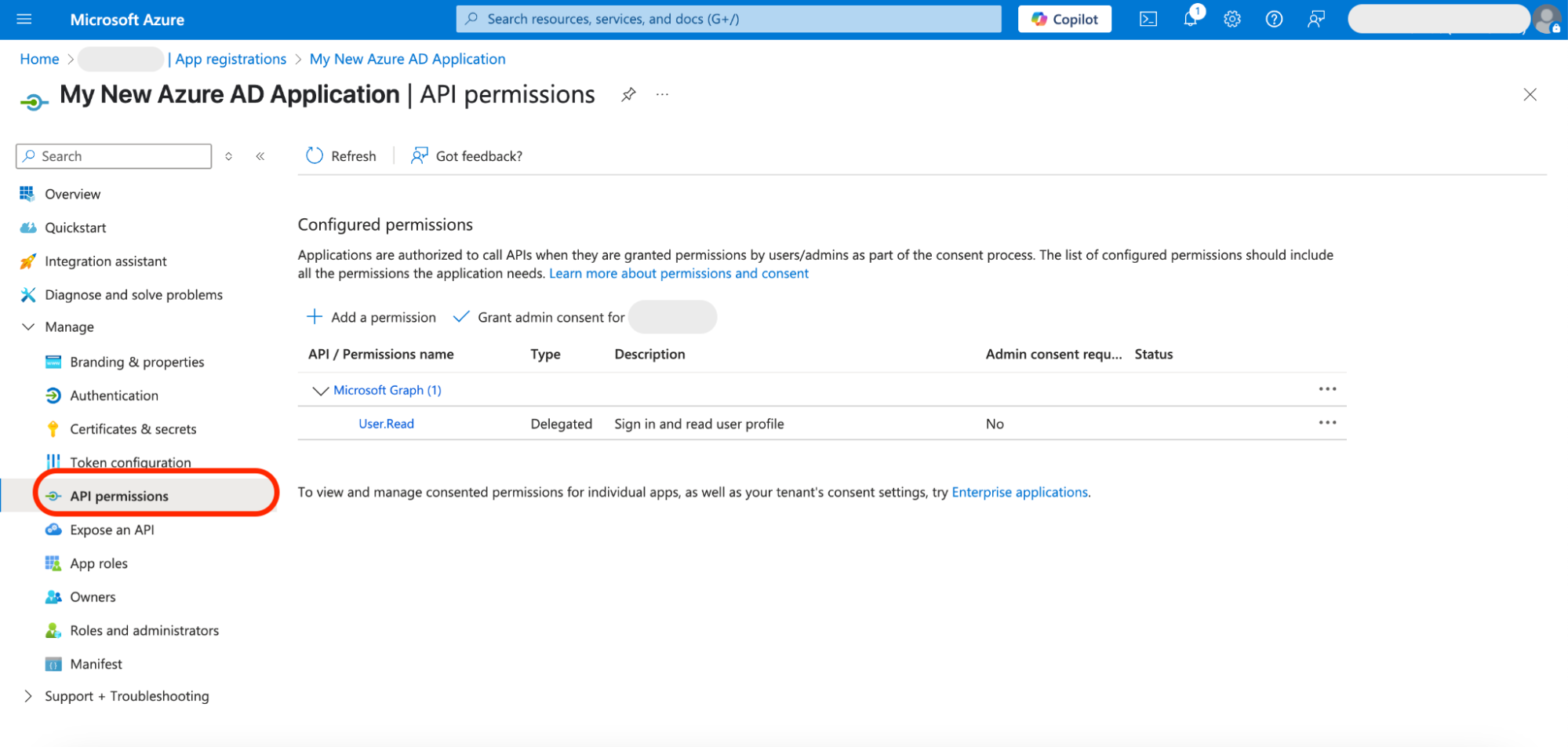
Click on "Add a permission".
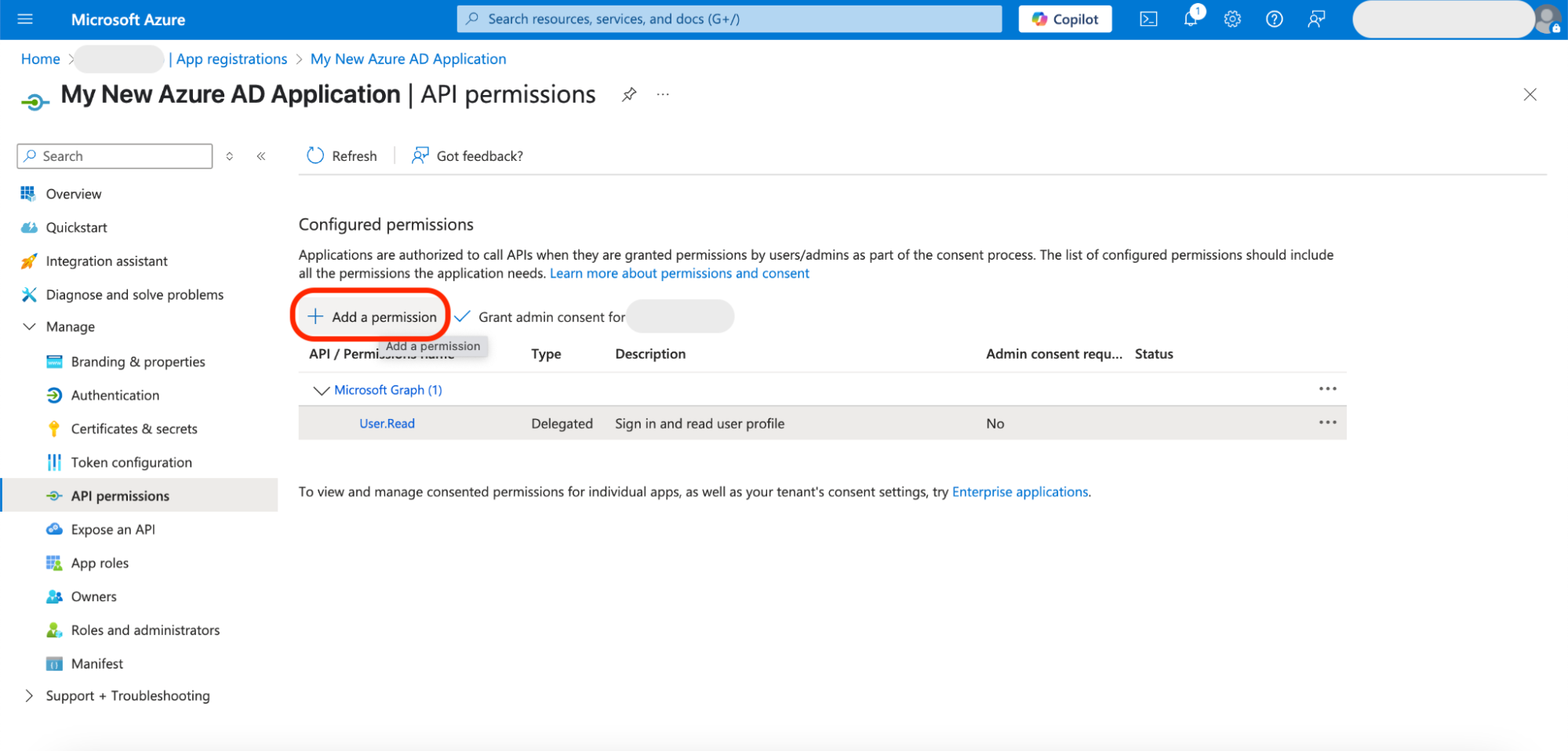
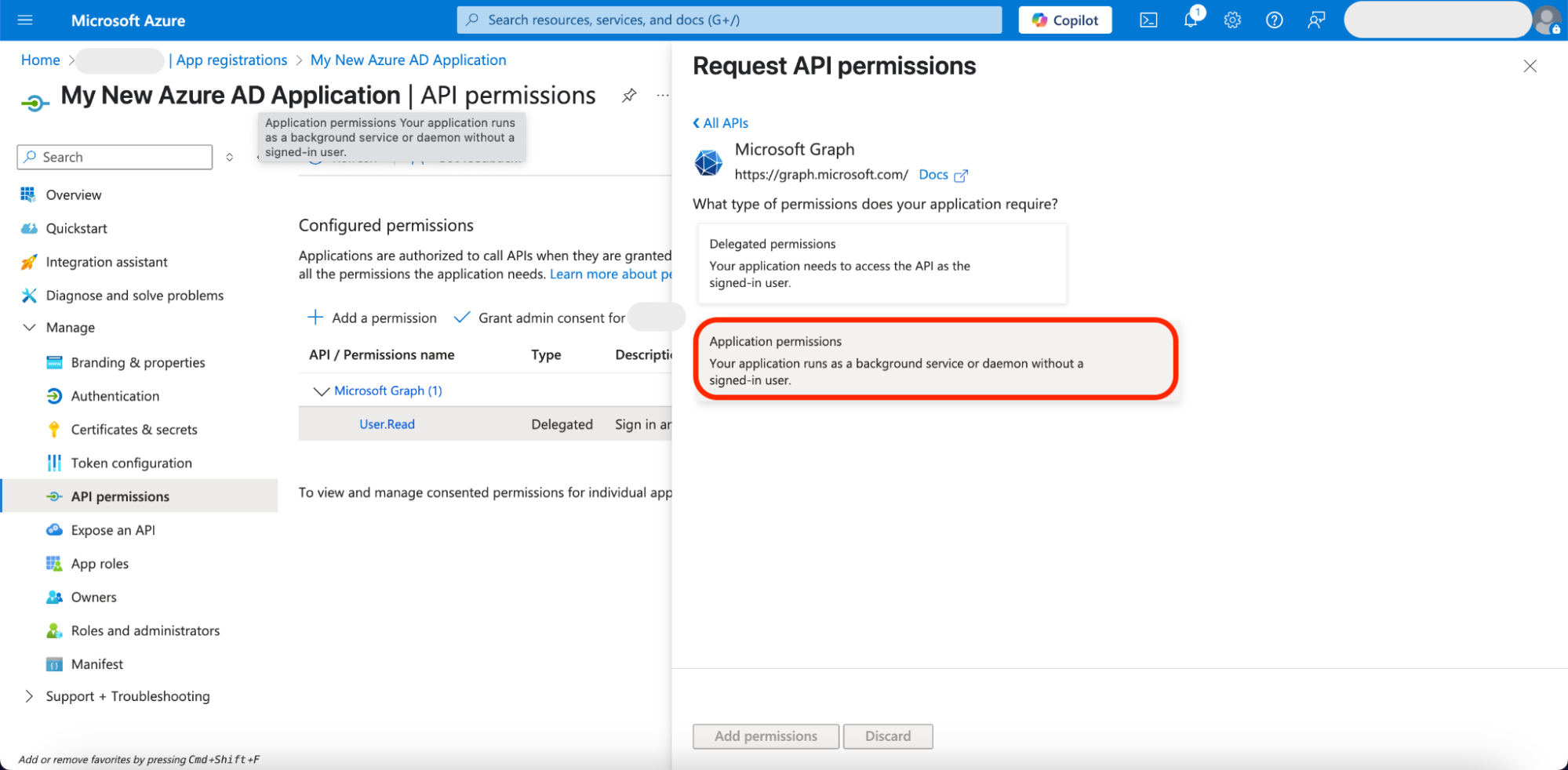
Select "Microsoft Graph" in the side drawer.
Select "Application permission".
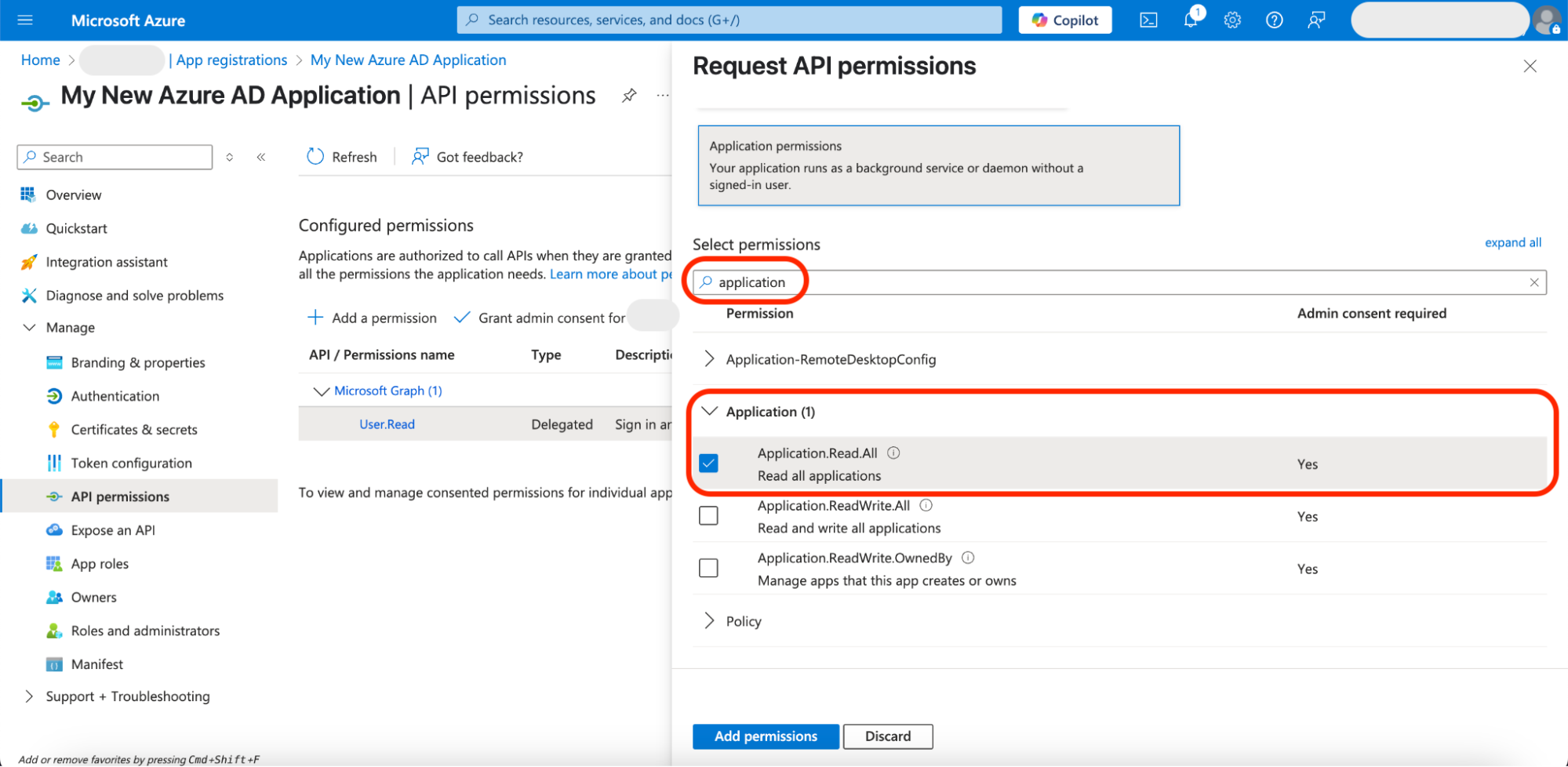
Search for "application" and select "Application.Read.All" under "application". Then click "Add Permissions".
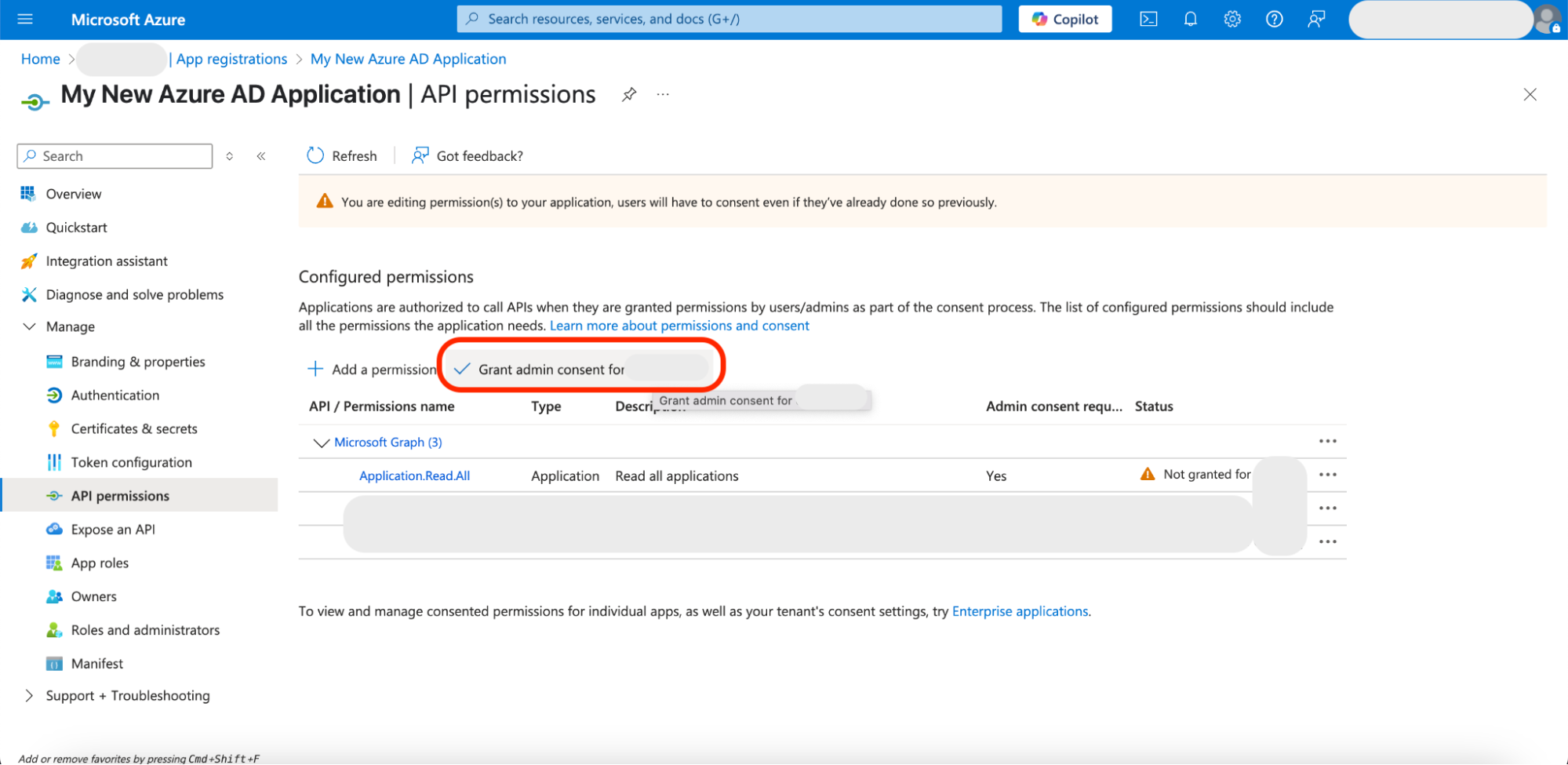
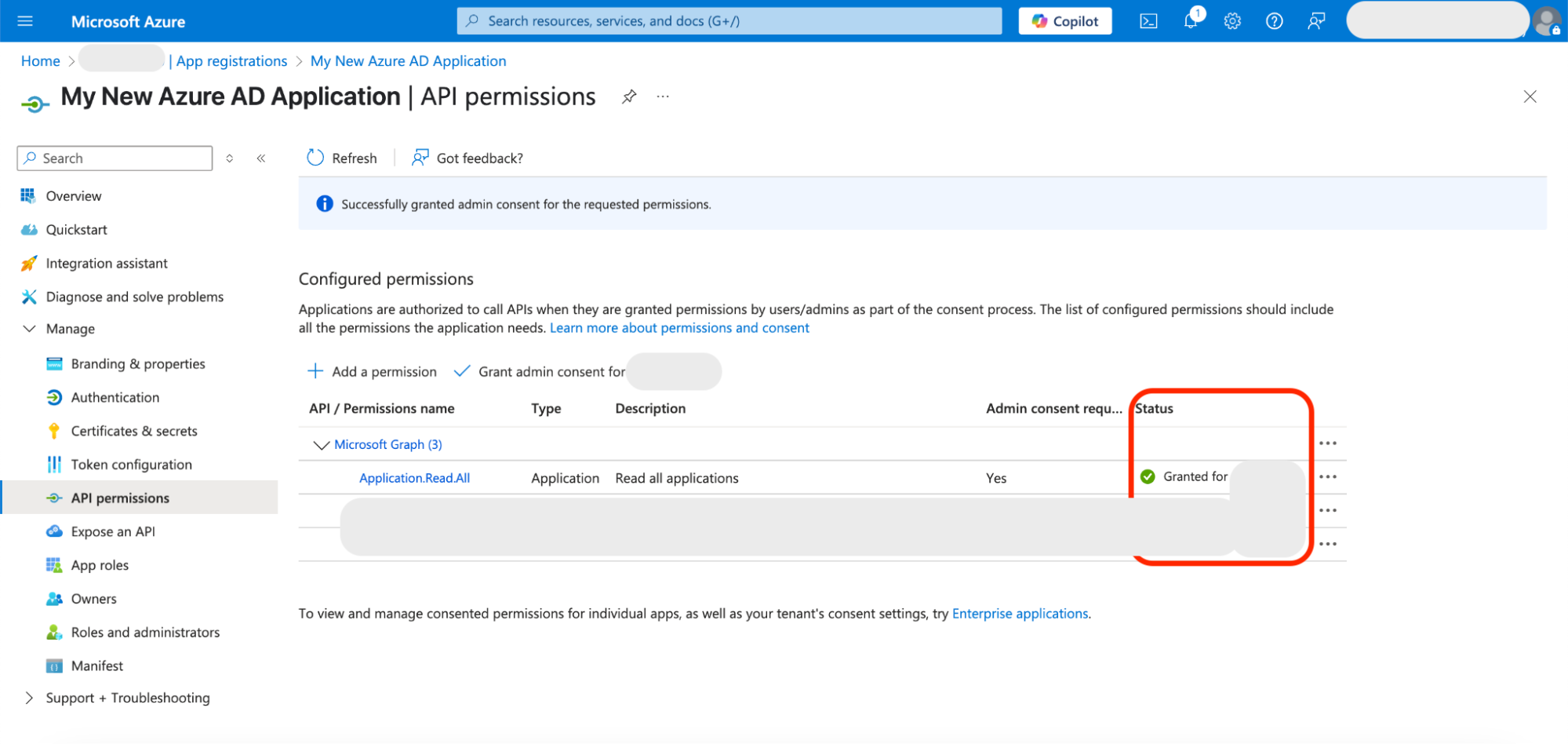
You'll be redirected to the "API permissions" page. Click on "Grant admin consent for <domain>".
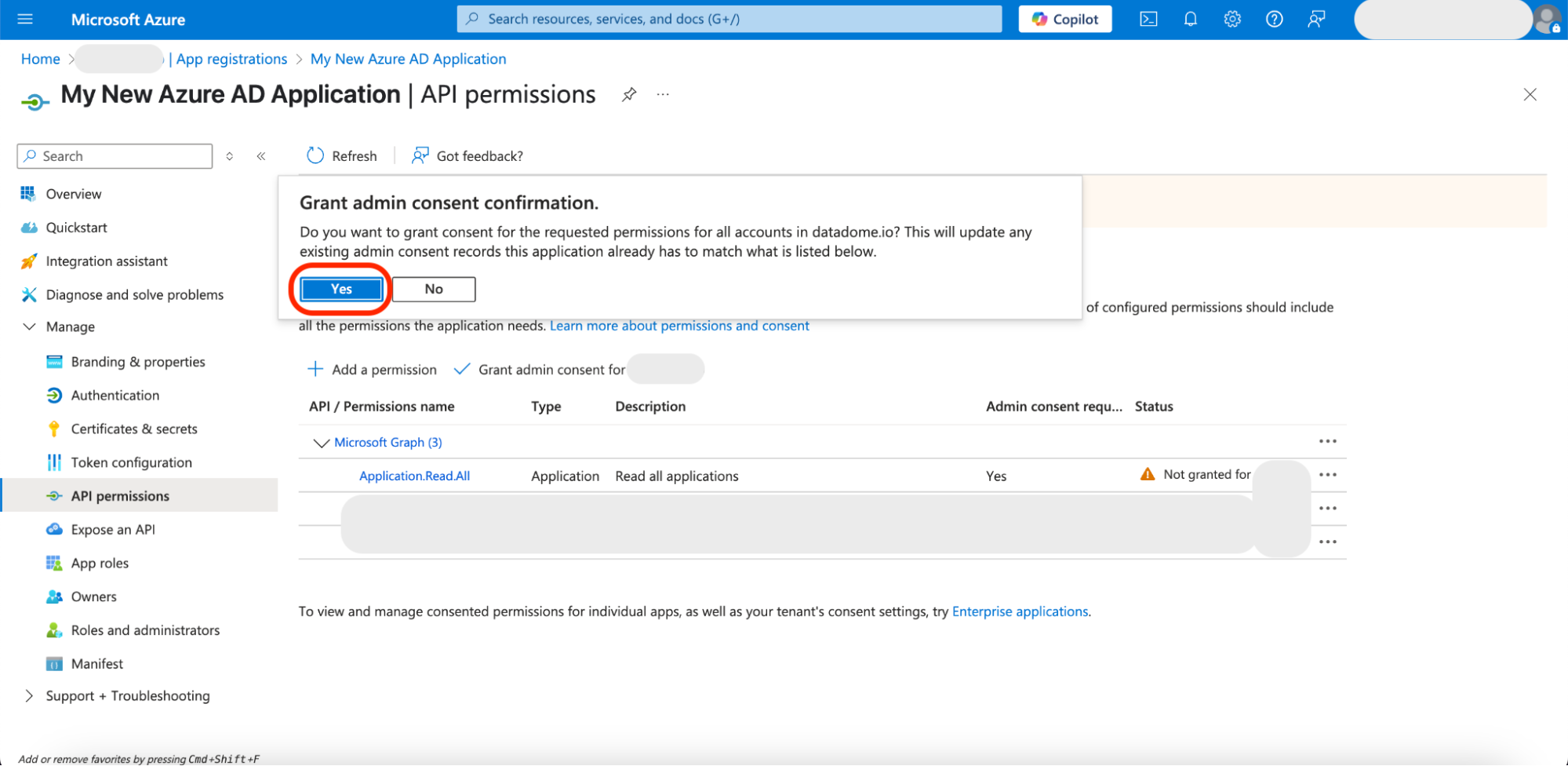
Click "Yes" in the pop-up.
You'll see status as "Granted for <domain>".
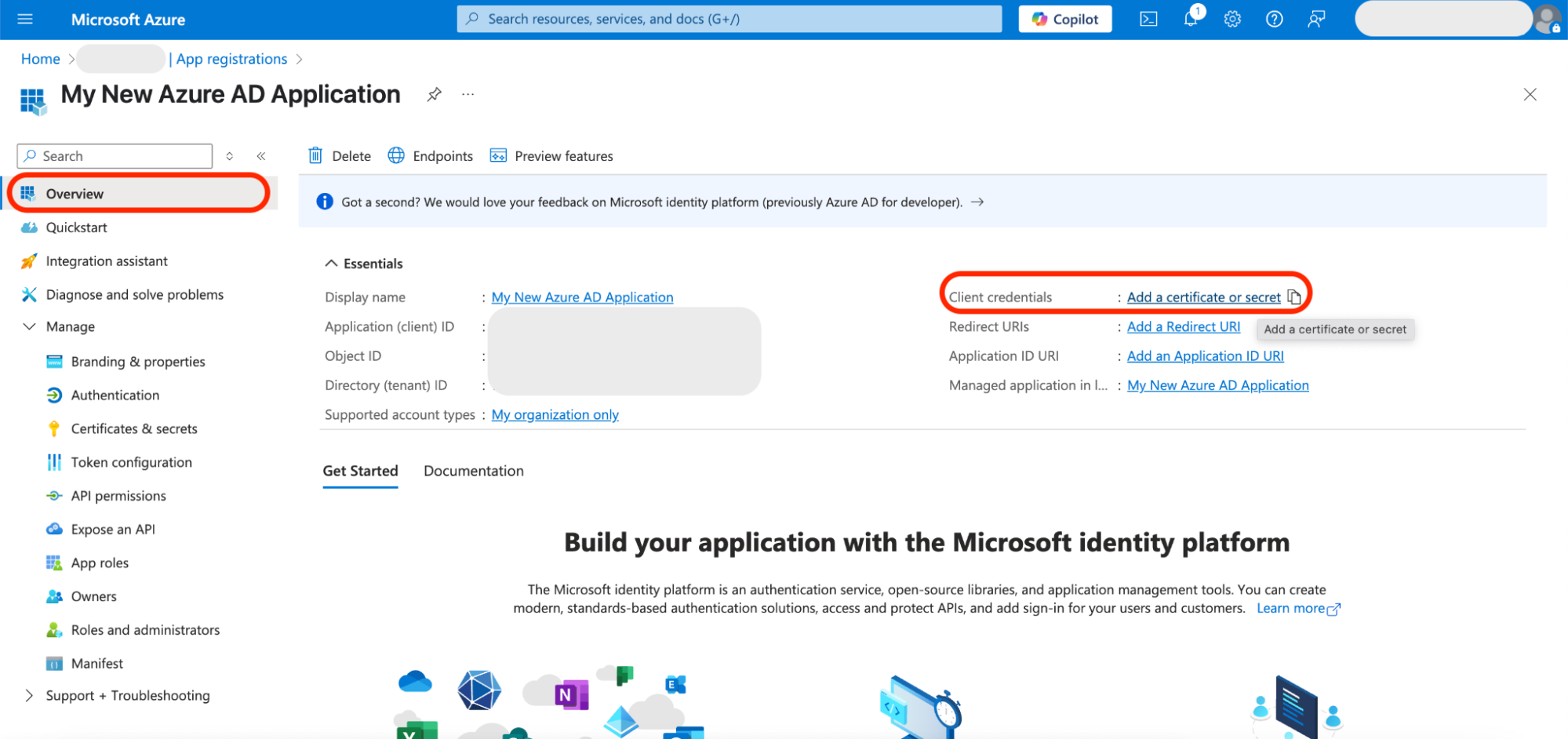
Go to the application's "Overview" page and click on "Add a certificate or secret" in "Client credentials."
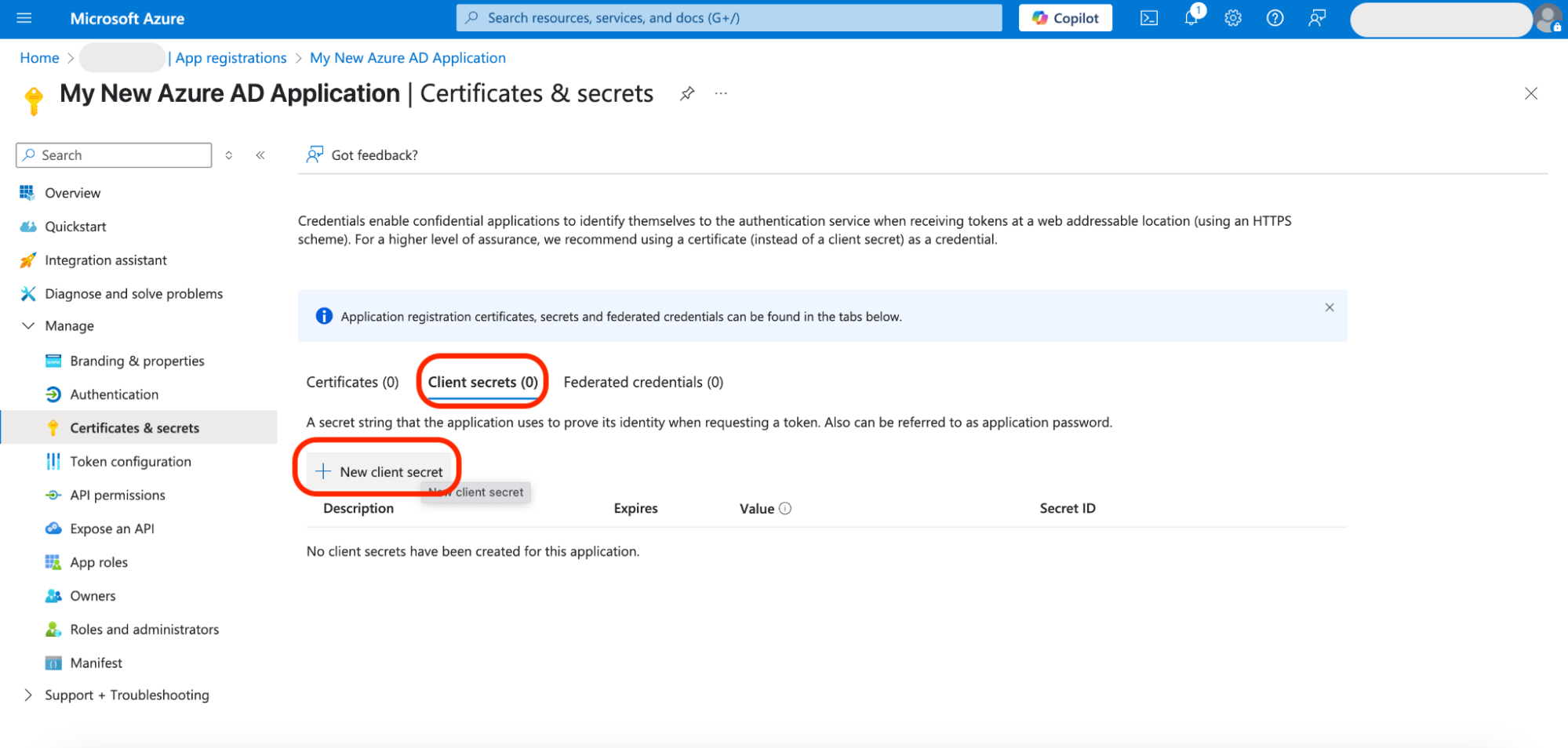
Under the "Client secrets" tab, click on "New client secret".
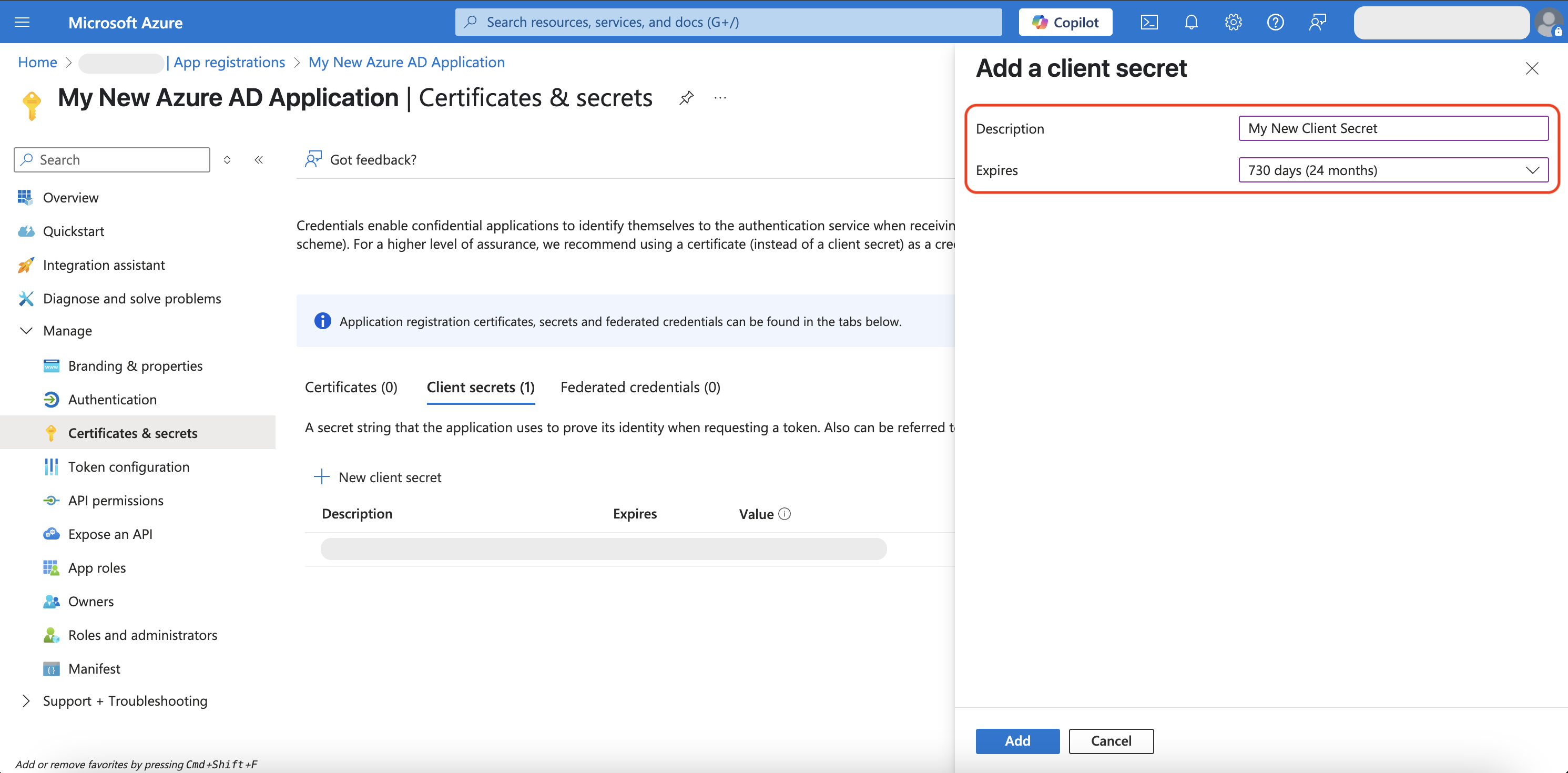
In the side drawer, add "Description" and select expiration.
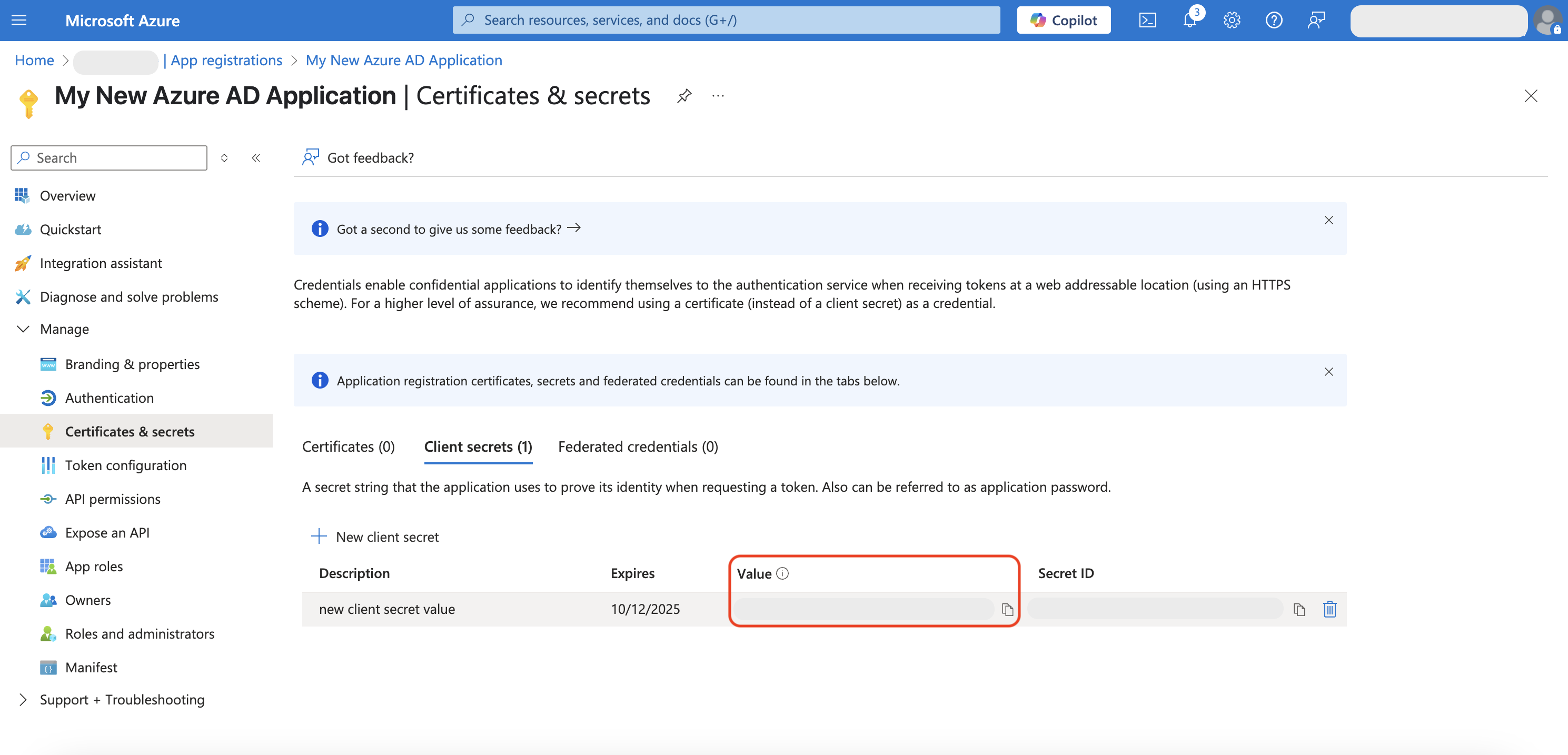
You'll see the newly created client secret. Copy "Value" since it'll be required later on.
Client secret values cannot be viewed except immediately after creation. Be sure to save the secret when it is created before leaving the page.
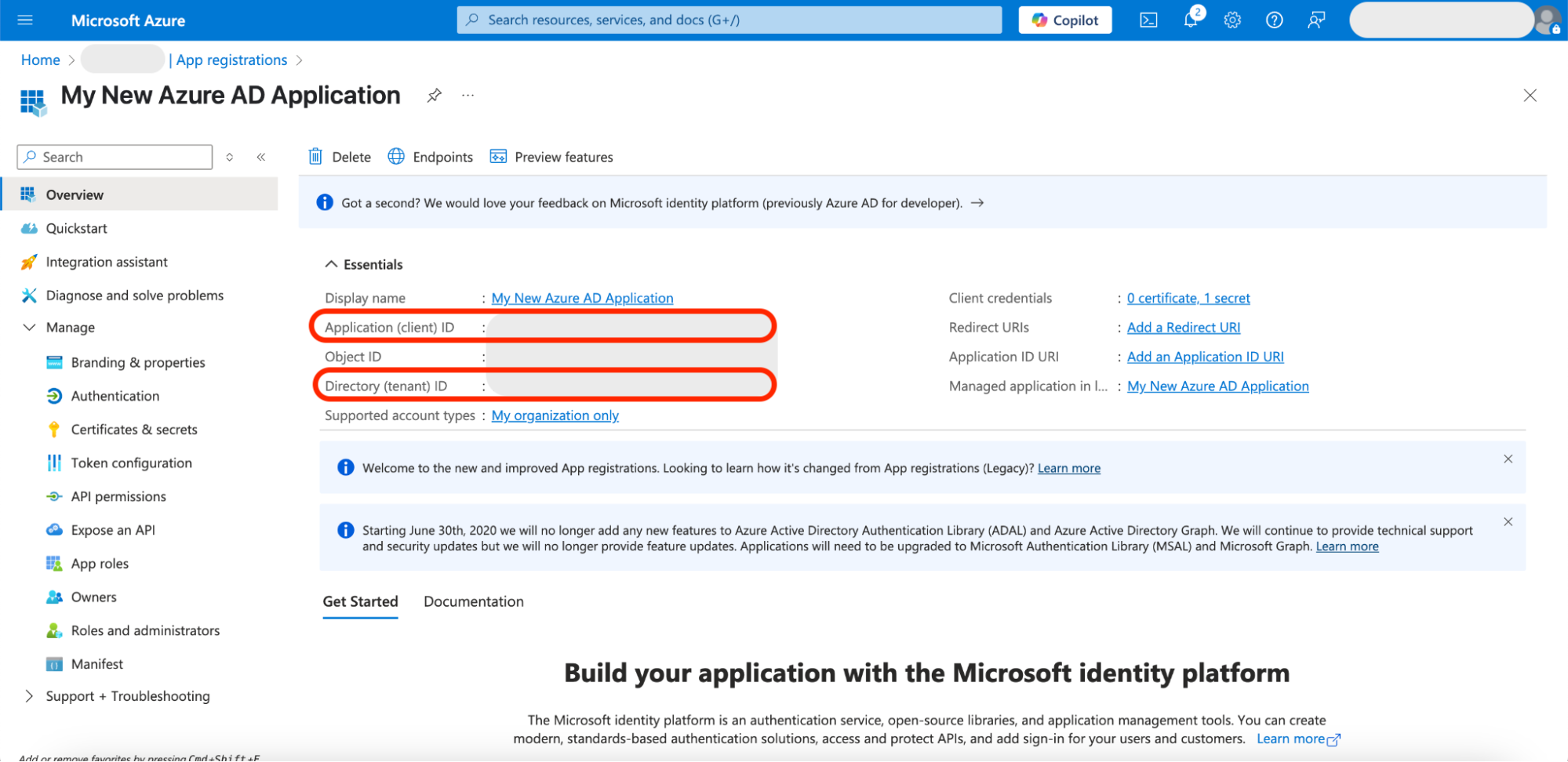
From the application's overview page, copy the "Application (client) ID" and "Directory (tenant) ID" since these will be required later.
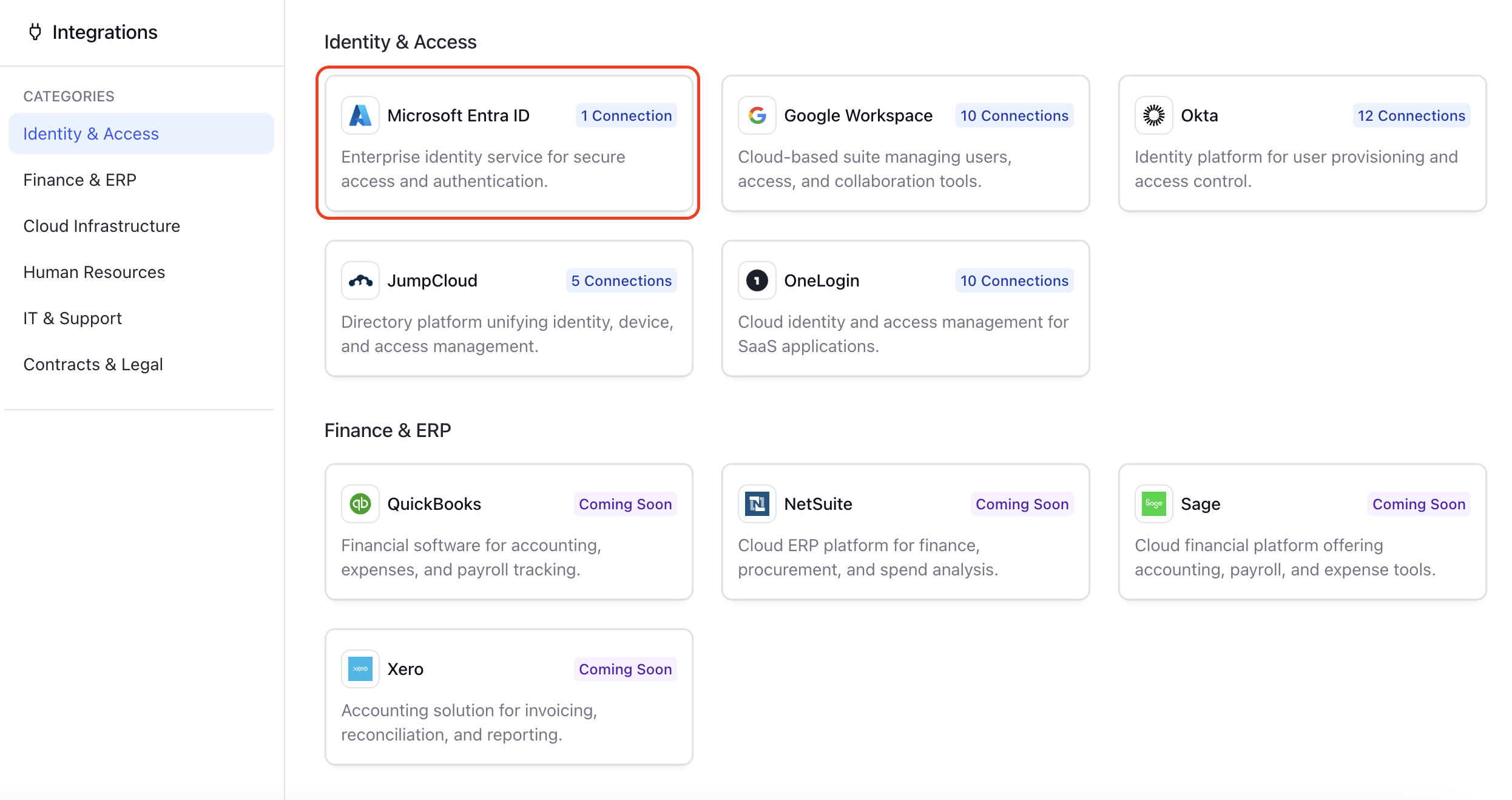
Go to the Integrations page and select Microsoft Entra ID in your Clazar app.
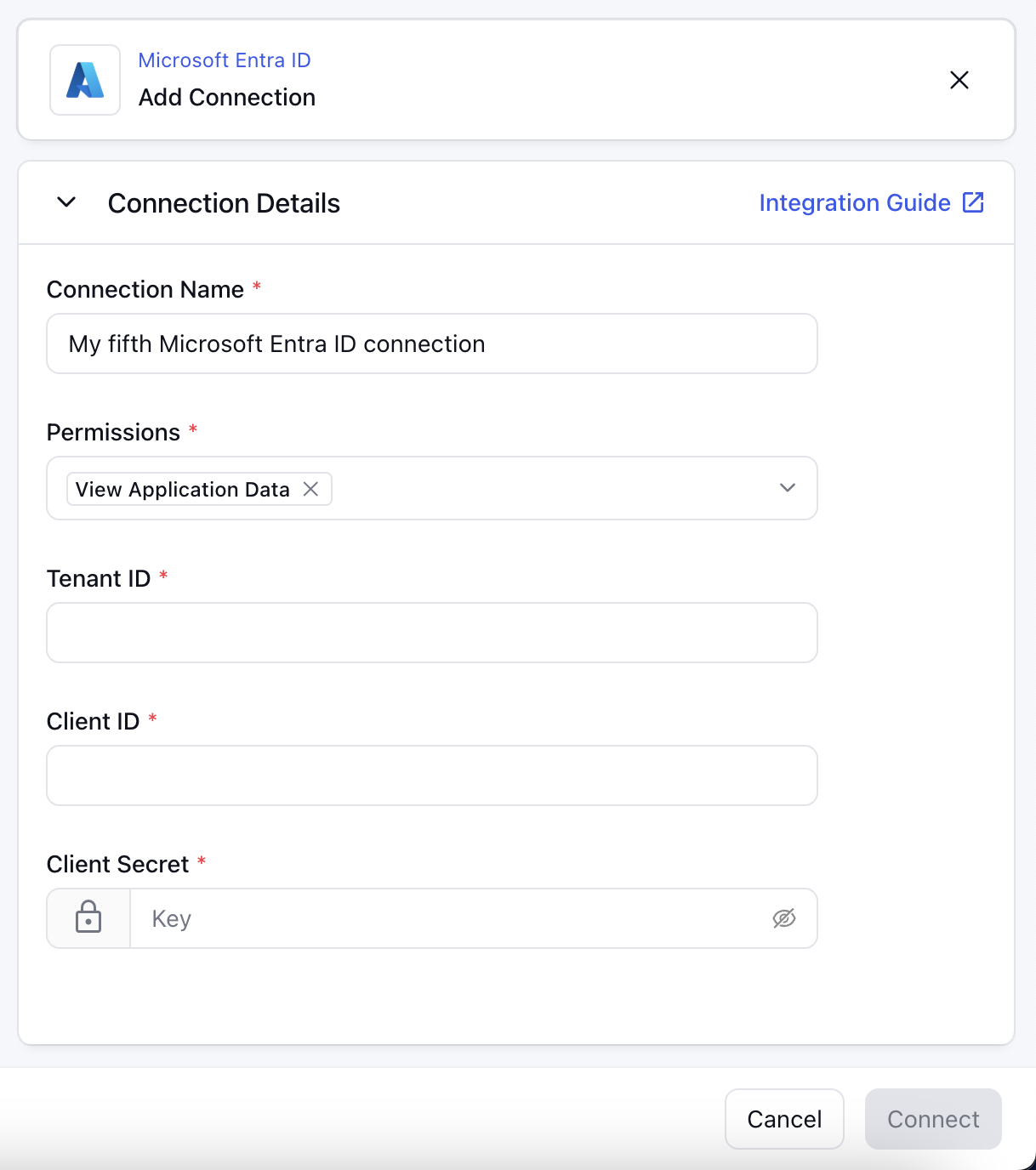
Click on the "Add Connection" button and fill in the details:
Select the view permission as Clazar requires it to fetch application data from your Microsoft Entra ID account.
Paste the Tenant ID, Client ID, and Client Secret copied earlier from your Microsoft Entra ID account.
Click "Connect".
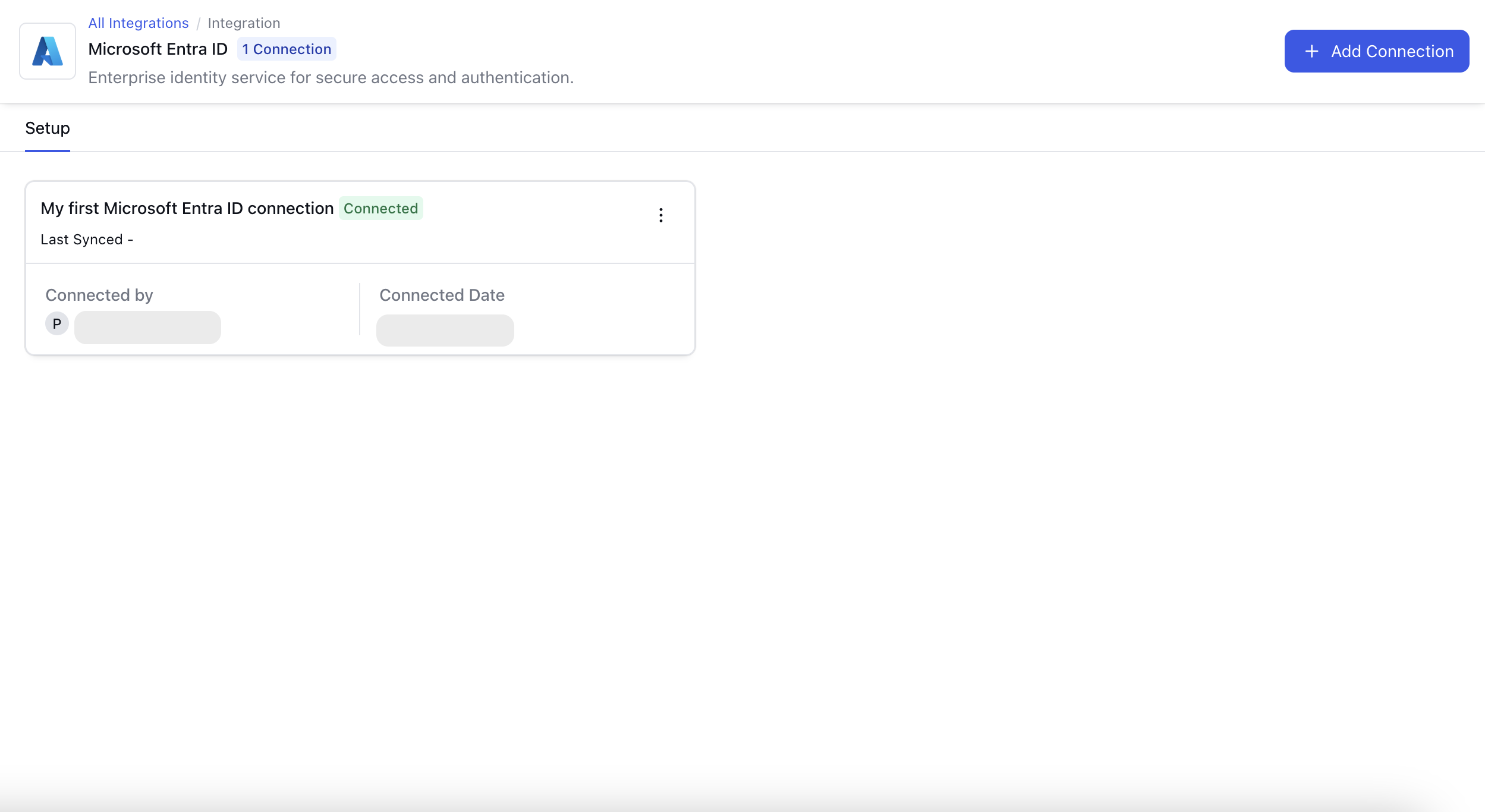
Your connection will be visible in the Microsoft Entra ID integrations details page.
Release Notes
Version | Date | Notes |
1.0 | May 2025 |
|