Set up the Campfire integration
Last updated: November 16, 2026
Clazar reads your Campfire invoices and reports the overage on each one to AWS Marketplace as usage, so you don't have to enter it by hand. The setup takes about 10 minutes.
You'll switch between the two: step 1 is in Campfire, and steps 2 and 3 are in Clazar. Clazar then turns metering on with you.
Overview
What's reported: each invoice's overage, net of credit memos. Prepaid commitments are never reported, so they are never billed twice.
Where it goes: AWS Marketplace only. Campfire metering doesn't support Azure or GCP.
How agreements are matched: each AWS agreement is matched to its Campfire contract through the Salesforce opportunity. You don't map them by hand.
Before you start
Campfire is turned on for your Clazar account. If you don't see Campfire under Integrations, contact your Clazar team.
Your AWS Marketplace setup is complete in Clazar, and metering is turned on for the listings you want to report.
Each AWS private offer is mapped to its Salesforce opportunity in Clazar. This is how Clazar finds the right Campfire contract.
You can create API keys in Campfire.
Step 1 — Campfire: Create an API key
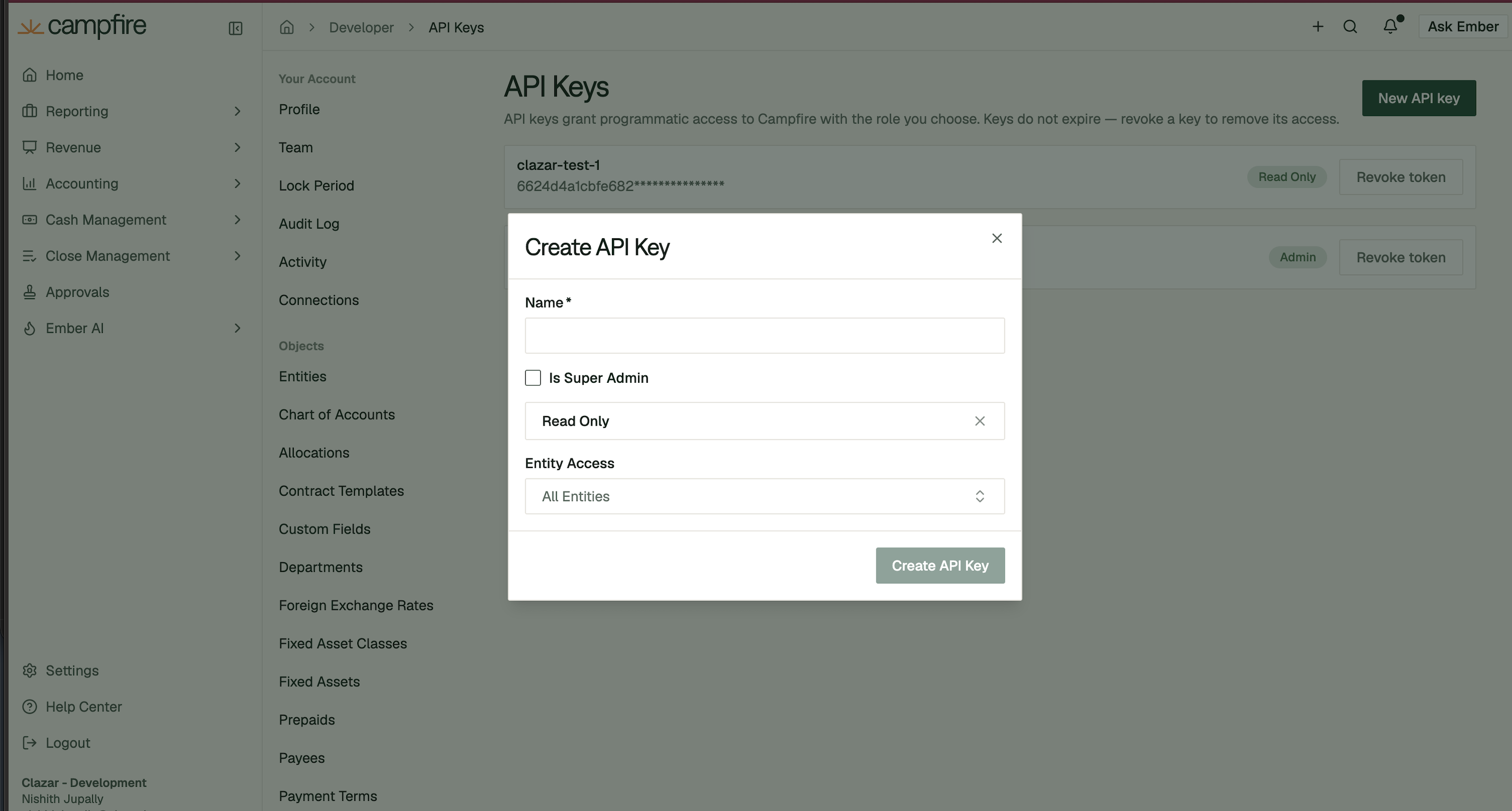
In Campfire, go to Settings → API Keys (Campfire's guide).
Create a user for Clazar and give it the View only role. It must be able to view Invoices, Contracts and Customers.
Choose Create API Key and copy the key. Campfire shows it only once.
Important: create an API key, not an OAuth app. An OAuth app gives you a client ID and secret, which Clazar doesn't accept.
Step 2 — Clazar: Connect Campfire
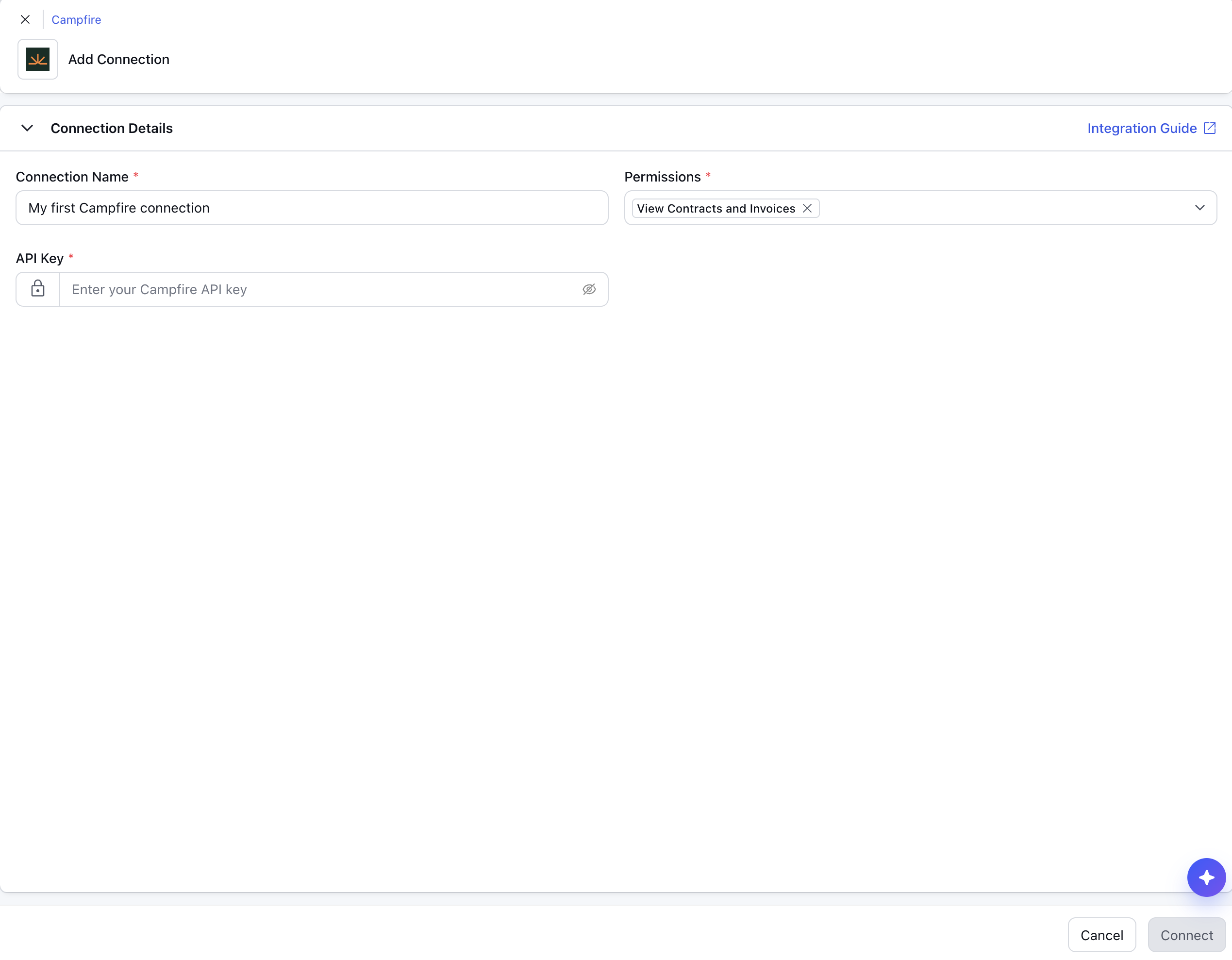
Go to Integrations → Campfire → Add Connection.
Keep the View Contracts and Invoices permission ticked.
Paste the key into API Key and choose Connect.
Clazar checks the key when you connect. If Campfire rejects it, the form shows an error and nothing is saved. You can have one Campfire connection per Clazar account.
Step 3 — Clazar: Map each listing to a usage dimension
Clazar reports overage in the units of one usage dimension on each listing. The quantity sent to AWS is the overage amount divided by that dimension's price on the agreement.
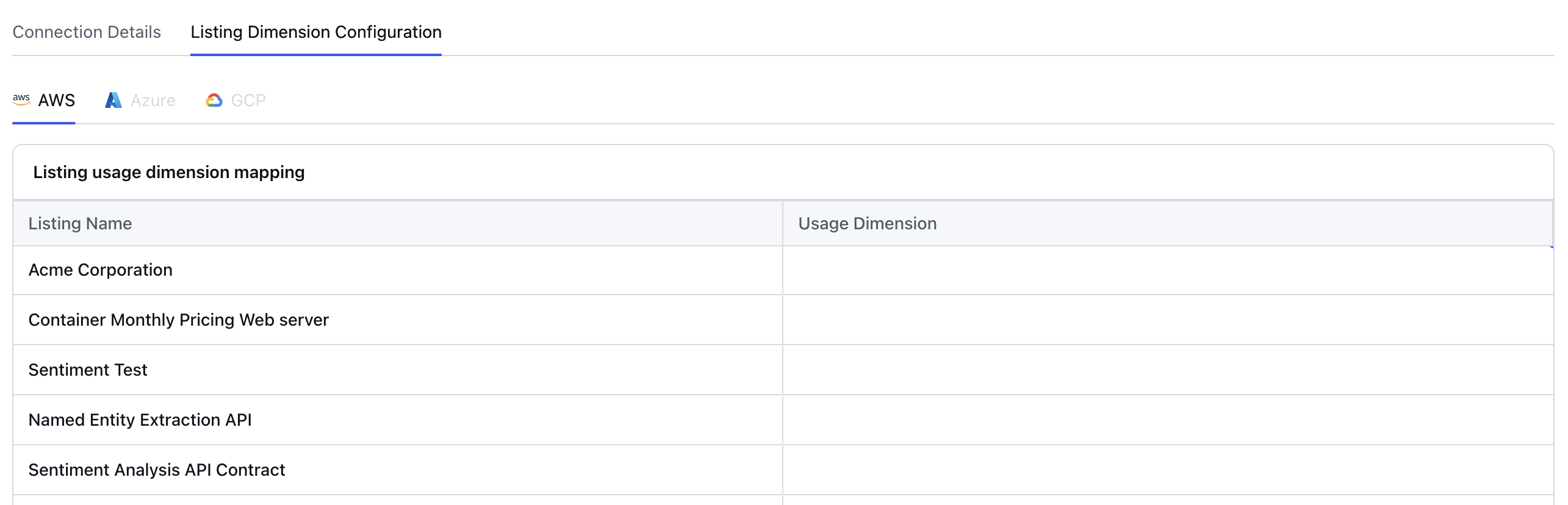
Open the Campfire connection and go to the Listing Dimension Configuration tab. The connection must show Connected.
On the AWS tab, double-click the Usage Dimension cell for each listing and pick the dimension.
Pick a dimension that each agreement on the listing has a price for. An agreement with no price for the dimension isn't metered.
How agreements are matched
Clazar matches each active AWS agreement to a Campfire contract on its own, about once an hour:
AWS agreement → its private offer → the Salesforce opportunity mapped to that offer → the Campfire contract whose deal is that same opportunity.
For a match, make sure that:
The private offer is mapped to its Salesforce opportunity in Clazar.
In Campfire, the contract's deal is that same Salesforce opportunity, and only one contract uses it.
The contract is marked as fulfilled through Marketplace, with marketplace AWS Marketplace. Clazar ignores direct contracts.
If the contract has a marketplace AWS account ID, it is the buyer's AWS account on the agreement.
Clazar only reads invoices for contracts it has matched. Clazar never changes a match once it's made. If a contract changes, contact your Clazar team.
How and when metering runs
Which invoices: invoices with status Sent in Campfire that have an overage. Draft, open, uncollectible and voided invoices are never reported. Invoices already marked partly paid or paid before Clazar reported them are held for review.
The wait: Clazar waits at least 48 hours after an invoice is sent, so you have time to correct or void it before it reaches the buyer's AWS bill.
The start date: only invoices sent on or after your start date are reported. Pick a date after the last invoice you reported by hand.
Turning it on: Clazar sets the start date and turns metering on with you. Until then, nothing is sent to AWS.
Whole units: AWS takes whole units. Any part of a unit left over is carried and reported later, once it adds up to a whole unit.
Troubleshooting
What you see | What to do |
|---|---|
Campfire rejects the key when you connect | Check you copied an API key, not an OAuth client ID or secret, and that its role is View only with access to Invoices, Contracts and Customers. |
An invoice hasn't been reported | Check it's Sent, has an overage, was sent at least 48 hours ago, and was sent on or after your start date. |
No invoices from a contract are reported | The agreement may not be matched. Check the points in How agreements are matched. |
An agreement is matched but not reported | Check the listing has a usage dimension, the agreement has a price for it, and metering is turned on for the listing. |
An invoice isn't in US dollars | Only USD invoices are reported. Contact your Clazar team. |
For anything else, contact the Clazar support team.
Related articles
Campfire: Quickstart (API keys)