Auto-connect Salesforce users to Clazar users
Last updated: September 26, 2026
Overview
Previously, admins had to manually map each Salesforce user to their Clazar user before they could access the Clazar widget, even when both accounts shared the same email.
With auto-connect, a Salesforce user who opens the widget is automatically mapped to the Clazar user with the same email address. New joiners with an existing Clazar account get access on their first visit, with no admin step needed.
Value it drives
No manual mapping: Anyone with an existing Clazar account gets widget access on their first visit.
Mapping visibility: The Auto-connect Salesforce users card shows how many Clazar users are mapped, with a direct link to Settings → Users.
How to get started
Match the emails: Make sure each user's Salesforce Email matches their Clazar email. Their Username can differ.
Open the Salesforce integration page: Go to Integrations → Apps → Salesforce and find the Auto-connect Salesforce users card.
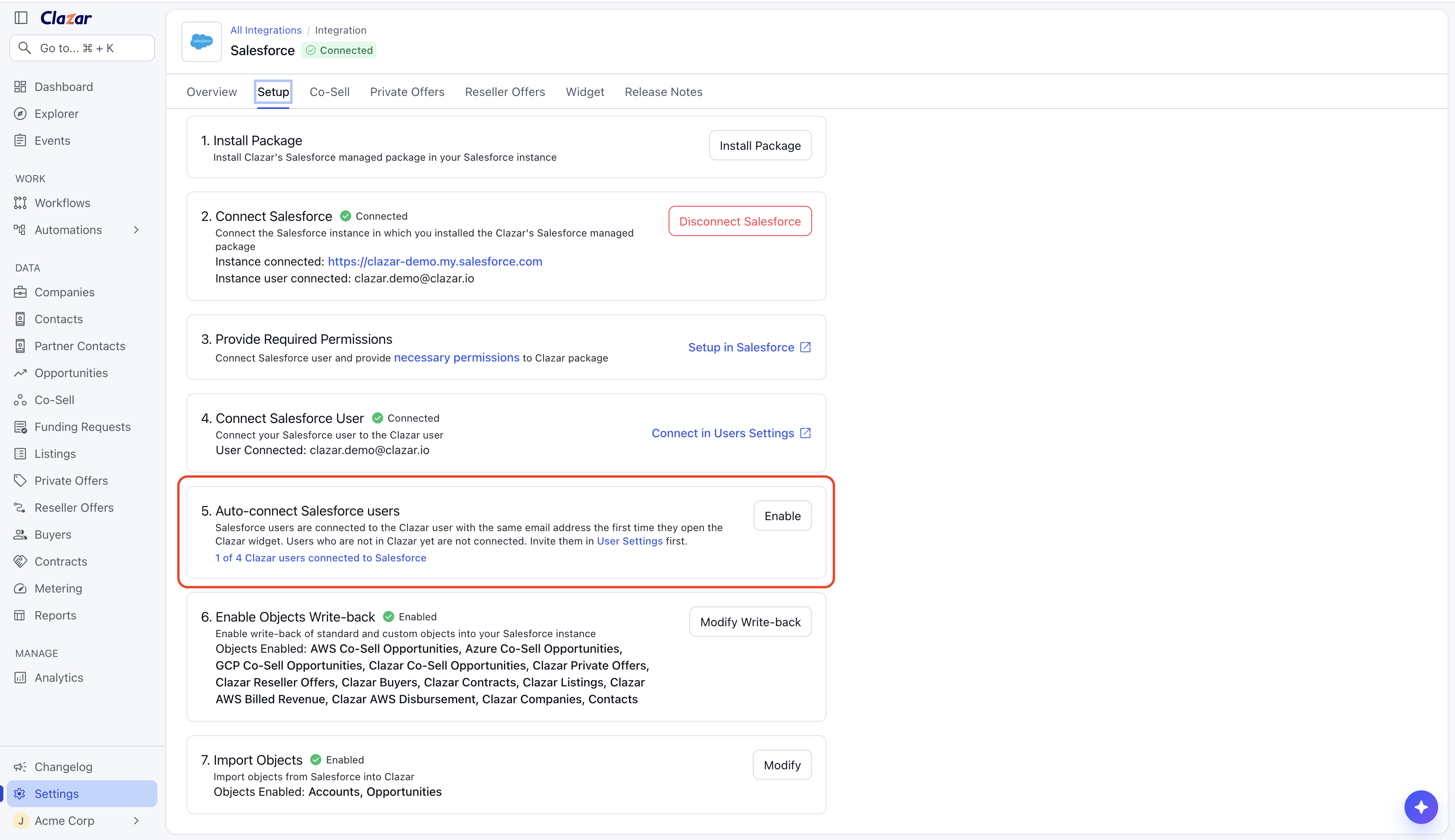
Auto-connect Salesforce users card with the Enable Auto-Connect button Turn it on: Click Enable Auto-Connect, type CONFIRM, and click Enable.
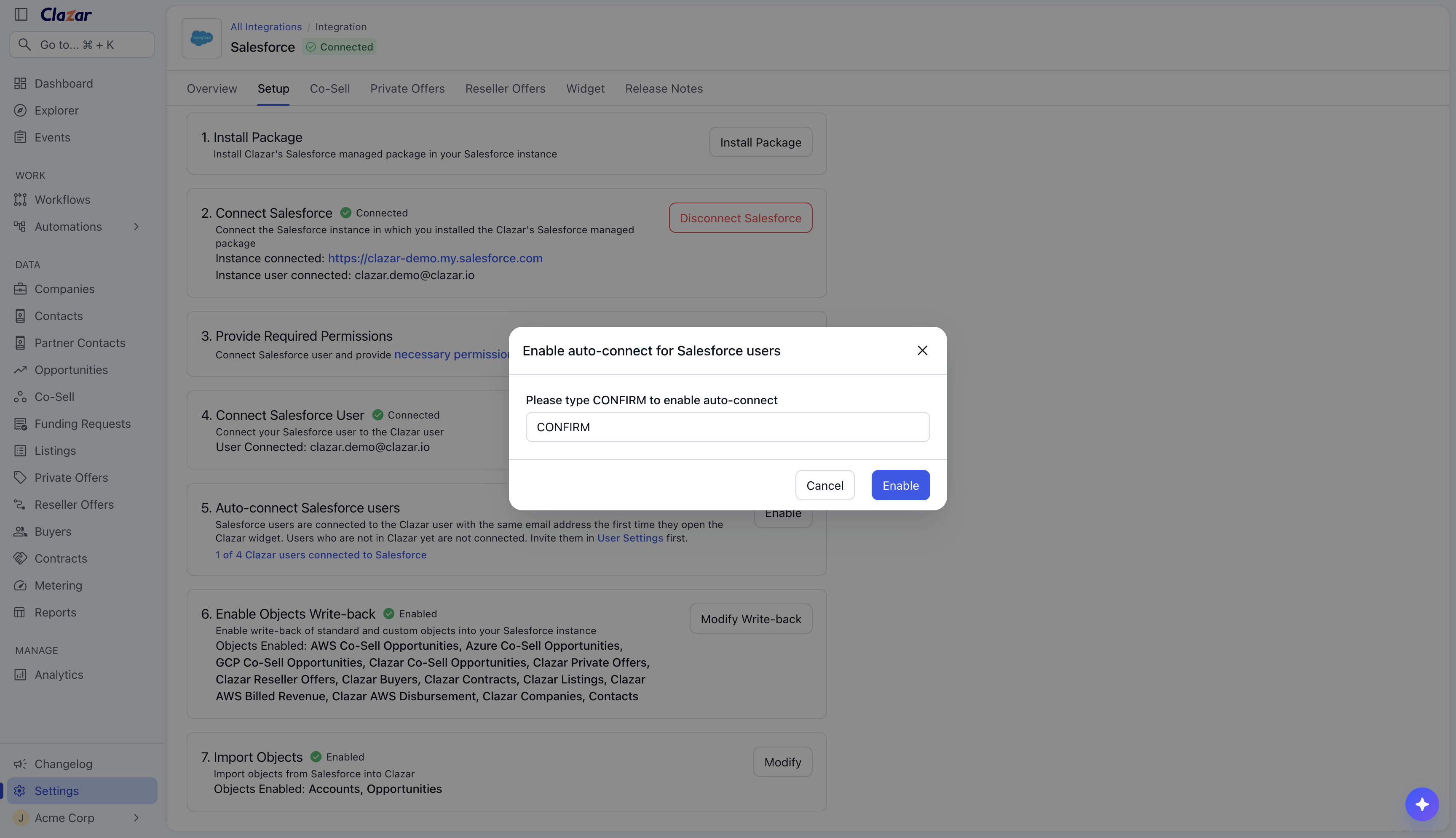
Confirmation dialog with CONFIRM typed Review the mappings: Clicking the mapped-users count takes you to Settings → Users where you can review the user mappings.
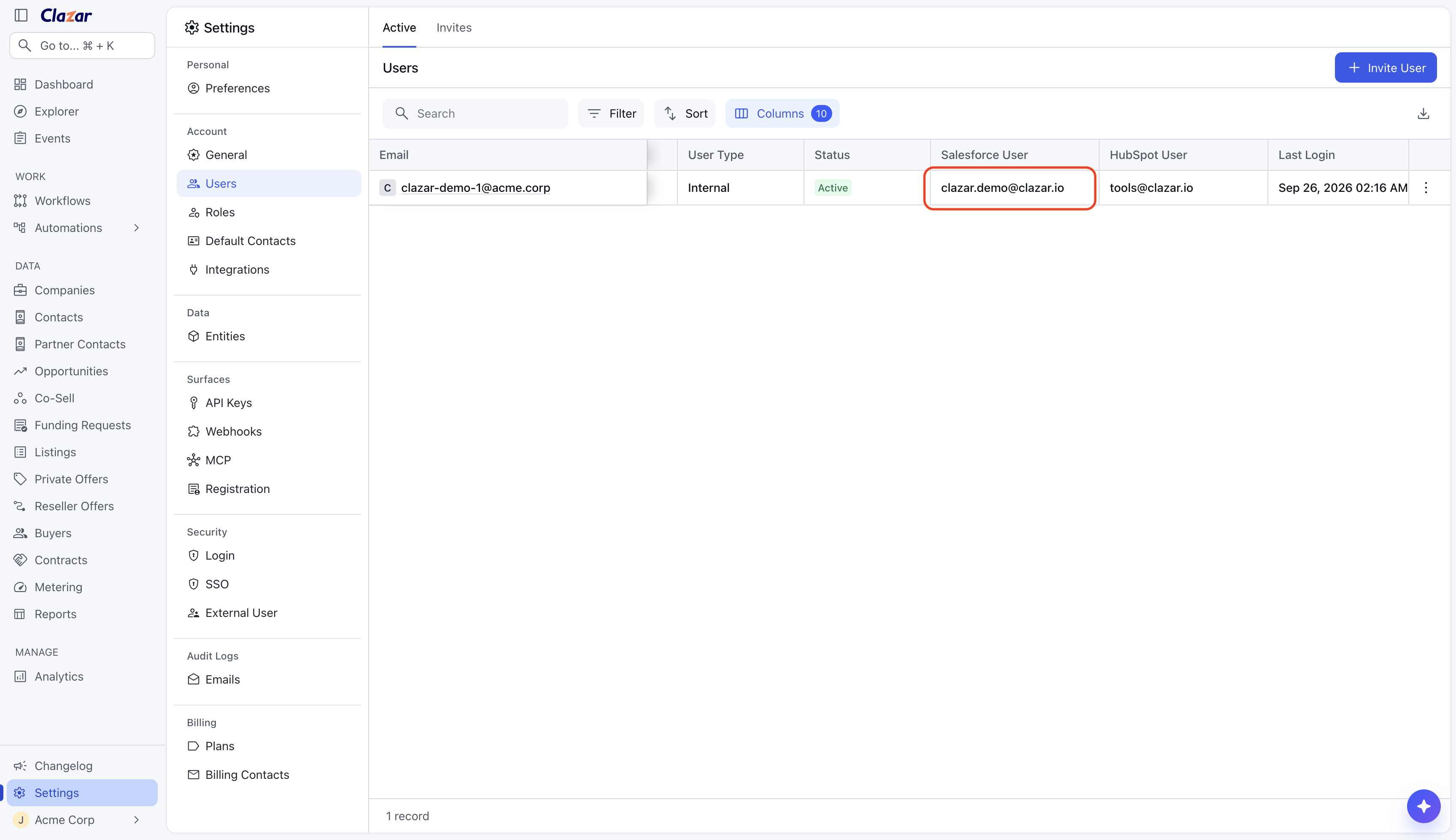
Clazar user mapped to the Salesforce User
Things to note
Clazar user accounts: Auto-mapping doesn't create Clazar user accounts. Create and manage user accounts in Clazar using SCIM, SSO, or invites.
First widget visit: Users are mapped on their first widget visit, so the count only updates then.
No matching email: Users with no matching Clazar email see the usual "Contact your admin" message until you provision the Clazar account for that user with the same email.
Existing mappings: Existing mappings are never changed.
Admin access: Only Admins and Super Admins can turn this functionality on.
Removing access: Deactivated Salesforce users still need to be removed from Clazar manually.
Multiple Clazar accounts: If the same Salesforce instance is connected to more than one Clazar account, each person is mapped in every account where auto-mapping is enabled and they have a Clazar user.