Prefill Azure deal registration fields from your CRM with field mapping
Last updated: October 5, 2026
Overview
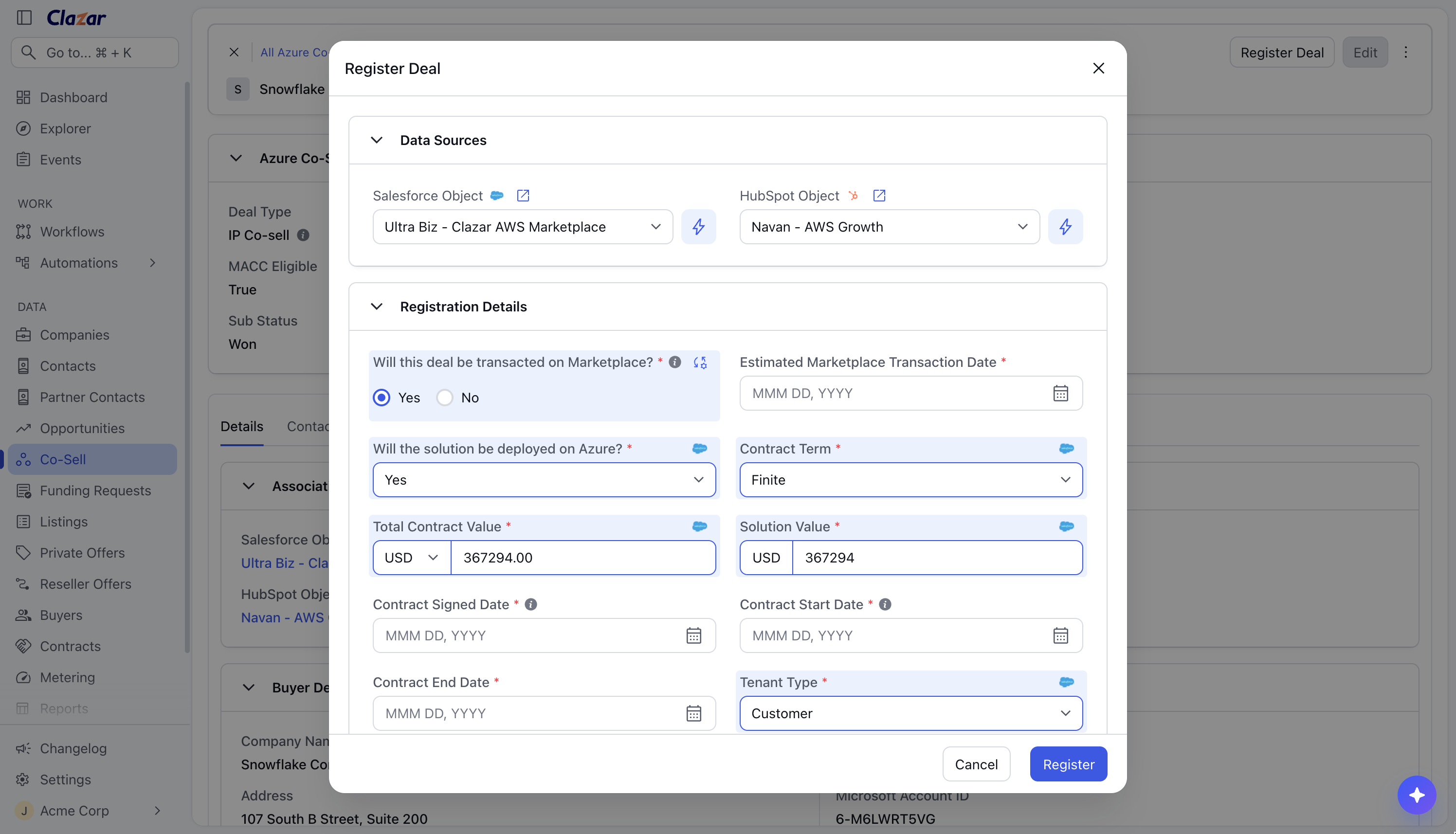
Until now, every answer in the Azure Register Deal form was typed by hand. That included values already in your CRM, like Total Contract Value and Contract Signed Date, and answers that are the same on almost every deal, like Tenant Type and Pricing Model. Registration fields are now part of Azure Co-Sell field mapping. When you open the Register Deal form, it fills in from the linked CRM opportunity and from the defaults you set. You review the values, edit any of them, and register.
Value it drives
Deal Registration mapping section: A new Deal Registration section on the Co-Sell tab of your Salesforce or HubSpot integration lists the registration fields in the same order as Partner Center's Register Deal form. Each field can be mapped to a Salesforce or HubSpot opportunity field.
Defaults for fixed answers: Will this deal be transacted on Marketplace?, Will the solution be deployed on Azure?, Contract Term, Total Contract Value (with contract currency), Solution Value, Tenant Type and Pricing Model accept a default. The default is used only when the field has no CRM value.
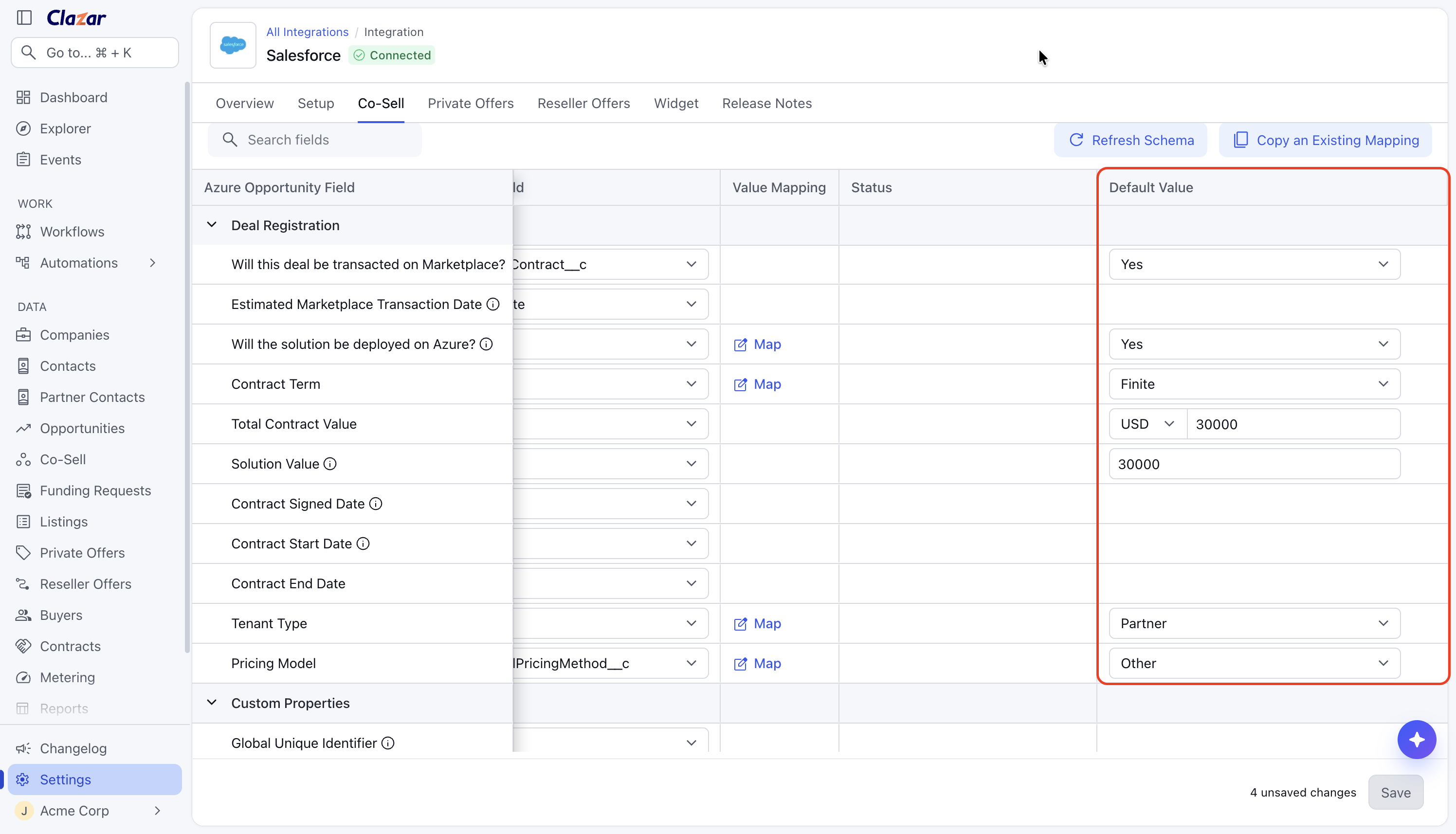
The Default Value column of the Deal Registration section. Defaults are set for the Marketplace question, Will the solution be deployed on Azure?, Contract Term, Total Contract Value, Solution Value, Tenant Type and Pricing Model.
Data Sources and re-sync: The Register Deal form has a new Data Sources section that shows the linked CRM opportunity. The form auto syncs once when it opens. The sync button in Data Sources pulls the latest CRM values any time.
How to get started
Open field mapping: Go to Settings → Integrations, open Salesforce (or HubSpot), and select the Co-Sell tab. Scroll to the Deal Registration section, just above Custom Properties.
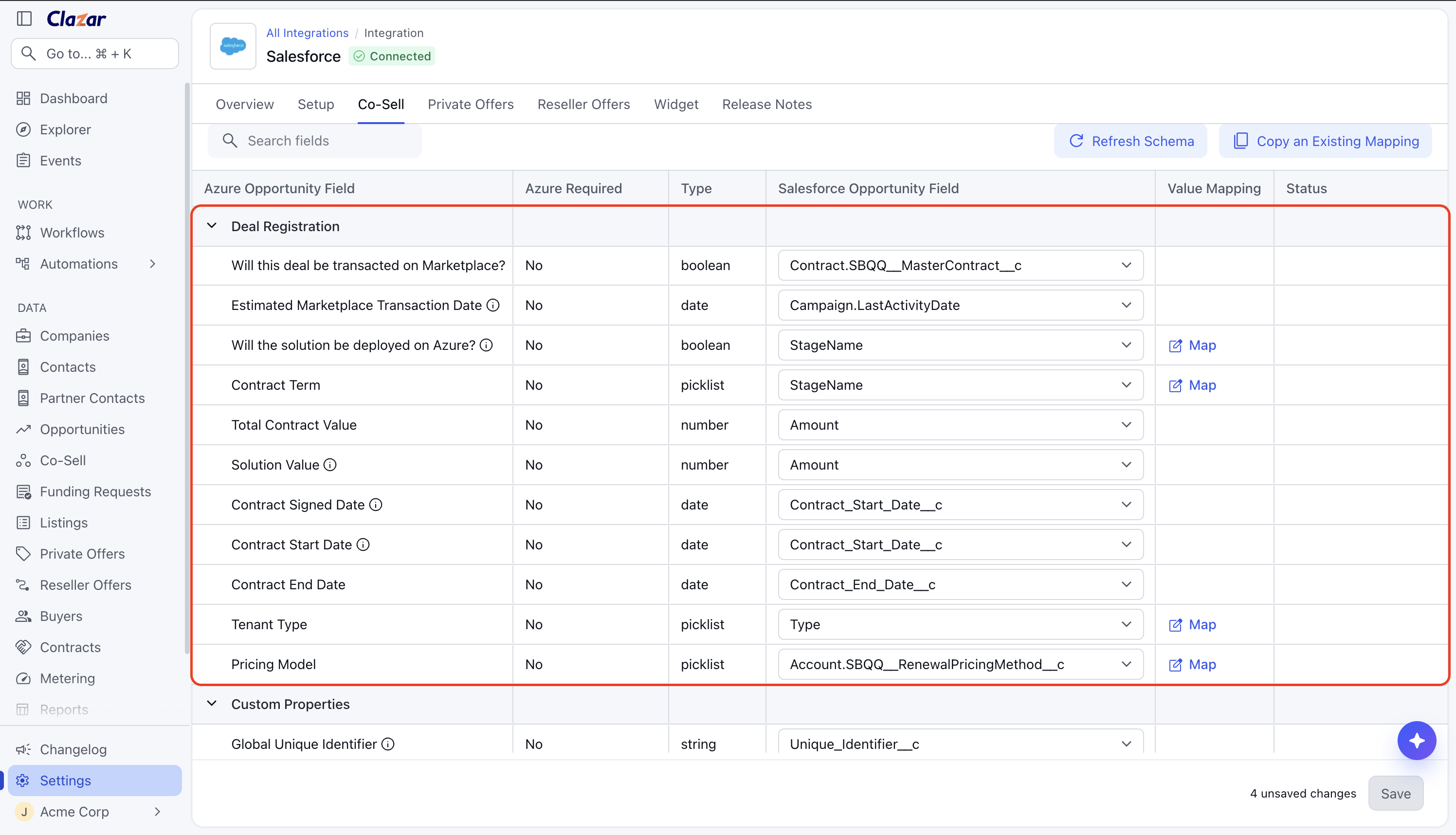
The Deal Registration section on the Co-Sell tab of the Salesforce integration. Each registration field is mapped to a Salesforce opportunity field. Map and set defaults: Map each registration field to a CRM opportunity field. Set a default on the fields whose answer rarely changes. Save the mapping.
Open Register Deal: On an eligible, won Azure Co-Sell opportunity, click Register Deal. The form fills in from the CRM and your defaults.
Review and register: Check the values, edit any that need it, and click Register. If the CRM opportunity changes before you register, click the sync button in Data Sources to pull the new values.
Things to note
Review before registering: Microsoft does not allow a deal registration to be edited after it is submitted. The form is never registered automatically. You review and submit every registration.
Value precedence: A mapped CRM value is used first. A default value is used when the CRM value is empty. If a field has neither, it is left empty, and you have to fill it in before you can click Register. Defaults are applied only during the auto sync that runs when the form opens. Clicking the sync button in Data Sources pulls CRM values only.
Marketplace transaction date: The Estimated Marketplace Transaction Date field is shown and sent to Microsoft only when Will this deal be transacted on Marketplace? is set to Yes.
Solution Value currency: Solution Value uses the currency set on Total Contract Value. Currency is set as a default, not mapped from the CRM.
Auto Deal Registration: Auto Deal Registration is not supported as part of Azure Co-Sell Auto Update. A registration can be submitted only from the Register Deal form.