Restrict cosell Create and Map on the Salesforce widget with a SOQL rule
Last updated: August 31, 2026
Overview
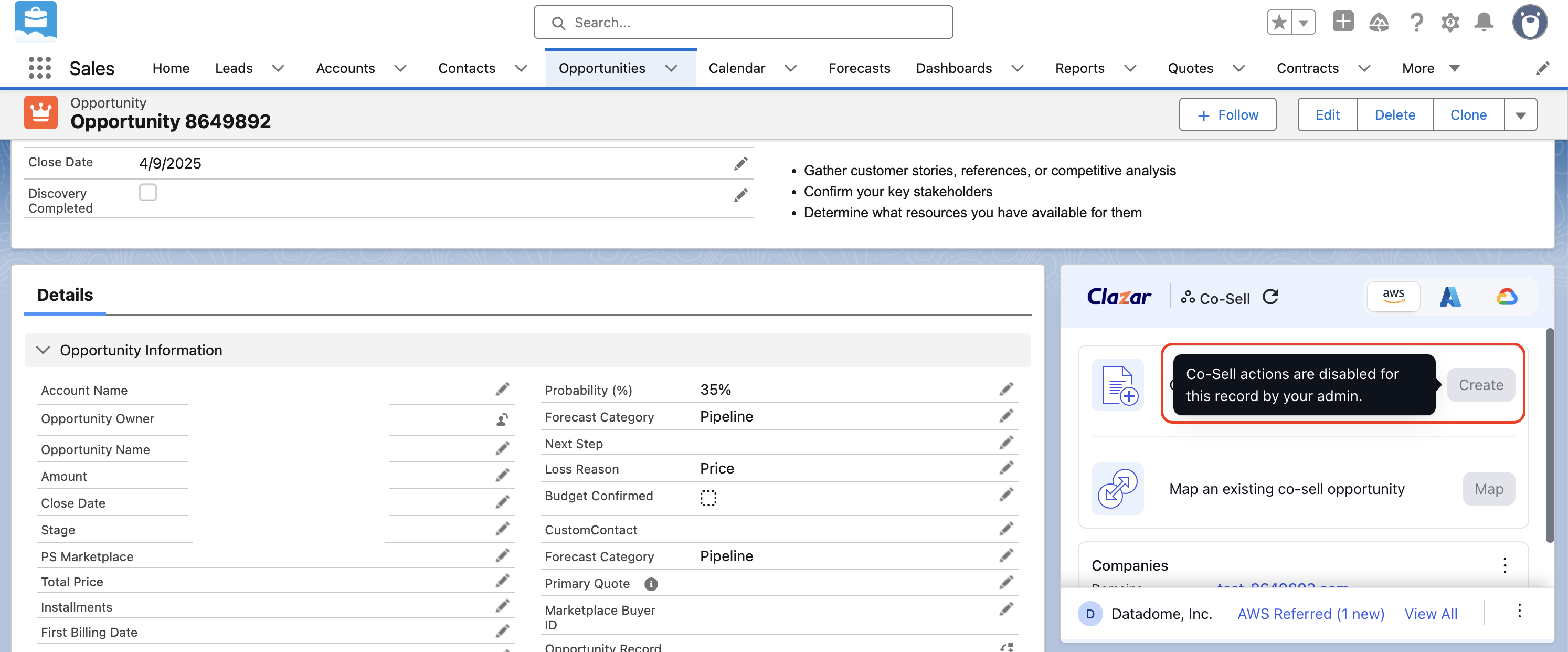
Until now, the Create and Map actions on the Salesforce cosell widget were available on every opportunity, so reps could start cosell submissions on deals that were not ready for them. You can now restrict both actions with a SOQL rule: the actions are enabled only on opportunities that match it. This is the same rule-based Widget Control already available for Private Offer and Reseller Offer actions on the offers widget.
Value it drives
Rules in the Widget tab: A new Co-Sell Actions section in the Salesforce integration's Widget tab contains a toggle and a SOQL WHERE editor for each cloud (AWS, Azure, and GCP).
Per-record gating: The widget evaluates your rule against the opportunity the rep is viewing. On records that do not match, both buttons are disabled, and hovering over them shows a message that the actions are disabled by your admin.
Validation on save: Each condition is checked against your Salesforce org when you save. An invalid field or clause shows the exact Salesforce error next to the rule.
How to get started
Open the Widget tab: In Clazar, go to Settings → Integrations → Salesforce → Widget.
Turn on Co-Sell Actions: Enable the toggle in the Co-Sell Widget section.
Write a rule per cloud: Enter a SOQL WHERE clause for each cloud using fields from your Salesforce org, for example
StageName IN ('Proposal', 'Negotiation').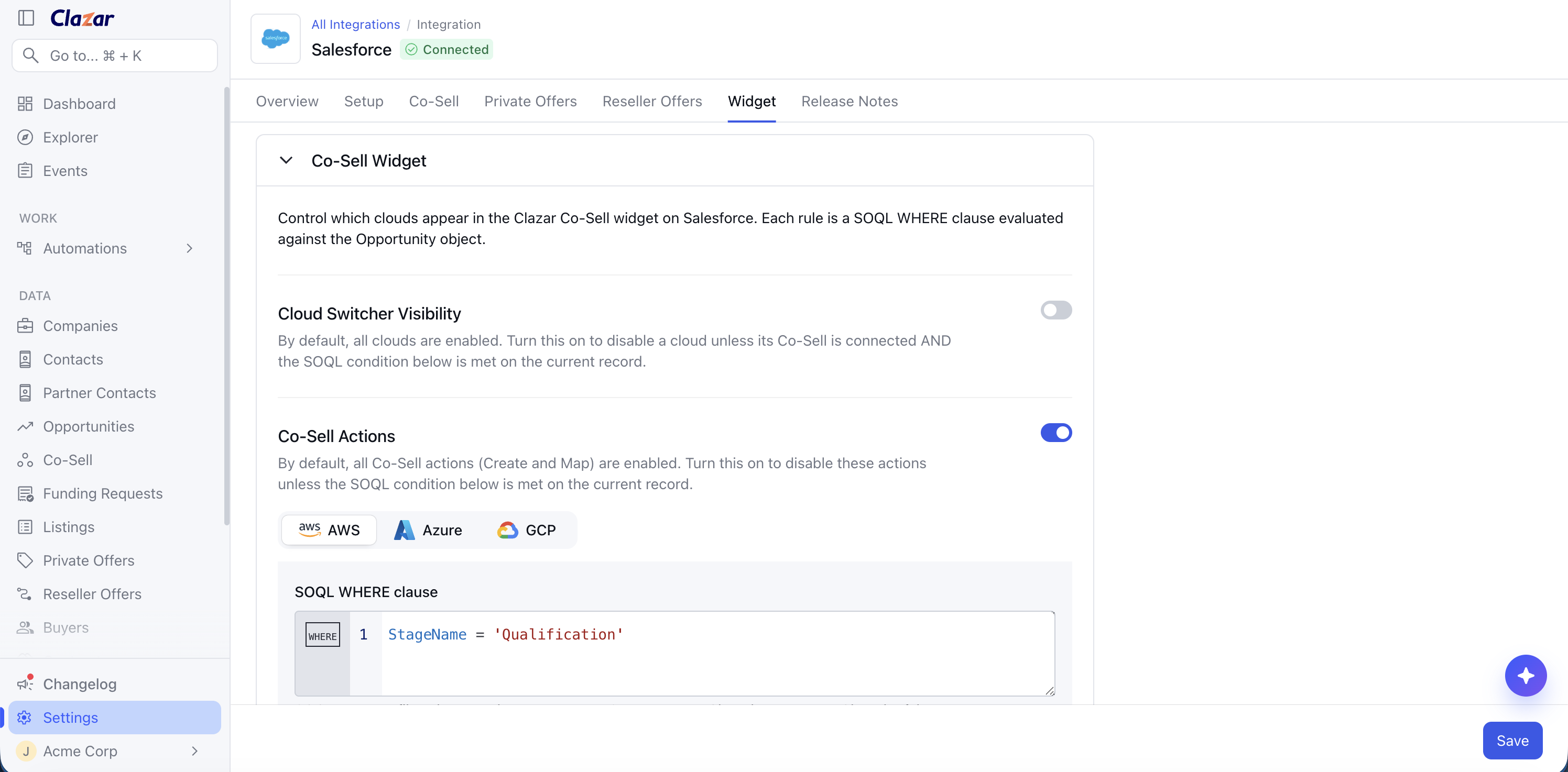
Configuring cosell actions as part of Salesforce widget settings Save: Your conditions are validated and applied immediately.
Things to note
Scope of a rule: One rule per cloud applies to the Create and Map actions together.
Default behavior: With the toggle off, both actions stay available on every opportunity, exactly as before.