OneLogin Integration Guide
Last updated: June 17, 2025
Overview
Connect your OneLogin account to Clazar to automatically identify SaaS applications used across your organization. Clazar uses the OneLogin API to detect all apps configured in your OneLogin environment, creating a unified application inventory, uncovering shadow IT, and enabling license optimization and security insights.
Connection Setup
Prerequisites
Administrator or Account Owner access to your OneLogin account.
Integration Steps
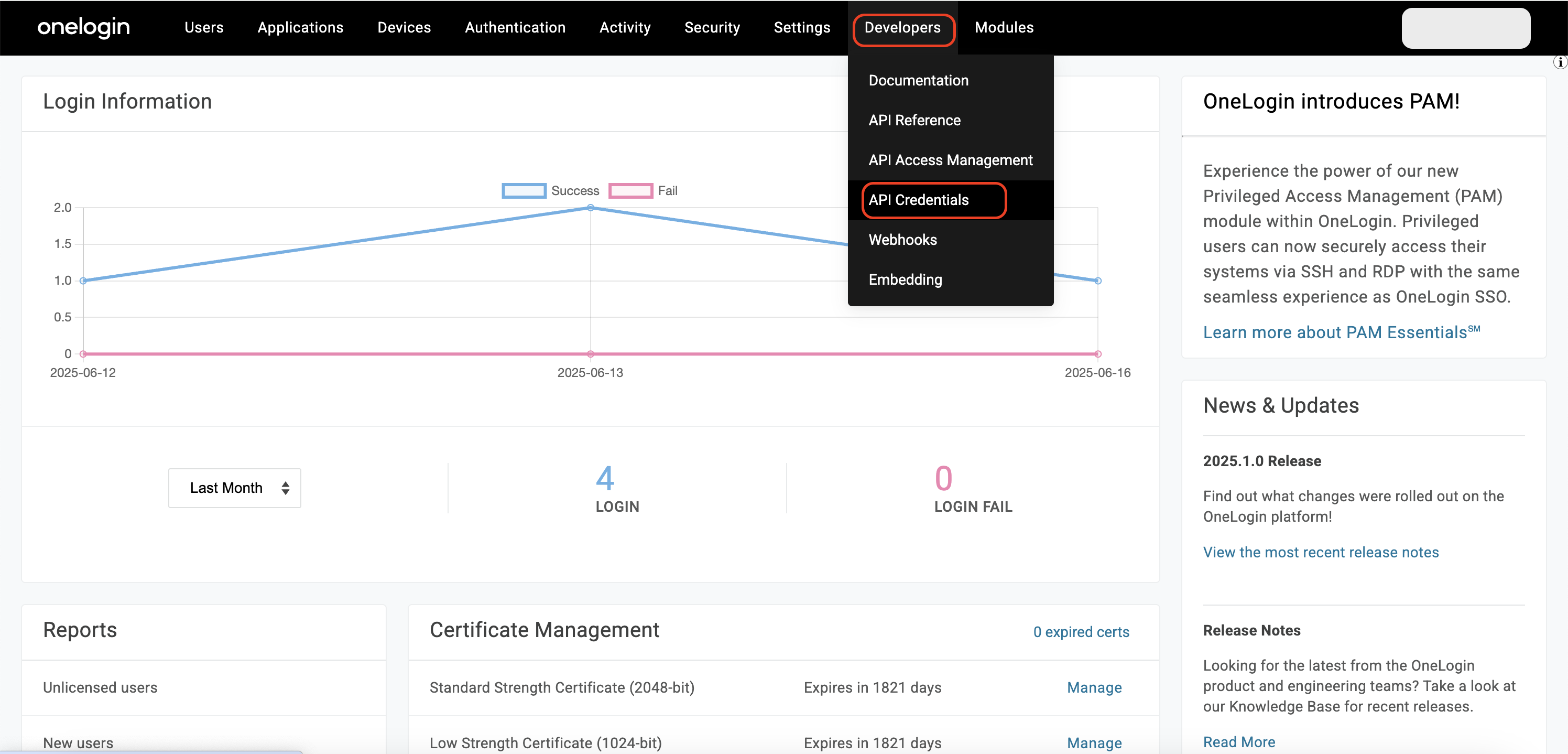
Create a OneLogin API credential in your OneLogin admin console by navigating to Developers -> API Credentials.
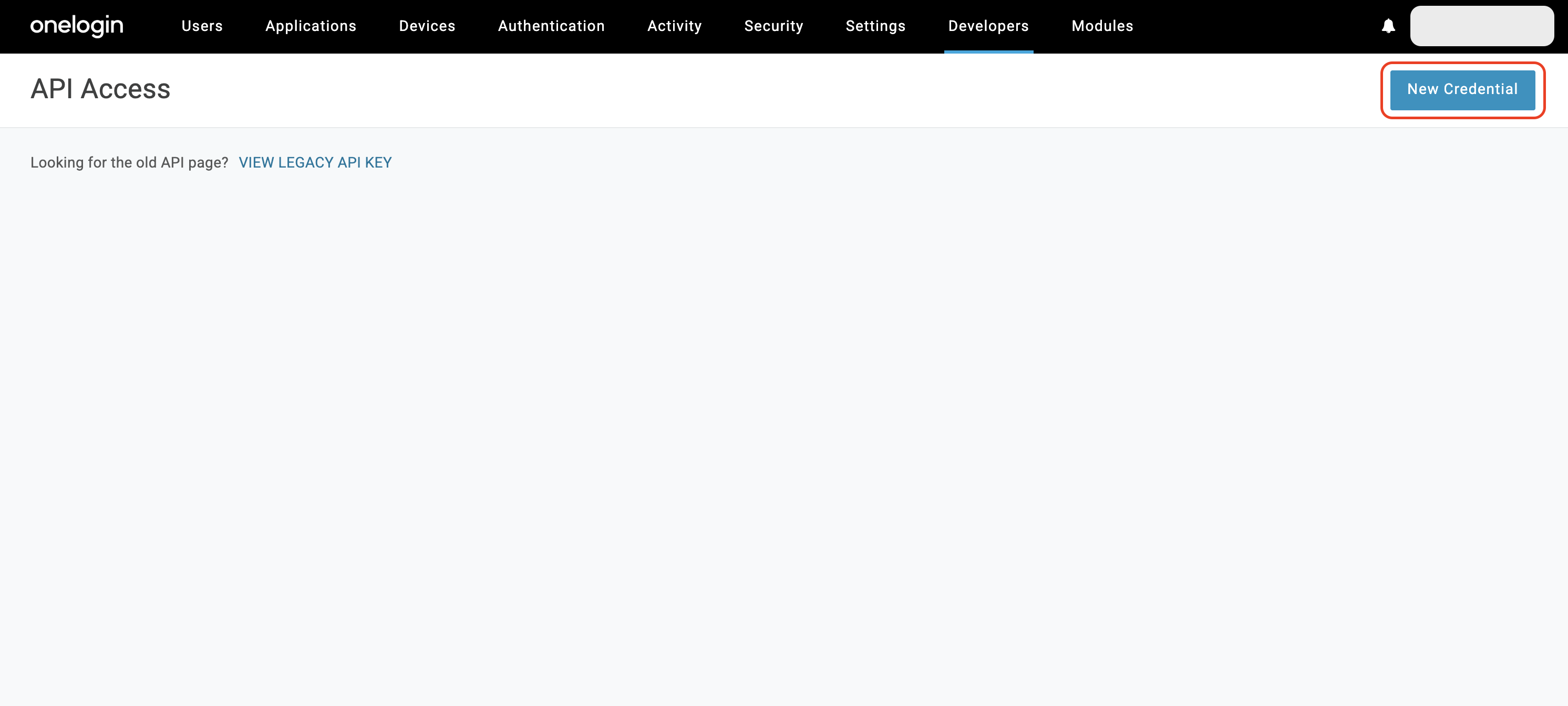
On the API access page, click "New Credential".
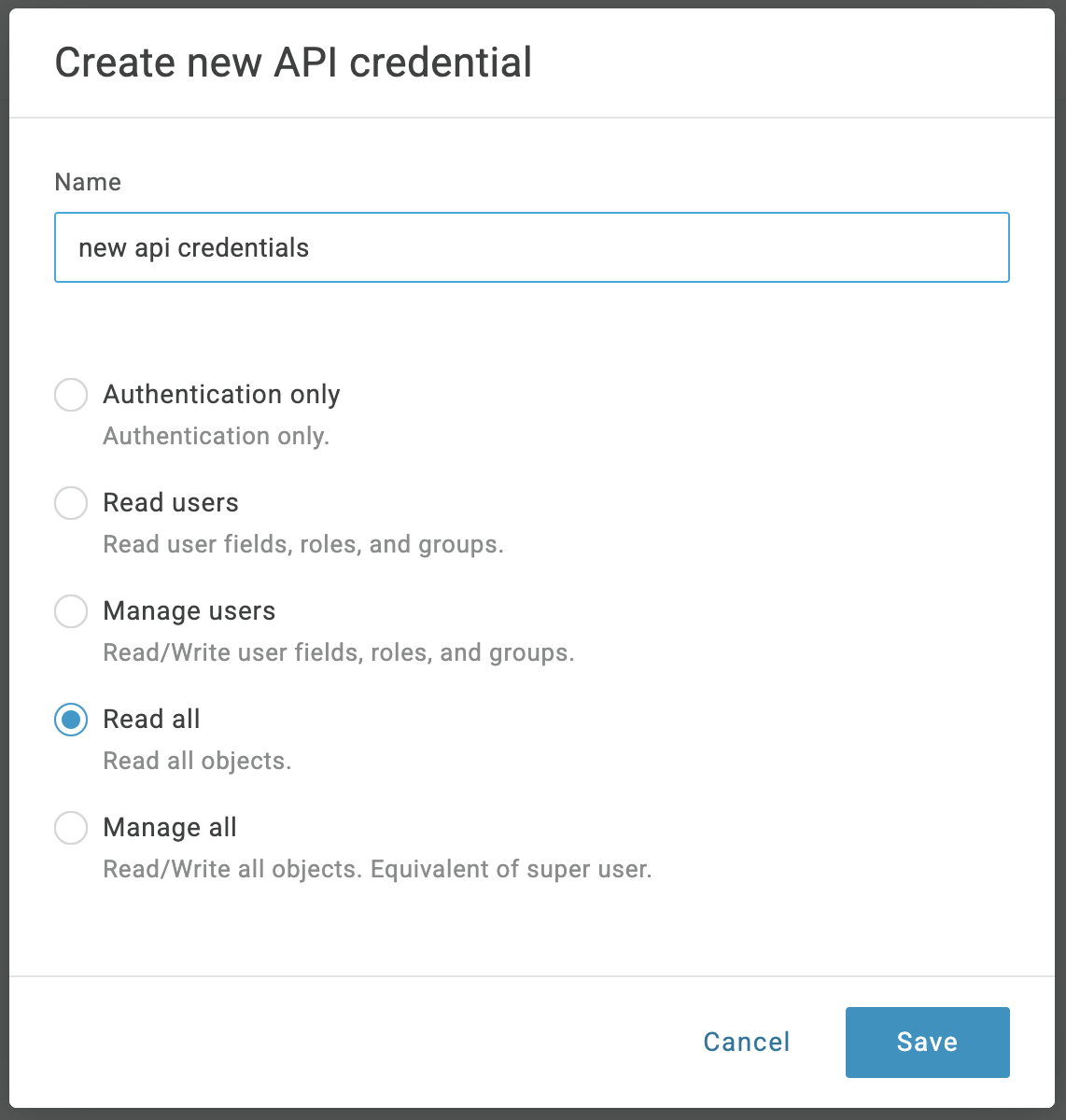
Select "Read all" permission and click "Save".
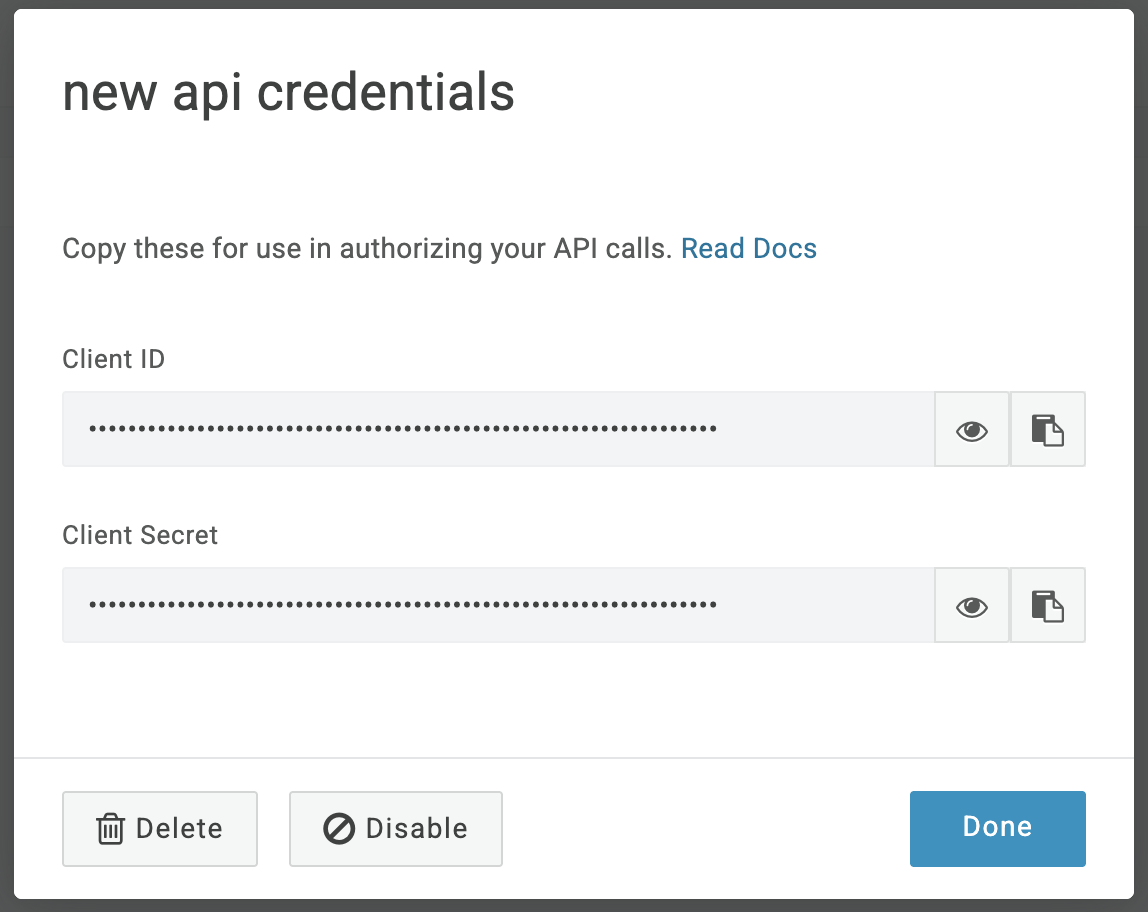
Copy your "Client ID" and "Client Secret".
Go to the Integrations and select OneLogin in your Clazar app.
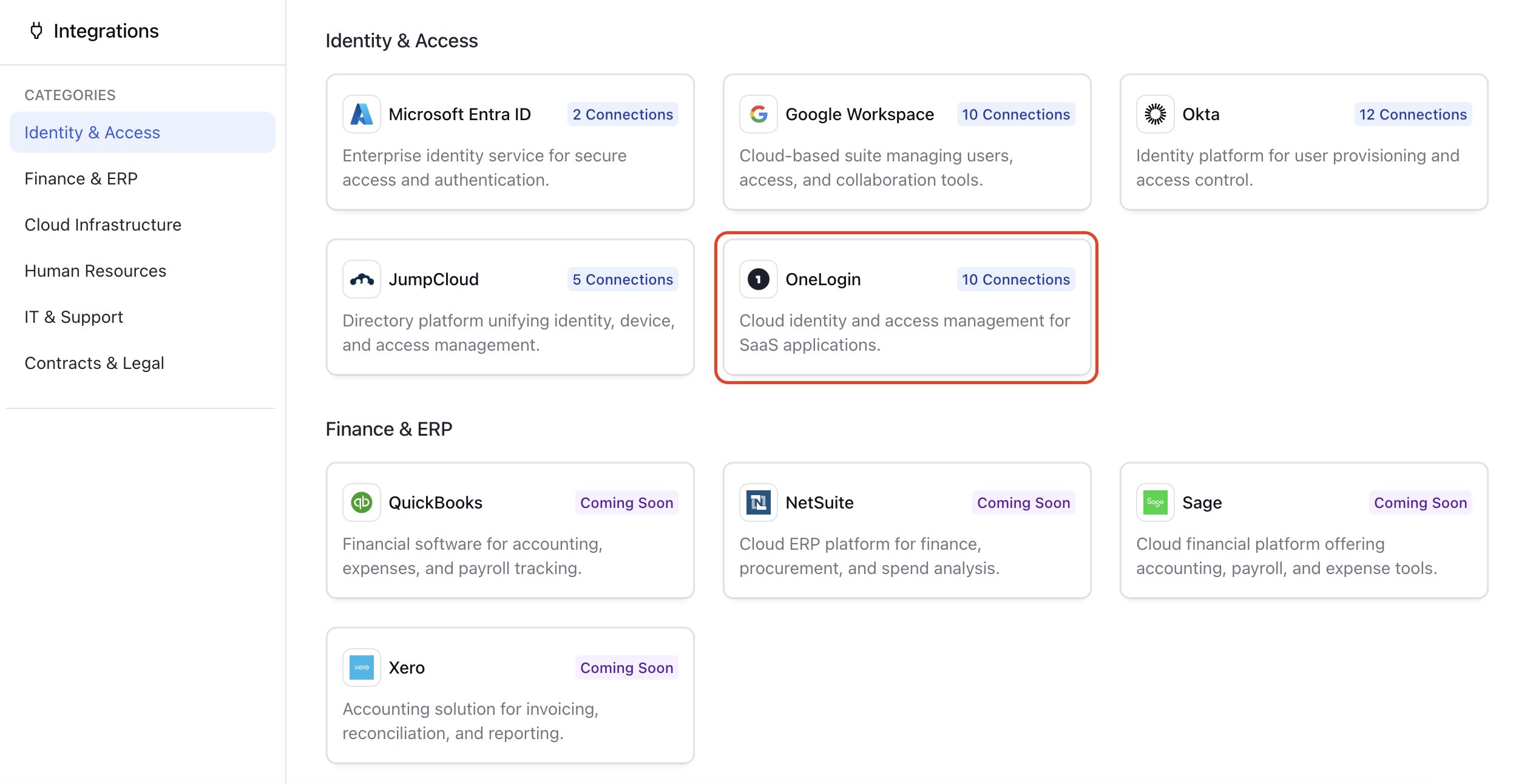
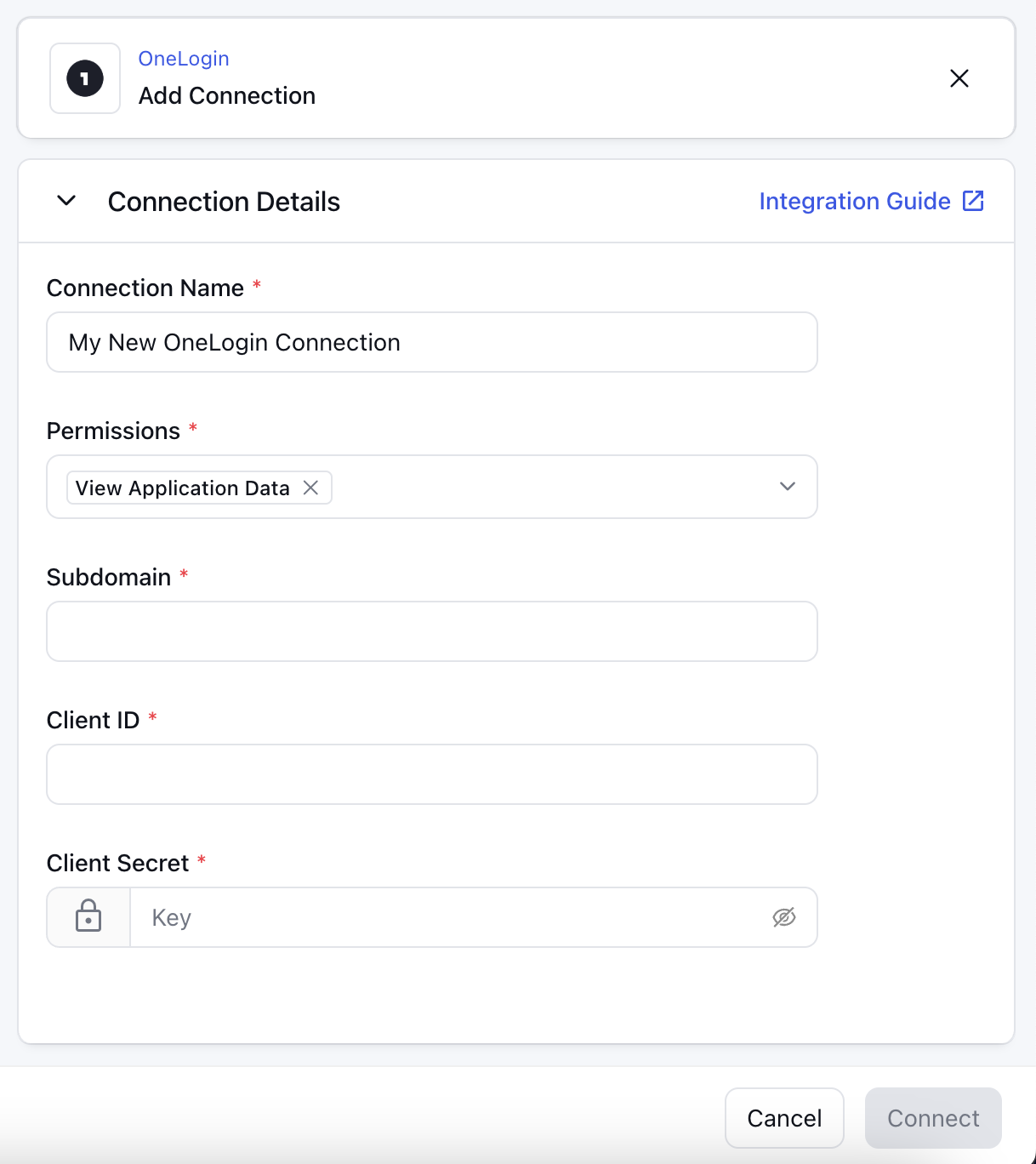
Click on the "Add Connection" button and fill in the details.
Select the view permission as Clazar requires it to fetch user and app data from your OneLogin account.
Enter the subdomain name. Subdomain can be found by logging in to your company's OneLogin page. The URL is usually in the format:
https://<subdomain>.onelogin.comPaste the "Client ID" and "Client Secret" copied earlier from your OneLogin API access page.
Click "Connect".
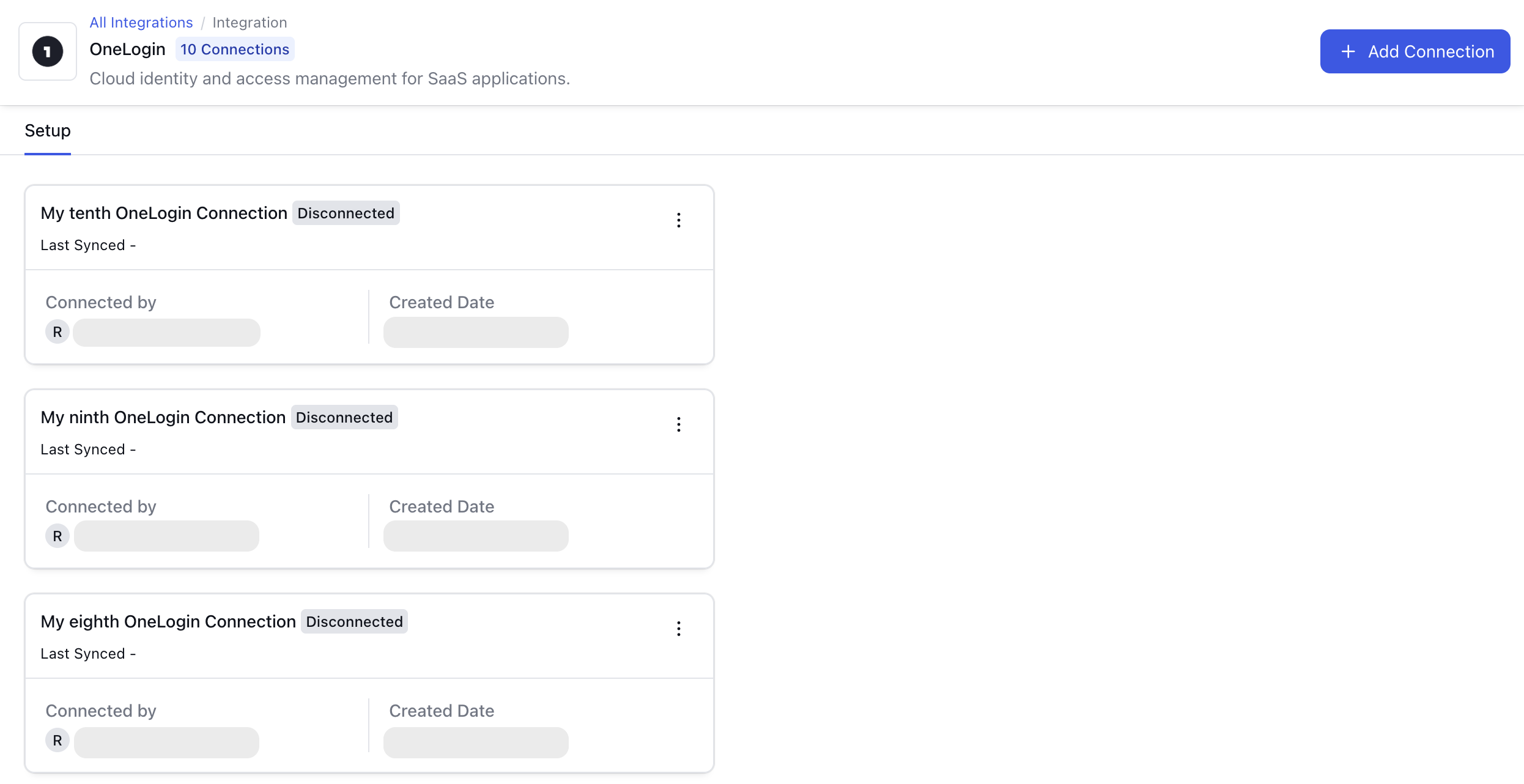
Your connection will be visible on the OneLogin integration details page.
Release Notes
Version
Date
Notes
1.0
May 2025
Create connections with your OneLogin account.
Read application details.