Add Customer Needs to Azure Co-Sell opportunities
Last updated: October 1, 2026
Overview
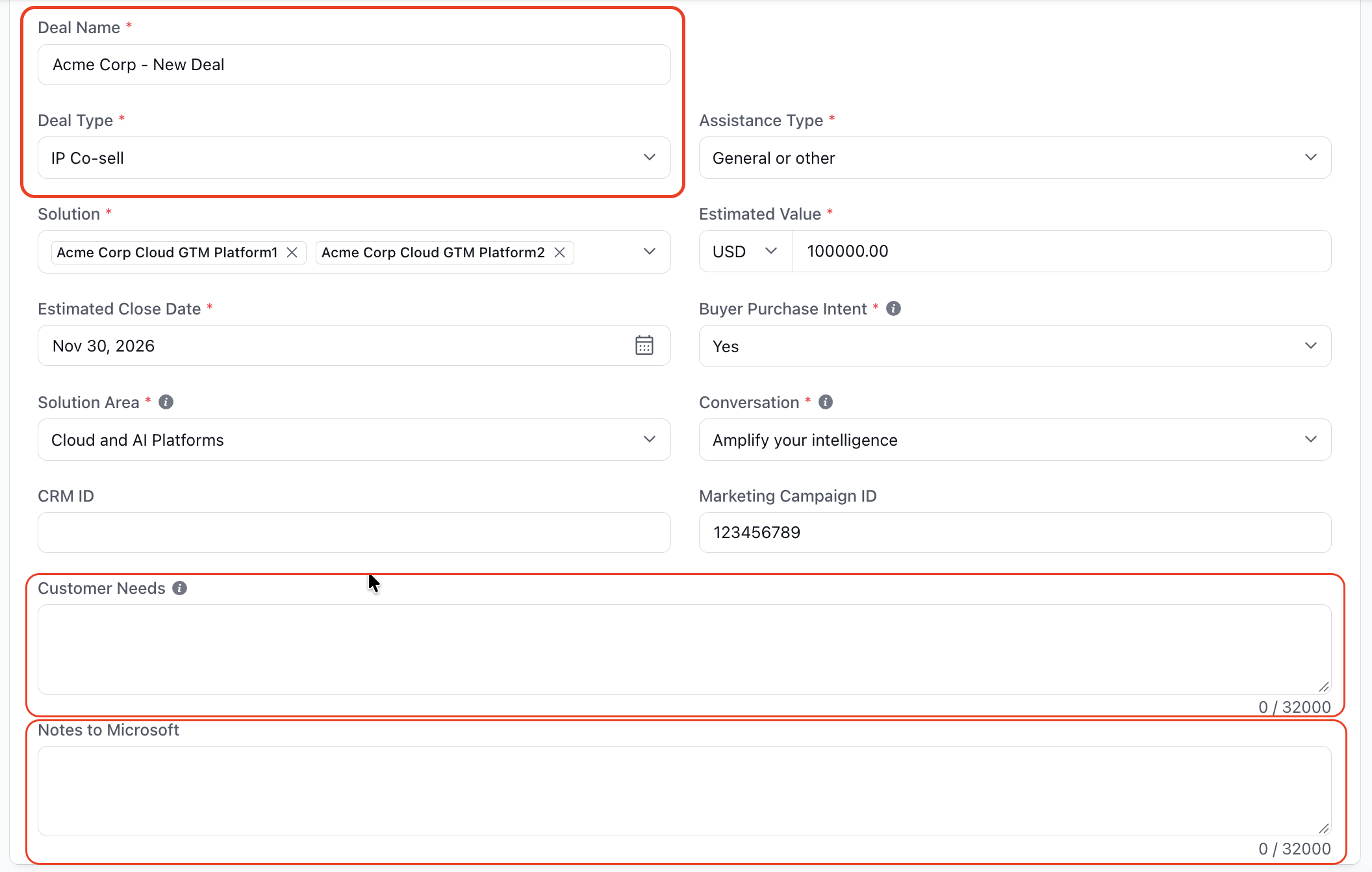
Until now, working an Azure opportunity in Clazar and in Microsoft Partner Center side by side meant translating between two sets of names, and there was no place in Clazar to enter the Customer Needs that Partner Center asks for. Azure cosell opportunities now have a Customer Needs field. Field names and deal type options now match Partner Center. Notes to Microsoft appears only on IP Co-sell deals. The field is optional.
Value it drives
Customer context for Microsoft sellers: Customer Needs fills Partner Center's Customer need field, which Microsoft describes as the place to "clearly articulate the customer's specific needs so that Microsoft sellers and partner teams supporting the referral can quickly understand the context and act effectively." You can now set it from Clazar on Private and IP Co-sell deals, and keep it current after the deal is submitted.
Customer Needs filled from your CRM: Map Customer Needs to a field your reps already maintain, such as the opportunity's business problem or description. Auto Create and Auto Update then send that text to Partner Center, so reps don't type it twice.
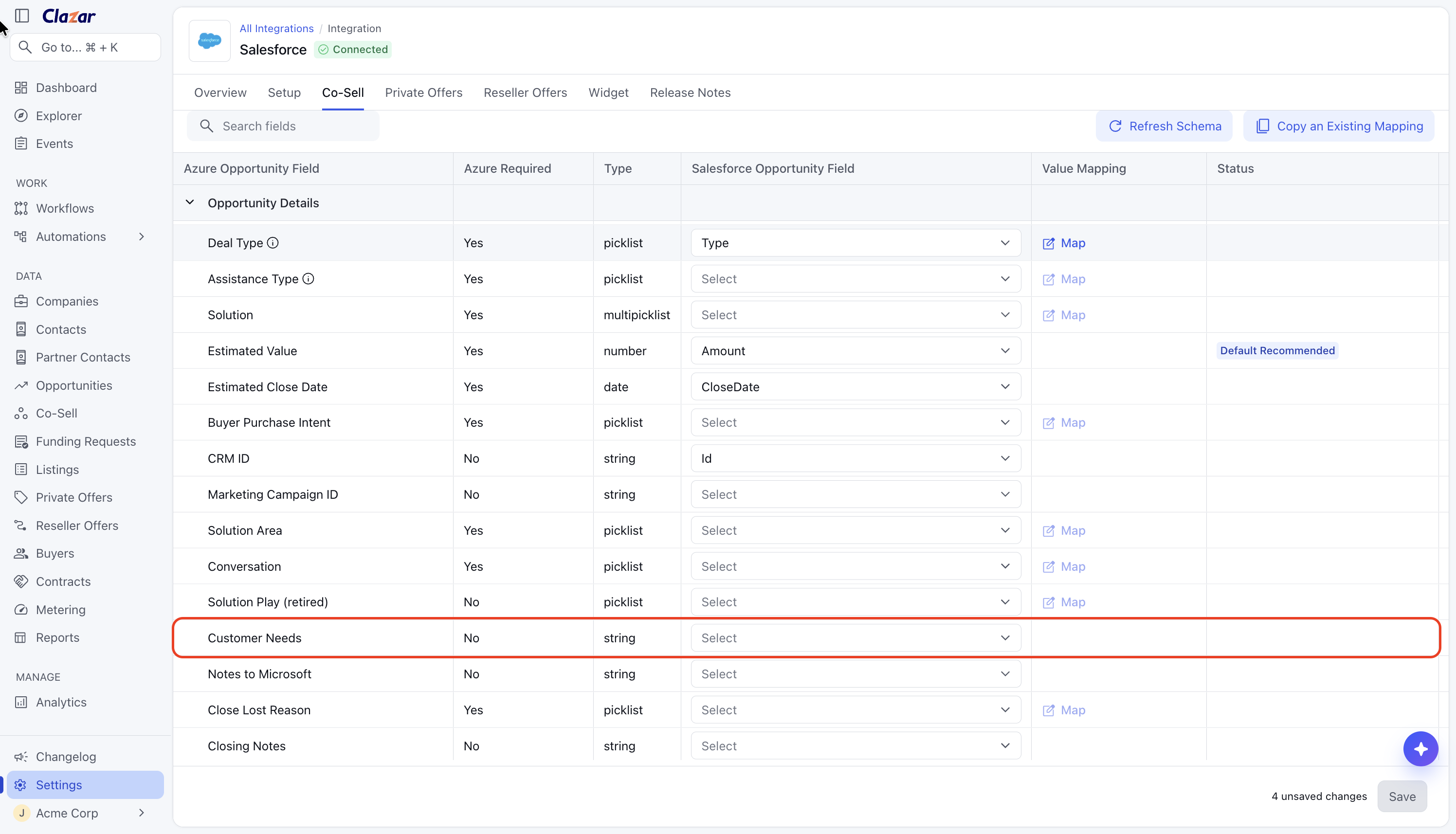
Customer Needs available to map in the Salesforce integration's Co-Sell field mapping IP Co-sell deals submit without a placeholder note: Notes to Microsoft is no longer required. A deal isn't held up by a mandatory field, and teams don't need to enter filler text to get past it.
The same names in Clazar and Partner Center: Deal Name, Deal Type, Private and IP Co-sell appear the same way in both products. A rep can compare a deal in Clazar with the same deal in Partner Center without translating field names.
How to get started
Customer Needs: Enter it in the Customer Needs field on the Azure cosell create or edit form, below Marketing Campaign ID. The field is optional. It also appears on the opportunity detail view, and stays editable for as long as the opportunity is.
Customer Needs from your CRM: Go to Settings → Integrations, open your Salesforce or HubSpot integration, and on the Co-Sell tab map a CRM field to Customer Needs. Auto Create and Auto Update then fill it in. Existing mappings are not changed.
Notes to Microsoft: Select IP Co-sell in the Deal Type field to show Notes to Microsoft and Assistance Type. Leave Notes to Microsoft blank if there is nothing to add; the deal still submits.
Deal Name and Deal Type: The renamed fields appear wherever the old names did: the create and edit form, the opportunity detail view, list columns and filters, and field mapping. The Deal Type picker lists Private and IP Co-sell, each with its description.
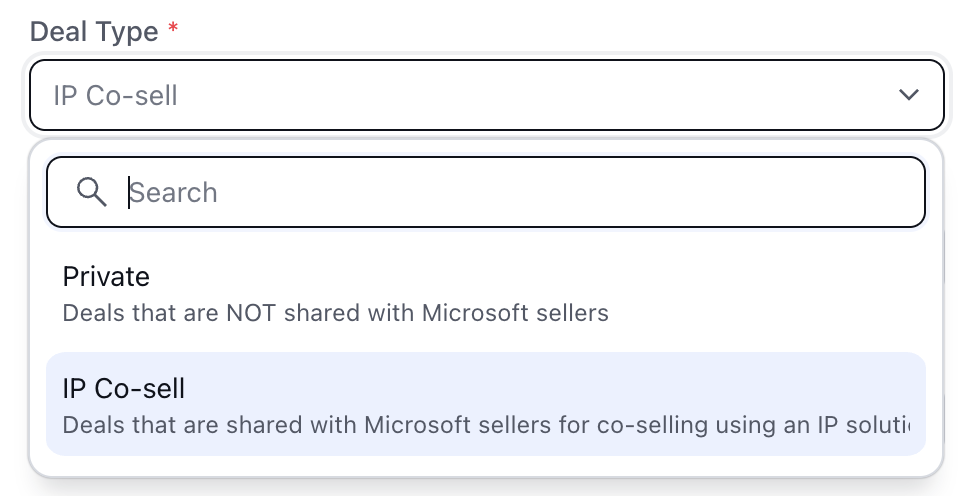
Deal Type options Private and IP Co-sell, with Partner Center's descriptions
Things to note
Private deals: Notes to Microsoft is not available on Private deals. The field is hidden on the form and the detail view when Deal Type is Private, and a CRM field mapped to Notes to Microsoft is sent only for IP Co-sell deals.
Notes to Microsoft after submit: Once an IP Co-sell deal is submitted, Notes to Microsoft can't be edited. Customer Needs remains editable.
Changing a Private deal to IP Co-sell: When you change the Deal Type of a Private deal to IP Co-sell, Assistance Type and Notes to Microsoft appear and can be filled in before you save.
Existing CRM mappings: The deal type rename changes display labels only. Existing field mappings and value mappings for Deal Type keep working without changes.