Assign Azure cosell opportunities to an Organization location
Last updated: October 15, 2026
Overview
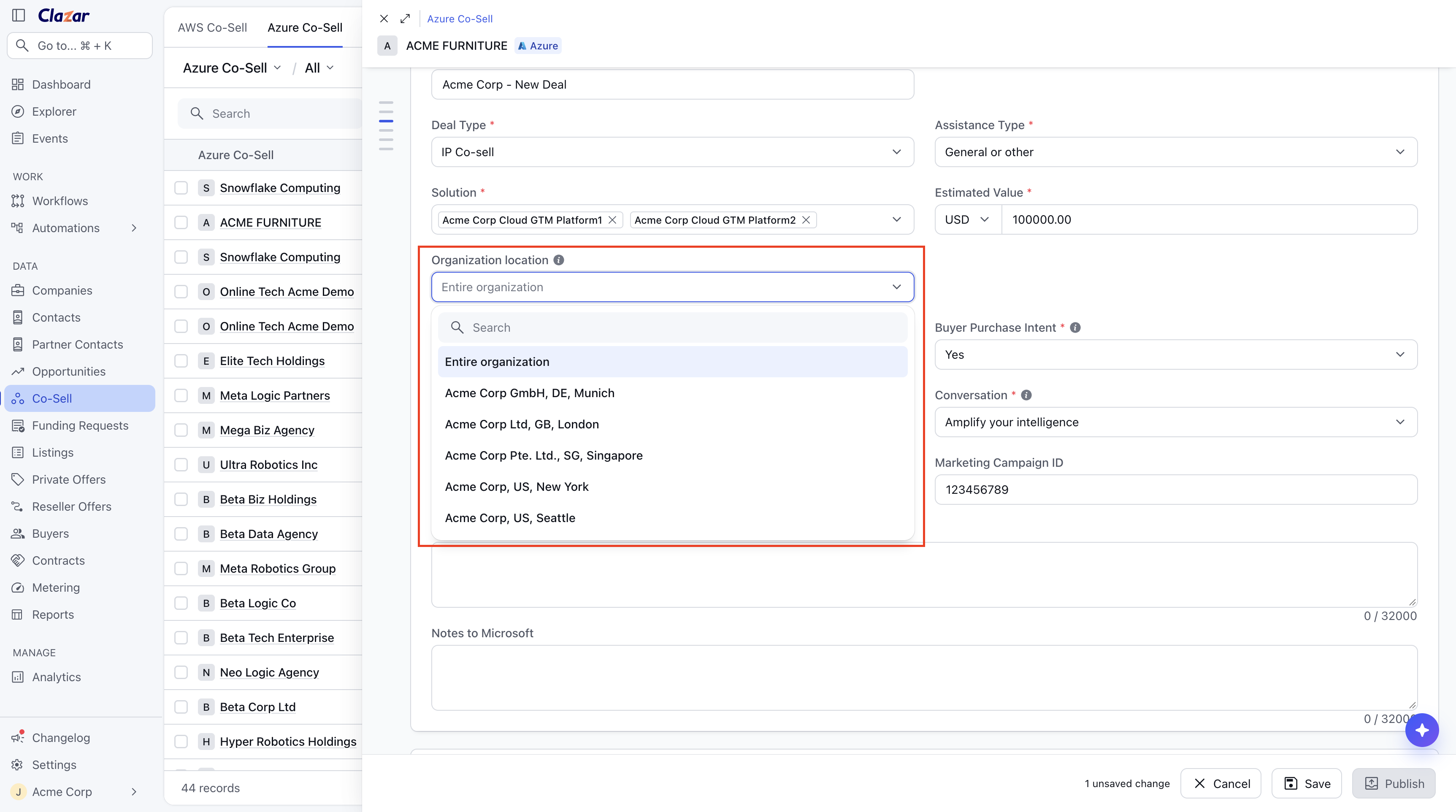
Until now, every Azure cosell opportunity created from Clazar landed on Entire organization in Microsoft Partner Center, even when your Partner Center account is split into locations. Azure cosell opportunities now have an Organization location field, the same as the Location field on Partner Center's deal form, so each opportunity goes to the right location when it's created, by hand or from your CRM.
Value it drives
Deals reach the team that owns them: The location controls which of your Partner Center users can see the deal. Users assigned to a location see that location's deals, so choosing it in Clazar routes the deal to the team that works it.
The same names as Partner Center: Locations appear exactly as Partner Center names them (for example "Acme Corp GmbH, DE, Munich"), so an opportunity in Clazar matches the same deal in Partner Center.
Locations filled from your CRM: Map Organization location to a CRM field and set a default. Auto Create then places each opportunity on the right location without a rep picking it.
How to get started
Load your locations: Until Clazar has your locations, the field shows Entire organization and can't be changed, with a notice above it. Click re-authorize Azure Co-Sell in the notice. It opens the Authorize Microsoft Partner Center APIs step of the Azure Co-Sell setup. Re-authorize, and accept the Partner Center permission when Microsoft asks for it. Your locations then load in Clazar and the field unlocks.
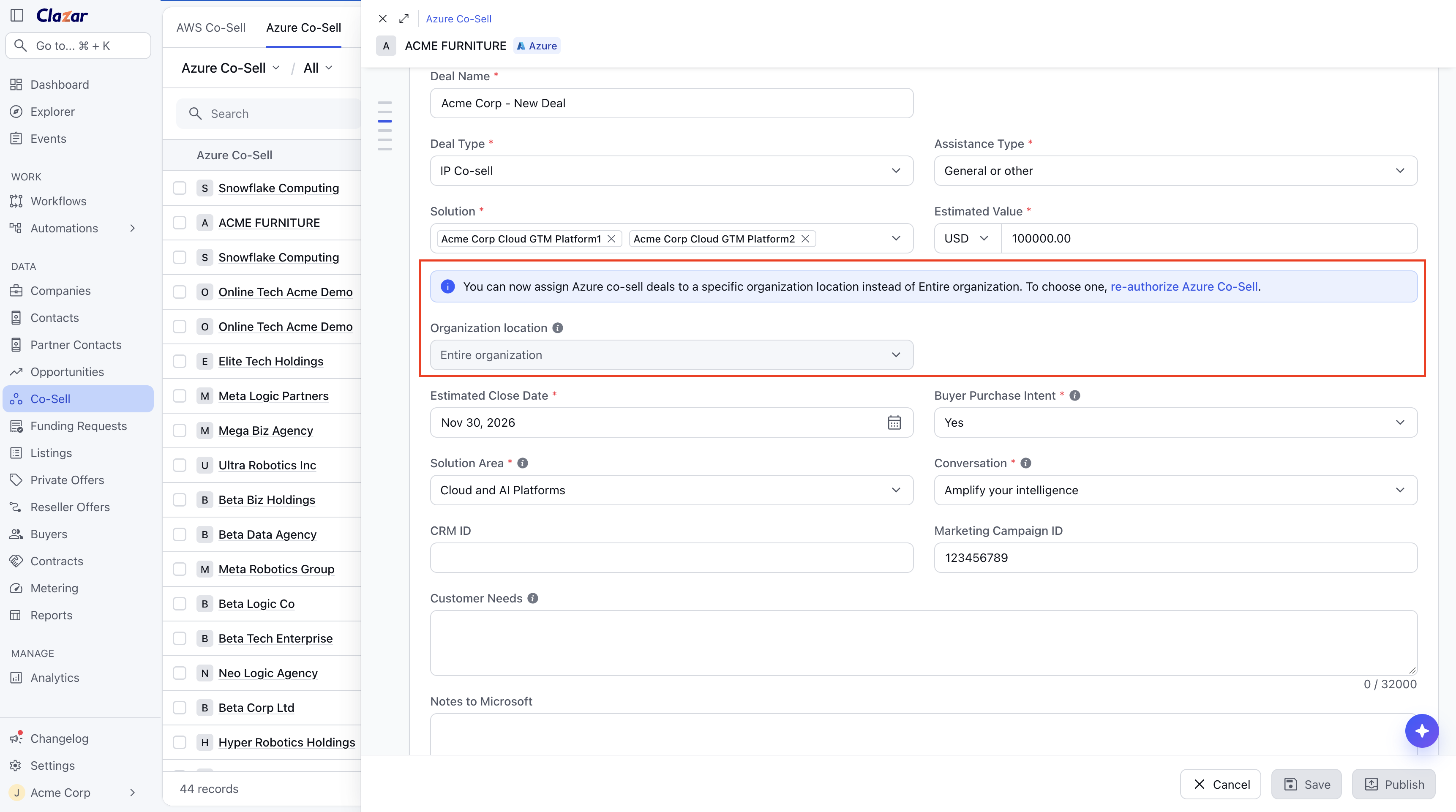
Before your locations load: the field shows Entire organization, with the re-authorize notice above it Choose a location: On the Azure cosell create or edit form, pick Organization location, right after Solution and Estimated Value: Entire organization, or one of your locations. It also shows on the opportunity detail view.
Map Organization location from your CRM: Go to Settings → Integrations and open your Salesforce or HubSpot integration. On the Co-Sell tab, choose Azure, then Field Mapping, and map a CRM field to Organization location. Map each CRM value to one of your locations, and set a default if most opportunities go to the same one.
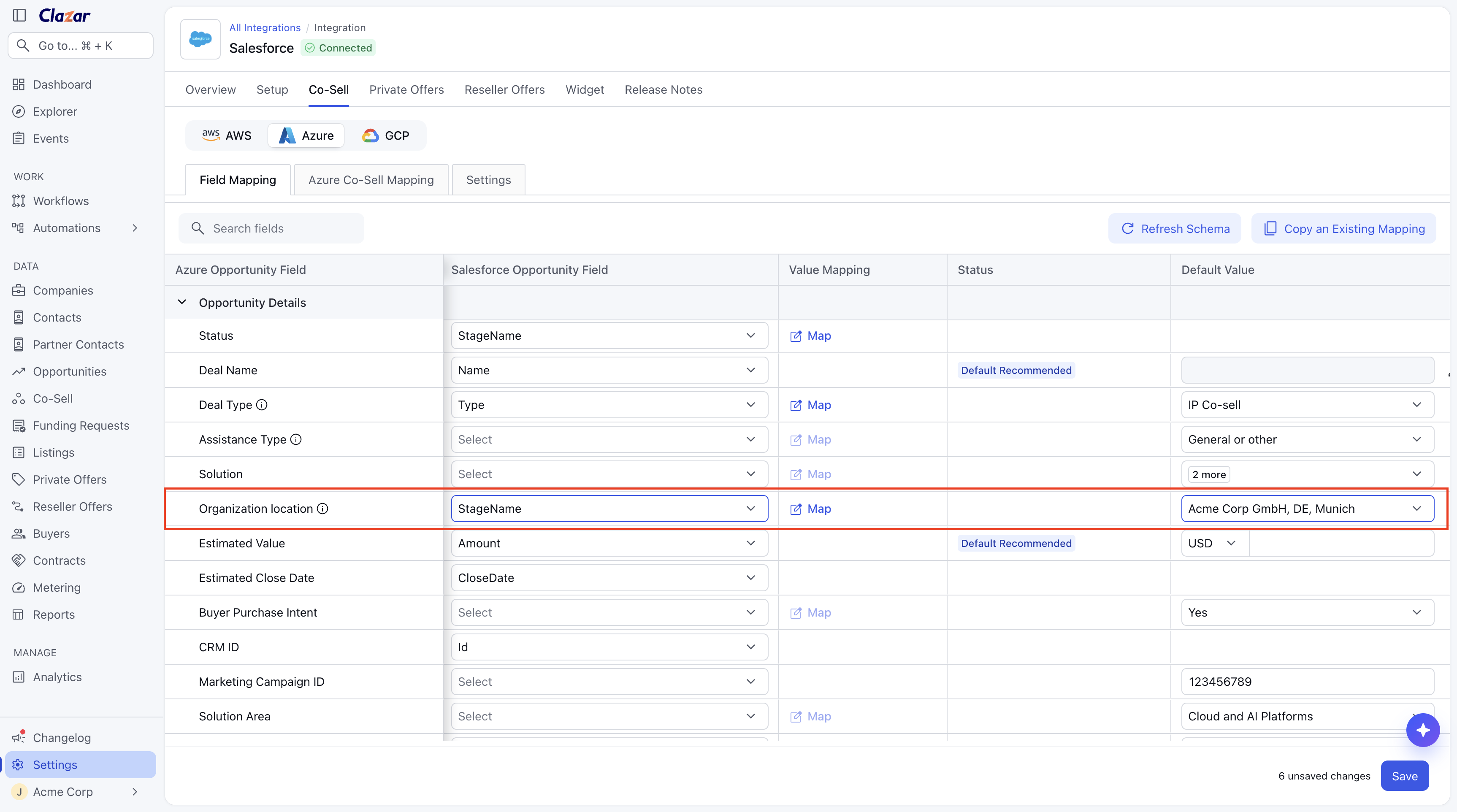
Organization location in Salesforce's Azure cosell field mapping, with a default location
Things to note
Locked after submit: Microsoft doesn't allow a deal's location to change once it's submitted, so choose it before you submit. Auto Update doesn't change it either.
When the CRM value doesn't match: If a CRM value isn't mapped, or maps to a location you no longer have, the opportunity is created on your default location, or on Entire organization if you have no default. The create is never blocked.
Who should re-authorize: Re-authorize as a user with the Referrals admin role in Partner Center. Clazar's Azure Co-Sell connection then runs as that user.
If Microsoft asks for admin approval: Some Microsoft tenants require an admin to approve new app permissions. If yours does, ask your Entra admin to grant Clazar the Partner Center permission. Your locations appear in Clazar within a day.
New, removed and inactive locations: Locations you add or remove in Partner Center show up in Clazar within a day. Inactive locations aren't offered.
Opportunities created in Clazar start on Entire organization until you pick a location.