See why your Salesforce or HubSpot connection stopped working
Last updated: October 1, 2026
Overview
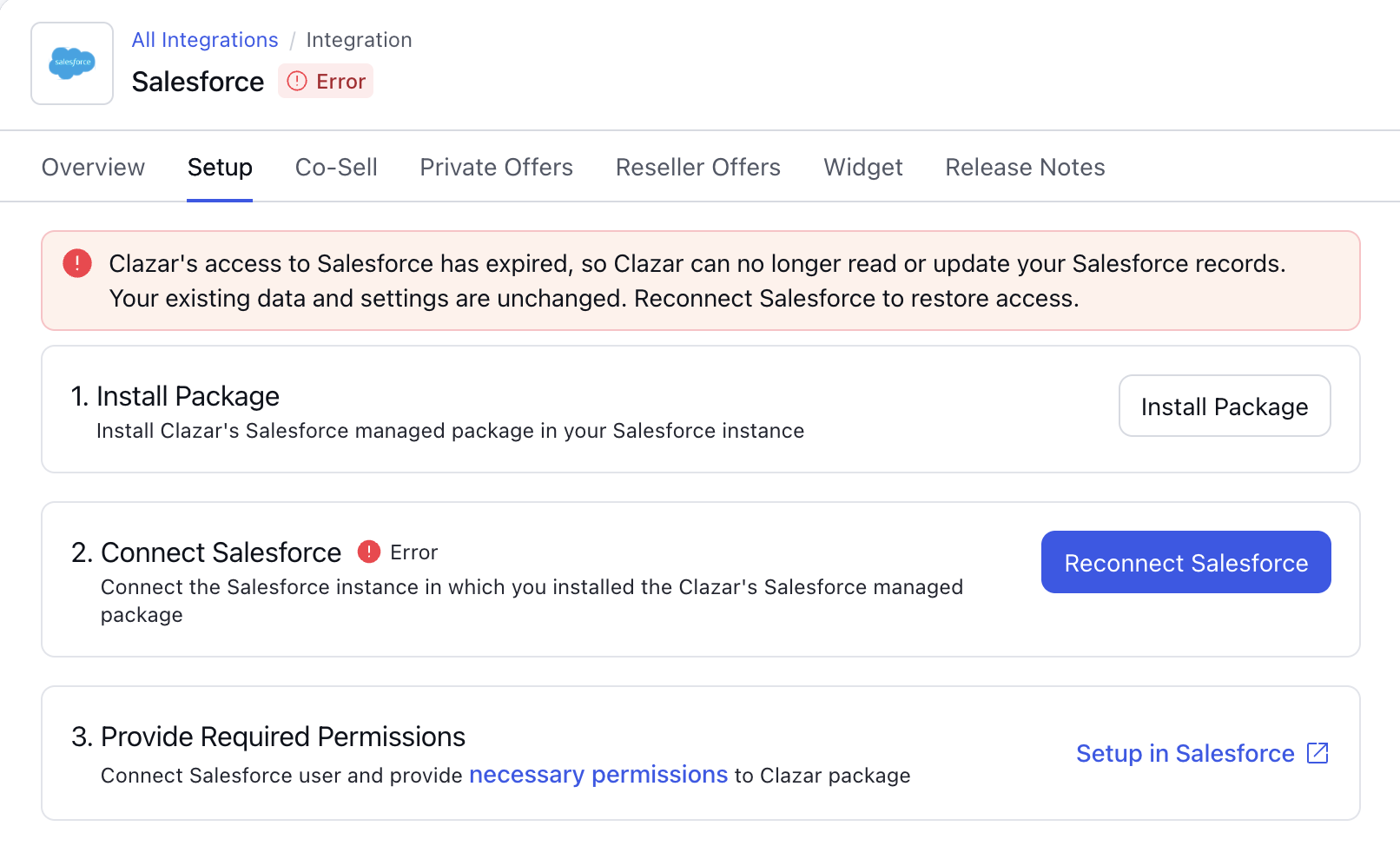
Until now, a Salesforce or HubSpot connection that stopped working gave you no signal. The credentials expire or are revoked on the CRM side, writeback and automations stop, and the integration page still shows a Connect button — the same thing it shows when no CRM is set up. Now the connection carries an Error tag, the reason is written in plain language, and a Reconnect link appears on the integration page, on private and reseller offers, on co-sell opportunities, in Associate CRM Object, and in workflow settings.
Value it drives
The key value add is the clear communication of error across various key pages within the Clazar platform.
Integration page: The Salesforce and HubSpot Setup tabs show an Error tag and a message naming the cause, with Reconnect in place of Connect.
Private offers and reseller offers: On AWS and Azure offers, the CRM field under Data Sources shows an Error tag, with a Reconnect link when reconnecting is what will fix it.
Co-sell opportunities: The CRM field under Data Sources stays on the page with the same Error tag on its label row, rather than disappearing while the connection is down.
Associate CRM Object: The window for linking a record to a CRM object shows the same Error tag and Reconnect link next to the affected CRM.
Workflow settings: Auto Create and Auto Update show the same tag and link on the workflow's Settings tab.
Contracts and user management: The CRM columns stay on the Contracts table and in Settings > Users instead of vanishing. A user mapping you already made stays visible, with the Error tag in the column header; you cannot change it until the connection is working again.
How to get started
Follow these steps when a connection shows an Error tag.
Find the error: A connection that has stopped working shows an Error tag wherever the CRM is used — on a private or reseller offer under Data Sources, on a co-sell opportunity, in Associate CRM Object, and on a workflow's Settings tab. Hover the tag to read the reason.
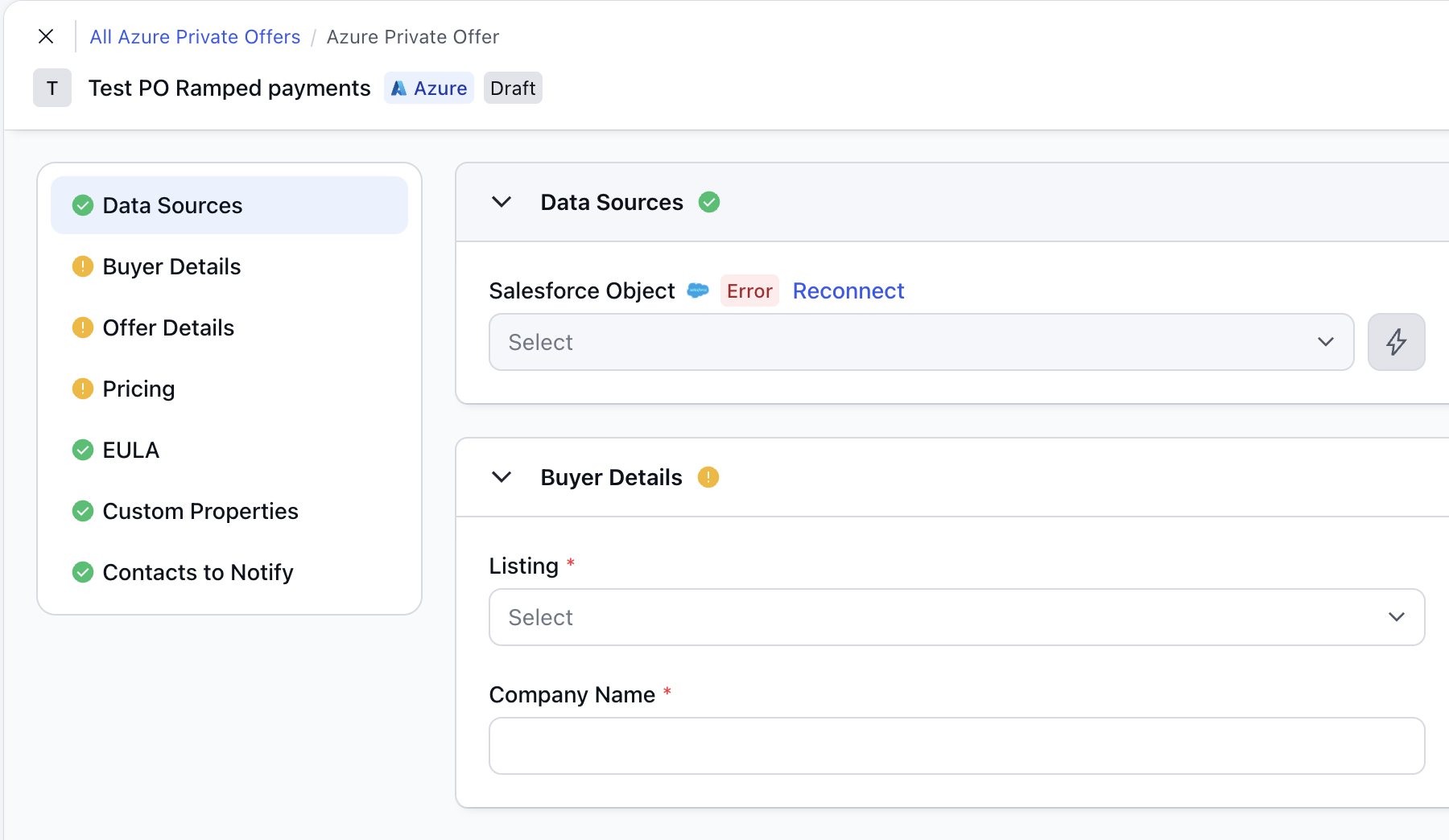
Reconnect button visible on a Private Offer page in case of an error Reconnect the CRM: Select Integrations in the left sidebar, open Salesforce or HubSpot, and go to the Setup tab. Click Reconnect and sign in to your CRM. The message clears and the connection returns to Connected. When reconnecting is what will fix it, the Reconnect link beside the Error tag opens this same tab in a new browser tab, so the offer or record you were working on stays open.
Confirm your automations resumed: Open a workflow and select the Settings tab. Auto Create and Auto Update show the Error tag while the connection is down. They start running again on their own once you reconnect, unless they have been turned off in their own settings.
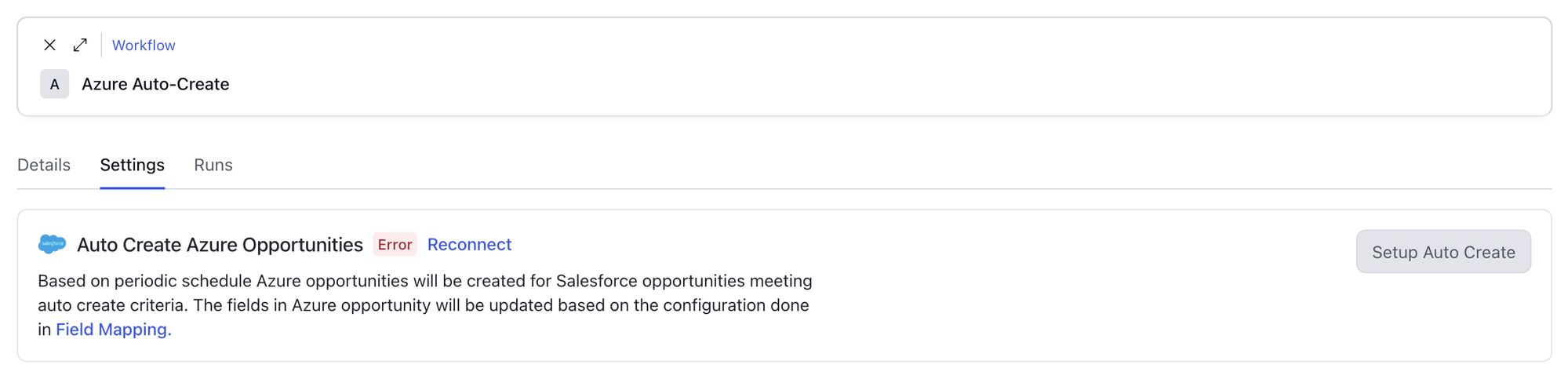
Auto Create and Auto Update resume once you reconnect.
Things to note
Problems you fix in your CRM: Some causes cannot be fixed by reconnecting — a deactivated Salesforce user, or an organization Salesforce reports as inactive. The message says so and tells you what to ask your CRM administrator. There is no Reconnect link in that case, because reconnecting would not help. Access returns on its own once they resolve it, with no action needed in Clazar.
Your existing data stays put: Nothing you have already mapped or linked is removed while a connection is in error. Records keep their CRM links and user mappings, and they become editable again as soon as the connection is working.