Clazar MCP Server: query your marketplace data from any AI assistant
Last updated: October 6, 2026
Overview
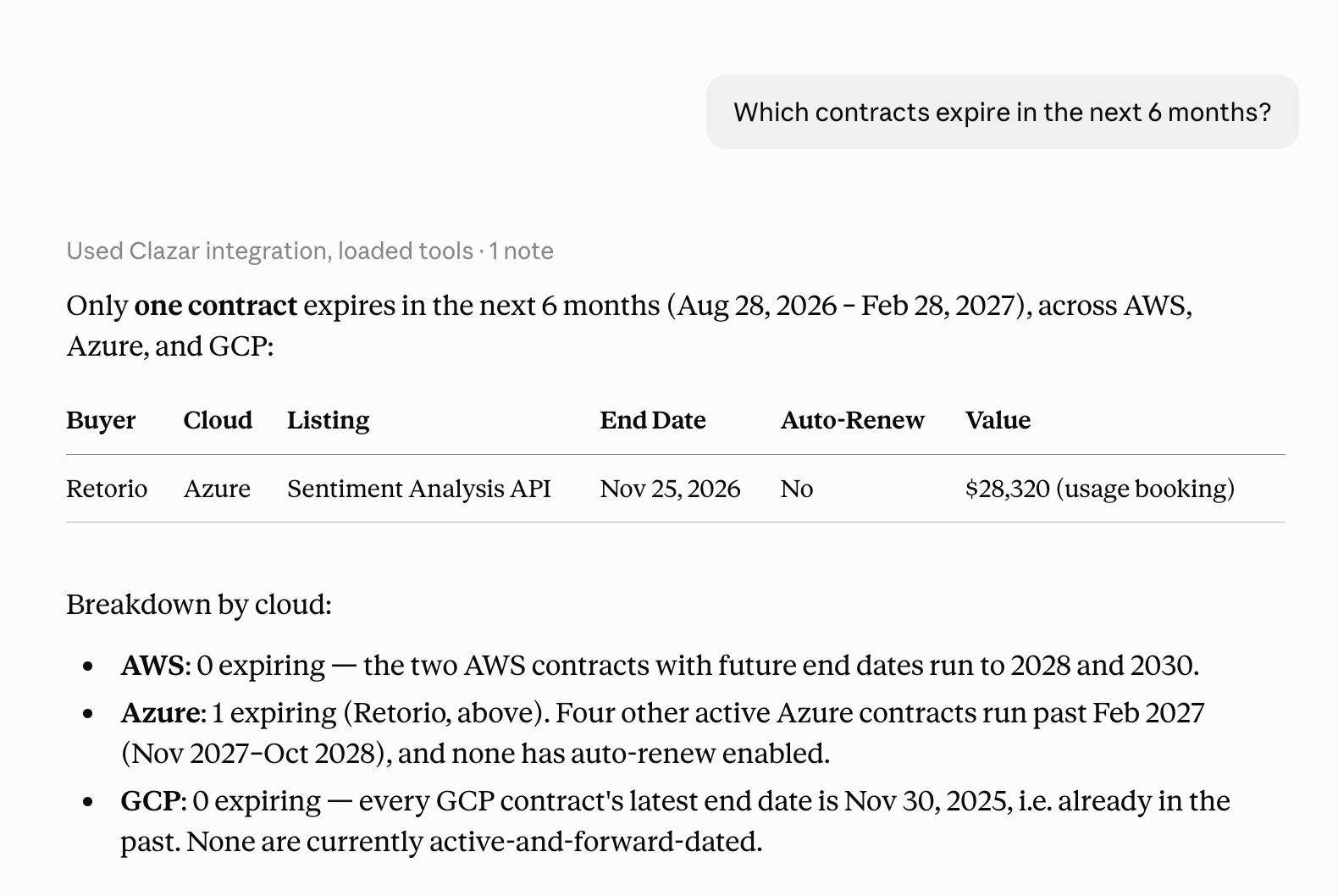
Answering a routine question — which contracts expire in the next 90 days, what disbursed this month, which cosell opportunities are stalled — means opening Clazar, building a filter, and often checking a cloud provider portal alongside it. The Clazar MCP Server exposes that same account data to the AI assistant you already work in, over the Model Context Protocol (MCP), an open standard that lets AI assistants securely connect to external data sources. You connect Claude, ChatGPT, Cursor, Windsurf, or any MCP-compatible client to https://mcp.clazar.io, sign in with your existing Clazar credentials, and ask the question in plain language.
Value it drives
Marketplace data across clouds: The server reads private offers, reseller offers, contracts, cosell opportunities, listings, and metering records for AWS, Azure, and GCP, plus analytics datasets for booking, usage, revenue, tax, and disbursement (availability varies by cloud — see Things to note).
Account and partner records: Companies, contacts, AWS/Microsoft/Google partner contacts, and the connection health of every integration on the Settings > Integrations page are all readable in the same session.
AWS cosell writes with a confirmation step: An AWS Partner Central agent is available for creating and updating AWS cosell opportunities. It validates against AWS requirements and shows exactly what will change before anything is written.
Example questions
"Show me all pending offers across AWS, Azure & GCP"
"Which contracts are expiring in the next 90 days?"
"Which of my private offers expire in the next 30 days?"
"What does my co-sell pipeline look like?"
"Show me recent metering records for my Azure products"
"What are my AWS disbursements this month?"
Prerequisites
MCP enabled for your Clazar account: An Admin or Super Admin turns this on under Settings > MCP (step 1 below).
Access to the Clazar account: You need an accepted Clazar invite to the account you want to connect.
An MCP-compatible AI assistant: Any platform that supports MCP over HTTP transport. Setup steps for popular platforms are below.
Permission to add connectors in your AI platform: On team or organization workspaces, adding a custom connector may require an Owner or Admin role in that AI platform; standard user permissions may not allow it.
For AWS cosell writes only: An AWS connection in Clazar with the Partner Central CloudFormation stack deployed. Without it, the Partner Central agent responds with a setup message instead of an answer.
How to get started
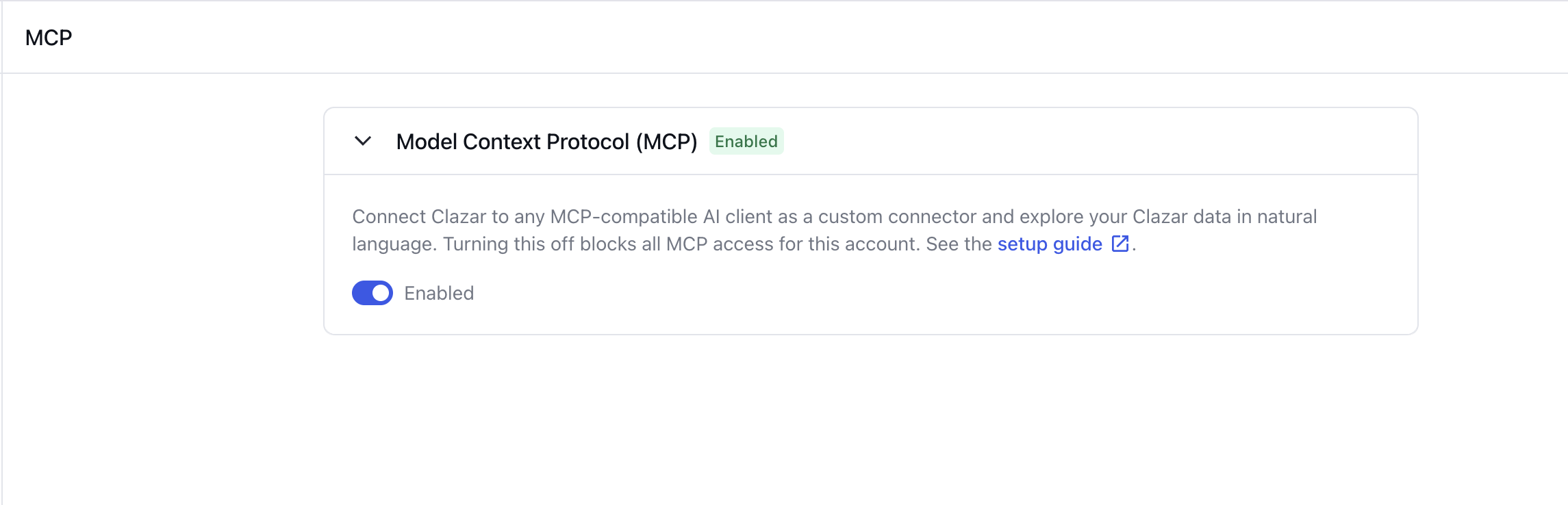
Enable MCP for your account: In Clazar, open Settings > MCP and turn on the Model Context Protocol (MCP) toggle. Only an Admin or Super Admin can change this setting.
Add the server in your AI assistant: In its connector or MCP settings, add a custom connector pointing at the server URL below. Platform-specific steps are in the next section.
https://mcp.clazar.ioSign in: A browser window opens. Sign in with your existing Clazar credentials and approve the connection.
Ask a question: Start with something you would normally answer by filtering a list, such as one of the example questions above.
Setup by platform
Each platform follows the same pattern: add https://mcp.clazar.io as a custom connector, then sign in to Clazar in the browser window that opens.
Claude (desktop and web)
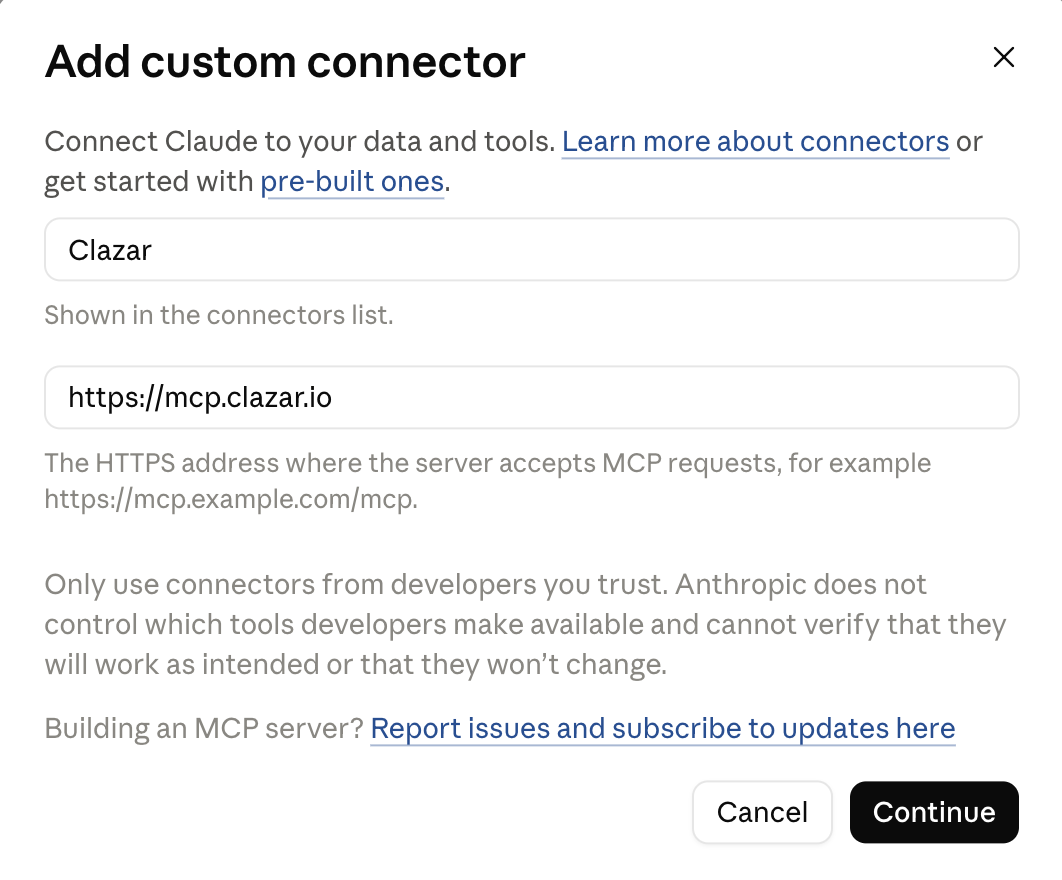
Open Settings → Connectors and click Add custom connector.
Enter a name (for example, Clazar) and the server URL
https://mcp.clazar.io, then click Continue.Sign in with your Clazar credentials and approve the connection.
Claude Code (CLI)
In your terminal, run:
claude mcp add --transport http clazar-mcp https://mcp.clazar.ioOpen Claude Code and run the
/mcpcommand.Select clazar-mcp and authenticate in the browser when prompted.
ChatGPT
Open ChatGPT → Settings → Connected Tools (or MCP Connectors).
Click Add Connector and enter
https://mcp.clazar.io.Authenticate in the browser popup with your Clazar credentials.
Cursor
Open Cursor → Settings → MCP and click Add new MCP server.
Set the type to HTTP and enter
https://mcp.clazar.io.Save, then authenticate when the browser opens.
Windsurf
Open Windsurf → Settings → MCP Servers.
Add a new server with the URL
https://mcp.clazar.io.Authenticate in the browser when prompted, then ask questions in the AI panel.
Other MCP-compatible platforms
Find the MCP or Custom Connector settings in your platform.
Add a new server with the URL
https://mcp.clazar.io(HTTP transport).Authenticate in the browser when prompted.
Security
Authentication: The server uses OAuth 2.1 with PKCE against your existing Clazar login, including SSO and SAML. There are no API keys or client secrets to manage.
Account-scoped access: Every request is scoped to the Clazar account you signed in to. Results are scoped to the account filtered per user role, so anyone who can sign in to the account can read its data through their AI assistant.
No data persistence: Clazar does not persist any data from MCP sessions.
Turning access off: Anyone in the account can view the Settings > MCP page, but only an Admin or Super Admin can turn access on or off. Turning it off blocks all MCP access for the account immediately.
Things to note
Custom connector: Clazar connects as a custom connector that you add yourself. It is not yet listed in the Claude or ChatGPT connector directories.
Read access, with one exception: Every tool is read-only except the AWS Partner Central agent, which can create and update AWS cosell opportunities after you confirm the change.
Cloud coverage: Offers, reseller offers, contracts, cosell, and metering cover AWS, Azure, and GCP. Listings also cover Snowflake. Analytics datasets vary by cloud: AWS has booking, usage, revenue, tax, and disbursement; Azure has customer, booking, usage, and revenue; GCP has revenue and disbursement. You can ask about multiple clouds in the same session.
Rate limit: Requests are limited to 60 tool calls per minute per account.
One account per connection: A connection is bound to a single Clazar account. If you belong to more than one, you choose which account during sign-in, and the assistant reads that account's data only. Connect again to reach a different account.
Troubleshooting
Authentication fails: Check that MCP is enabled under Settings > MCP. If it is off, ask an Admin or Super Admin on your Clazar account to turn it on.
Server not responding: Verify the URL is exactly
https://mcp.clazar.io, with no trailing slash or extra characters.Tools not appearing: After authenticating, restart your AI assistant or refresh the MCP connection.
Partner Central agent returns a setup message: Deploy the Partner Central CloudFormation stack on your AWS connection in Clazar (see Prerequisites).
Need help? Reach out to your Clazar point of contact or Clazar support, and we'll help you get set up.