Added AWS funding requests to Clazar, across every funding program
Last updated: August 26, 2026
Overview
Until now, checking where an AWS funding request stood meant logging into Partner Central and opening each fund request one at a time.
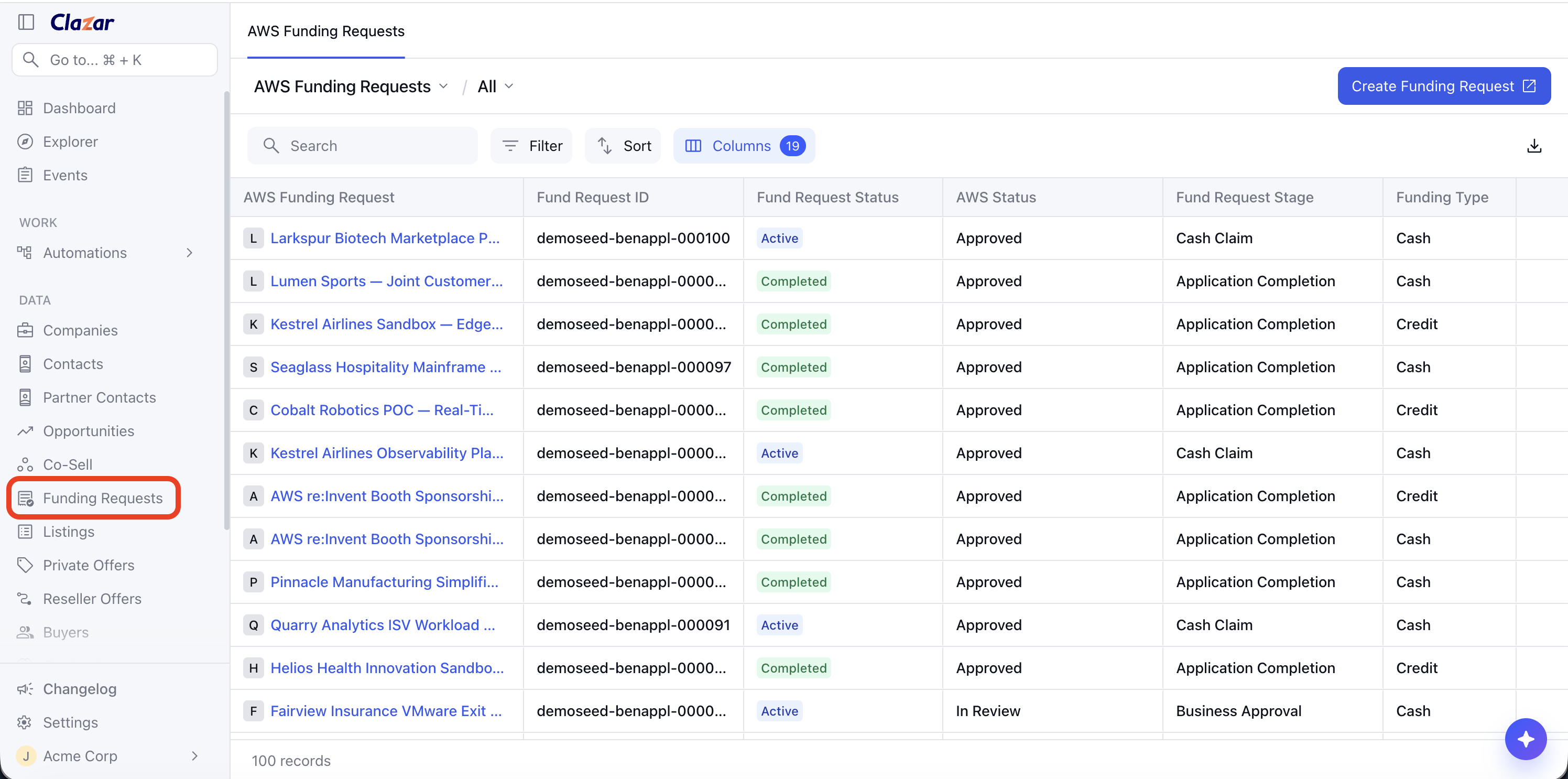
A new AWS Funding Requests page in Clazar shows every fund request on your AWS account, across every program: Marketing Development Fund, Partner Initiative Funding, Proof of Concept, Migration Acceleration Program, Innovation Sandbox and ISV Workload Migration, with the program subcategory Partner Central uses. Funding types are shown as Cash, Credit, Discount, Access, Recognition and Resource; a request covering both cash and credit is shown as Combo, matching Partner Central.
Value it drives
Amount columns: New Requested Amount and Approved Amount columns are available on the list. Partner Central's own funding list does not show these amounts.
Cash allocation: A Cash Allocation section on each request shows the cash benefit as Granted, Claimed and Remaining amounts.
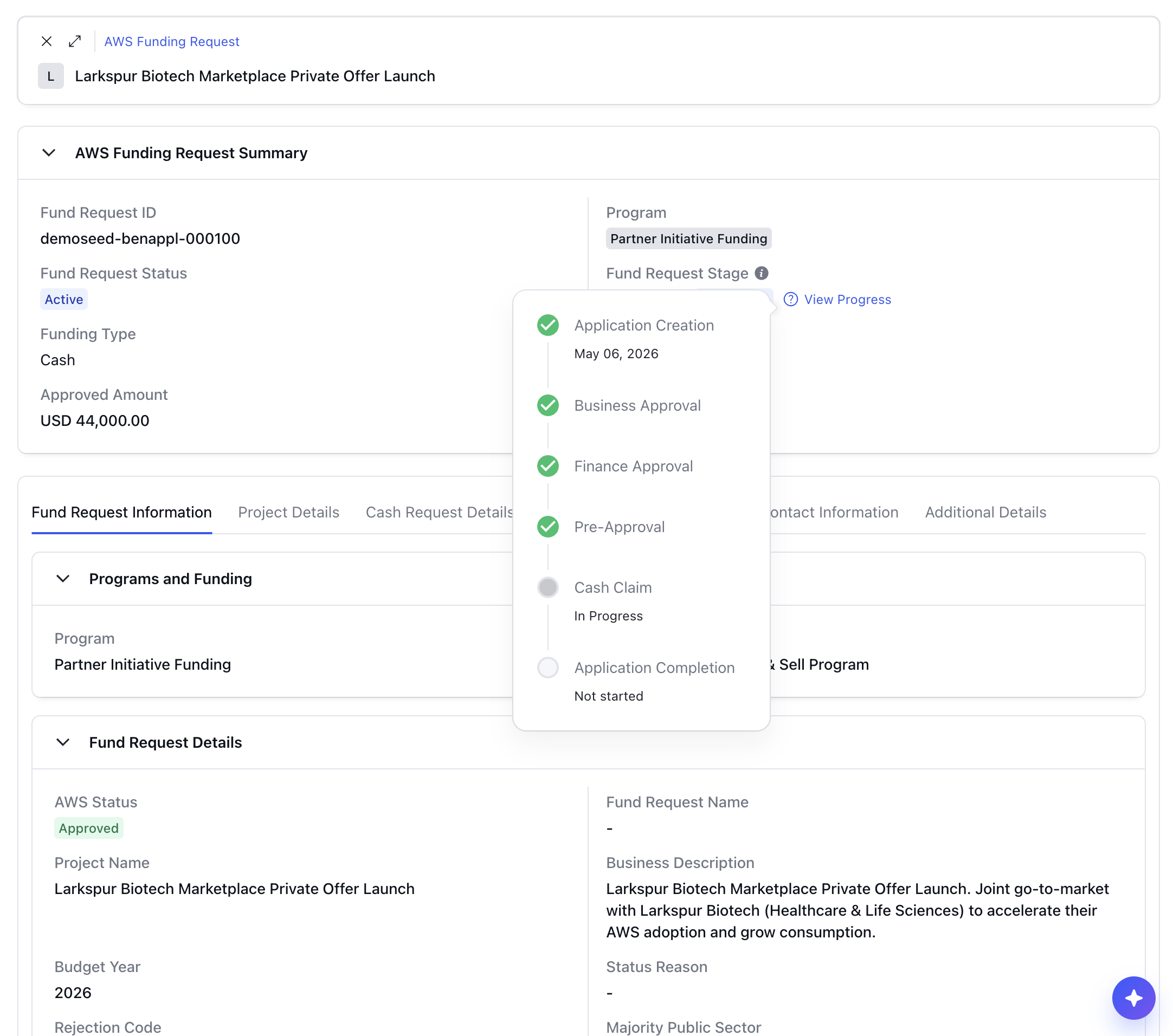
Stage progress: A Fund request stage view shows the request's progress through Partner Central's stages: business approval, finance approval and cash claim.
Filters and export: The list can be filtered by funding type, program, or any of the other properties and exported to CSV.
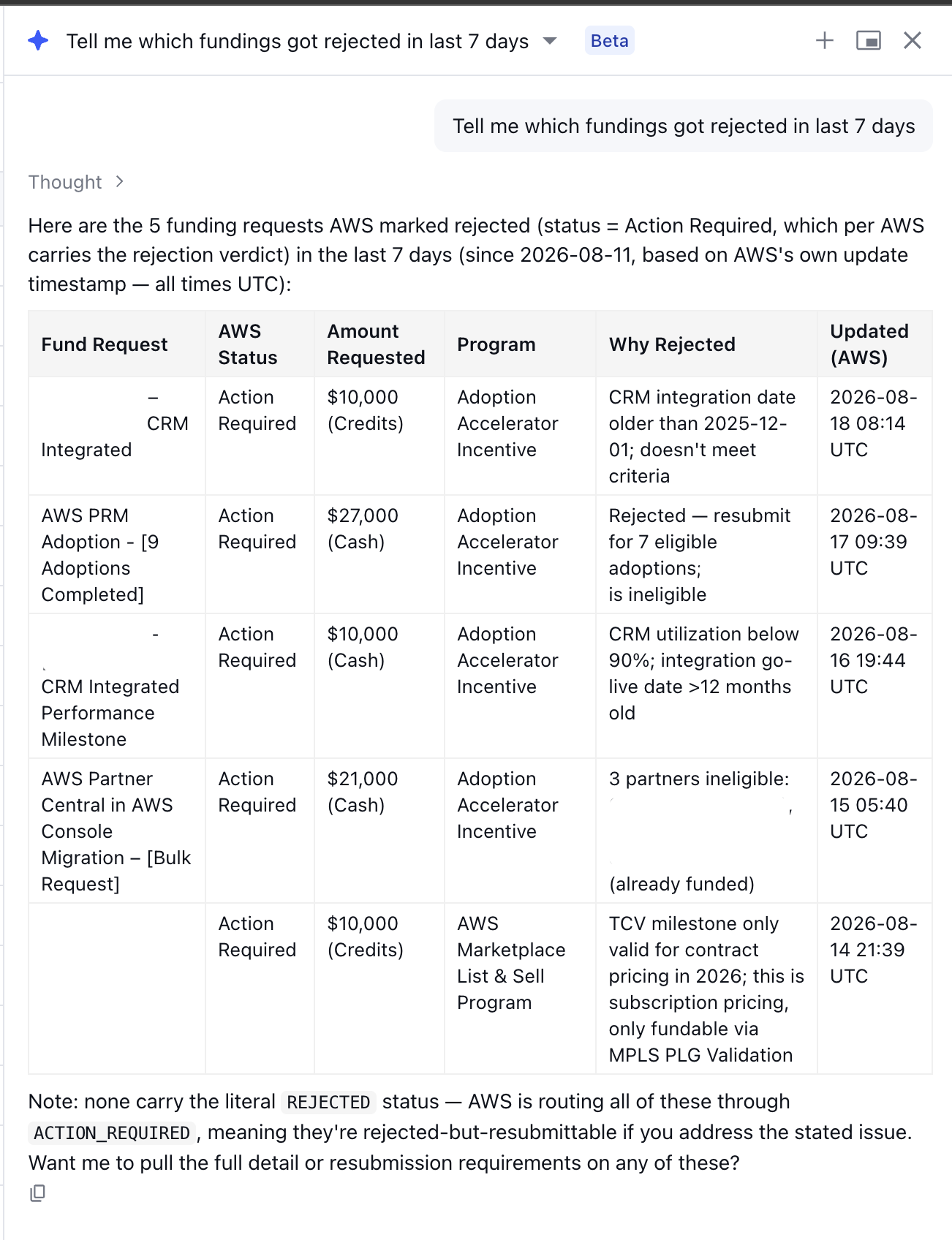
Clazar AI: You can ask Clazar AI about your funding requests directly. For example: which requests are stuck, the total amount approved in a given period, or the details of a specific request.
How to get started
Open the page: AWS Funding Requests sits under Data in the left sidebar, next to Cosell.
Filter the list: Filter by funding type or program, and add columns such as Purchase Order Number and AWS Status. Filtering on a funding type also returns the combo requests that include it: filtering for Cash returns the requests that pair cash with credits as well.
Open a request: The highlight panel shows the status, fund request ID, stage, funding type, and the requested and approved amounts. Partner Contacts lists the contacts responsible for the request (the people AWS notifies as it moves between stages), and Documents holds the files attached to the request; click a file name to open it.
Things to note
Read-only in Clazar: Funding requests cannot be created or edited in Clazar. Creating and submitting a request happens in Partner Central; the Create Funding Request button on the list opens it.
Action Required status: Action Required means AWS has returned the request to you. Partner Central shows a returned request as Draft; Clazar shows Action Required, with the rejection code and reason on the record.
Dates and timestamps: Dates are shown in UTC. Timestamps are labelled Created in AWS at and Updated in AWS at to indicate they come from AWS rather than Clazar.