Track the work Clazar automates for you in the new Workflows section
Last updated: September 7, 2026
Overview
Until now, confirming that Clazar had auto-created a co-sell opportunity, or finding out when auto-update last pushed a CRM change to AWS, Azure or GCP, meant asking your Clazar support contact. The automations ran on schedule, but nothing in the product showed that they had. The new Workflows section lists the key work Clazar automates on your account and records every execution as a workflow run, together with the records that run created or updated.
Value it drives
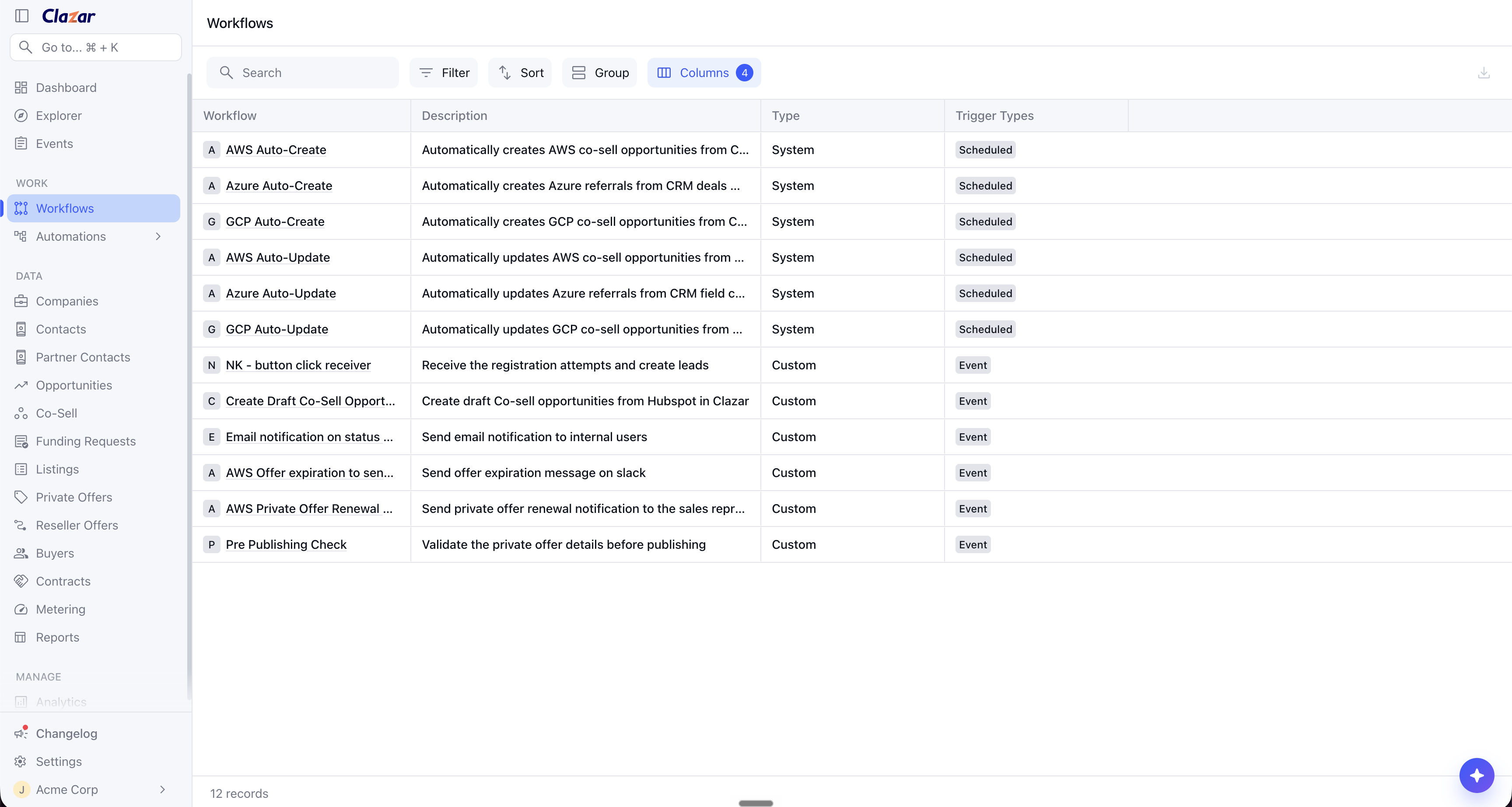
Workflow catalog: The Workflows section lists each workflow Clazar runs for you, with its description, trigger and schedule. Co-sell auto-create and auto-update are registered for AWS, Azure and GCP, and auto-create and auto-update settings are on each workflow's Settings tab.
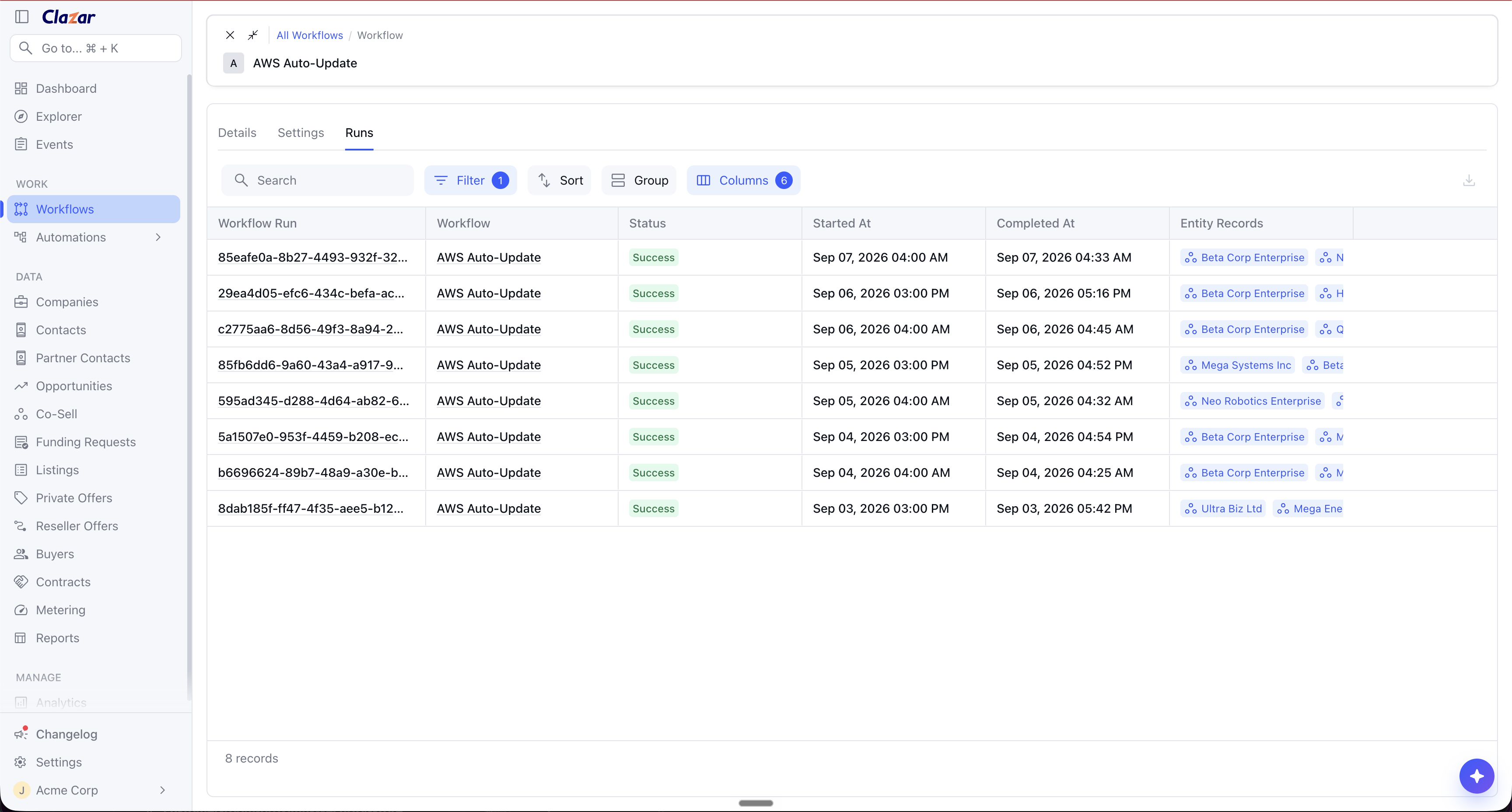
Run history per workflow: Every workflow has a Runs tab listing its executions with a status and a start time. A scheduled run that succeeded, failed, or is still in progress is visible without asking support.
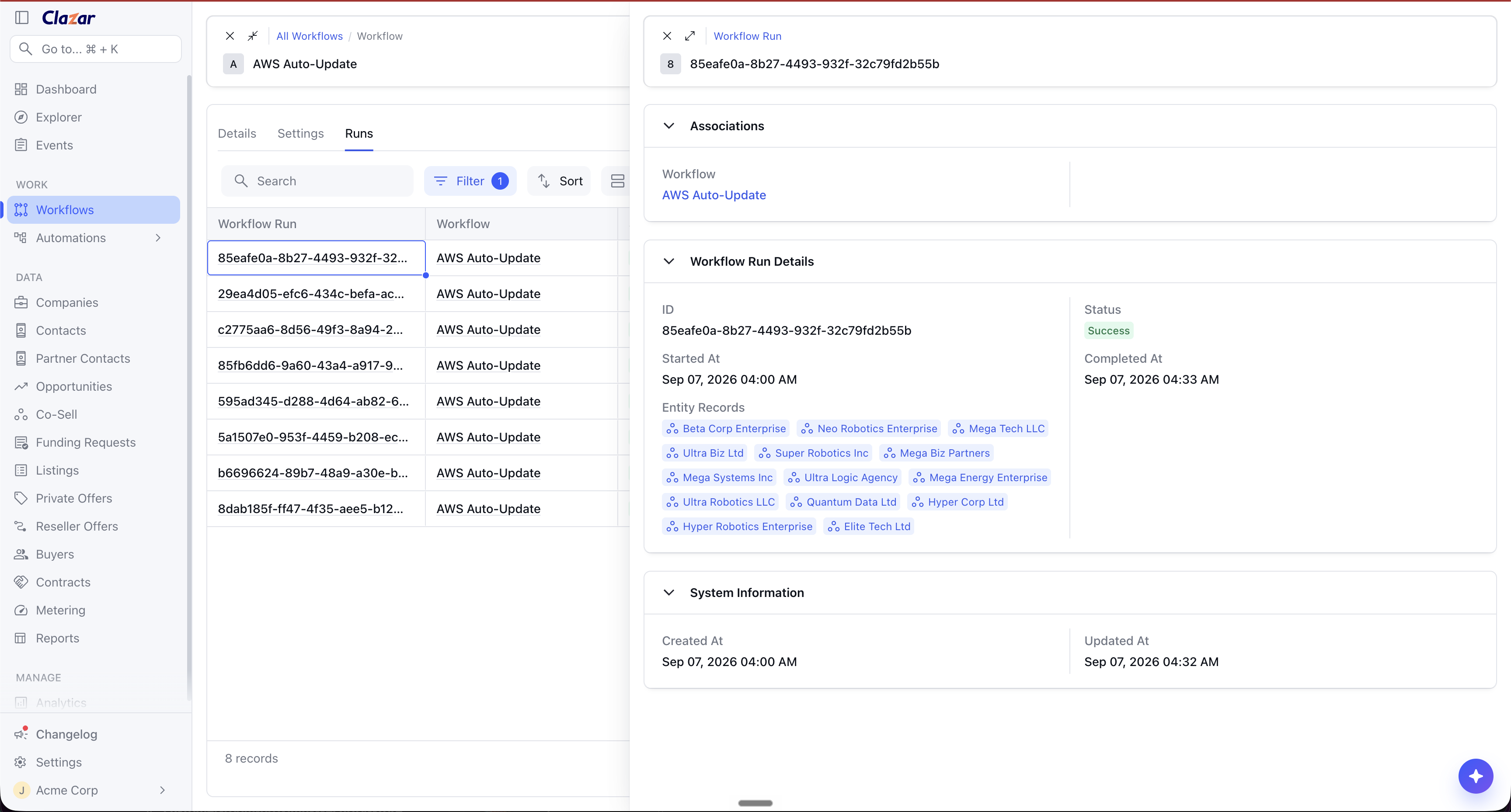
Records a run touched: Opening a run lists the co-sell opportunities that execution created or updated. A single auto-create run shows every opportunity it created; a single auto-update run shows every opportunity it changed. Built generically, other future workflows or workato recipes show the entity records they touched in place of co-sell opportunities.
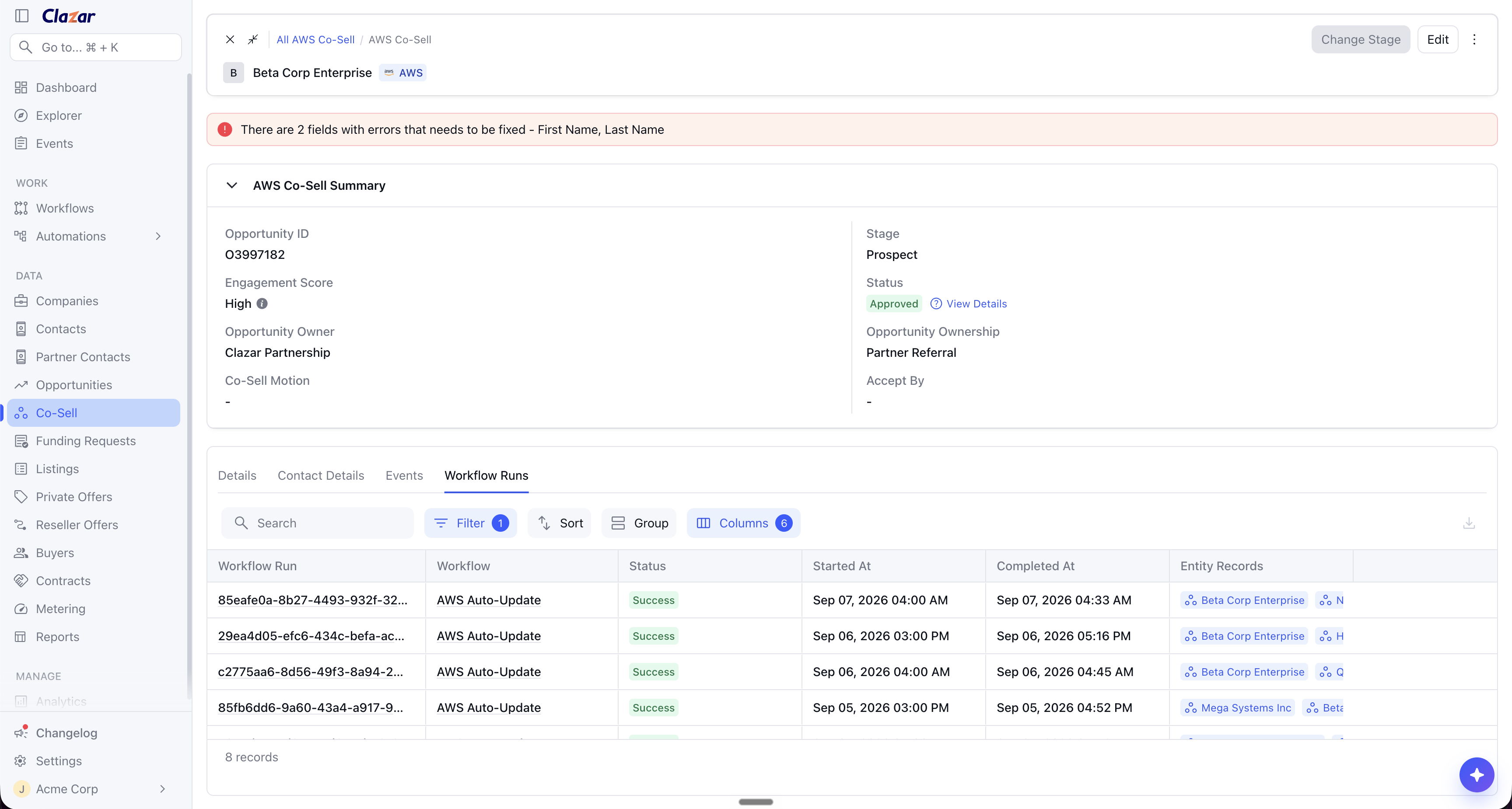
History for one record: A Workflow Runs tab on a co-sell opportunity's detail page lists the runs that touched that record. You can see the run that auto-created the opportunity and each later run where auto-update pushed a CRM change to it.
Your own automations alongside: Workato recipes you run through Clazar appear as custom workflows in the same list, each with its own run history.
How to get started
Open Workflows: Click Workflows in the left navigation. Workflows appear for the clouds you have connected, so no setup is needed.
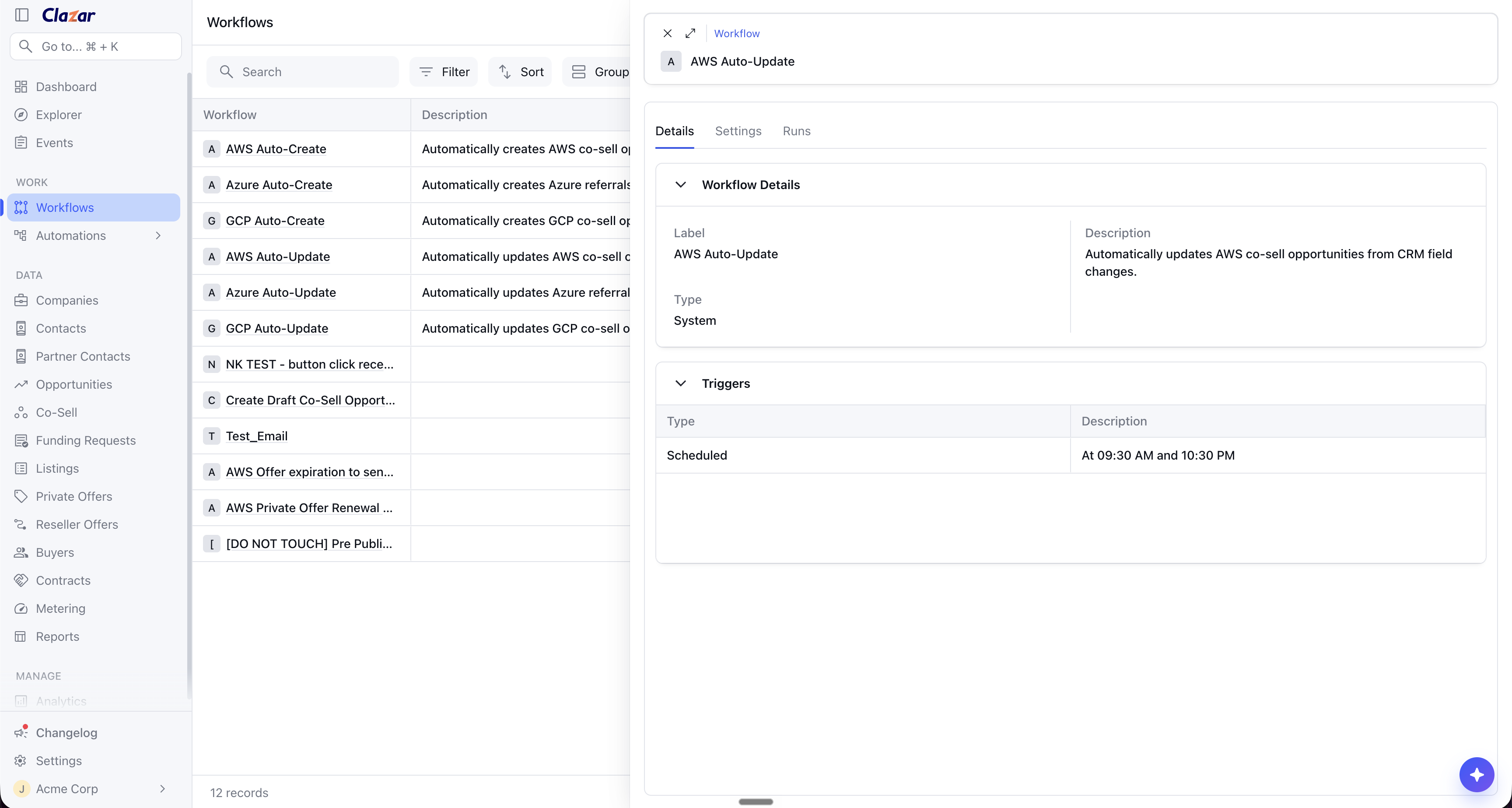
Open a workflow: Click a workflow, for example AWS Auto-Update, to see its description, trigger and schedule. Use the Settings tab to review its eligibility criteria and field mappings.
Review its runs: Open the Runs tab. Each row is one execution, with its status and start time.
See what a run touched: Click a run to open it. The run lists the co-sell opportunities it created or updated.
Trace one opportunity: Open any co-sell opportunity and select its Workflow Runs tab to see every run that touched that record, in order.
Things to note
Current scope: Co-sell auto-create and auto-update are the workflows registered today, for AWS, Azure and GCP. The Workflows section is built to carry the rest of the work Clazar does for you, not co-sell alone.
Cloud availability: A workflow is listed only for a cloud you have connected. Connecting a cloud adds its workflows automatically.
Records listed per run: A run lists up to 100 affected records. A run that processes more than 100 shows the first 100 it touched.
Long-running runs: A run that has not finished within 12 hours is marked failed, so a run does not stay in progress indefinitely.
Planned expansion: Run detail will grow to show what the run exactly did, not just which records were touched. More of Clazar's work is planned as workflows, including CRM syncs and metering.