AWS Partner Central Integration Guide
Last updated: November 2, 2026
Overview
Connect your AWS account to Clazar through the AWS Partner Central integration. One connection covers your AWS Marketplace business (listings, private and reseller offers, agreements, metering and disbursements) and your Partner Central business (co-sell opportunities and funding requests). It follows AWS's own move of AWS Marketplace into AWS Partner Central, so you set up both from one card.
The connection has tiles. Each stack tile opens AWS CloudFormation with every value filled in, creates a role that only Clazar can assume, and reads Completed on its own once the stack reports back. Launch both stack tiles, Marketplace access and Partner access. Each covers one half of your AWS business.
Connection Setup
Prerequisites
An AWS Partner Central account. Complete registration, identity verification and business verification in the AWS console. AWS creates your Partner Central account and your AWS Marketplace account together. Step by step process can be found here: AWS Seller Account Setup (New) or AWS's Getting started guide. AWS Partner Central also includes an onboarding agent that walks you through registration, verification and seller readiness. Open AWS Partner Central in the AWS console and choose one of the prompts on the dashboard. The agent does not launch Clazar's stacks or change anything in Clazar.
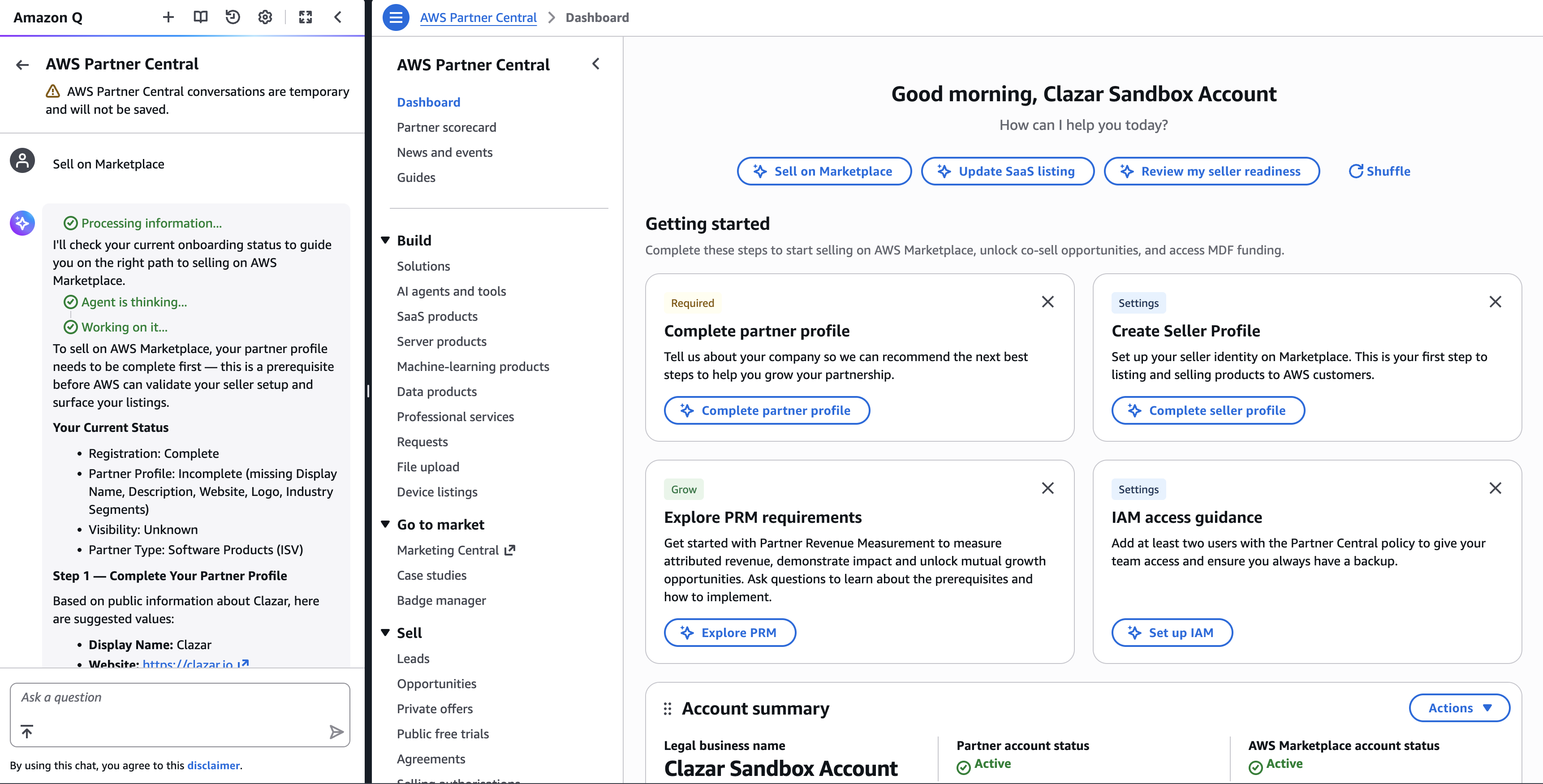
Complete your AWS Marketplace seller settings. Public profile, tax information and bank account, under AWS Marketplace settings in AWS Partner Central. Clazar can connect before this is done, but AWS won't let you publish paid products until it is.
One AWS account. Clazar connects one AWS account to your Clazar account: the account your Partner Central and AWS Marketplace registrations live in. Launch every stack while signed in to that account.
A user who can create IAM roles. The stacks create IAM roles and policies, a Lambda function, SQS queues, an EventBridge rule, and an S3 bucket, KMS key and SNS topic for data feeds. An administrator of the account usually has these rights. If your security team wants to know what access Clazar is given and why before you launch, share the section What each stack creates and grants below with them.
US East (N. Virginia). Launch Stack opens CloudFormation in
us-east-1, the Region where AWS delivers Partner Central and AWS Marketplace events. Don't change the Region on the CloudFormation page.Existing data feeds. If AWS Marketplace already delivers seller data feeds to a bucket of your own, tell Clazar support before you launch Marketplace access. Clazar records your bucket and topic, the stack then skips creating new ones, and the Seller Data Feeds tile shows your existing values.
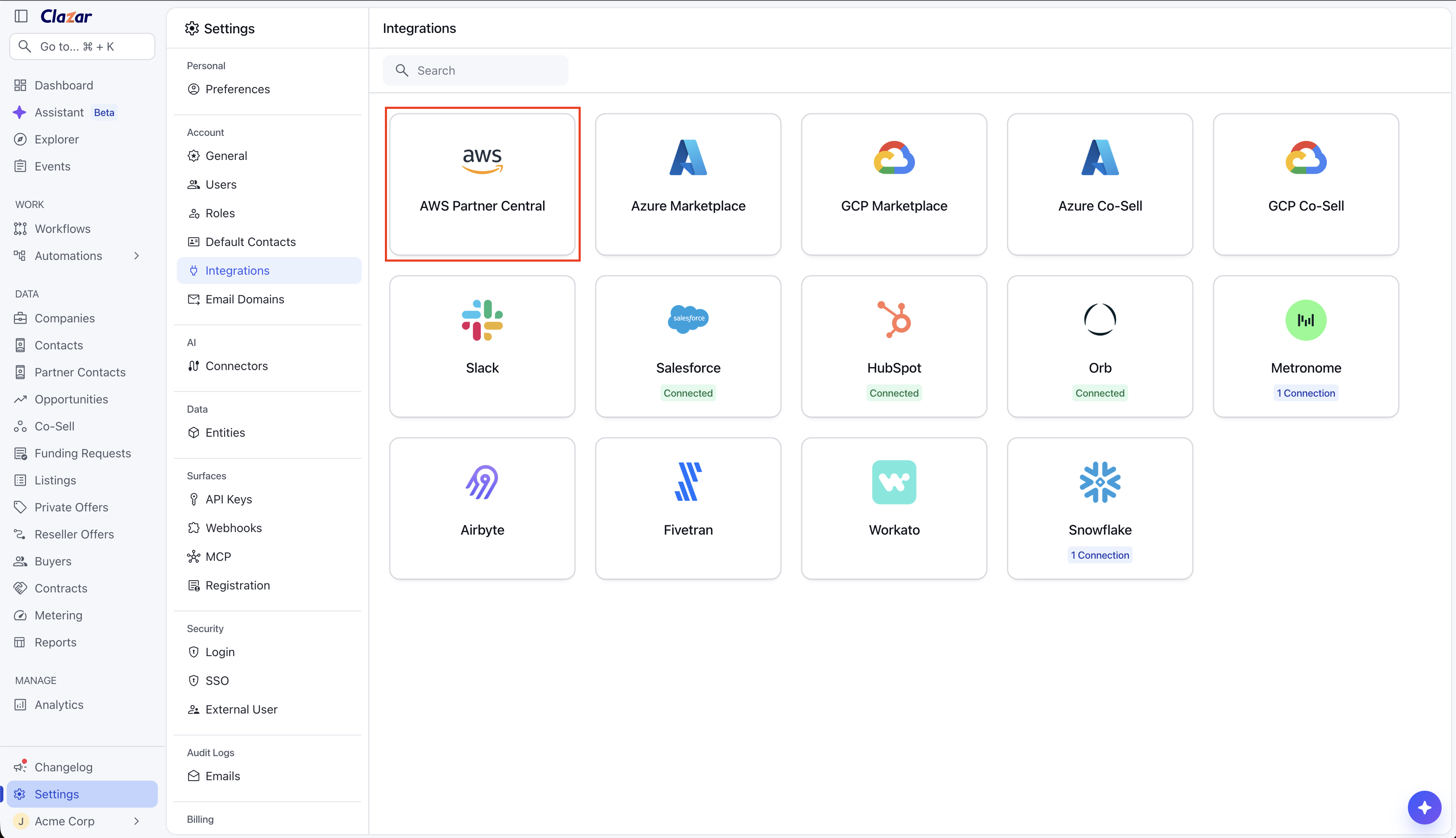
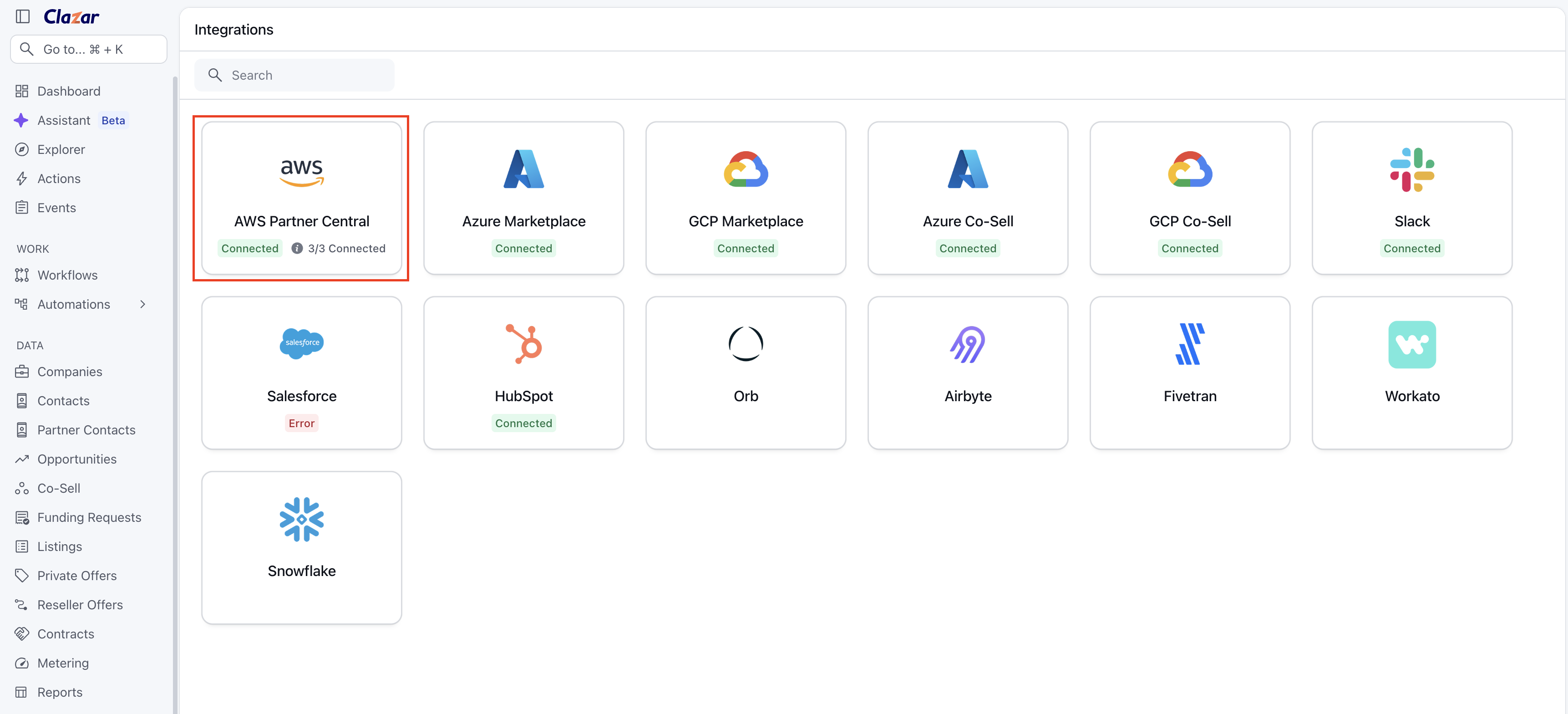
The card. The AWS Partner Central card is on the Integrations page. If you don't see it, ask your Clazar contact.
Integration Steps
In Clazar, go to Integrations and open AWS Partner Central.
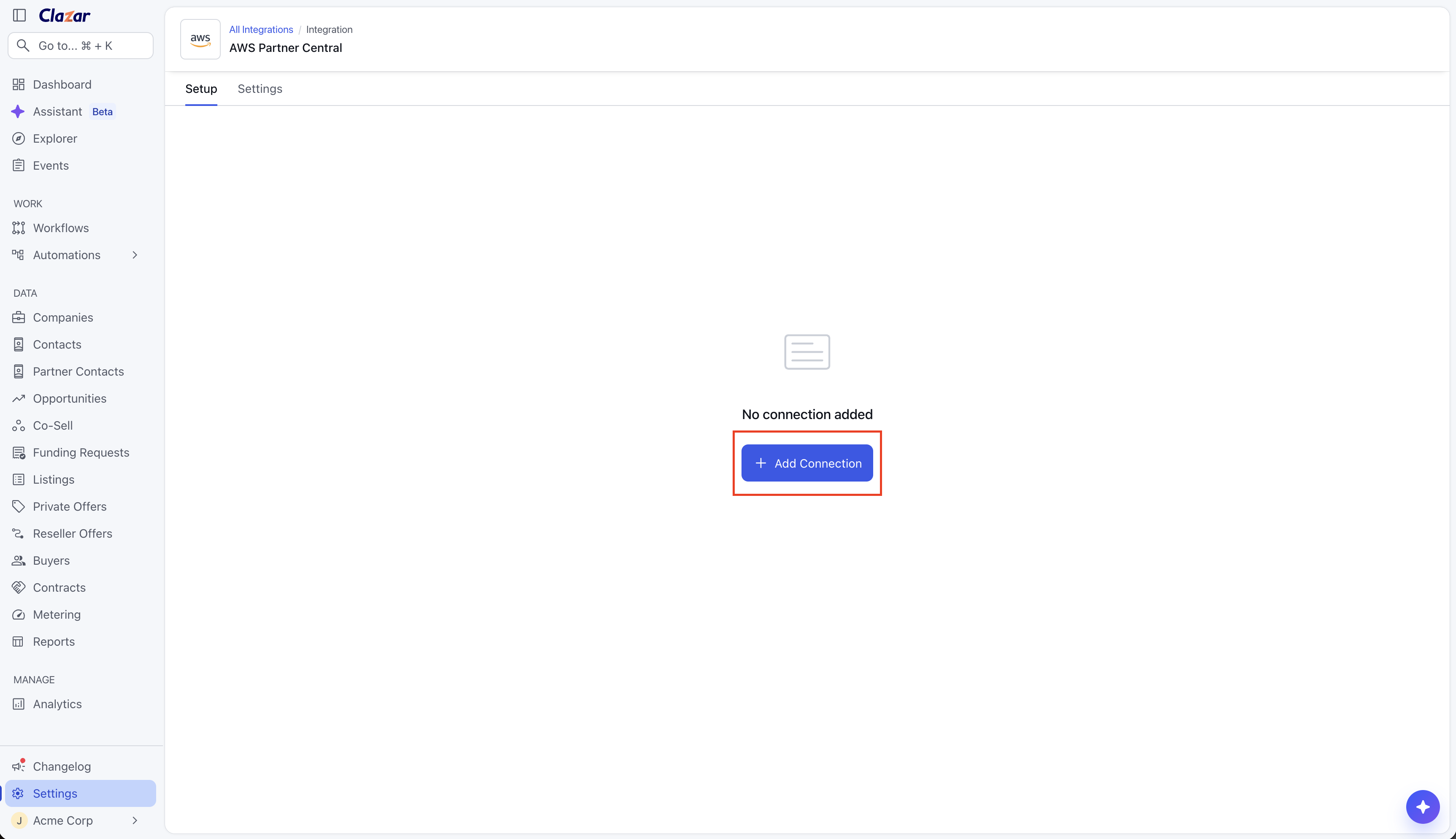
Choose Add Connection.
Clazar creates the connection and opens it. It shows Prerequisites (a link to this guide) and the tiles: Marketplace access, Partner access, Seller Data Feeds (SDDS) and Additional details. To come back to the tiles later, open the connection's Edit (pencil) action.
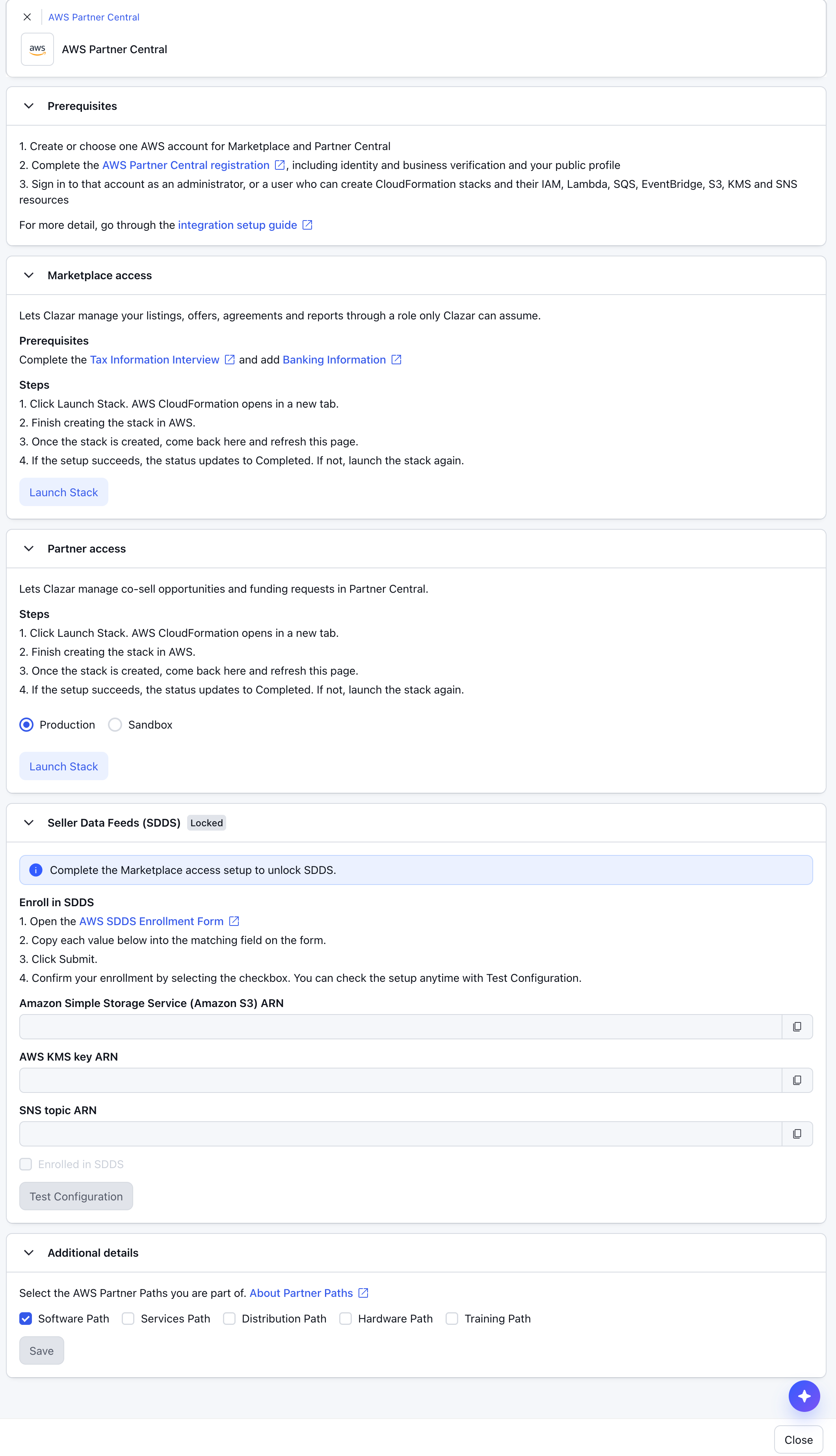
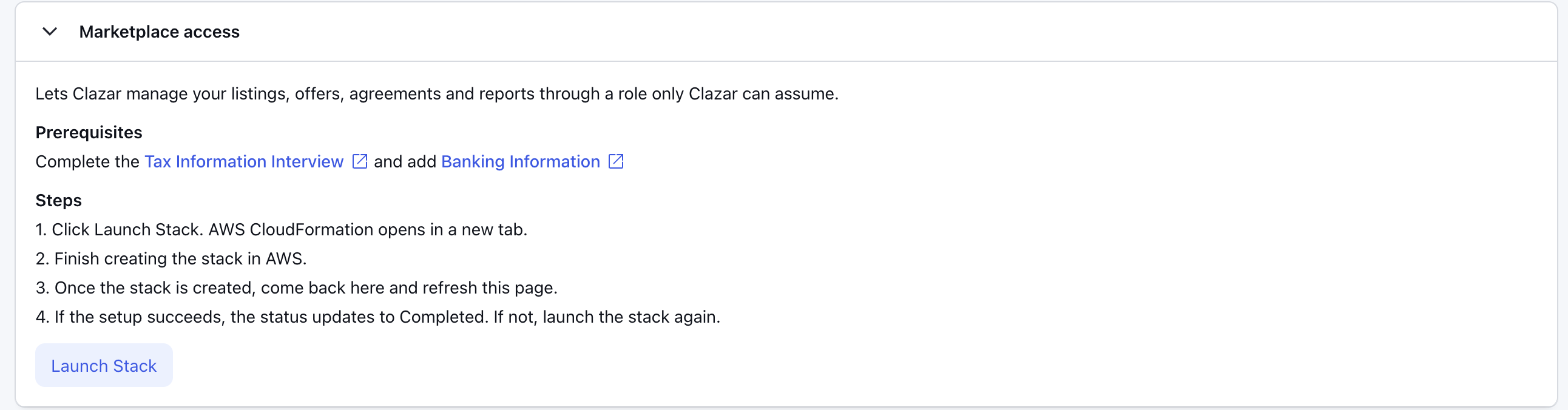
Choose Launch Stack on Marketplace access. A new tab opens the AWS CloudFormation Quick create stack page with every parameter filled in. If no tab opens, allow pop-ups for Clazar and choose Launch Stack again.
Sign in to the right AWS account if you aren't already. At the bottom of the page, under Capabilities, select both acknowledgements (IAM resources with custom names, and
CAPABILITY_AUTO_EXPAND), then choose Create stack. Don't edit the parameters.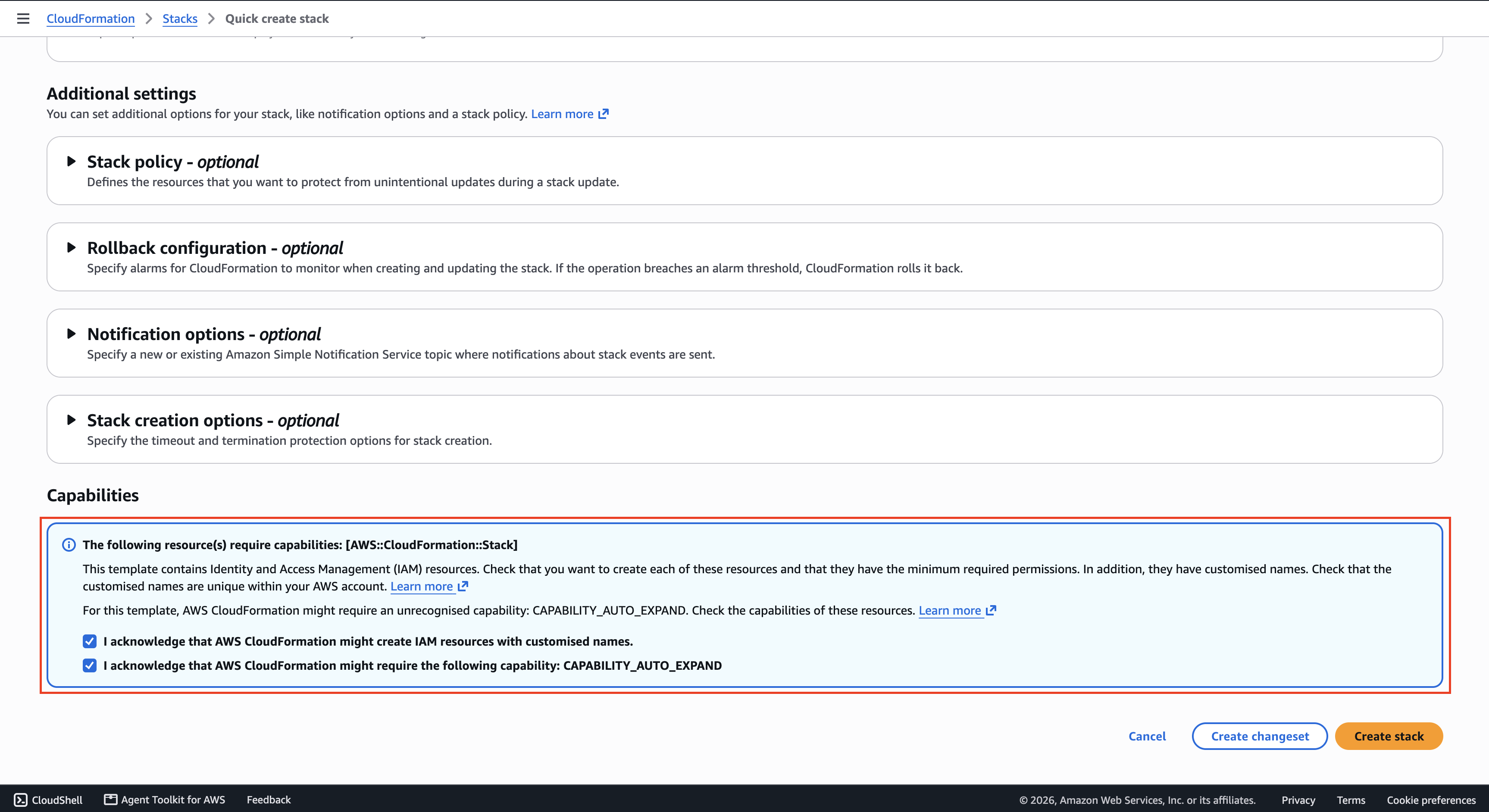
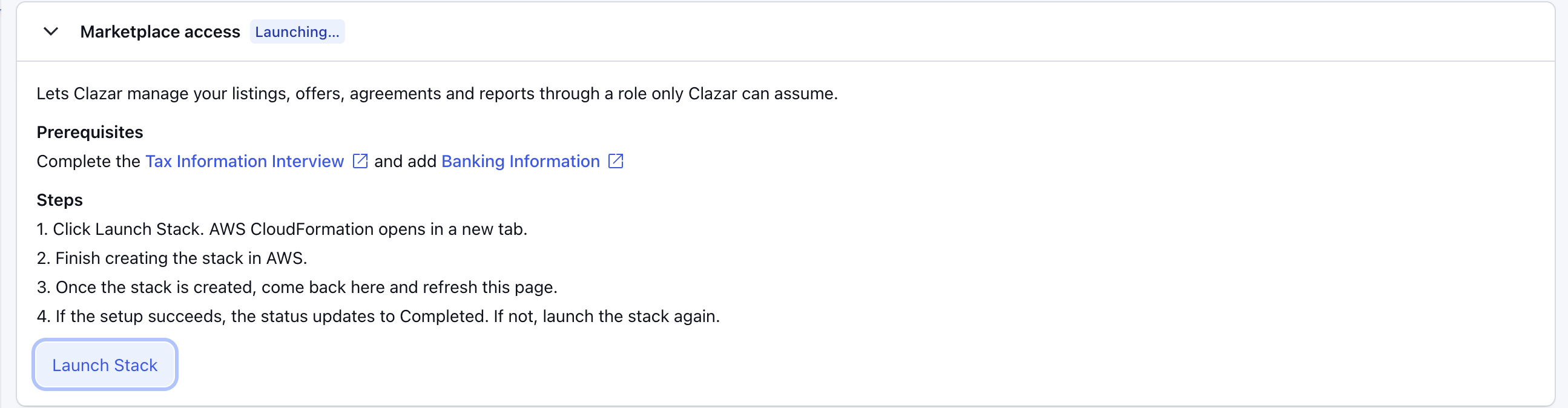
Leave the Clazar tab open. The tile reads Launching… and checks for the stack on its own. When the stack finishes, it reports to Clazar, the tile reads Verifying… while Clazar checks the access, and then Completed. This usually takes a few minutes. If the stack fails in CloudFormation, or the tile stays on Launching… or Verifying… for more than about 15 minutes, see Troubleshooting below.

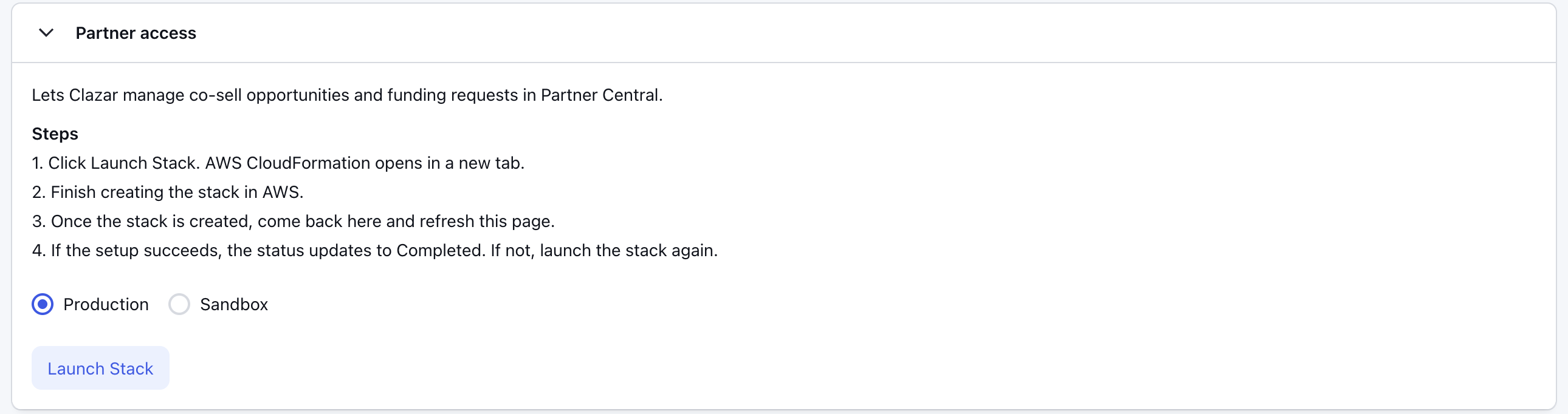
Pick the Partner Central catalog on Partner access and choose Launch Stack. Then repeat steps 5 and 6.
Production: your real opportunities, engagements and funding requests. Choose this unless Clazar support has asked you to test.
Sandbox: AWS's test catalog, for trying the integration without touching live data.
The stack limits Clazar to the catalog you choose. To switch catalog after the stack has reported, contact Clazar support.
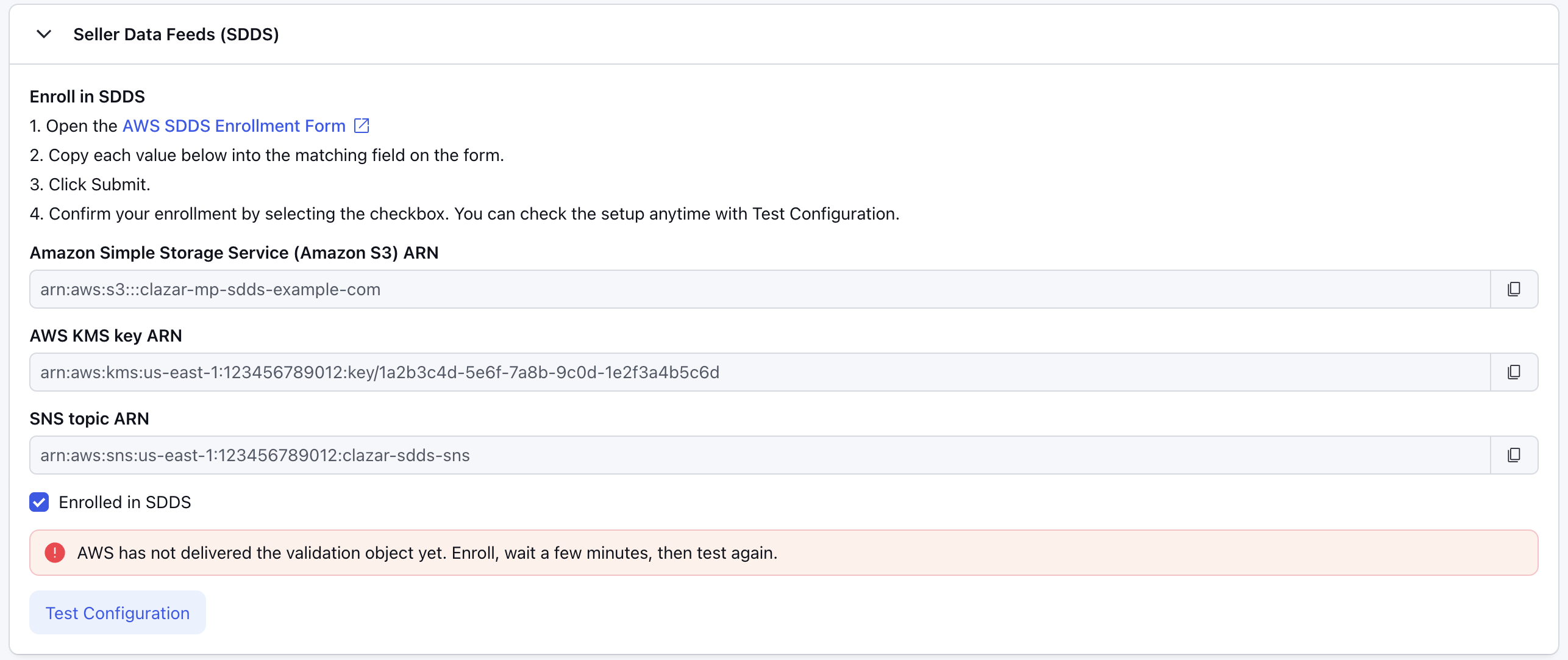
Once Marketplace access is Completed, open Seller Data Feeds (SDDS). It shows the three values your stack created, under AWS's own field names.
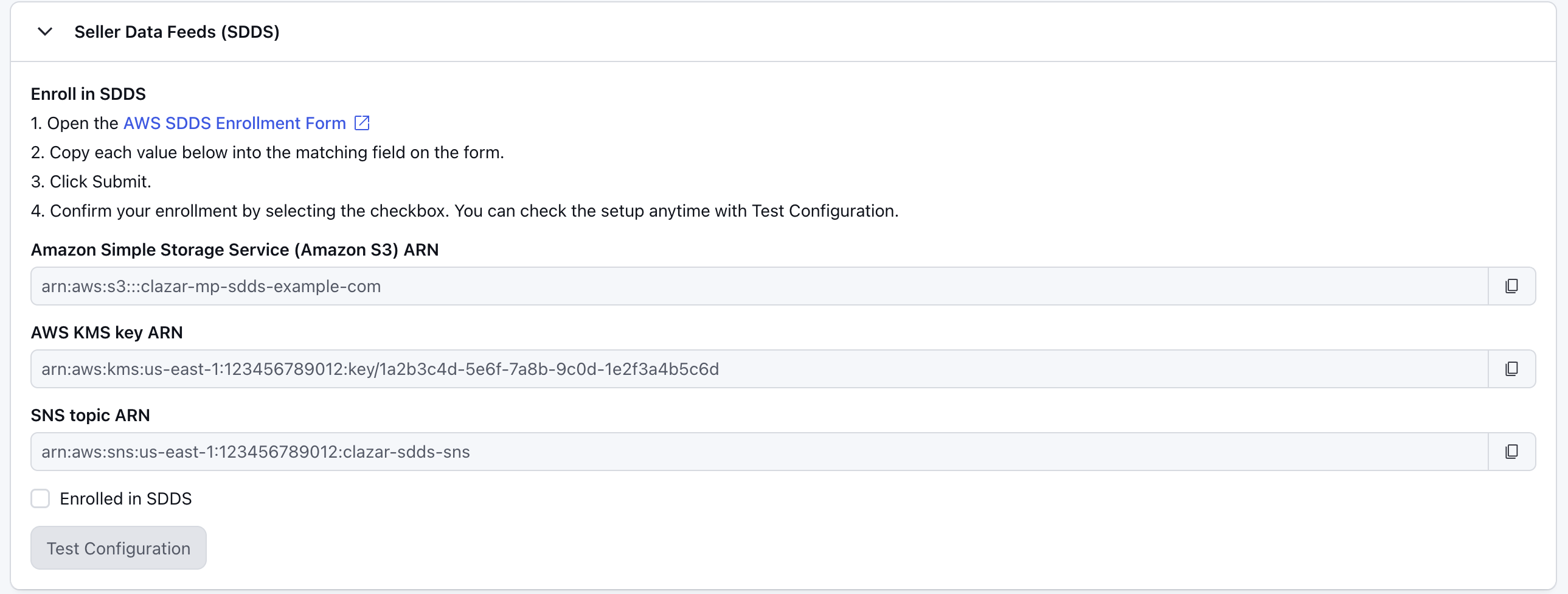
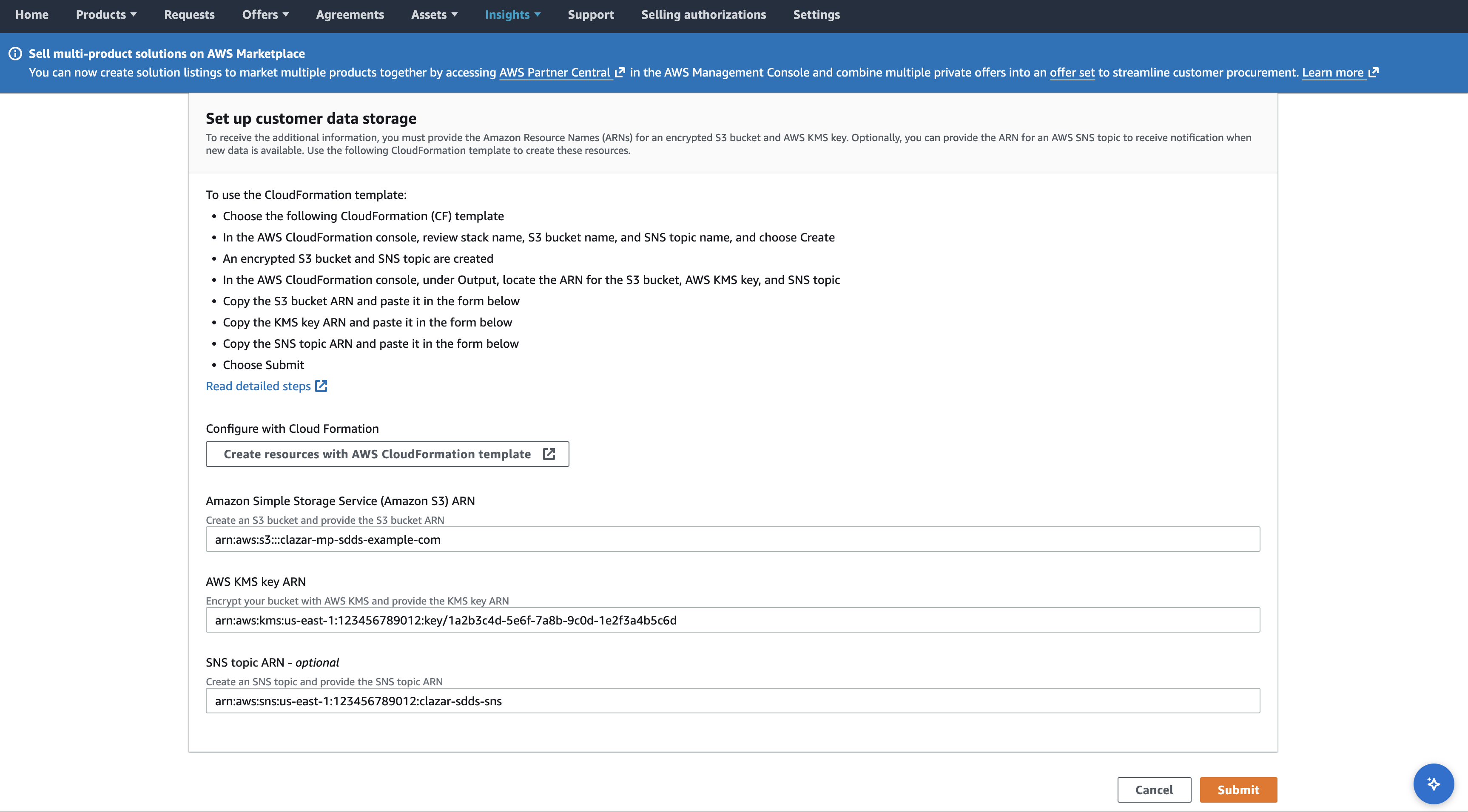
Choose AWS SDDS Enrollment Form on the tile. It opens AWS's Set up customer data storage page. Copy each value from the tile into the matching field. AWS marks the SNS topic optional; Clazar needs it, so fill it in. Choose Submit.
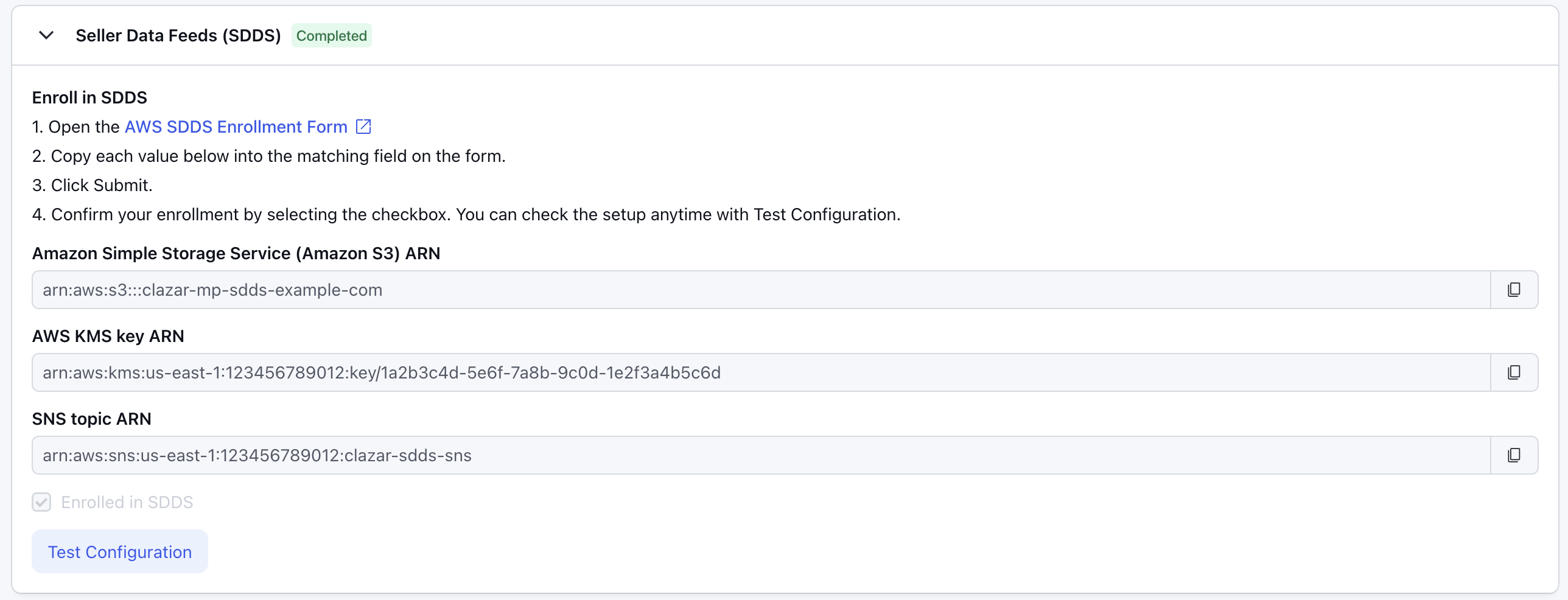
Back in Clazar, select Enrolled in SDDS and choose Test Configuration. The tile reads Completed once Clazar finds the validation file AWS writes to the bucket after you submit. If the test says AWS has not delivered the validation object yet, wait a few minutes and test again.
Open Additional details, select the AWS Partner Paths you're part of (Software, Services, Distribution, Hardware, Training) and choose Save. You can change them at any time. To see your paths, open AWS Partner Central in the AWS console.

The connection reads Connected once either Marketplace access or Partner access is Completed. Launch both so Clazar covers your whole AWS business. Your Clazar account has one AWS Partner Central connection, so Add Connection is not offered again; open the existing connection instead.
Tile statuses
Choose Test Configuration on a Completed or Error tile to re-run its checks at any time. On the SDDS tile, select Enrolled in SDDS first.
Tile shows | Meaning | What to do |
|---|---|---|
No tag, Launch Stack | Ready to launch | Launch it if you need it |
Locked | Waits for Marketplace access | Complete Marketplace access first |
Launching… | You launched the stack from this browser; Clazar is waiting for it to report | Finish creating the stack in CloudFormation |
Verifying… | The stack reported; Clazar is checking the access | Wait a few minutes |
Completed | The stack reported and every check passed | Nothing |
Error | A check failed; the tile lists which | See Troubleshooting, fix the cause, then Test Configuration |
The connection reads Error if a completed tile later fails its check.
What each stack creates and grants
Each stack creates its resources in your account and runs a small Lambda function once, at creation, to report the resource ARNs, your AWS account ID and the Region back to Clazar. Every role trusts only Clazar's AWS account (007119174400), and only when the call carries an external ID unique to your Clazar account.
Resource names below use your company domain with dots turned into hyphens (<domain>), and an identifier for your Clazar account (<id>).
Marketplace access
Stack ClazarMarketplaceStack-<id>, with nested stacks.
Role ClazarRole-<domain>
Policy | Type | What it allows |
|---|---|---|
| AWS managed | AWS's policy for full AWS Marketplace seller operations: products and listings, offers, agreements, reports and seller settings |
| Inline | Five AWS Marketplace actions the managed policy leaves out, which Clazar needs for contracts, metering and deployment: |
| Inline | Subscribe and read subscriptions ( |
| Inline | The same SNS actions on the data feeds topic and your account's |
| Inline | Read only: |
| Inline |
|
| Inline |
|
| Inline |
|
| Inline |
|
Other resources
SQS queue
clazar-mp-queue-<domain>, subscribed to the data feeds topic. Its policy lets that topic deliver to it. After the stack reports, Clazar adds one statement letting the EventBridge rule below deliver to it too.EventBridge rule
clazar-mp-event-rule-<domain>on the default event bus. It forwards every AWS Marketplace event source (theaws.*marketplace*family, including sources AWS adds later) to the queue, except "AWS API Call via CloudTrail" events.For data feeds, unless Clazar already knows your existing data feeds setup:
S3 bucket
clazar-mp-sdds-<domain>: encrypted with the KMS key below, versioned. Its policy lets AWS Marketplace's reports service (reports.marketplace.amazonaws.com) write to it, and refuses unencrypted uploads and requests not made over HTTPS.KMS key, alias
alias/AWSMarketplaceDataFeeds-clazar-mp-sdds-<domain>. Your account keeps full control; AWS Marketplace's reports service may use it only for objects in that bucket.SNS topic
clazar-sdds-sns, encrypted with the AWS managed SNS key. Your account and AWS Marketplace's reports service may publish to it.
Lambda function
ClazarReporterFunction-<domain>and its execution role (AWSLambdaBasicExecutionRole, for its logs).
Partner access
Stack ClazarPartnerCentralStack-<id>-production (or -sandbox).
Role clazar-pc-role-<id>-production (or -sandbox)
Policy | Type | What it allows |
|---|---|---|
| AWS managed | AWS's policy for full Partner Central access: opportunities and engagements, funding (benefits), your partner account and profile, Partner Central agent sessions, and access to the legacy Partner Central portal, which Clazar uses to read your partner ID where no API returns it |
| Inline | Deny on |
| Inline |
|
| Inline |
|
| Inline |
|
Other resources
SQS queue
clazar-pc-sqs-<id>-production. Its policy lets your account use it and lets only the rule below deliver to it.EventBridge rule
clazar-pc-rule-<id>-productionon the default event bus. It forwards every Partner Central event source (names beginningaws.partnercentral, including sources AWS adds later) for your chosen catalog to the queue.Lambda function
ClazarPCReporterFunction-…and its execution role.
Why AWS managed policies
AWS adds Partner Central and AWS Marketplace actions several times a year. A hand-picked list of actions breaks each time, and every break meant asking you to re-run a stack. AWS maintains its managed policies for exactly the person who runs your AWS partnership, so new capabilities reach Clazar without a new stack. Clazar narrows them only where it matters, to the catalog you chose, and scopes everything else to the resources the stacks create. See AWS's Managed policies for AWS Partner Central.
Things to keep as they are
Don't edit or detach the Clazar policies. Clazar's checks read them by name, and a changed policy turns the tile to Error.
Don't update the stacks in place. The reporter function refuses updates, so a stack update fails and rolls back. If a stack needs to change, contact Clazar support.
Deleting a stack removes Clazar's access. The tile turns to Error at its next check.
Troubleshooting
A check failed
The tile says | What Clazar checks | Common causes |
|---|---|---|
ROLE check failed | Clazar can assume the Marketplace access role and read its policy | The role was deleted, or its trust policy or external ID was changed |
SQS check failed | A test message sent to the Marketplace queue comes back | The queue or its policy was changed or deleted |
SELLER_ACCESS check failed | The inline policies | One of them was renamed, edited or removed |
PARTNER_CENTRAL_ROLE check failed | Clazar can assume the Partner access role and list your solutions and recent opportunities in the chosen catalog | Partner Central registration isn't finished, the stack ran in a different AWS account, or you chose Sandbox without a Sandbox partner |
PARTNER_CENTRAL_SQS check failed | Clazar can read the Partner access queue | The queue or its policy was changed or deleted |
After fixing the cause, choose Test Configuration.
The stack finished but the tile still reads Launching… or Verifying…
The tile refreshes on its own while it reads Launching…. To check again at any other time, close and reopen the connection.
In CloudFormation, open the stack's Events tab. The stack is done only when the stack itself reads
CREATE_COMPLETE; the last resource to finish isInvokeClazarReporterFunction, the report to Clazar.If you launched from another browser, this one shows Launch Stack until the report arrives. Don't launch a second time.
If the tile stays on Verifying… for more than about 15 minutes, contact Clazar support.
The stack failed and rolled back
If the stack ends in ROLLBACK_COMPLETE and the failed resource is InvokeClazarReporterFunction, Clazar refused the report. The usual cause is a launch link older than one hour.
In CloudFormation, delete the failed stack. A rolled-back stack keeps its name, and a new one can't be created under the same name until it's gone.
In Clazar, choose Launch Stack again and create the stack within the hour.
If another resource failed, the stack's Events tab names it and gives AWS's reason, often missing IAM rights for the person signed in.
I launched a stack in the wrong AWS account
Clazar supports one AWS account per Clazar account. If a stack ran while you were signed in to a different account, contact Clazar support before launching anything else. Once a tile has reported, Clazar won't launch it again, so support has to reset it.
SDDS won't complete
The tile is Locked: complete Marketplace access first.
AWS has not delivered the validation object yet: check that you submitted AWS's Set up customer data storage form in the same AWS account, with all three values copied from the tile, the SNS topic included. Wait a few minutes, then choose Test Configuration again.
You set up data feed storage before using Clazar: contact Clazar support. AWS documents no self-serve way to change an existing data feed configuration, and unsubscribing goes through AWS Marketplace's Contact us page and can take up to 10 business days. Support will help you point the feeds at the values on the tile, or record your existing bucket and topic in Clazar instead.
Other questions
Disconnect says "AWS Partner Central can't be disconnected." Clazar can't remove the stacks from your AWS account, so it doesn't disconnect. To move to another AWS account, contact Clazar support.
Do I need to start schema discovery on the default event bus? No. Older Clazar co-sell guides asked for it; the EventBridge rules match on event source and don't need it.
Where are the Default Reseller Accounts? On the AWS Partner Central card's Settings tab, the same reseller-offer setting the AWS Marketplace card had.
Moving from the AWS Marketplace and AWS Co-Sell cards
Clazar is replacing the AWS Marketplace and AWS Co-Sell cards with the single AWS Partner Central card. Clazar does the move for you; there is nothing to launch again.
Your AWS Partner Central connection is created for you. Whatever you had completed on the older cards already reads Completed: a marketplace stack launched from the AWS Marketplace card shows as Marketplace access, and a Partner Central stack launched from the AWS Co-Sell card shows as Partner access.
The older cards are retired, so you have one AWS connection and nothing to choose between.
Their settings, including Default Reseller Accounts, are on the AWS Partner Central card's Settings tab.
Roles created by your earlier stacks keep the permissions those stacks granted. The AWS managed policies described above apply to stacks launched from AWS Partner Central.
If your marketplace stack predates Clazar's EventBridge rule, an Event Bridge tile appears. Launch it the same way to start receiving AWS Marketplace events; it grants no other permission.
From now on, use the AWS Partner Central card for everything AWS. New capabilities ship only there.
Related articles
AWS Seller Account Setup (New): AWS Partner Central registration, step by step
AWS: Seller delivery data feeds. Feeds arrive daily, at midnight UTC, with the previous day's data.