Set co-sell dates with rules based on your CRM deal fields
Last updated: October 30, 2026
Overview
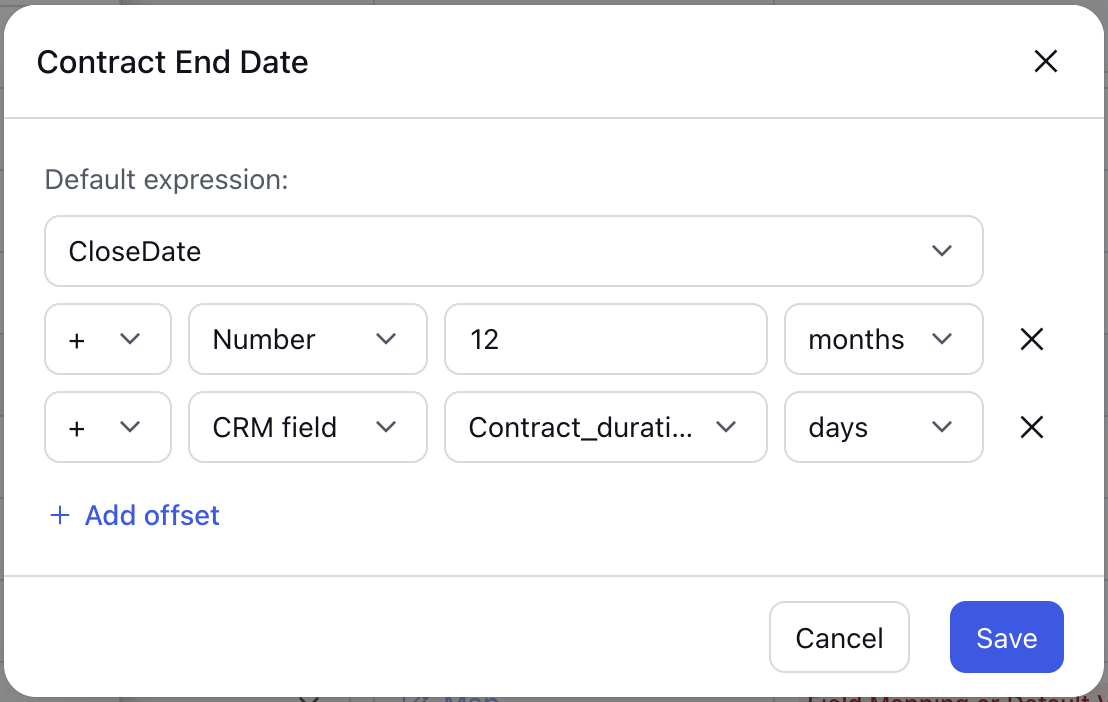
You can set a business rule for each co-sell date field, for example an end date that follows each deal's own close date and term, and Clazar applies it to every opportunity it creates or syncs from your CRM. The rule is used only when the CRM value is missing or would be rejected by the cloud.
Value it drives
Dates that match each deal: Rules can use your own CRM fields, so each opportunity reflects its own terms rather than one default for every deal.
Fewer rejected submissions: A missing or past date is replaced before the opportunity reaches the cloud, so sellers don't have to fix it by hand.
No CRM workarounds: You don't need formula fields or automation in your CRM just to produce a date the cloud will accept.
How to get started
Go to Settings → Integrations, open Salesforce or HubSpot, and select Field Mapping under the Co-Sell tab.
Click the pencil in any date field's Default Value column. Pick the date the rule counts from, such as today or the deal's close date, then click Add offset to add or subtract days or months, either a fixed number or a number field from your CRM.
Save the field mapping.
Things to note
Availability: Available to all customers using Salesforce or HubSpot co-sell field mapping. Nothing needs to be enabled.
Supported fields: AWS Target Close, Contract Start and Contract End Dates; Azure Estimated Close Date and all four Register Deal dates; GCP Estimated Close Date.
A valid mapped CRM value always takes precedence. Once an opportunity has a valid date, it is retained rather than recalculated on later syncs.
Close dates based on today() must be at least 15 days ahead.
If a CRM number field is empty, negative or a fraction, the date is left empty.
If a CRM field you want to use isn't listed, check that Clazar's CRM integration user can read it, then click Refresh Schema on the field mapping page.