Connect the apps your team works in to Clazar AI with Connectors
Last updated: October 26, 2026
Overview
Until now, Clazar AI could use only your Clazar data. To give Clazar AI context from your CRM or your call notes, you had to copy the text into the chat. With Connectors, you connect your other apps to Clazar AI one time. Ask AI then uses live data from the connected apps together with your Clazar data.
Value it drives
Questions across your apps: Ask AI answers questions that need data from Clazar and from a connected app. For example: "Which closed-won Salesforce deals don't have a private offer yet?" or "Summarize my last Gong call with this customer and draft the co-sell update for AWS."
Connectors by Clazar: The Connectors page contains ready-made connectors for HubSpot, Salesforce, Gong, Notion, Fireflies, Atlassian (Jira and Confluence), Crossbeam and Granola. The Overview tab of each connector shows its use cases and the steps to connect it.
Custom connectors: An admin can add any app that has a remote MCP server. Clazar checks the server URL and suggests the sign-in method: OAuth, an API key as a Bearer token, or an API key in a custom header.
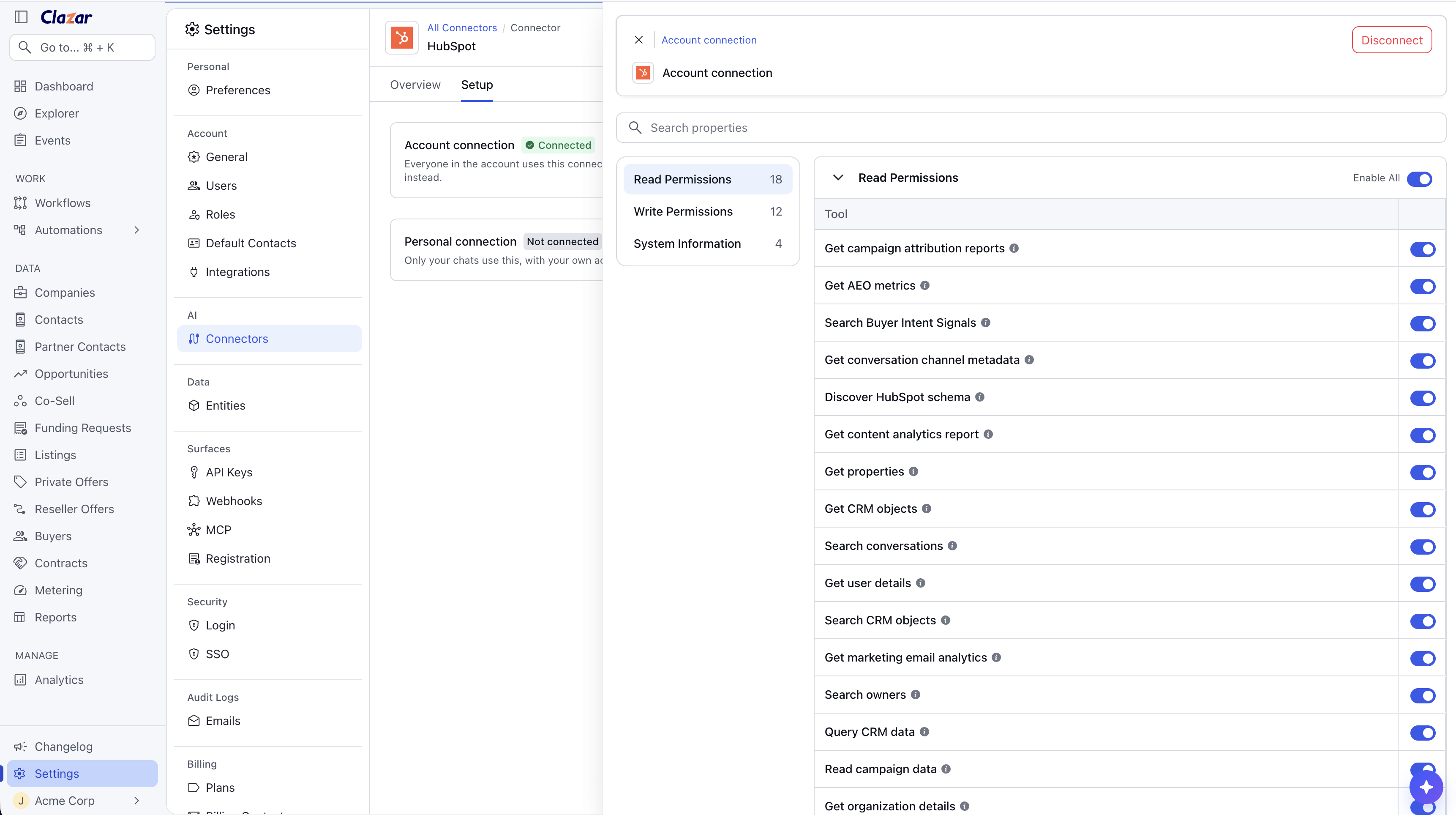
Control of access and tools: An admin can connect an app one time for everyone in the account. Where the connector allows it, each person can connect their own account. Each connection lists the tools of the app under Read Permissions and Write Permissions. Read tools start on. Write tools start off.
How to get started
Open the Connectors page: Go to Settings → AI → Connectors.
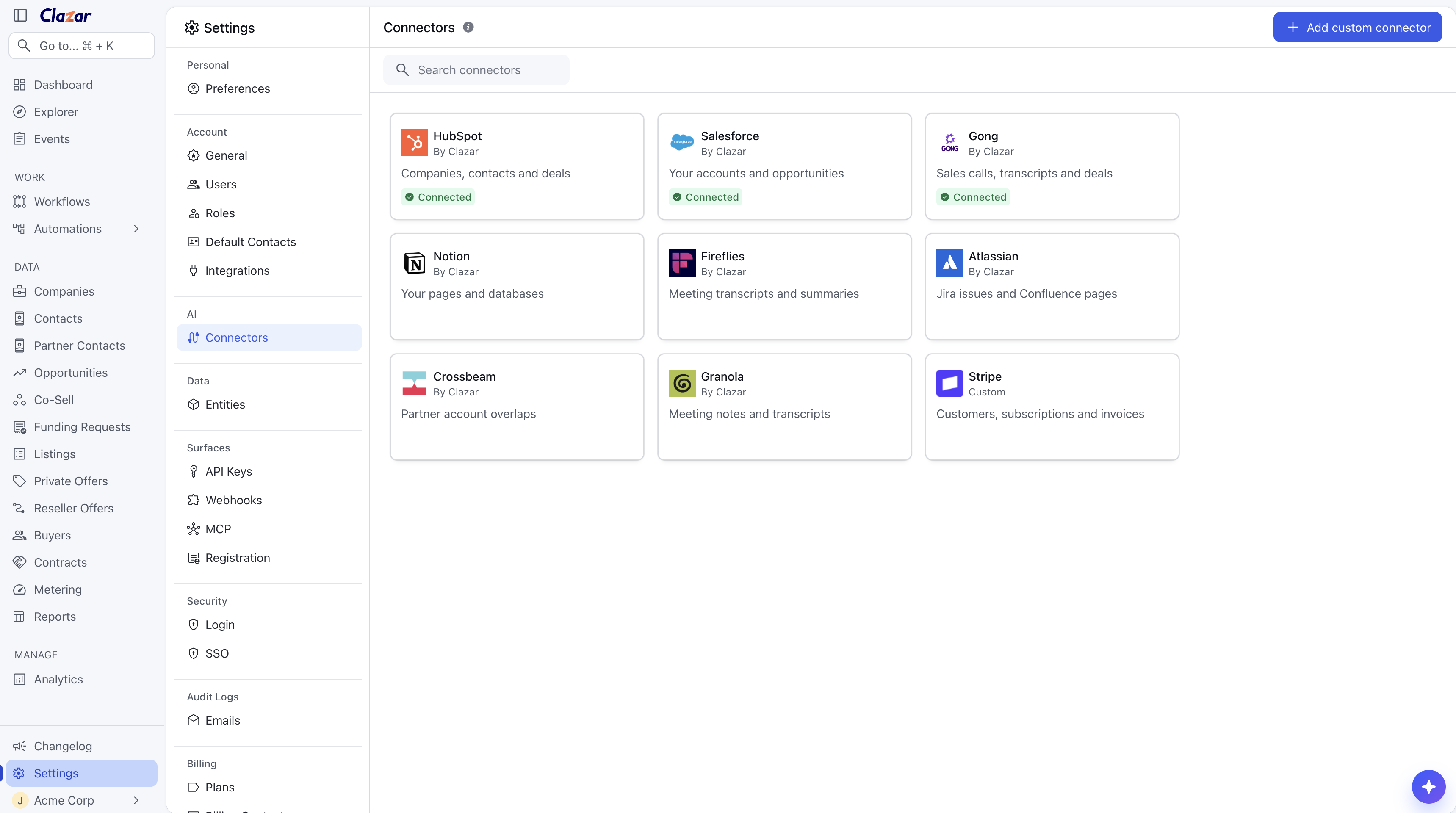
Select the app: Click the card of the app. Read the Overview tab for the requirements of the app. If the app is not on the page, click Add custom connector and enter the Server URL of its MCP server.
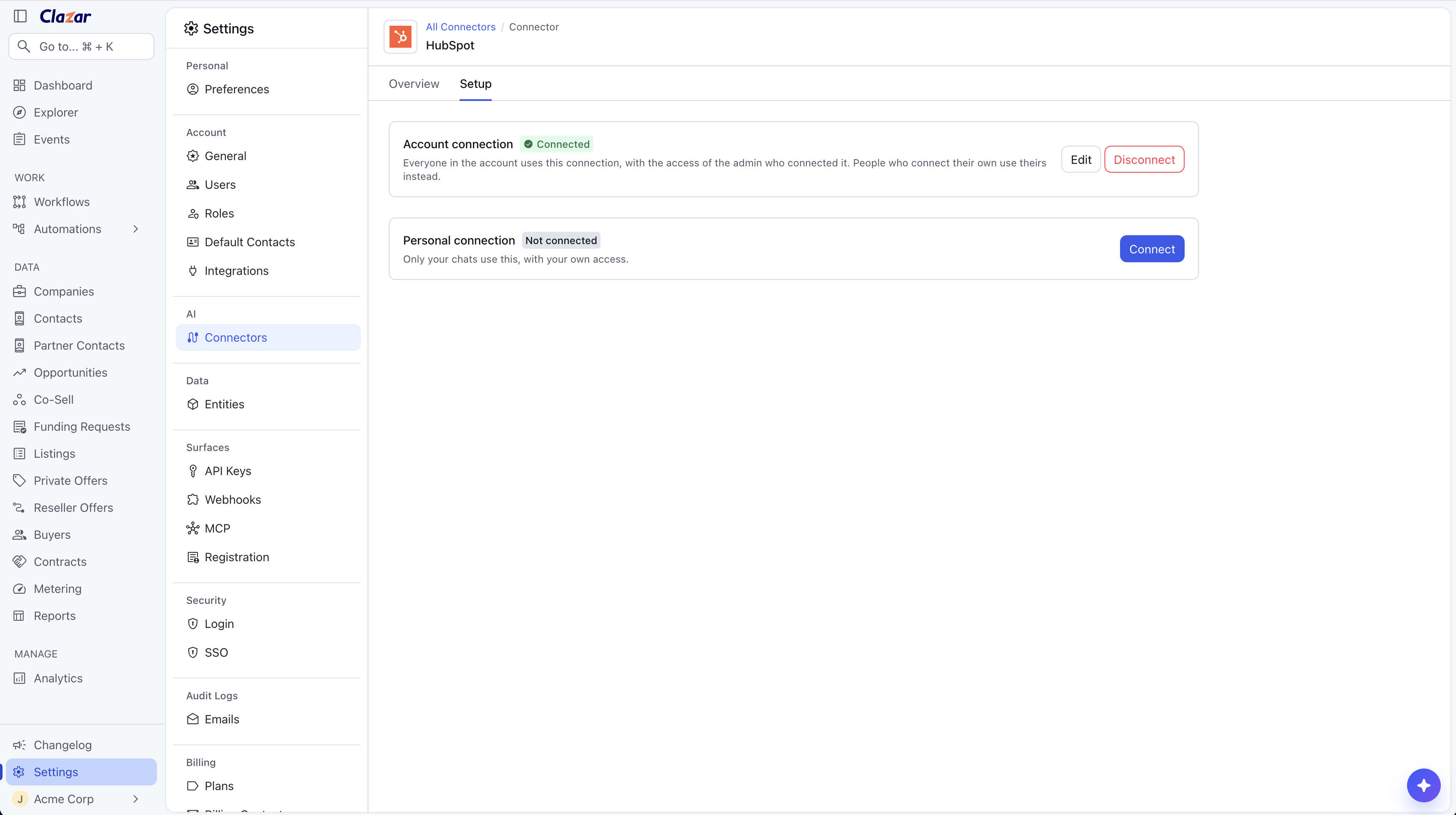
Connect the app: Click the Setup tab. Click Connect on the Account connection or on the Personal connection. Sign in to the app and give Clazar access.
Choose the tools: Click Edit on the connection. Turn each tool on or off under Read Permissions and Write Permissions.
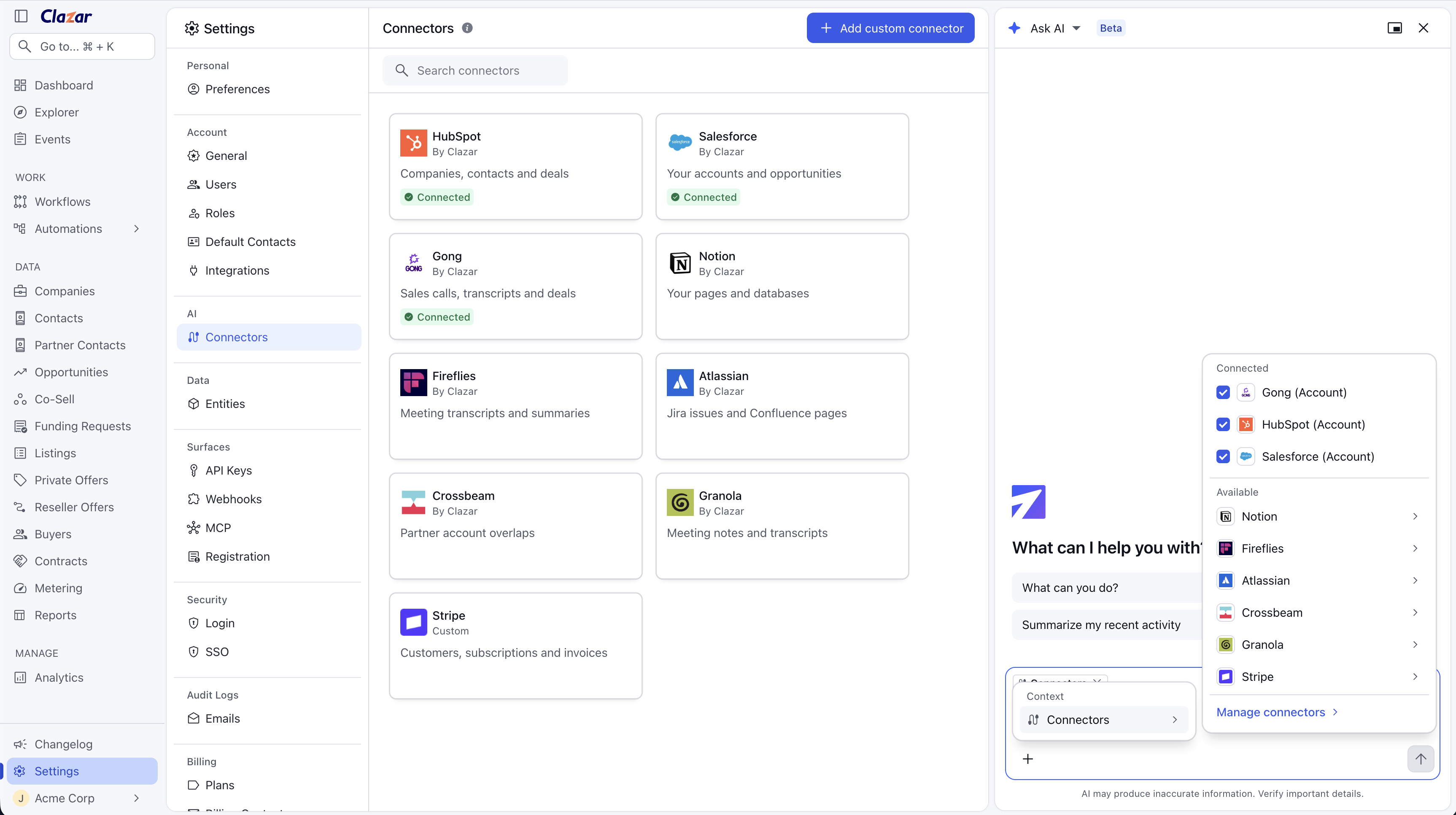
Ask a question: Open Ask AI and ask your question. Ask AI uses all your connected apps. To use fewer apps in a chat, click + → Connectors and clear the apps you do not need.
Things to note
Live data: Clazar does not sync data from your apps. Ask AI reads data from an app only when a question needs it.
Access of a connection: Everyone in the account uses the account connection with the access of the admin who connected it. A personal connection uses the access of the person who connected it. In the chats of that person, the personal connection replaces the account connection.
Who can change connectors: Only admins can add custom connectors and change the account connection. Each person can connect, change and disconnect their own personal connection.
Write tools: When you turn on a write tool, Clazar AI can change data in that app.
Custom connectors: Clazar does not review the servers of custom connectors. Add only servers that you trust.
Disconnect: When you disconnect, Clazar deletes the stored credential. For an OAuth connection, Clazar also removes its access in the app.
Connectors in one chat: Ask AI can use up to 10 connected apps in one chat.