Fill co-sell first and last names from one full-name field in your CRM
Last updated: October 30, 2026
Overview
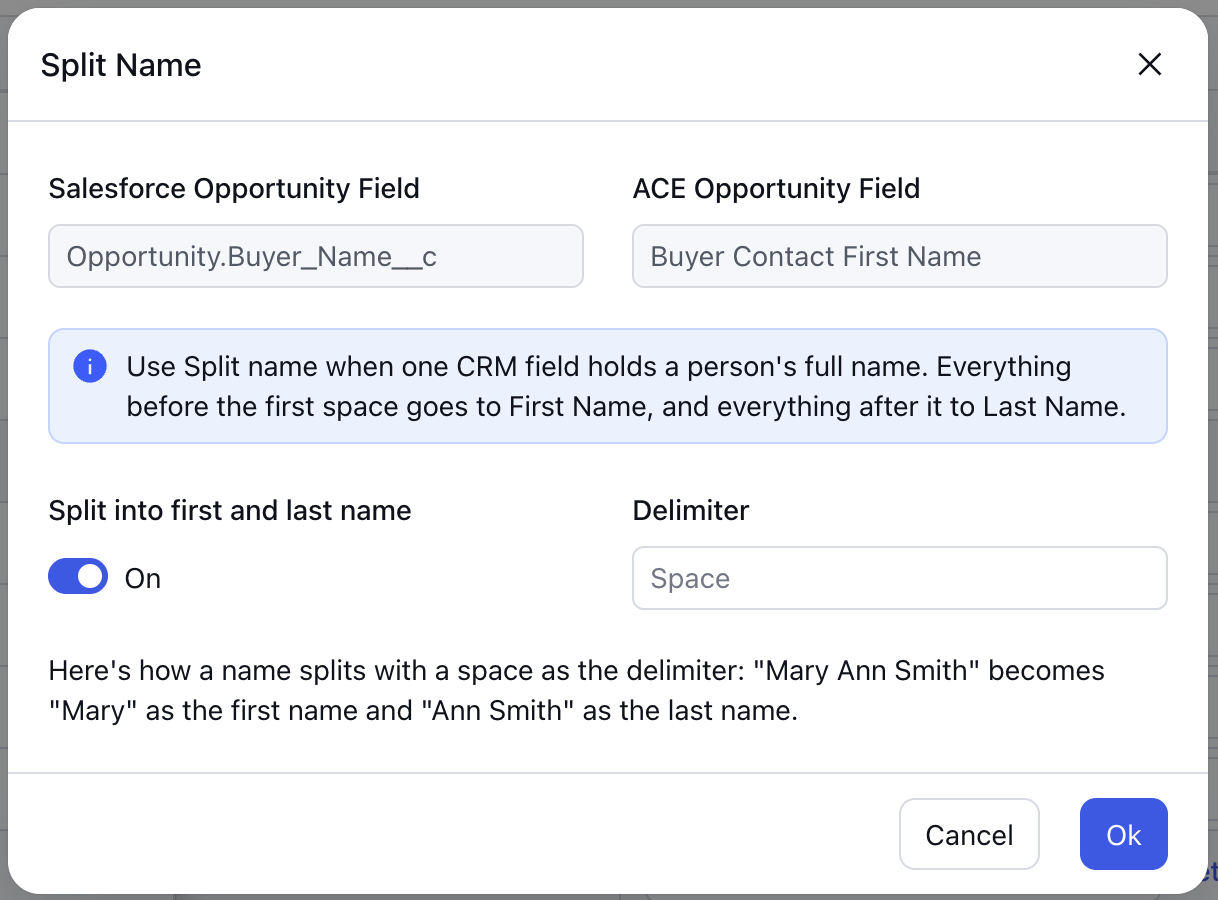
Marketplaces ask for the first name and the last name of co-sell contacts and opportunity owners as separate values. Many Salesforce and HubSpot setups keep a person's name in one full-name field. Previously, co-sell field mapping needed a separate CRM field for each part of the name. Now, Clazar splits a full-name field you already have into the first name and the last name. For example, "Mary Smith" becomes "Mary" in First Name and "Smith" in Last Name.
Value it drives
No new CRM fields needed: You can map the full-name field you already have. Your CRM admin does not need to add first name and last name fields, or formula fields, in Salesforce or HubSpot.
Custom delimiter: By default, Clazar splits the name at the first space. If your names use a different separator, such as a comma, enter it in the Delimiter field.
How to get started
Go to Settings → Integrations, open Salesforce or HubSpot, and select Field Mapping under the Co-Sell tab.
On a First Name row, map the CRM field that holds the full name, then click Split name. Turn on Split into first and last name, add a Delimiter if your names are not separated by a space, and click Ok.
Save the field mapping.
Things to note
Split point: Clazar splits the name at the first delimiter only. "Mary Ann Smith" gives "Mary" in First Name and "Ann Smith" in Last Name.
Turning the split off: When you turn off the split, Clazar clears the mapping on the Last Name row. Map a field to the Last Name row again.
Rows covered in Salesforce: AWS customer contact, seller contact and opportunity owner rows, the Azure customer contact and team member rows, and the GCP customer contact rows.
Rows covered in HubSpot: AWS seller contact and opportunity owner rows, and the Azure team member rows.