Push Azure and GCP contract PDFs to Salesforce automatically
Last updated: September 9, 2026
Overview
Until now, Push Contract PDF to Salesforce worked only for AWS private offers and AWS reseller offers. On Azure and GCP, the contract PDF had to be downloaded from Clazar and attached to the Salesforce record by hand, for every closed deal. The setting is now available for Azure and GCP as well, on both private offers and reseller offers. When the contract PDF is generated, it is uploaded to the destination object in Salesforce as a Salesforce File and appears under both the Files and Notes & Attachments sections.
Value it drives
Contract paperwork lands in Salesforce on its own: Closing an Azure or GCP deal no longer ends with someone downloading the PDF from Clazar and uploading it to the record by hand. No record is left without its contract because a step was skipped.
The whole deal team can reach the contract: Finance, legal and sales open the contract from the Salesforce record they already work in — no Clazar login, no request to the marketplace team.
Faster booking and cleaner audits: The PDF sits on the object you book revenue on, so approvals, revenue booking and audit pulls run off one record instead of a shared drive or an email thread.
One process across clouds: AWS, Azure and GCP contracts are handled the same way, so multi-cloud teams have no per-cloud exception to remember.
How to get started
Open the Salesforce setup: Go to the Salesforce integration, then Private Offers or Reseller Offers, and select the Azure or GCP cloud.
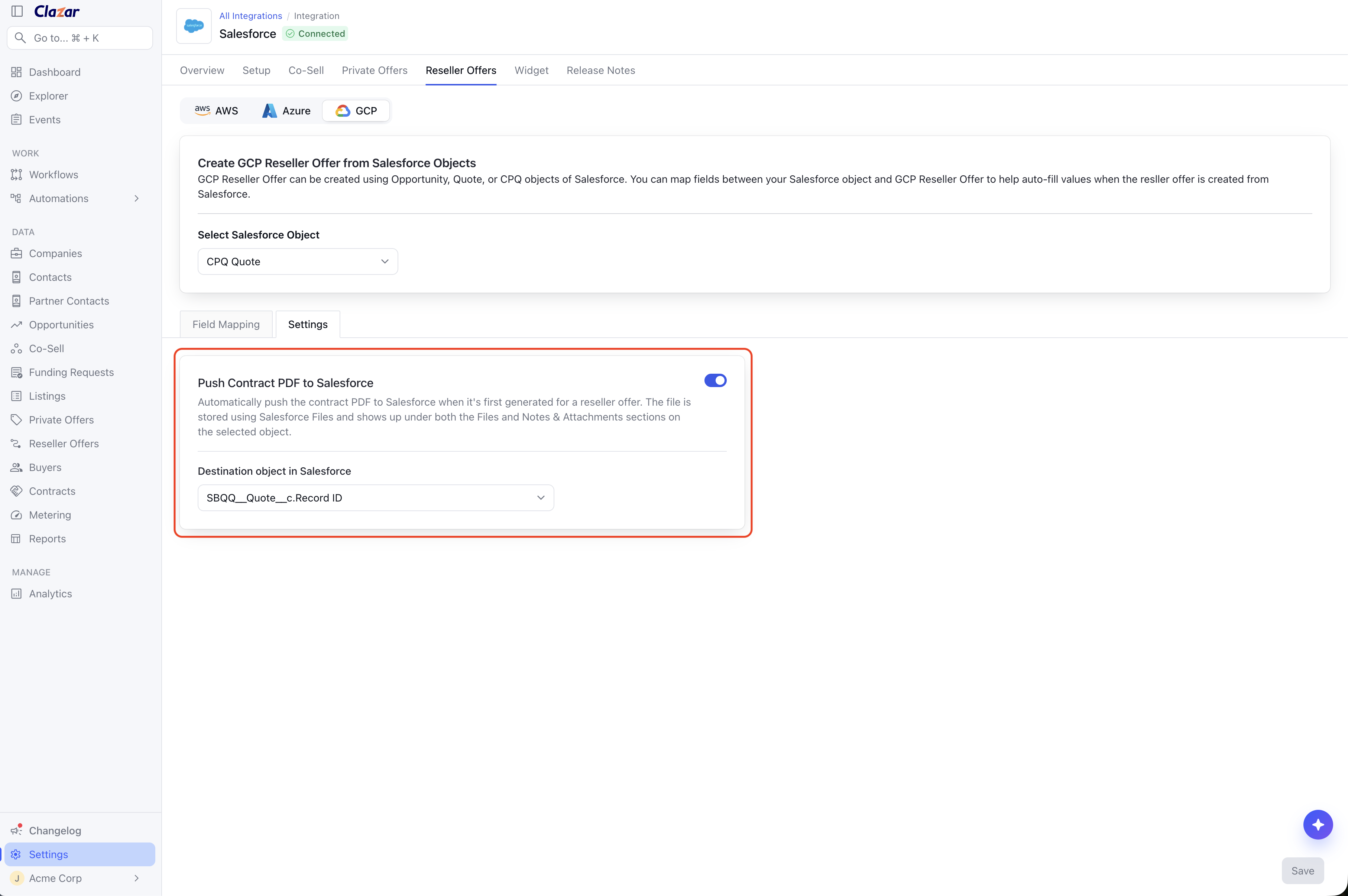
Push Contract PDF to Salesforce for GCP Private Offer Open the Settings tab: Click Settings and find the Push Contract PDF to Salesforce section.
Turn the setting on: Switch the toggle on. A Destination object in Salesforce field appears.
Select the destination object: Choose the Salesforce object the contract PDF should be attached to. This field is required while the toggle is on.
Save: Save the settings. New contract PDFs are pushed from then on.
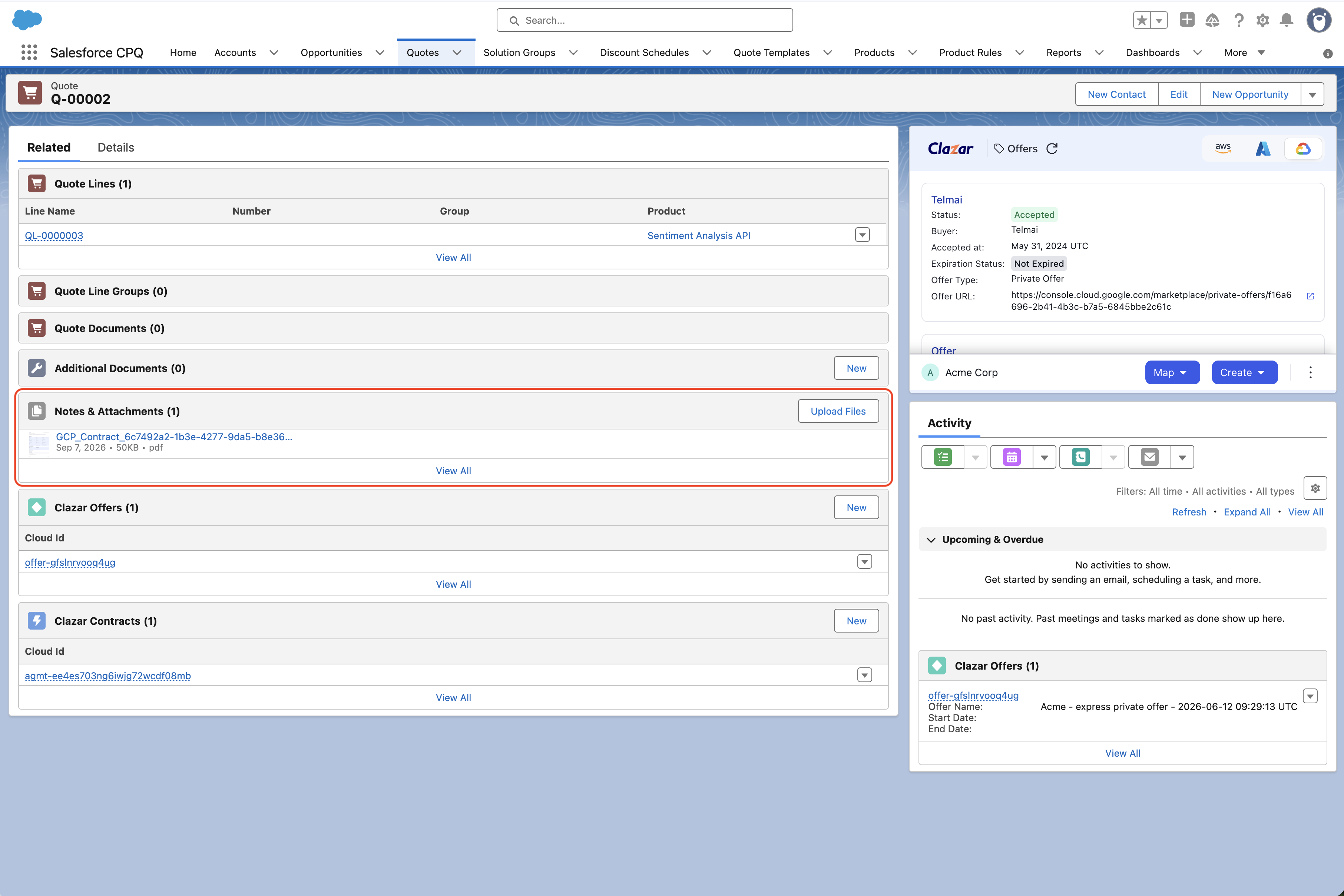
Contract PDF in Notes and Attachments section
Things to note
Mapping is a prerequisite: The PDF is attached to the destination object selected in Settings. That object is reached from the Salesforce object the offer is mapped to, so an offer that has not been mapped to Salesforce is skipped until it is.
Public offer contracts: This setting covers contracts from private offers and reseller offers. Contract PDFs for public offer contracts can be pushed using a Clazar automation recipe instead. Reach out to your Clazar contact to get it set up.
Existing contracts: Contracts that already exist when the setting is turned on are picked up by a daily job, as long as they are mapped to Salesforce and their PDF has not been pushed yet.
The PDF is pushed once: The PDF is sent to Salesforce the first time it is generated for a contract, and is not sent again after that.
If the contract changes later: When a contract is amended, the file already in Salesforce is not replaced. Download the current PDF from the contract in Clazar, or reach out to your Clazar contact to have the updated one pushed.
Cloud coverage: The setting is now available on AWS, Azure and GCP, for both private offers and reseller offers.