Azure Co-Sell Setup Guide
Last updated: July 31, 2026
This guide provides step-by-step instructions for setting up Azure Co-Sell in Clazar. Azure Co-Sell is a referral process within Microsoft Partner Center where your listed solution is the offering being referred.
The setup is completed from the Azure Co-Sell integration page in Clazar (All Integrations → Azure Co-Sell → Setup). Each step below corresponds to a card on that page. Complete the cards in order; each is marked Completed once done.
Prerequisites
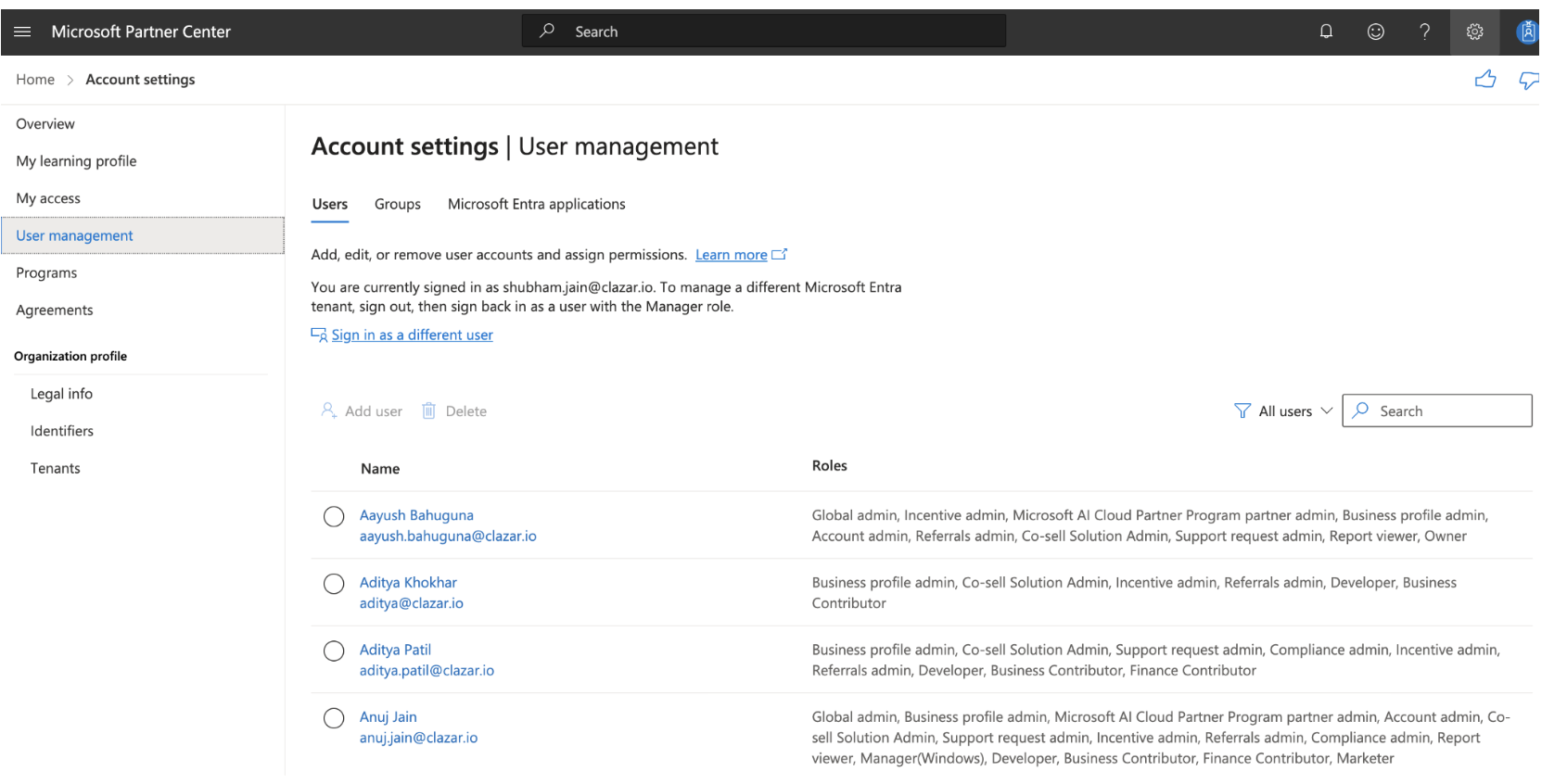
Before you begin, make sure you have the following roles in Microsoft Partner Center:
Referral Administrator — required to authorize the Referral APIs and to grant permissions to the Clazar user.
Solution Admin — required to create and configure co-sell solutions.
You can verify your roles in Microsoft Partner Center under Settings → User Management.
Step 1: Complete Azure Cloud Setup
On the Complete Azure Cloud Setup card, click Open and complete the base Azure Cloud connection in Clazar. This card must show Completed before continuing.
Azure Cloud setup article
Step 2: Set Up Microsoft Partner Center Referrals
On the Setup Microsoft Partner Center Referrals card, complete both items.
Create a Business Profile
A business profile helps you connect with potential customers and leverage Microsoft's extensive network. To create one:
Sign in to Microsoft Partner Center, select Referrals, then navigate to Business Profile.
Click New Profile and choose the type that fits your business model (CSP or Services/ISV).
Complete the required information — company details, logo, description, and target markets.
Review and finalize your profile before publishing.
For detailed instructions, see Microsoft Learn: Create a business profile.
Configure a Co-Sell Solution
Configuring a co-sell solution helps Microsoft sales teams market your solution effectively. To configure one:
Sign in to Microsoft Partner Center, select Referrals, then navigate to Co-Sell → Solutions.
Ensure you have the Co-sell solutions admin role.
Complete the required listing information, select the appropriate Microsoft platforms, and upload the necessary documents (e.g., a solution one-pager and pitch deck).
For detailed instructions, see Microsoft Learn: Configure a co-sell solution.
Once both items are done, the card shows Completed.
Step 3: Authorize Microsoft Partner Center APIs
On the Authorize Microsoft Partner Center APIs card, click Authorize. This authorizes Clazar to access the Microsoft Partner Center Referral APIs.
Note: The Referral Admin role is required to perform this action.
Step 4: Grant Permission to the Clazar User
On the Grant Permission to Clazar User card:
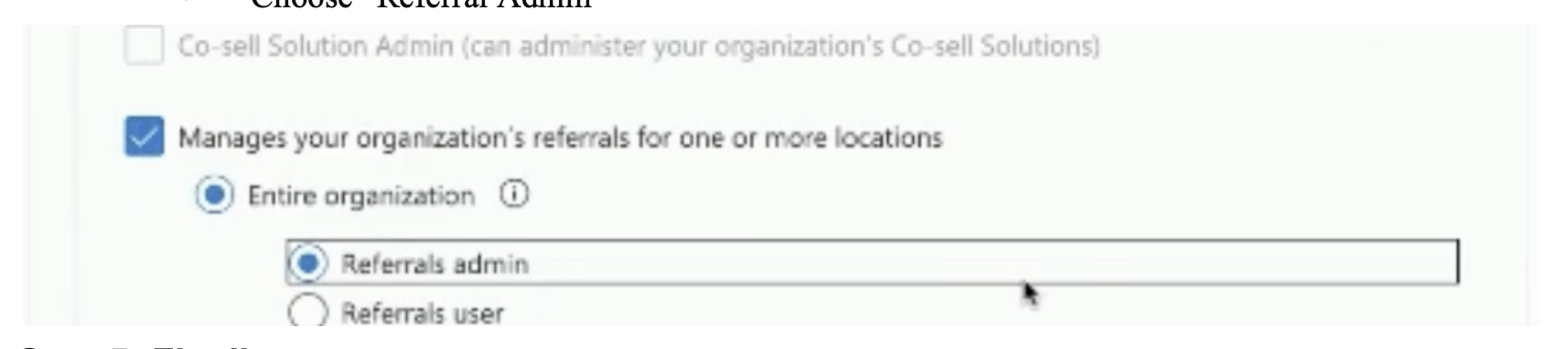
In Microsoft Partner Center, go to User Management.
Select the Clazar role with the email azure.onboarding1@clazar.io.
Under "Manages your organization's referrals", check the box and select Referrals admin.
Check off the item to mark the card Completed.
Step 5: Add Co-Sell Solutions
On the Add Co-Sell Solutions card:
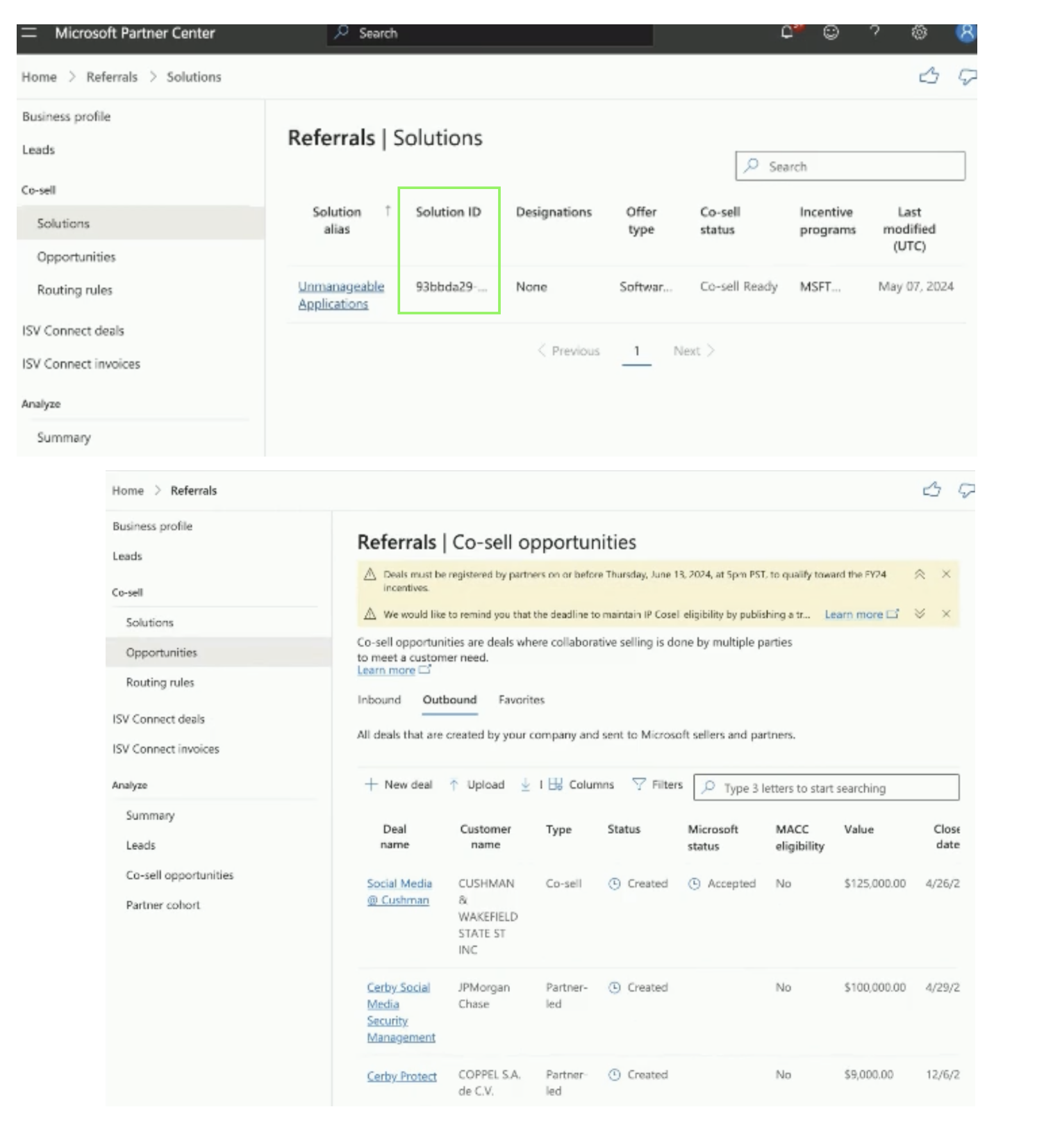
Click the solutions link to open your Microsoft Partner Center solutions page.
Open each solution you want to co-sell, individually.
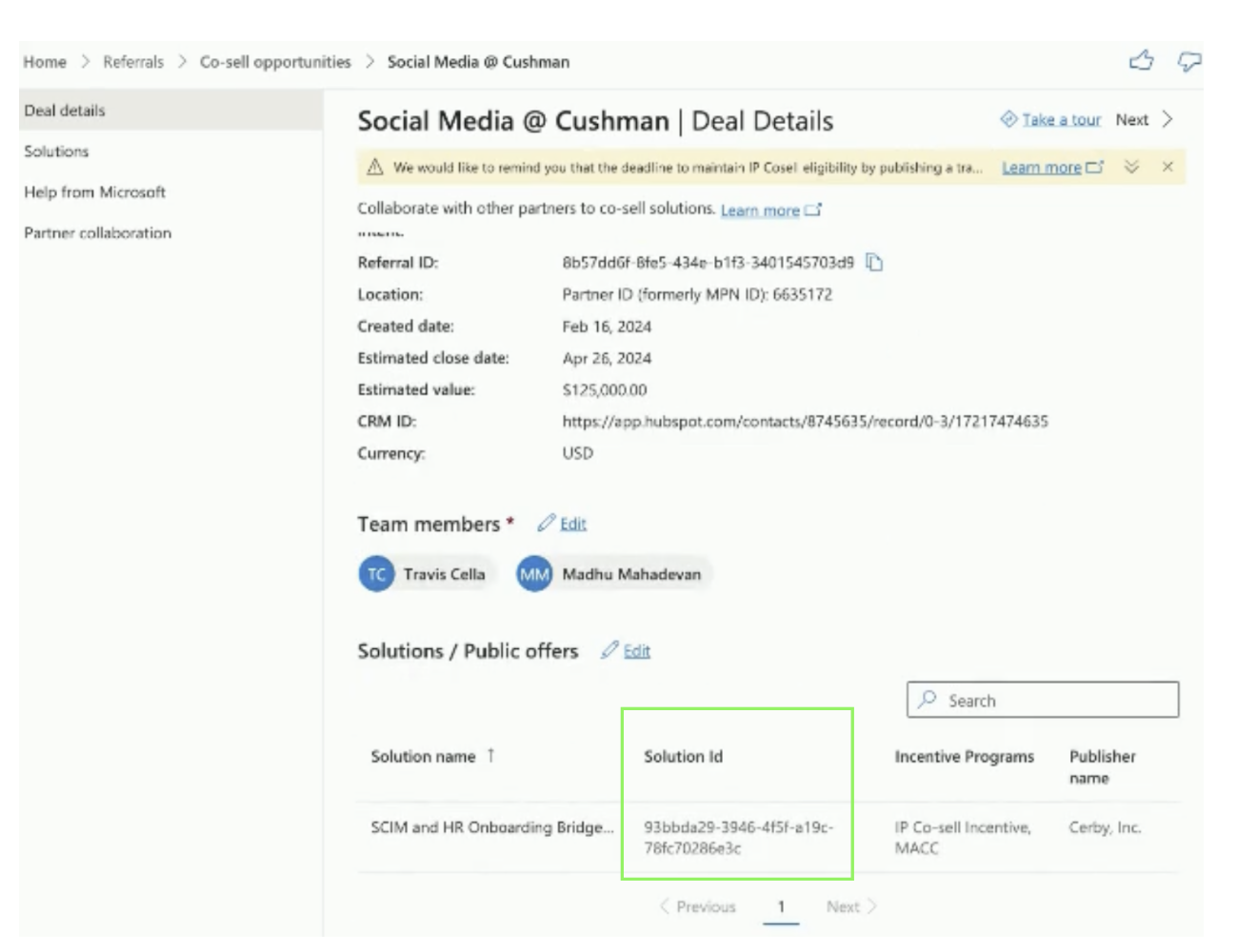
Copy the Solution Name and the Solution ID (found in the solution's URL).
Enter the Solution Name and Solution ID into the fields on the card, and add them.
Repeat for each solution you want to co-sell.
Once all five cards show Completed, your Azure Co-Sell setup is finished and Clazar can sync referrals with Microsoft Partner Center.