Azure Cloud Setup
Last updated: June 8, 2026
Grant Clazar the necessary permission to manage your Azure Marketplace.
Set up Partner Center Account
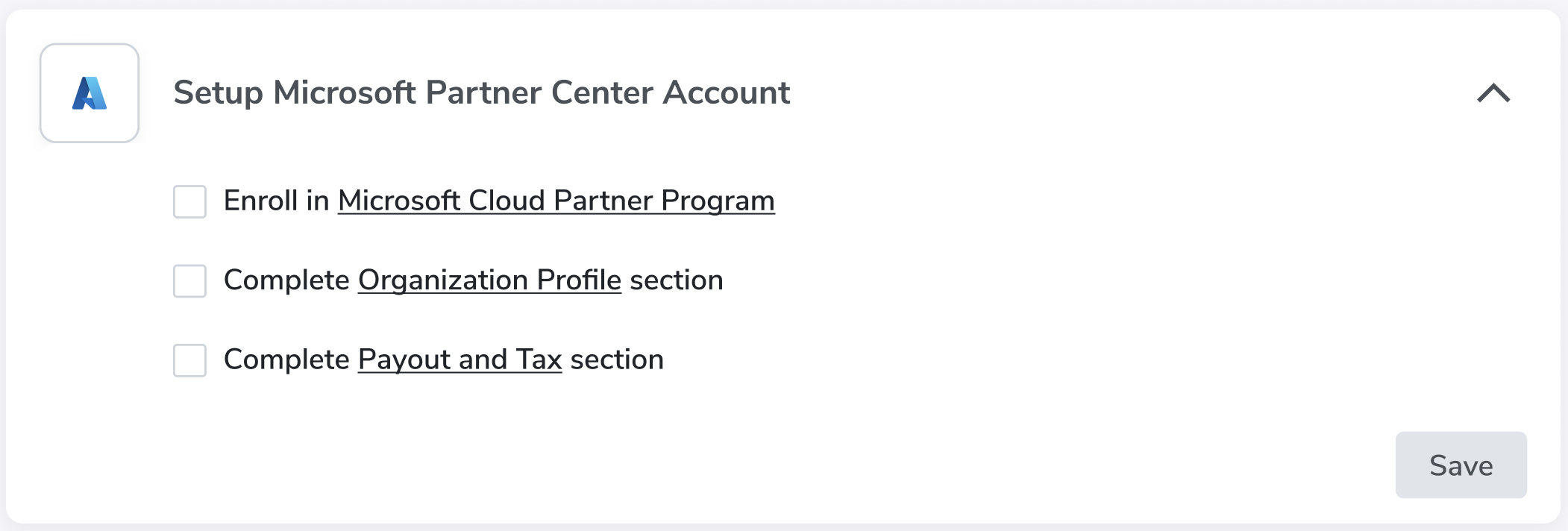
There are different membership programs for partnering with Microsoft. In order to sell your solution and go to market, get yourself enrolled in Microsoft Cloud Partner Program. Complete Organization Profile and Payout and Tax sections to finish the Microsoft Partner Center account setup.
Azure AD App Registration
After logging in to the Azure Portal and selecting the appropriate tenant, you can create an Azure AD App to let it use the capabilities of Azure AD like SSO, getting an authorization token, etc. This registration process involves giving Azure AD some details about your application. This app will also be used for accessing SaaS fulfilment APIs required to maintain the offers.
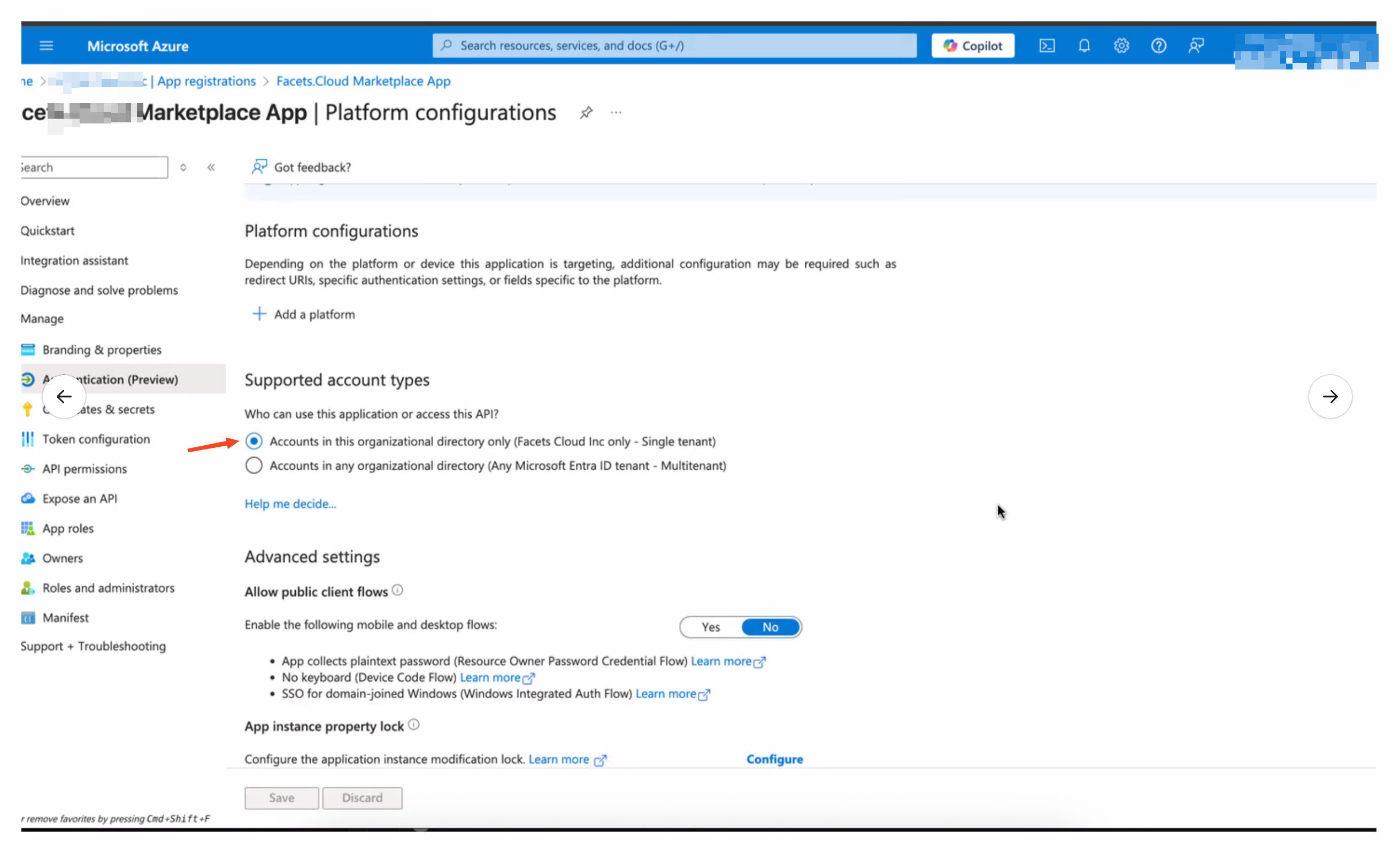
Based on the use case, you can select the account types that will be supported. We recommend selecting Any Azure AD directory - Multitenant. Don't change the Redirect URI as it is optional.
Azure AD App for all offers
All the marketplace listings (offers) will have the same Application ID and hence the same Publisher ID
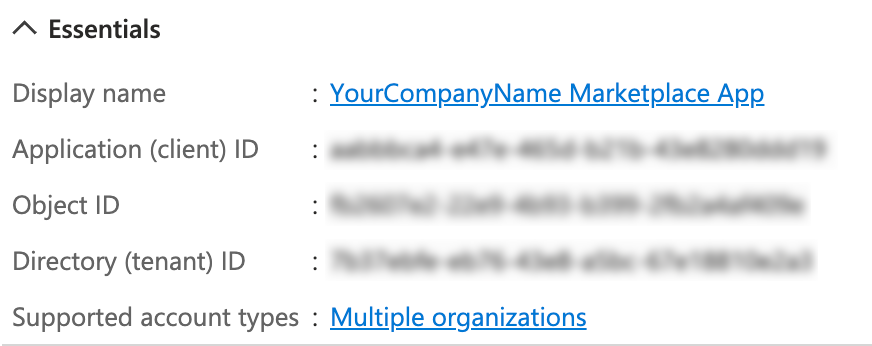
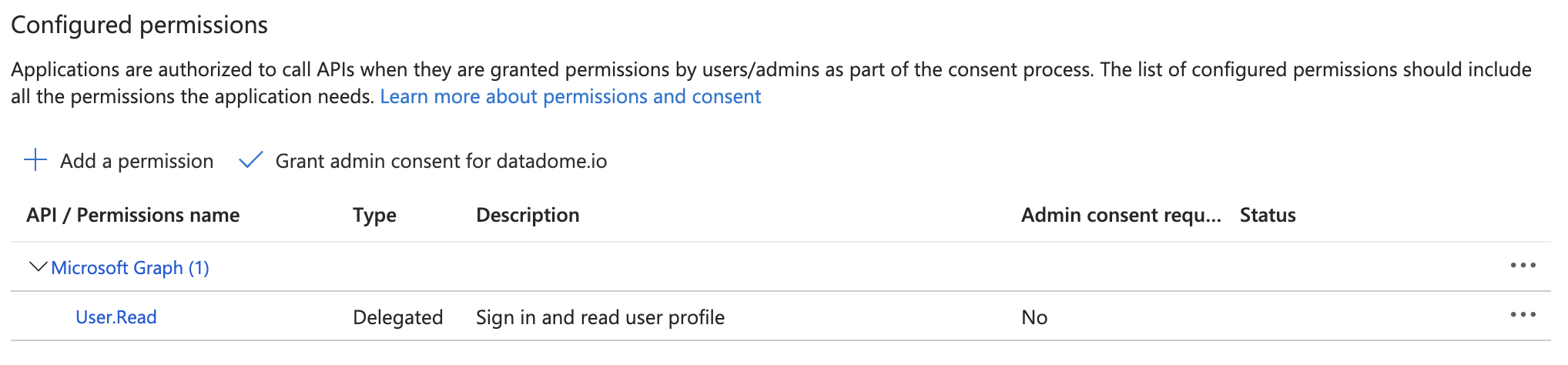
Once you have completed the app registration process successfully, copy the Application (client) ID and Directory (tenant) ID from the Overview section to the Azure Cloud Setup section of the Clazar app. We use this information about the seller to manage subscription lifecycle, get authorization token, view pending operations, add technical details to your marketplace offer, access analytics data, etc. By default the newly registered marketplace app will have only User.Read API permission.
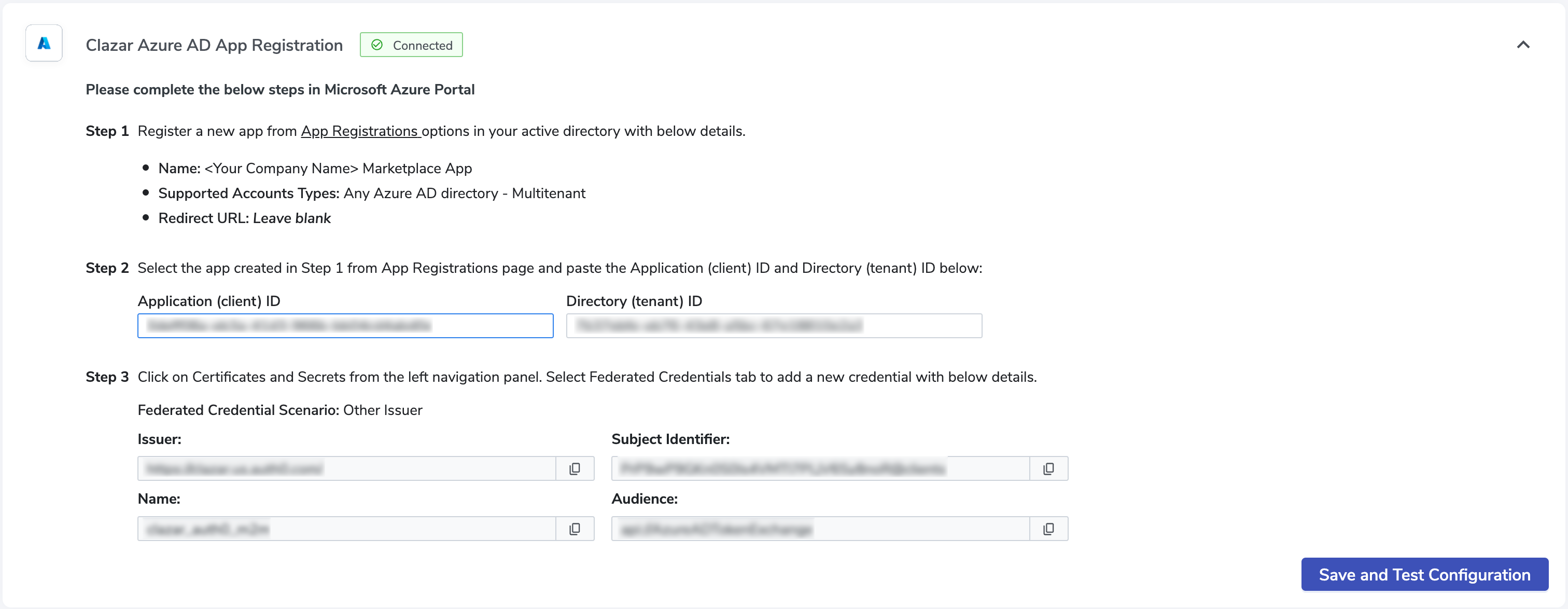
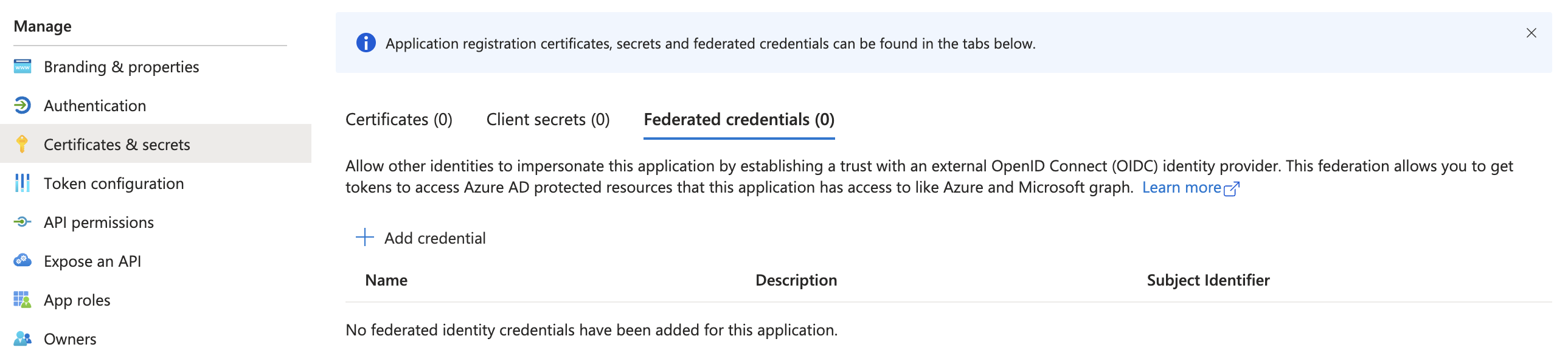
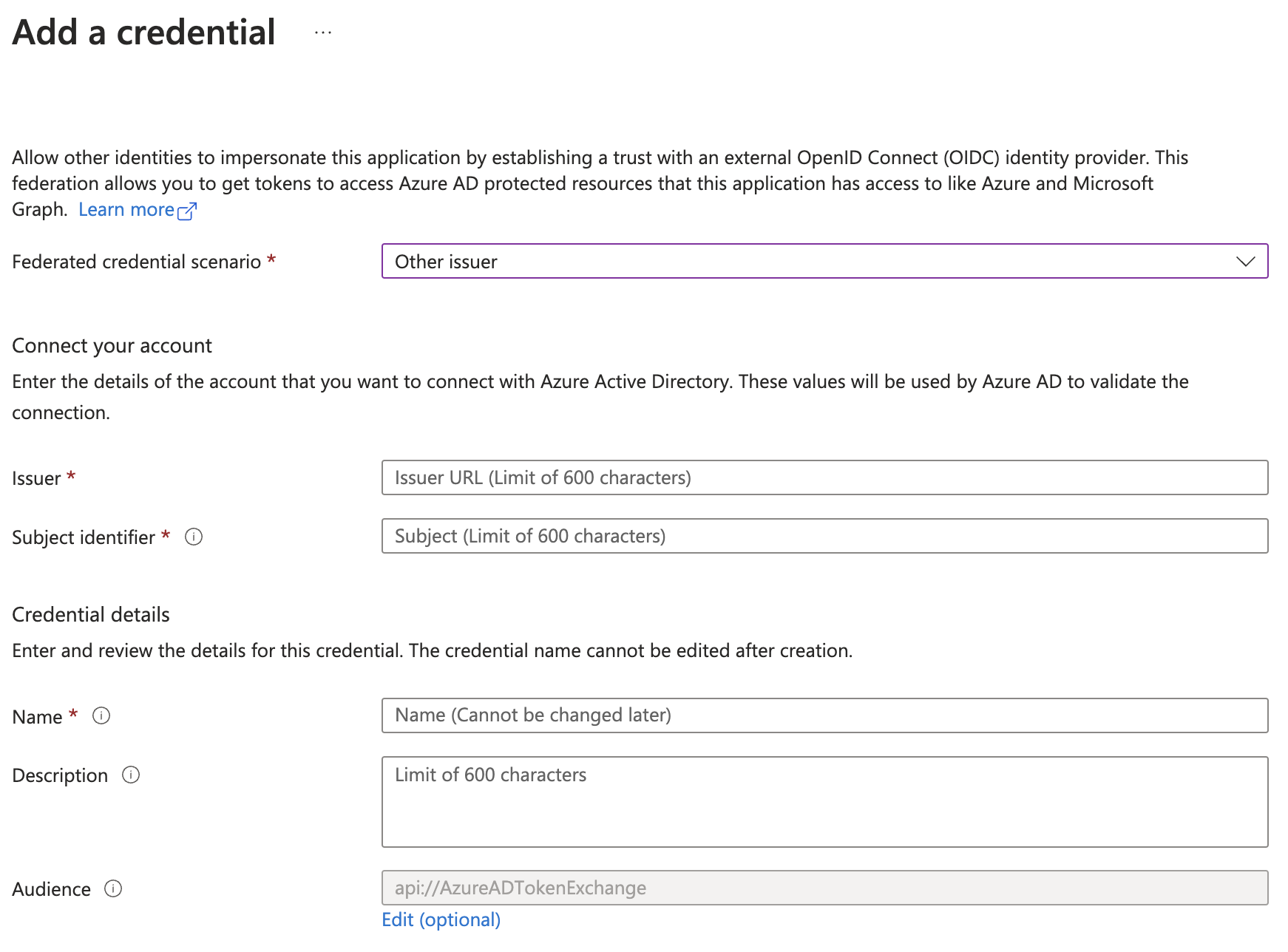
For us to access the required APIs programmatically, along with the Application ID and Tenant ID, we also need workload identity federation. In this step, a new federated credential needs to be created by navigating to the Certificates & secrets section. Follow the instructions provided in the Azure Cloud Setup section of the Clazar app.
Security of the Azure AD App
We are not following the approach of using client secrets to programmatically access the APIs.
Permissions
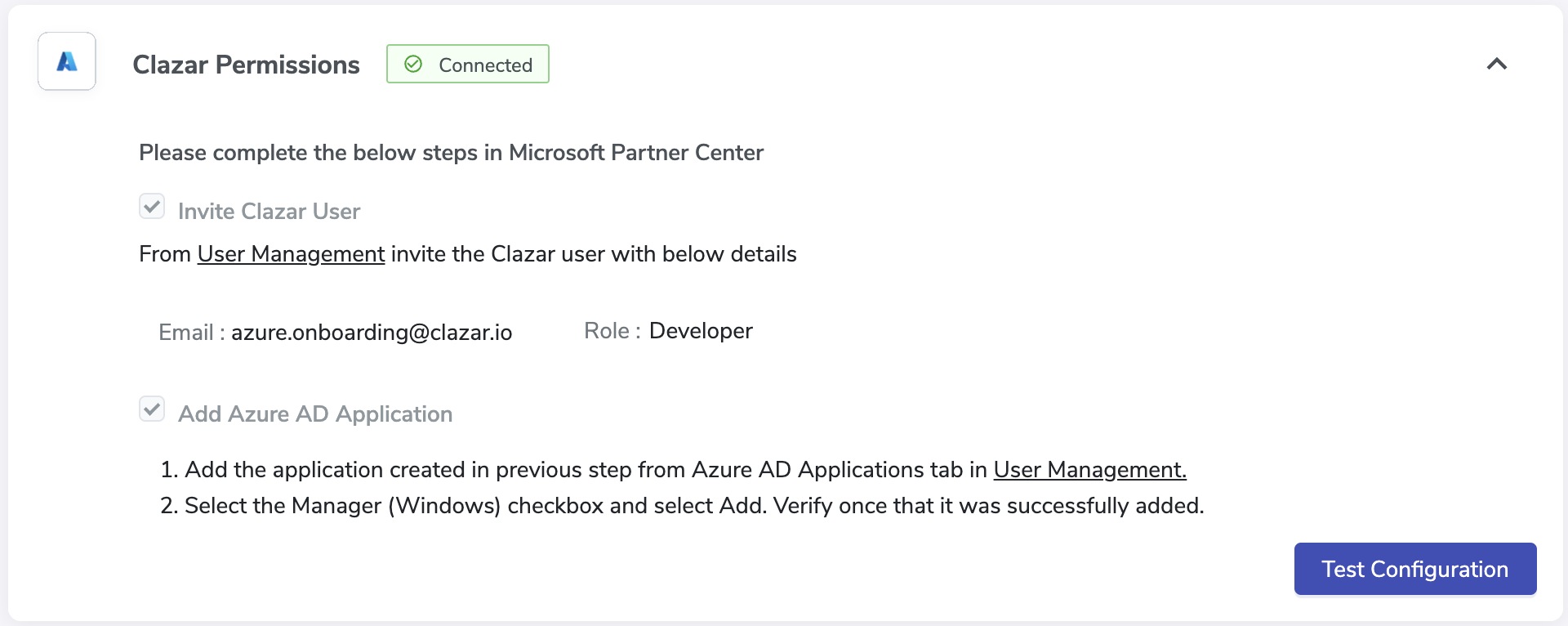
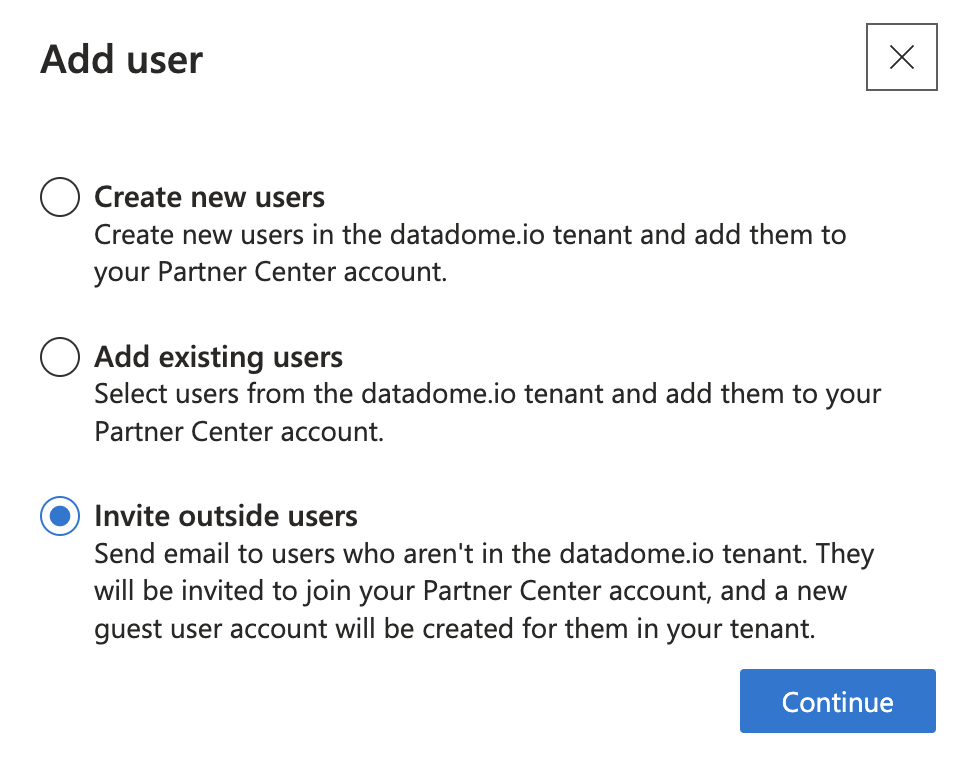
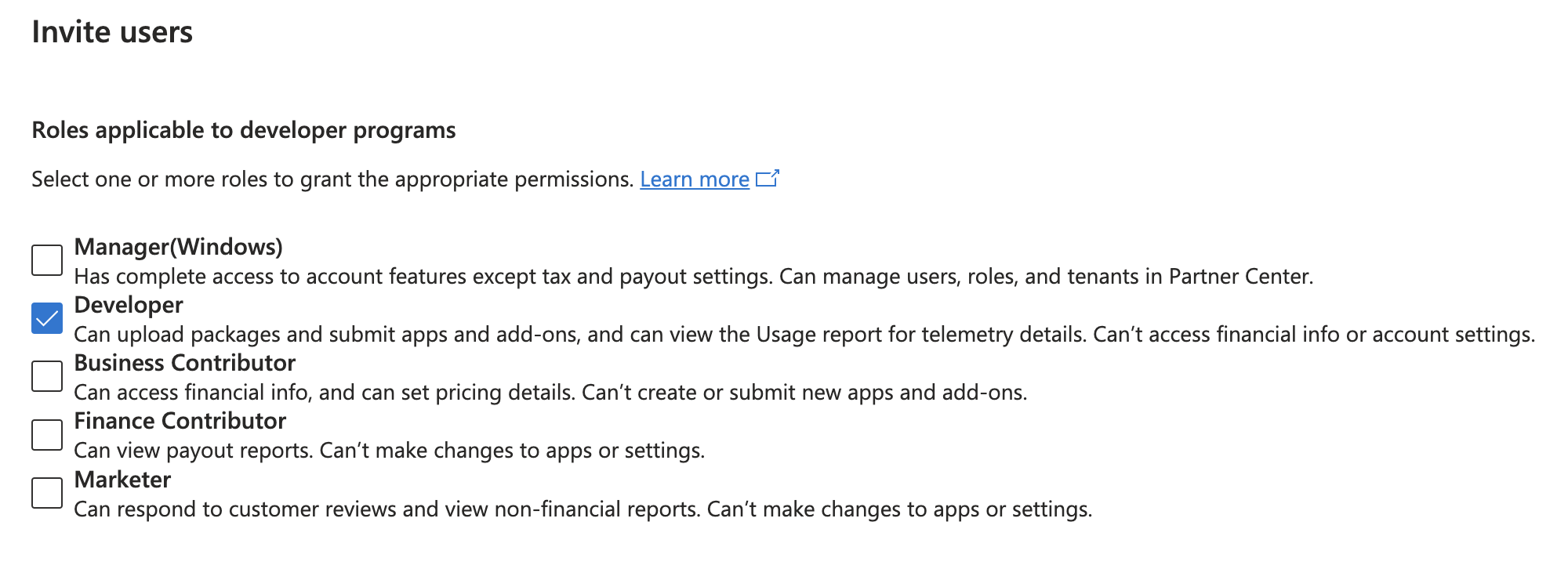
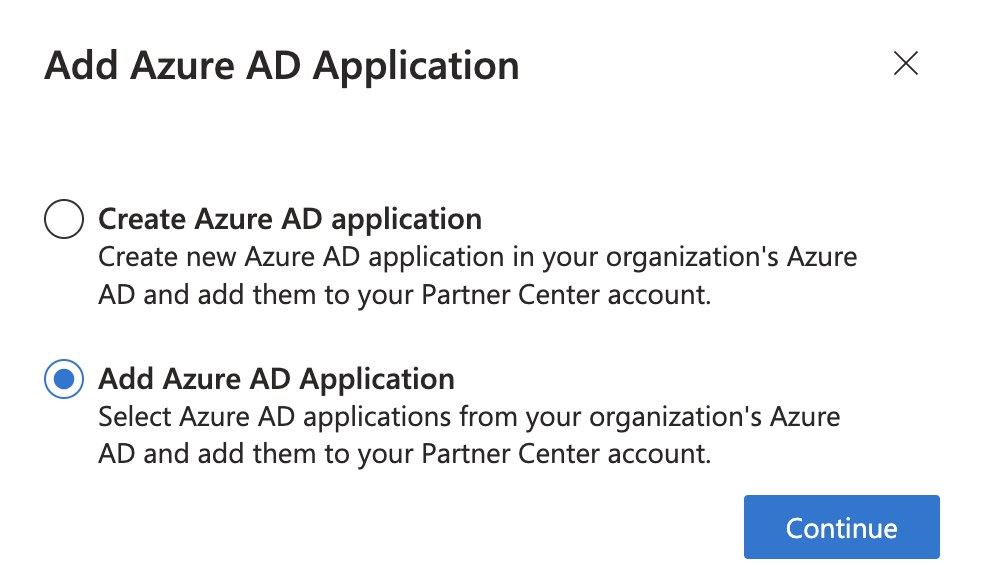
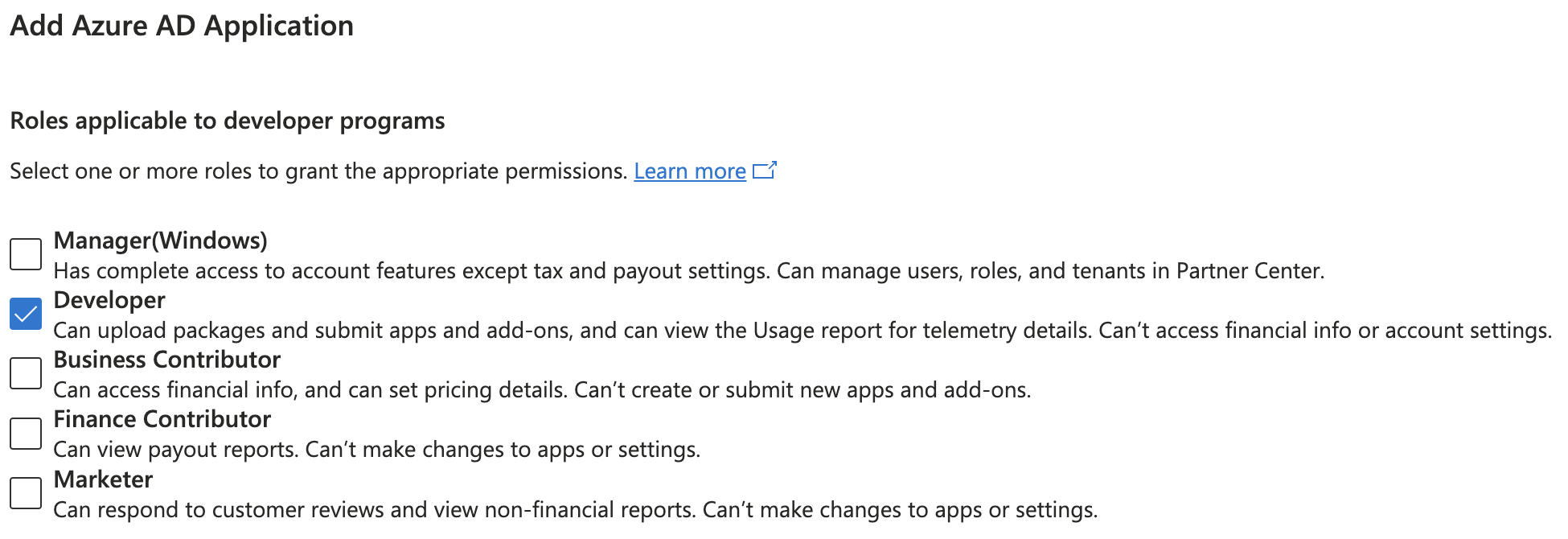
To provide us with the UI access of the Partner Center to create & maintain the offer, please invite the Clazar user as mentioned in the Clazar Permissions section of Azure Cloud Setup in the Clazar app. You can invite the user from the User Management settings in the Partner Center. The Azure AD App that is created doesn't have access to the Partner Center. In order to do so, add the Azure AD App to the User Management and provide Developer access.