Azure Co-Sell Field Mapping
Last updated: August 13, 2026
What Is Field Mapping?
When you submit a co-sell opportunity to Microsoft Azure through Clazar, Azure needs specific information about the deal — things like the customer's name, the deal size, and the expected close date. Most of this information already lives in your CRM.
Field mapping is simply telling Clazar which CRM field matches which Azure field. Think of it like connecting the dots — "Account Name in Salesforce = Customer Company Name in Azure."
Once you set this up, Clazar does the heavy lifting. It automatically grabs the right data from Salesforce and fills in the Azure co-sell form for you — no copy-pasting needed.
How to Set It Up
Setting up field mapping takes just a few minutes. Here's how:
Go to Field Mapping Settings — Log into Clazar and navigate to Settings > Integrations > Salesforce/Hubspot > Co-Sell > Azure > Field Mapping.
You'll See Two Columns — The Azure fields on the left (what Azure needs) and your CRM fields on the right (where that data lives in your CRM).
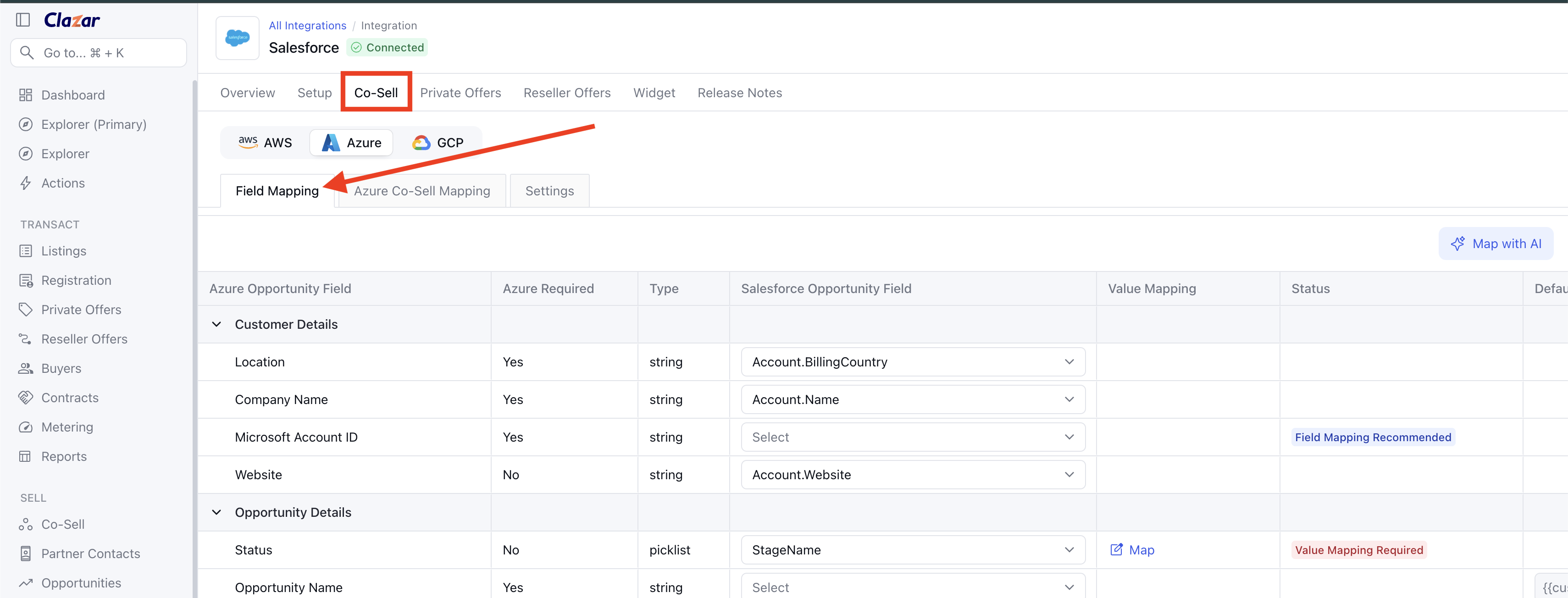
Match the Fields — For each Azure field, pick the CRM field that contains the same information. For example, match "Customer Company Name" to your "Account Name" field.
Save and Try It Out — Hit save, then try creating a test opportunity to make sure everything looks right on the mapping side.
What Fields Need to Be Mapped?
The table below shows every field Azure needs for a co-sell submission, along with where that data typically lives in Salesforce.
Customer Details
Azure Opportunity Field | Azure Required | Type | Salesforce Opportunity Field | Description |
|---|---|---|---|---|
Location | Yes | string | Account.BillingCountry | The location where the company is domiciled. Auto pulled based on website. |
Company Name | Yes | string | Name of the company. Auto pulled based on website. | |
Microsoft Account ID | Yes | string | Select | Company's Microsoft Account ID. Auto pulled based on website. |
Website | No | string | Customer website (e.g. acmecorp.com). Used to auto-pull company details. |
Opportunity Details
Azure Opportunity Field | Azure Required | Type | Salesforce Opportunity Field | Description |
|---|---|---|---|---|
Status | No | picklist | StageName | Status of the deal with respect to the partner. Maps your Salesforce stages to Azure deal stages using Clazar. |
Opportunity Name | Yes | string | Select | Friendly name to identify your deal. |
Opportunity Type | Yes | picklist | Select | Specifies the nature of the deal — Partner-Led or Co-Sell engagement. |
Assistance Type | Yes | picklist | Select | Applicable when Deal Type is "Co-Sell." Specifies the type of assistance requested from Microsoft, such as Workload Specific Value Proposition, Customer Technical Architecture, Proof of Concept or Demo, Quotes or Licensing, Post Sales Customer Success, or General or Other. |
Solution | Yes | multipicklist | Segment__c | The solution being provided to the end customer, pulled from Partner Center. |
Estimated Value | Yes | number | Amount | Value of the deal you expect based on the information available when creating the deal. |
Estimated Close Date | Yes | date | CloseDate | Date by which you expect to close the deal with the customer. |
Buyer Purchase Intent | Yes | picklist | Select | Indicates the buyer's intent to purchase. |
CRM ID | No | string | Select | Your internal CRM identifier for this opportunity. |
Marketing Campaign ID | No | string | Select | The name or identifier of the marketing initiative or campaign that generated or influenced the opportunity. |
Solution Area | Yes | picklist | Select | The Microsoft solution area that best aligns with this opportunity (e.g., Azure Infrastructure, Data & AI, Digital & App Innovation, Security). |
Solution Play | Yes | picklist | Select | The specific solution play within the solution area that applies to this opportunity. |
Notes to Microsoft | Yes | string | Description | Mandatory when Deal Type is "Co-Sell." Used to provide visibility to other employees from your company working on the same deal, or as on-the-record communication between your company and Microsoft sellers or other partners. |
Close Lost Reason | Yes | picklist | Select | The primary reason why the opportunity was not won. Provides insight into factors that led to the loss to improve future engagements. |
Closing Notes | No | string | Select | Any additional notes related to closing or losing the deal. |
Buyer Contact
Azure Opportunity Field | Azure Required | Type | Salesforce Opportunity Field | Status | Description |
|---|---|---|---|---|---|
Buyer Contact First Name | Yes | string | Contact.FirstName | Default Recommended | Customer's first name. |
Buyer Contact Last Name | Yes | string | Contact.LastName | Default Recommended | Customer's last name. |
Buyer Contact Email | Yes | string | Default Recommended | Customer's email address. | |
Buyer Contact Phone | Yes | string | Default Recommended | Customer's phone number. |
Team Member Contact
Azure Opportunity Field | Azure Required | Type | Salesforce Opportunity Field | Value Mapping | Description |
|---|---|---|---|---|---|
First Name | Yes | string | Owner.FirstName | Map | Seller's sales team member first name. |
Last Name | Yes | string | Owner.LastName | Map | Seller's sales team member last name. |
Yes | string | Seller's sales team member email. | |||
Phone | Yes | string | Seller's sales team member phone number. |
Sales Stage Reference
Sales Stage | % Completed | Definition | MCEM Stage | MCEM Stage Exit Criteria |
|---|---|---|---|---|
Created | 10% | Creating an outbound deal | Listen and Consult | Qualified opportunity |
Accepted | 10% | Accepting an inbound deal | Listen and Consult | Qualified opportunity |
Qualified | 20% | Qualifying the value of the deal and the customer requirements before proceeding further | Listen and Consult | Qualified opportunity |
Developed | 40% | Developing the deal further to understand the detailed requirements to either prepare a POC or any other artifacts required for a formal proposal | Inspire and Design | Customer aligned to solution & business case |
Proposed | 60% | Making a formal proposal to the customer based on their requirements | Empower and Achieve | Customer agreement in place |
Negotiated | 80% | Negotiating the final terms based on the proposal to get to the final state — winning or losing the deal | Empower and Achieve | Customer agreement in place |
Won | 100% | Marking the deal as won | Realize Value | Customer has executed the agreement and deployment can begin |
Was this helpful? If you have any questions or run into any issue, reach out to us on Slack or at support@clazar.io - we're happy to help.