Making Your GCP Listing Live
Last updated: August 8, 2025
Once you have completed all the steps for your GCP listing, Google Cloud Platform (GCP) will provide you with the necessary commands to run on the cloud shell to make your listing live. Follow the steps below to activate your listing:
Step 1: Access Your GCP Producer Portal
Log in to your GCP Producer Portal.
Select your listing and click on "Publish"
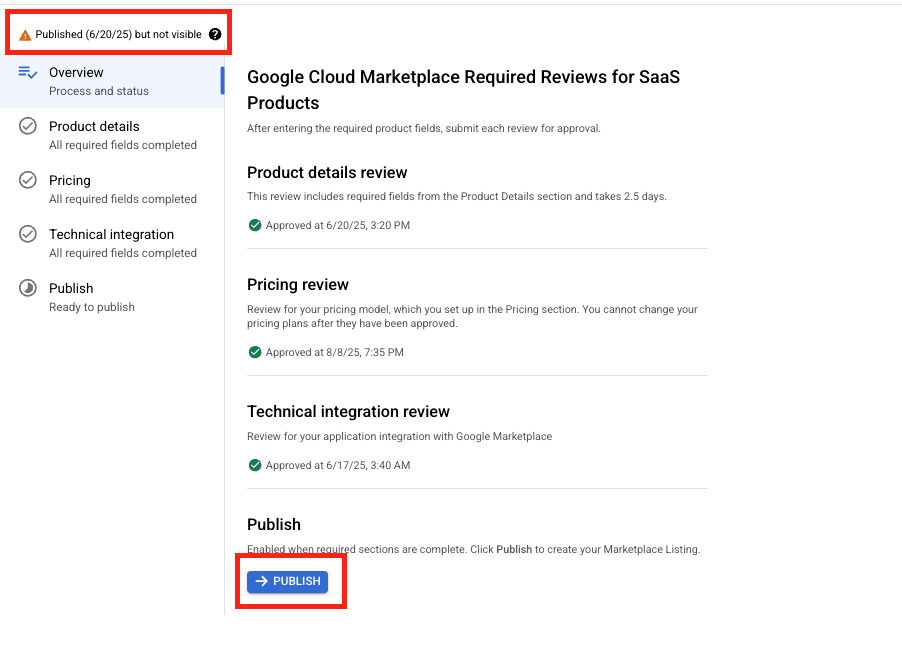
Listing will be published but not visible to public. Now go back to the 1st page.
Locate and click on the "Activate Cloud Shell" button (refer to the attached screenshot for visual guidance).

Step 2: Authorize the Cloud Shell
After clicking "Activate Cloud Shell," continue with the steps displayed on the screen.
Click "Authorize the cloud shell" to grant the necessary permissions.
Step 3: Run the Provided Commands
Please note that only the owner or Editor with Service Management Administrator roles can execute the command.
The GCP team will share the commands you need to run in a support ticket.
The Clazar team will forward these commands to you via Slack/mail.
Copy the provided commands and paste them into the command line of the cloud shell.
Press Enter to execute the commands.
Here's an example of what the commands might look like:
gcloud endpoints services add-iam-policy-binding \
"xxxx-cloud.endpoints.xxxx-marketplace.cloud.goog" \
--member=allUsers \
--role='roles/servicemanagement.serviceConsumer'
Please note that the above code is just a sample for reference. The actual commands will be specific to your listing and provided by the GCP team.
Step 4: Verify Your Listing
After successfully running the commands, your listing should now be live on the GCP Marketplace.
Verify that your listing is accessible and functioning as expected.
If you encounter any issues or have further questions, don't hesitate to contact the Clazar Support team.