Salesforce Integration
Last updated: October 9, 2025
You can now access your private offers, contracts, buyers, and listings data for AWS, Azure, and GCP Marketplaces directly within Salesforce. Full details of AWS and Azure co-sell opportunities are also available in your Salesforce instance. Additionally, you can create, update, and accept AWS co-sell opportunities using Salesforce Flows.
Prerequisites
Before integrating Salesforce with Clazar, ensure you have the following:
Clazar Account: An active Clazar account with Super Admin or Admin user privileges is required to access the Integration Screen and configure the integration.
Salesforce Account: You need a valid Salesforce account with administrative access to authorize Clazar for integration.
Clazar User in Salesforce (Recommended): Create a dedicated Clazar user account within your Salesforce instance, specifically for integration purposes. Refer to Step 2 for more details.
Salesforce User License: The Salesforce user intended for integration must have the Salesforce license or another license allowing control over Salesforce Standard Object permissions.
Salesforce Object and Field Knowledge: Familiarity with the Salesforce objects and fields you intend to integrate with Clazar is essential for proper mapping and configuration.
Salesforce Integration Steps
Navigate: Integrations > Salesforce > Setup
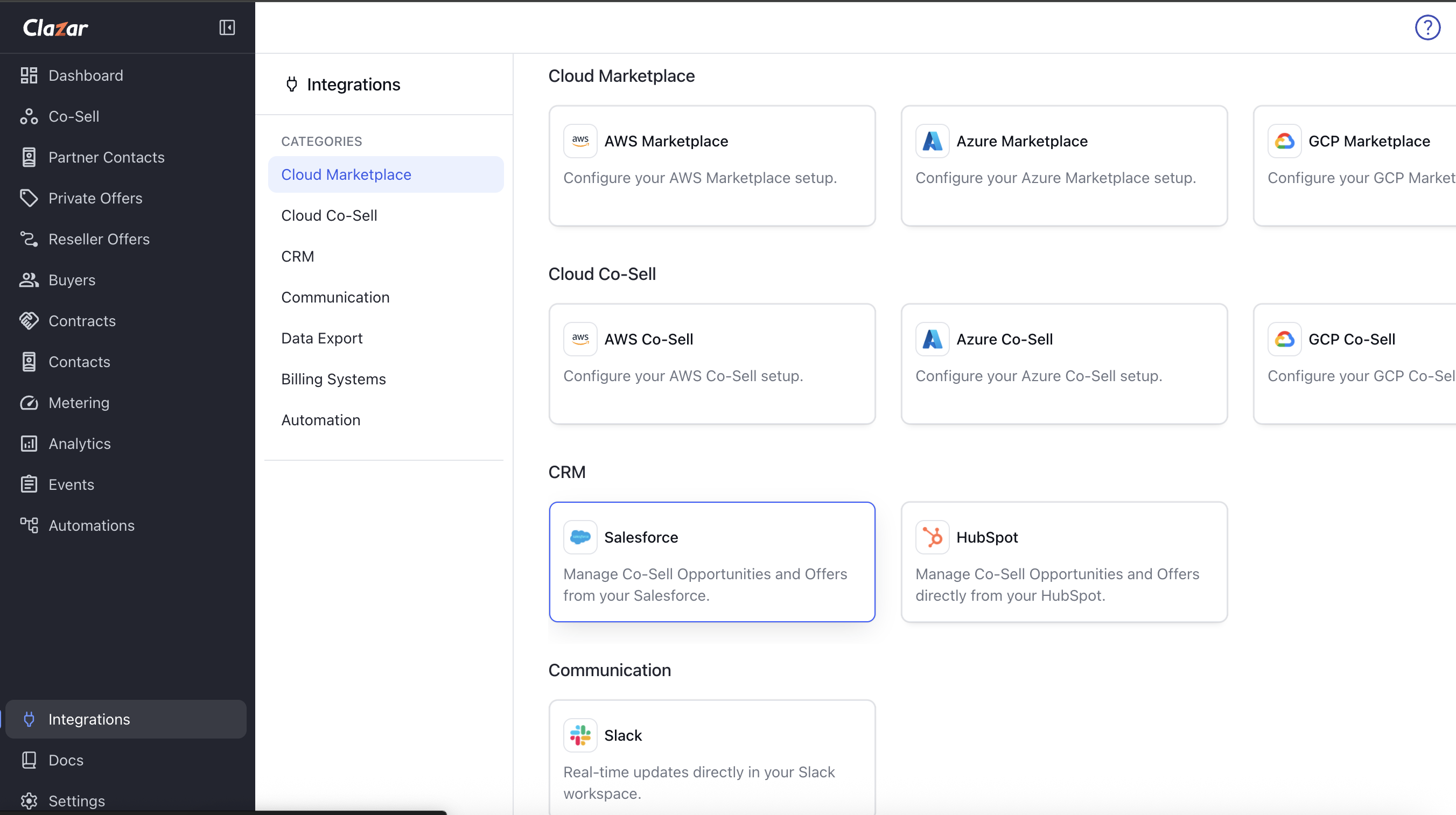
Step 1: Install Clazar Salesforce Managed Package
To install the managed package, click on the Install Widget button.
Log in to your Salesforce instance where you want to install the Clazar Salesforce Managed Package.
Please confirm the instance URL where you want to install the Clazar Salesforce managed package so that we can ensure it is installed on the correct instance.
Recommended: Select the Install for Admins Only option during the package installation to maintain better control over access and permissions.
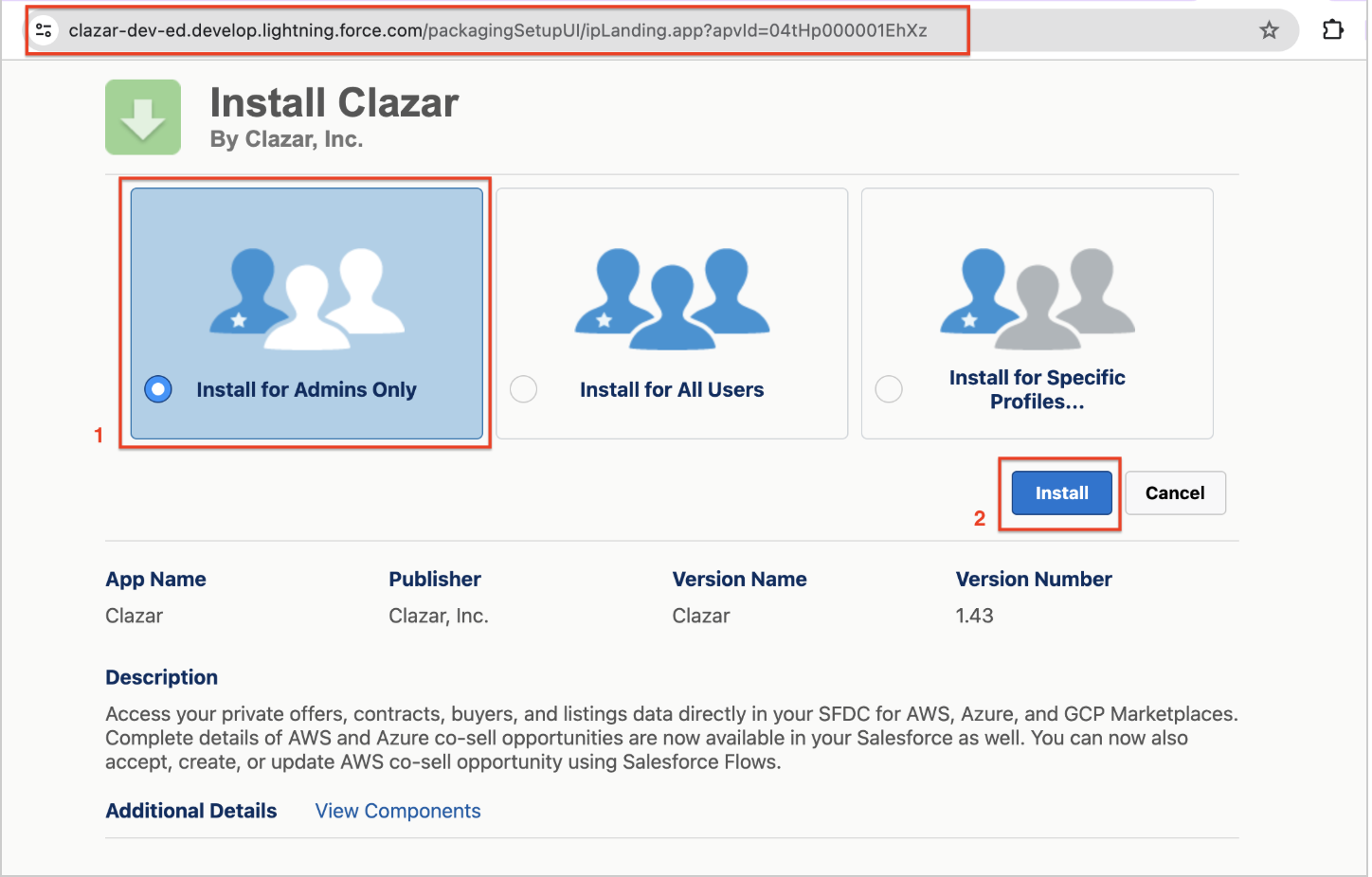
Click the Install button to complete the installation.
Allow Third-Party Access for
api.clazar.io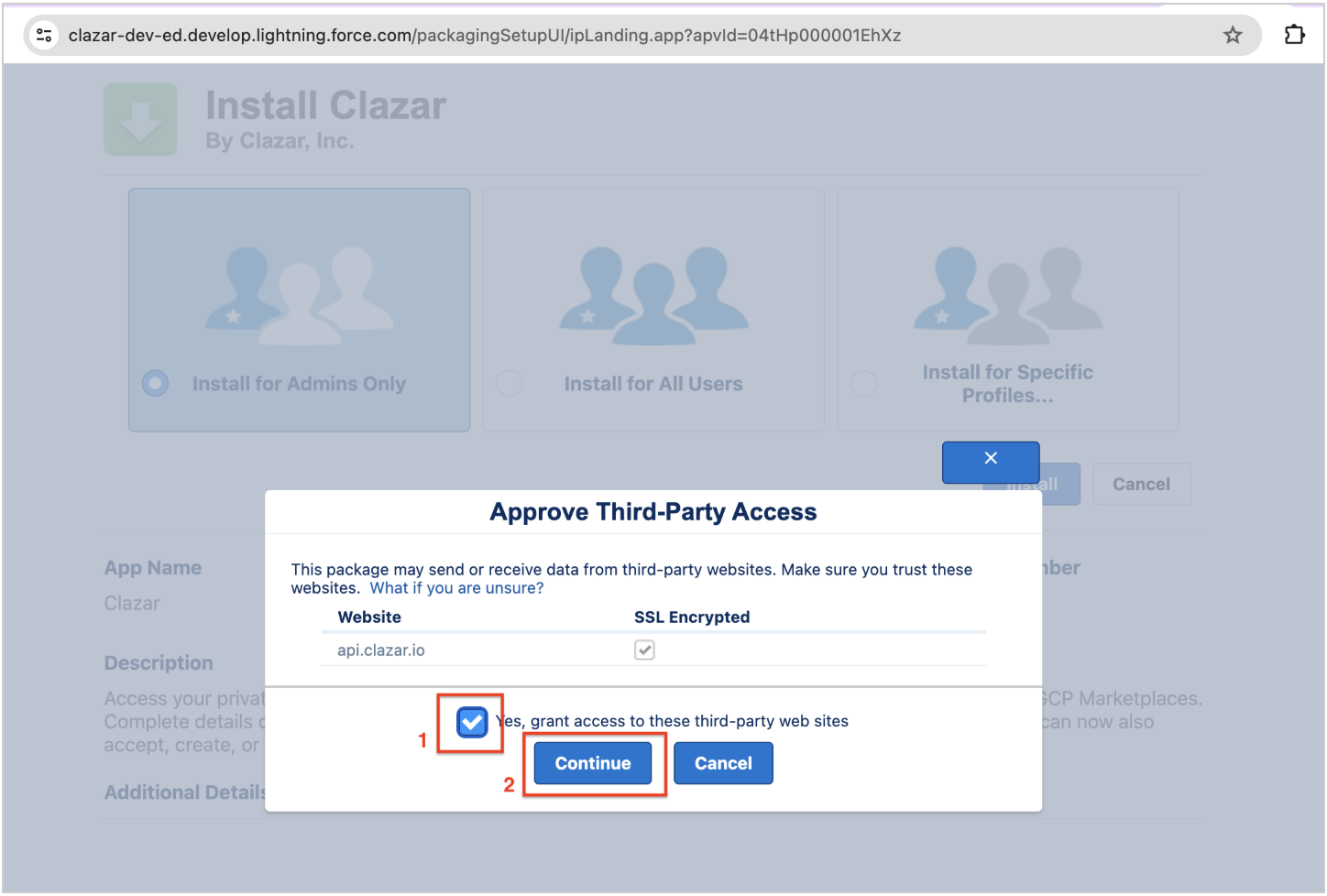
Installation Complete! (takes 5-10 mins)
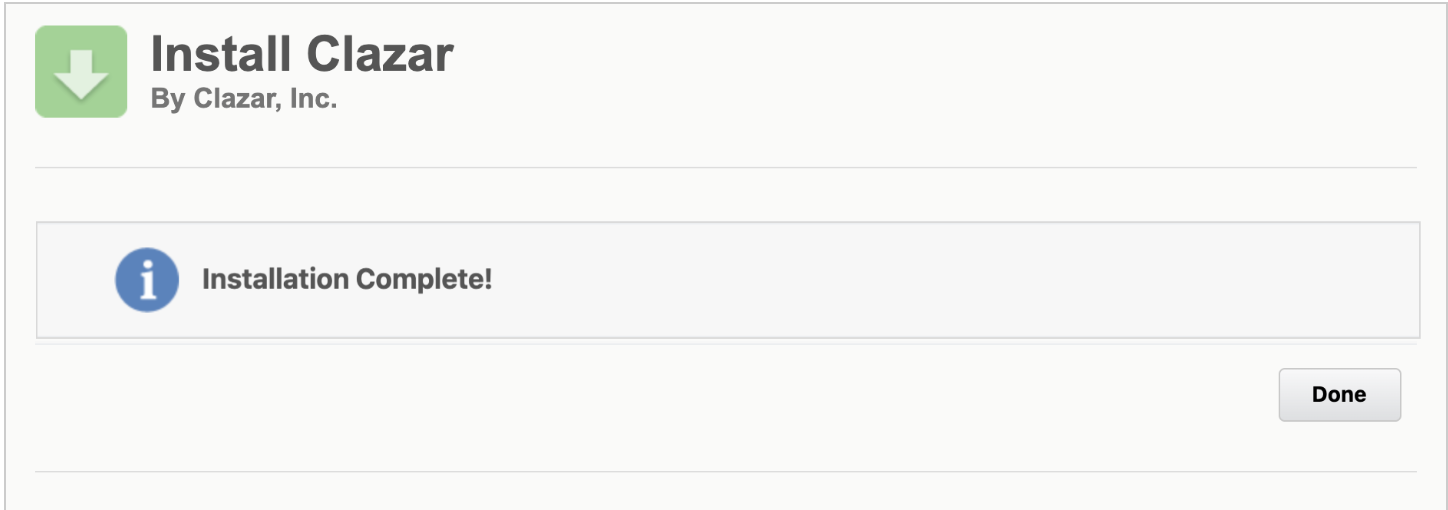
After the package is fully installed, you will receive an email notification confirming the installation's completion.
Step 2: Create a Clazar User in Salesforce
To communicate with Salesforce, Clazar uses the OAuth 2.0 Web Server Flow.
Ensure you have a Salesforce Account with API access.
📘Recommendation
Create a dedicated user for integration. Learn more at Create a secure Salesforce API user.
The user must have the Salesforce license to access Salesforce Standard Object permissions.
The Salesforce OAuth process requires a regular user who has access to the web UI to be used.
Ensure the user has at least the following access permissions for relevant objects:
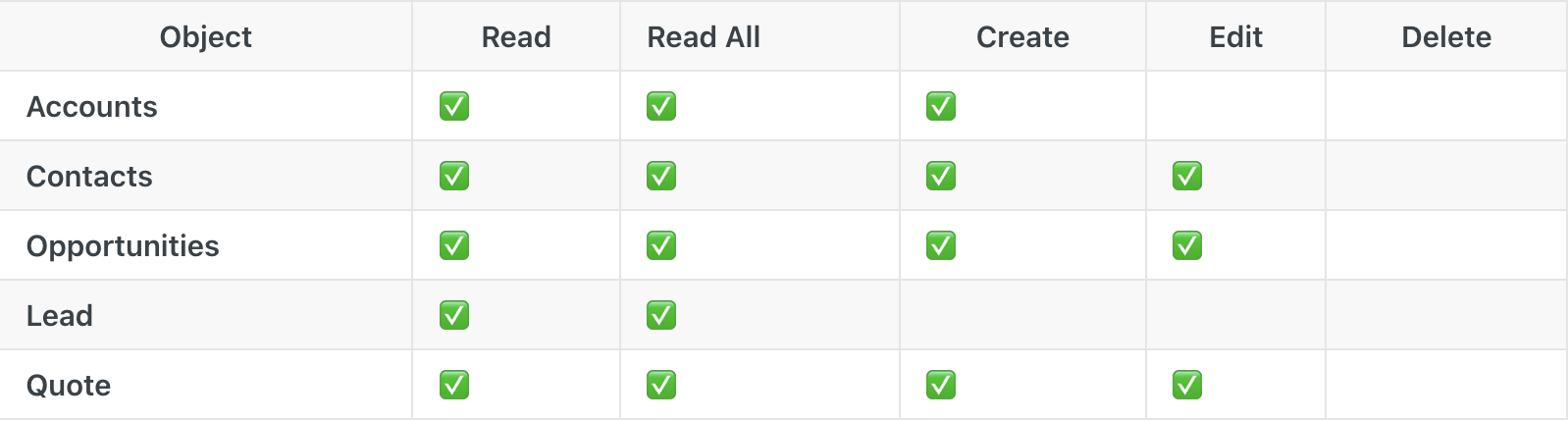
Note: You may use an existing Salesforce user (e.g., jon@acme.corp) to establish the integration. However, please be aware that if this user is deleted or deactivated in Salesforce, the integration will break and must be reconfigured.
Step 3: Grant Clazar Salesforce Permission Set
Grant the required permissions to the Integration User by assigning the Clazar Salesforce Permission Set.
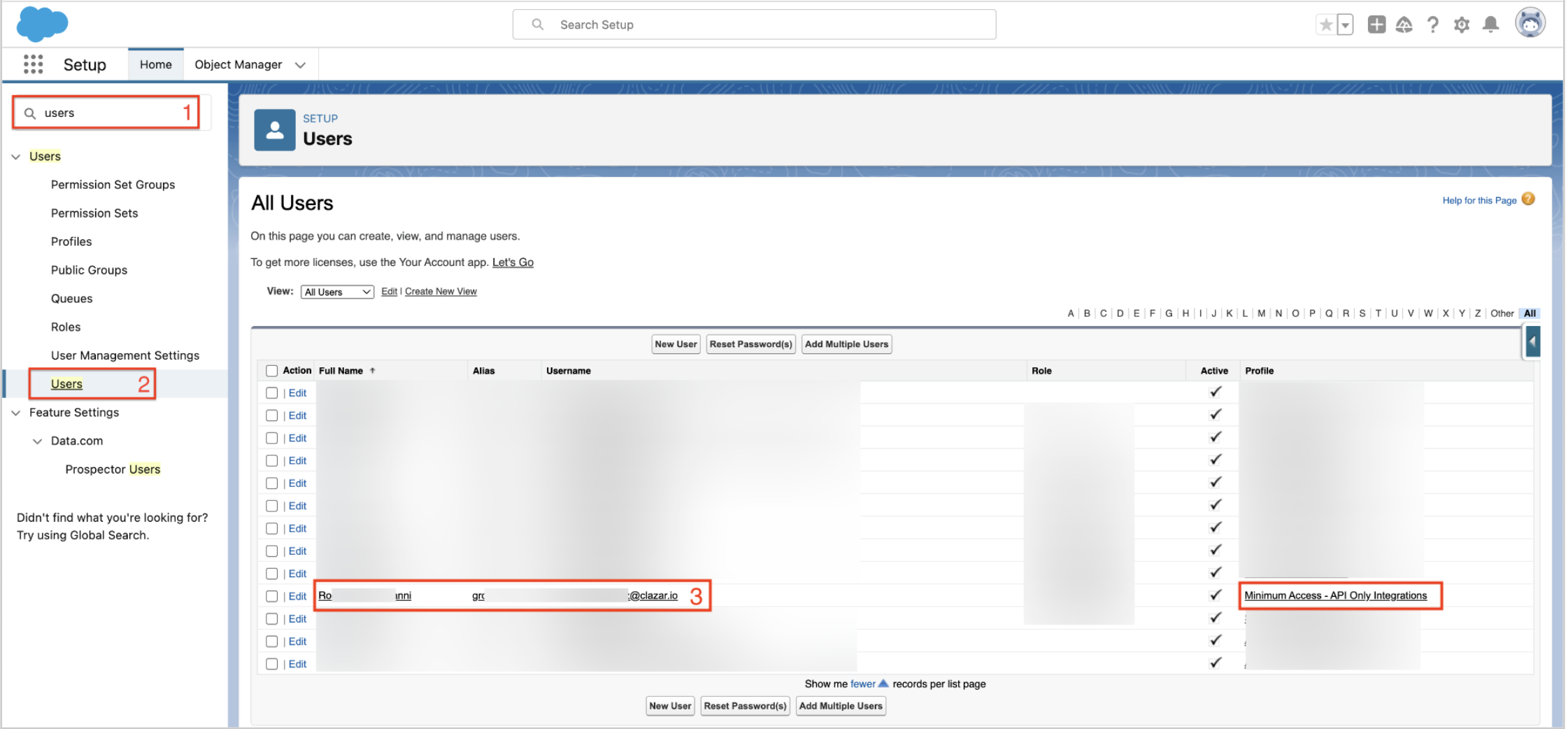
Search Users on Quick Search
Click on the applicable user's name.
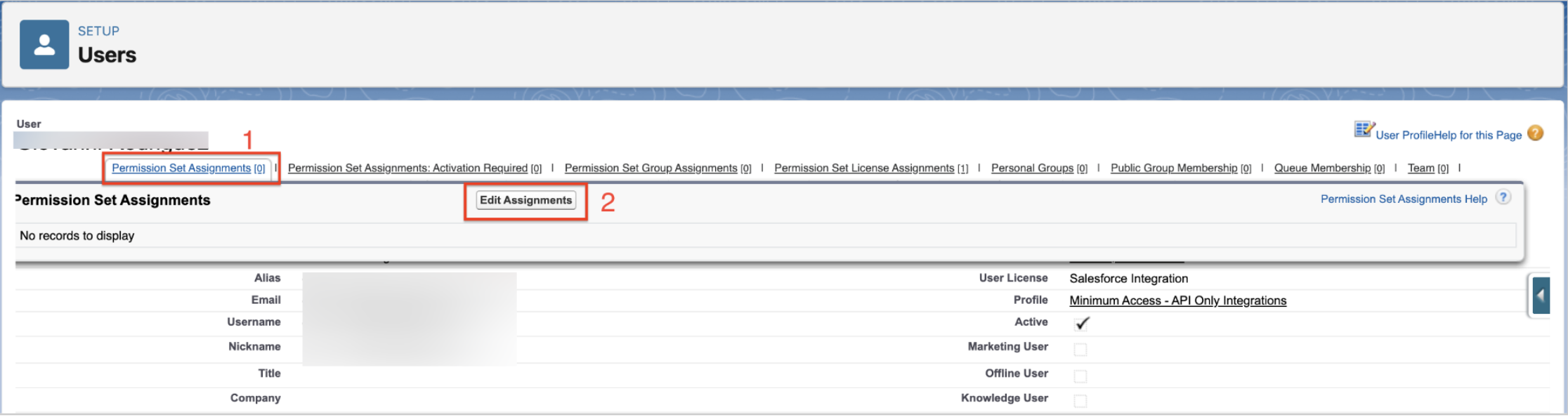
Click on Permission Set Assignment
Click on Edit Assignment
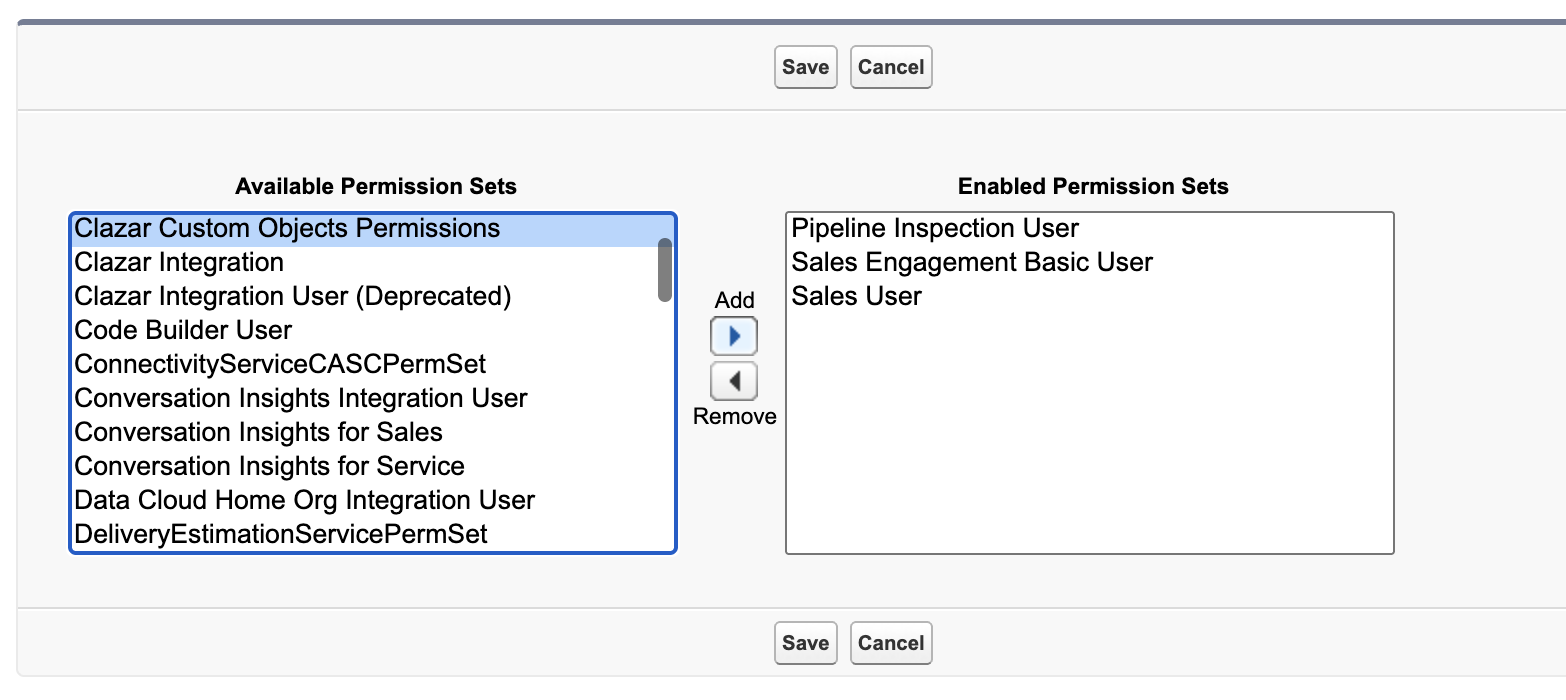
Select Clazar Custom Objects Permissions
Click on ▶ Add to add the Permission Set
Click Save
Step 4: Assign Salesforce Integration User License (Only for Integration User)
Search Users on Quick Search
Click on the user's name.
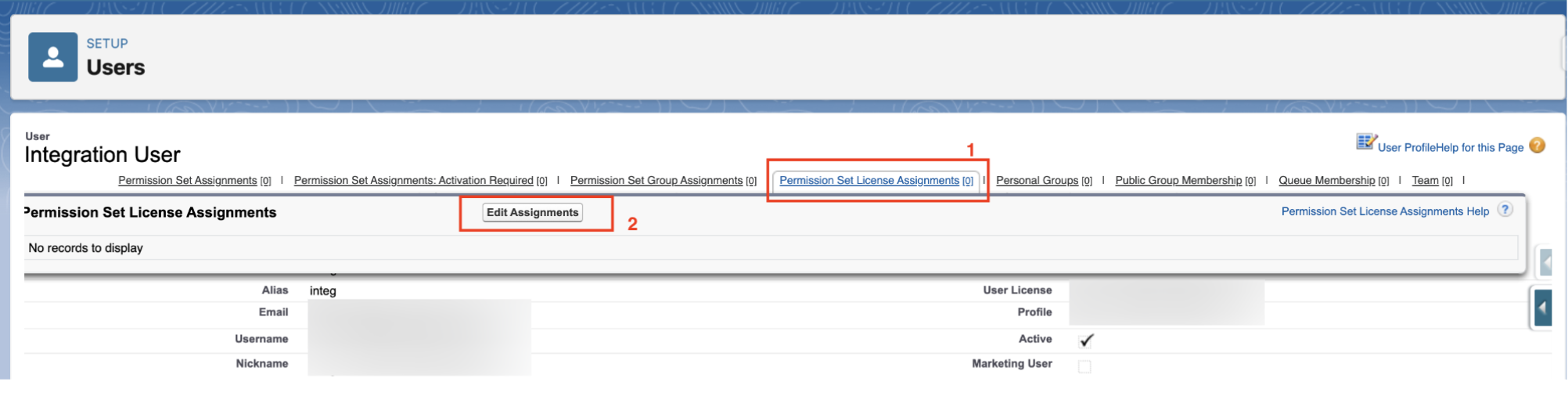
Click on Permission Set License Assignment
Click on Edit Assignment
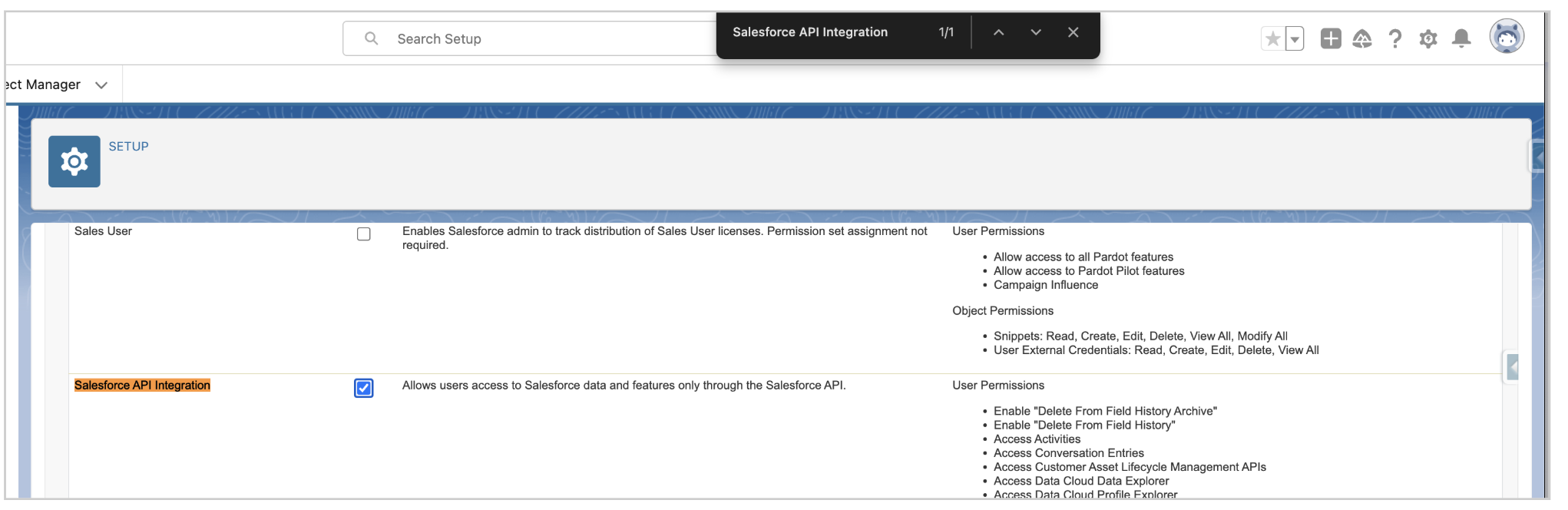
Search Salesforce API Integration
Select the Checkbox
Save
Step 5: Run Clazar User Authentication in Salesforce
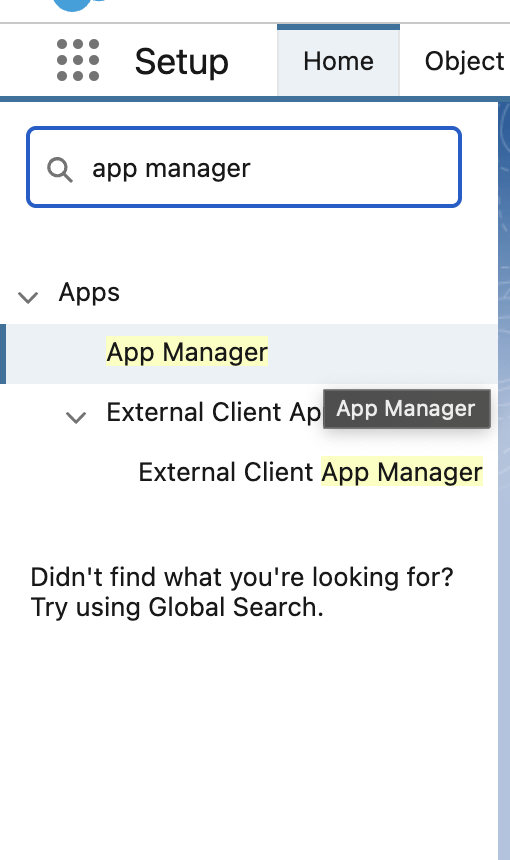
Click on Setup and search for App Manager under Quick Find Menu
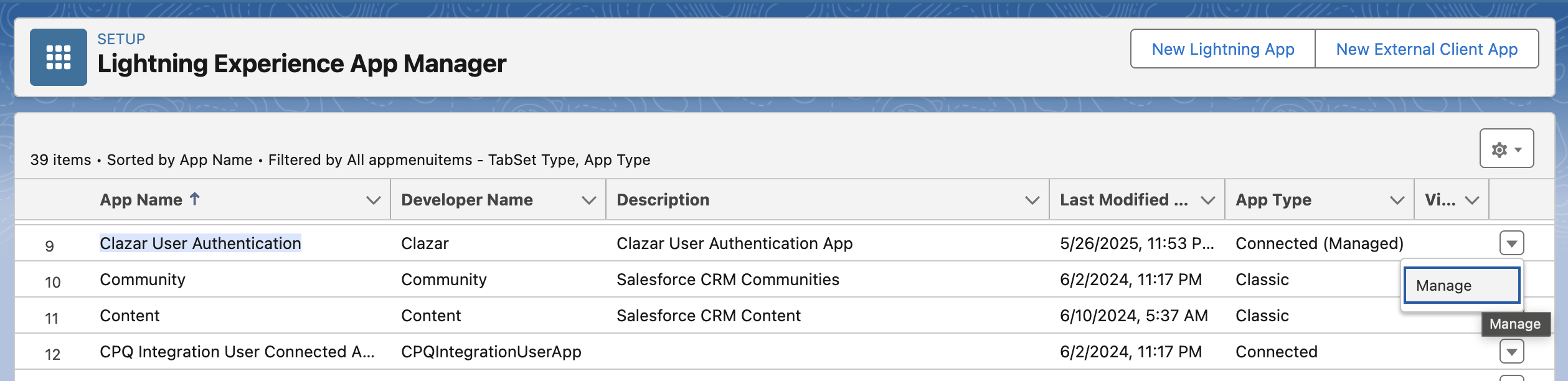
Under listed apps, search for "Clazar User Authentication"
Click Manage
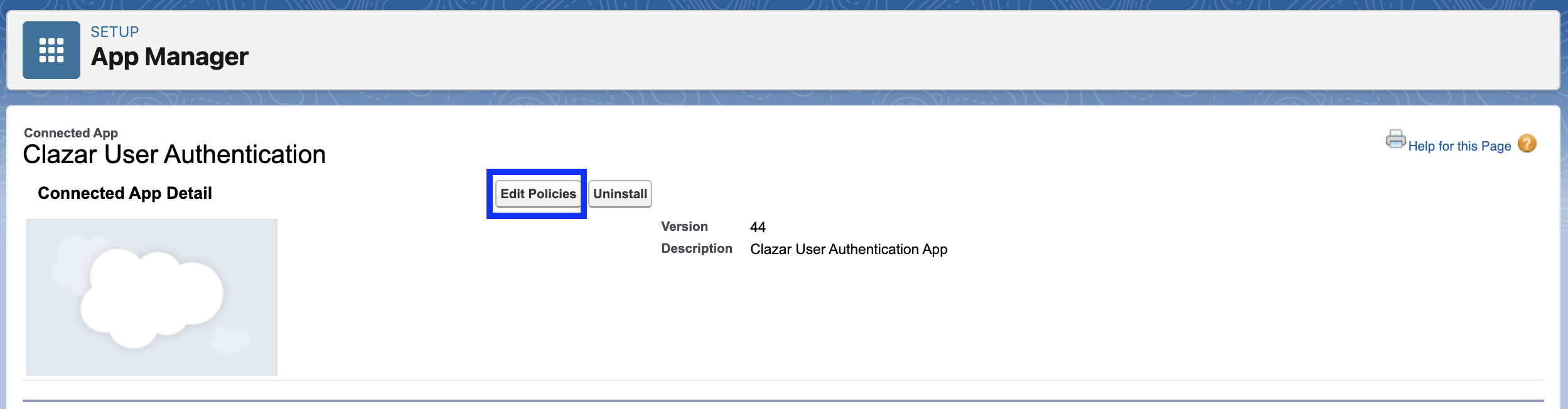
Click Edit Policies
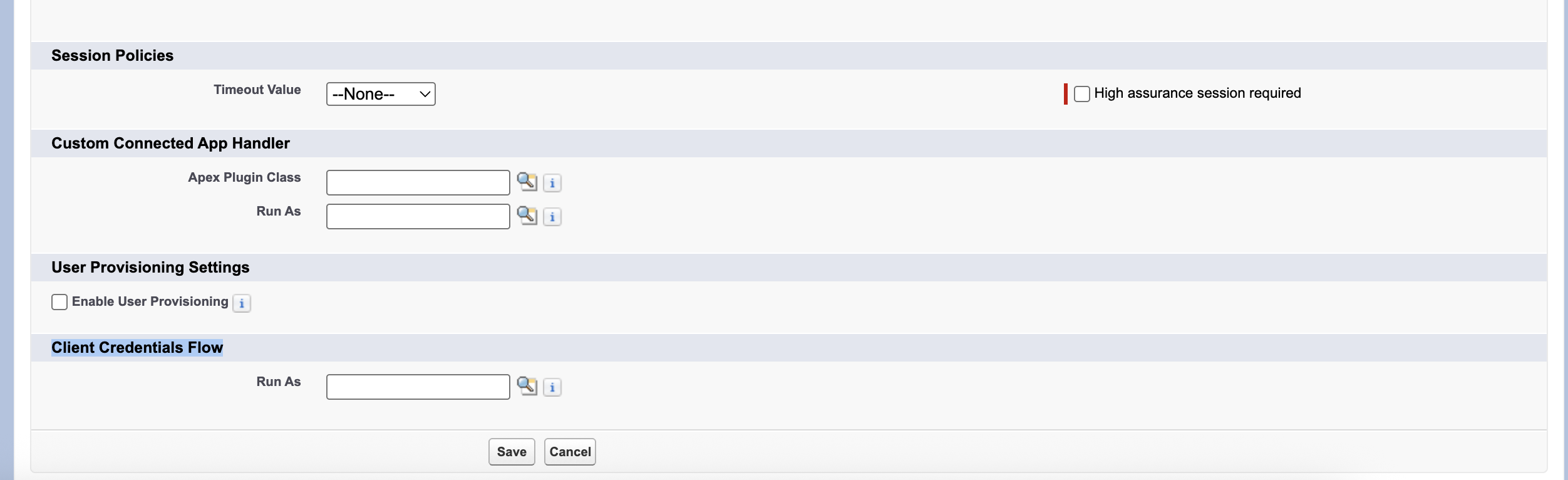
Locate "Client Credentials Flow" and search for your Integration User here under Run As, and click Save
Step 6: Connect Salesforce from Clazar
Go to Clazar console (Integrations > Salesforce > Setup)
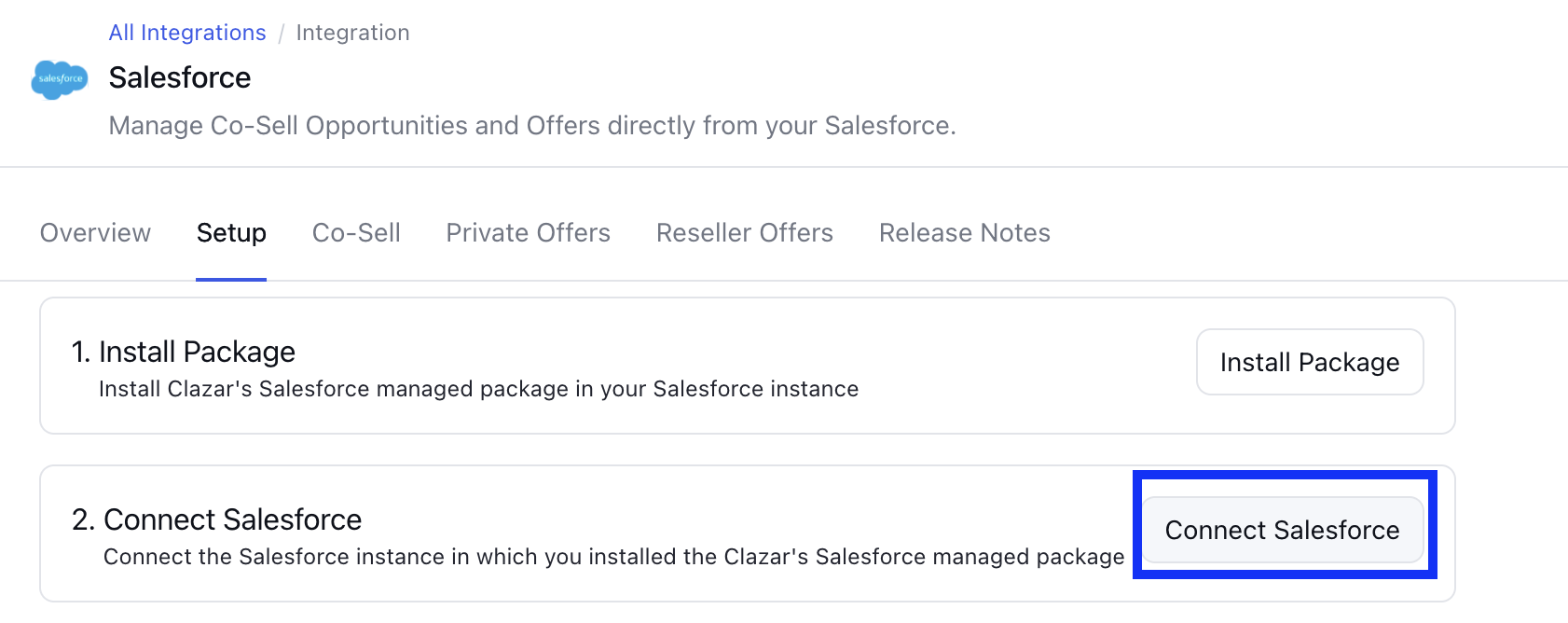
Click on Connect Salesforce
Now you can connect Salesforce to Clazar using either the same user that you created or any other user with the necessary permissions.
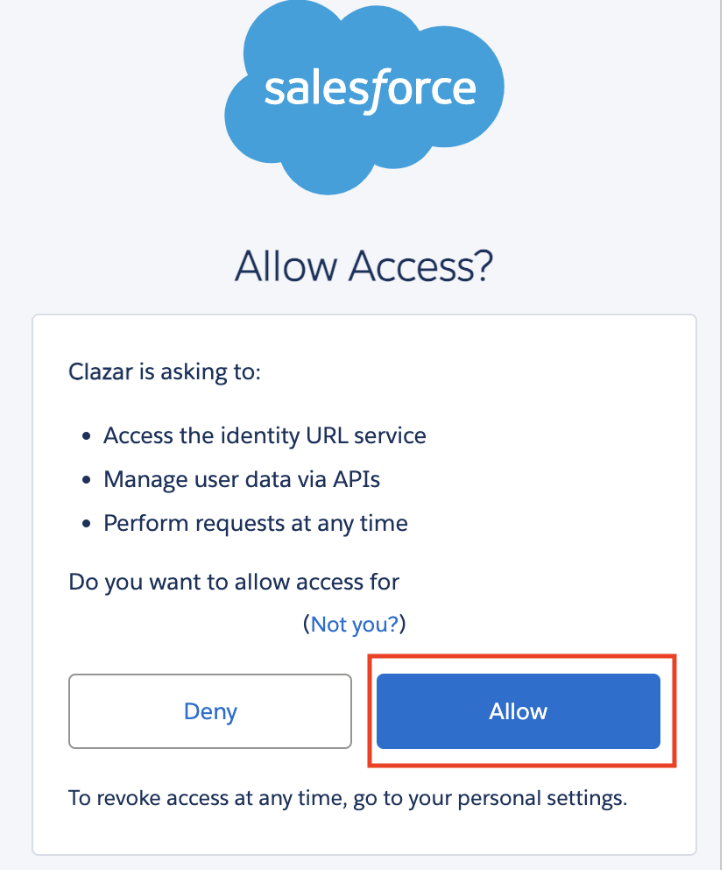
Grant Clazar access by clicking Allow.
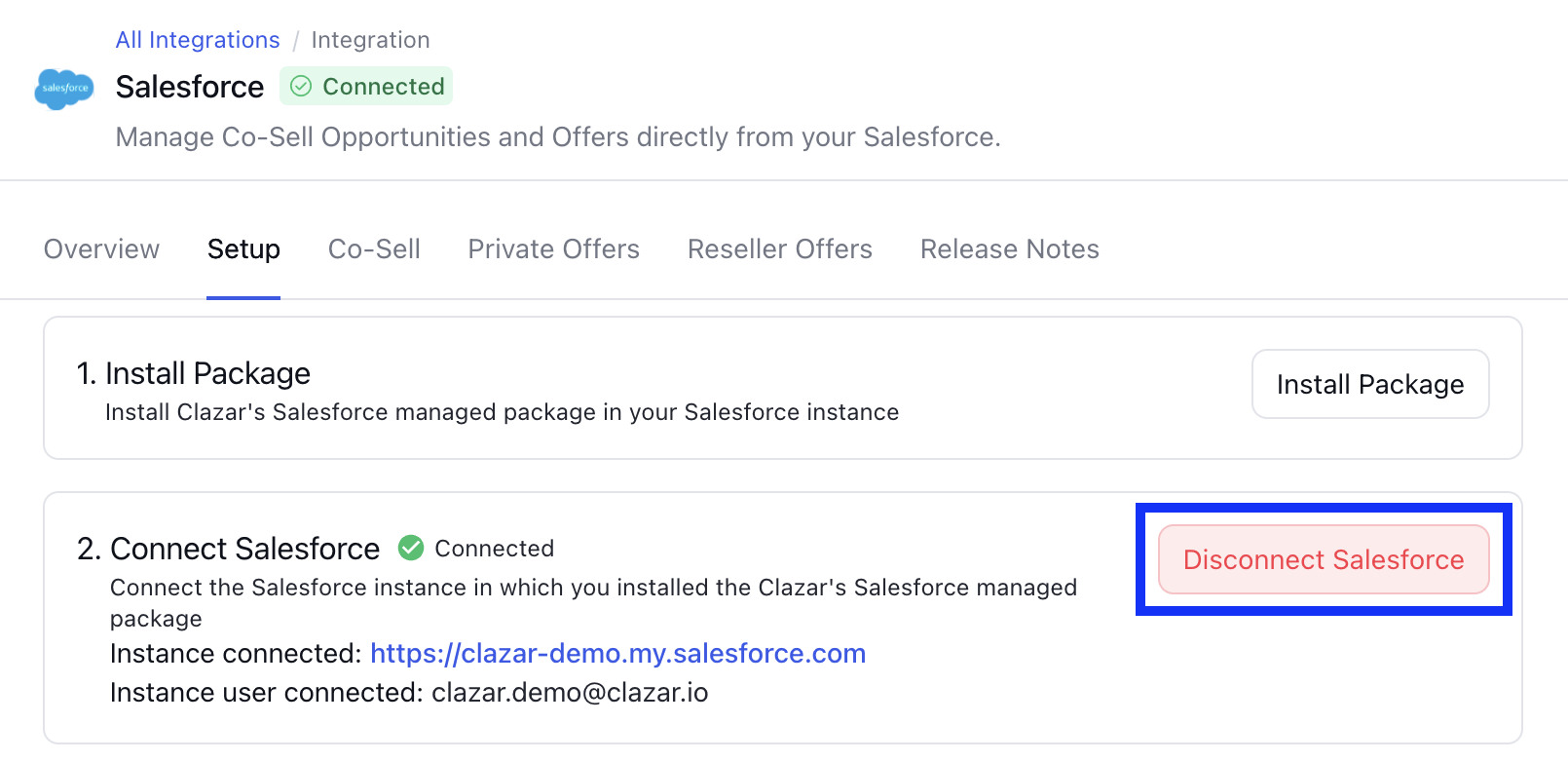
Upon successful login, the Connect Salesforce button changes to Disconnect Salesforce and displays a Green Check Mark.

Step 7: Add Clazar widgets in Salesforce
Go to Salesforce and the object where you'd want to access Clazar widgets (Opportunity, Quote, CPQ)
Open any record under the selected object (say CPQ)
Click on Gear Icon (setup)
Choose Edit Page option

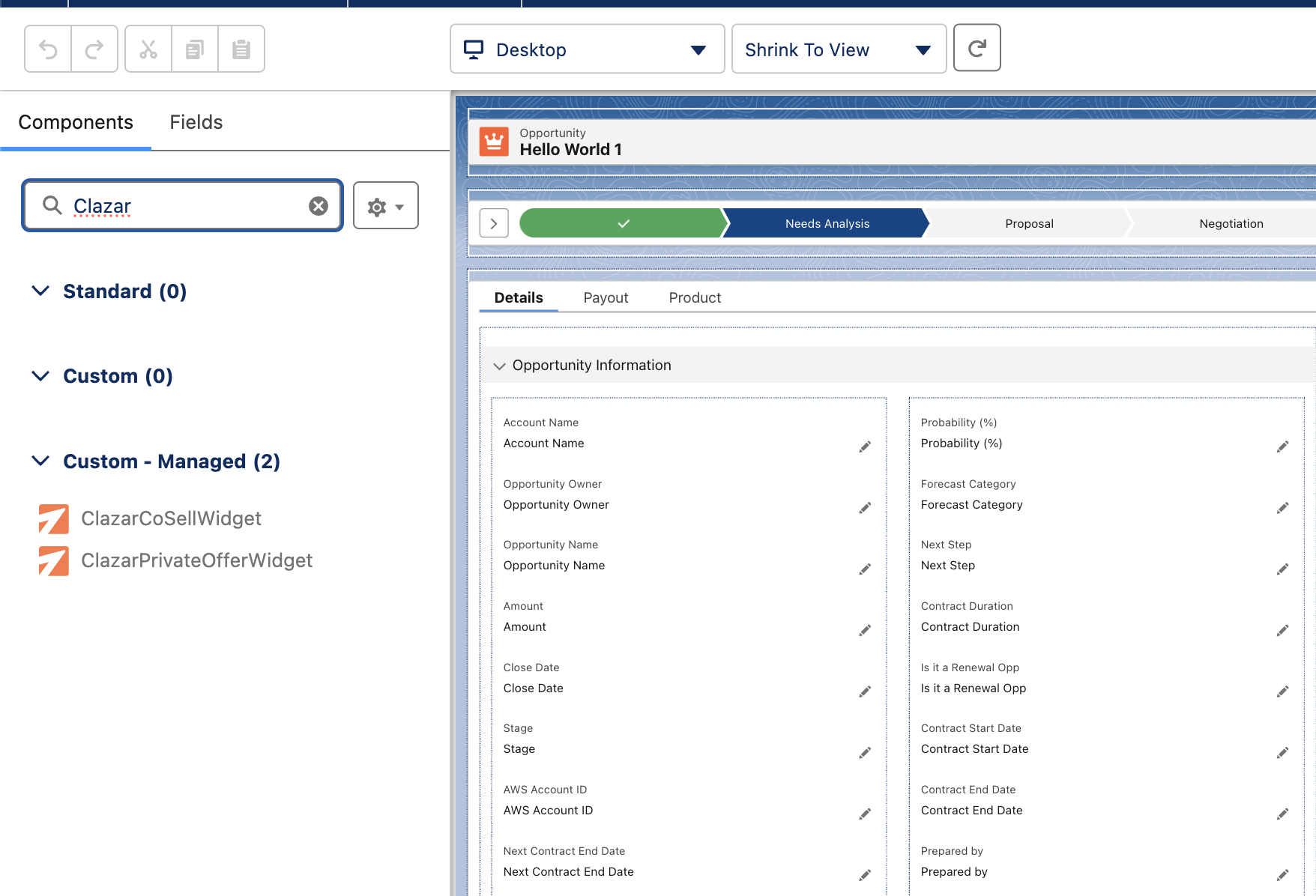
Search for Clazar and drag and drop the two widgets shown on CPQ UI
Hit Save
Step 8: Map Salesforce Users in Clazar
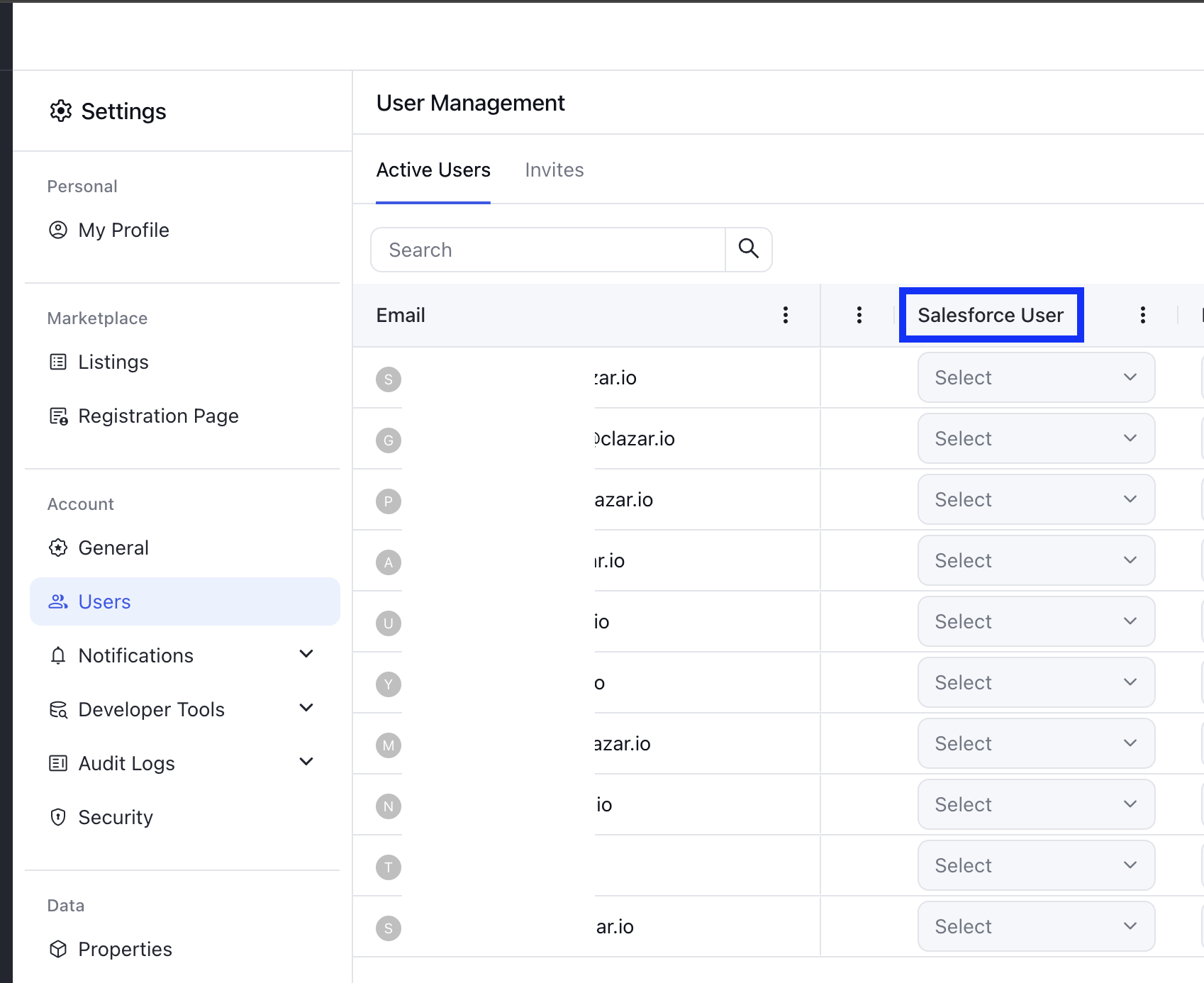
To ensure the right users can access the Clazar widget in Salesforce, please map each Clazar user to their corresponding Salesforce user under Settings > Users.
Note: Only users who are added to Clazar can be mapped to an active Salesforce user and granted widget access.
Troubleshooting: If a Clazar user encounters connection issues or cannot access Salesforce functionality, verify that they are properly mapped to their corresponding Salesforce user in the Clazar portal. Unmapped users will be unable to connect to Salesforce even if they have the necessary permissions.
" alt="
"/>
CRM Only User
Clazar now also supports CRM Only Users! With this feature, you can now restrict users to access Clazar only via the CRM widget.
You can create a user as "CRM Only User" by assigning it an additional role "CRM Only User" under Settings > Users
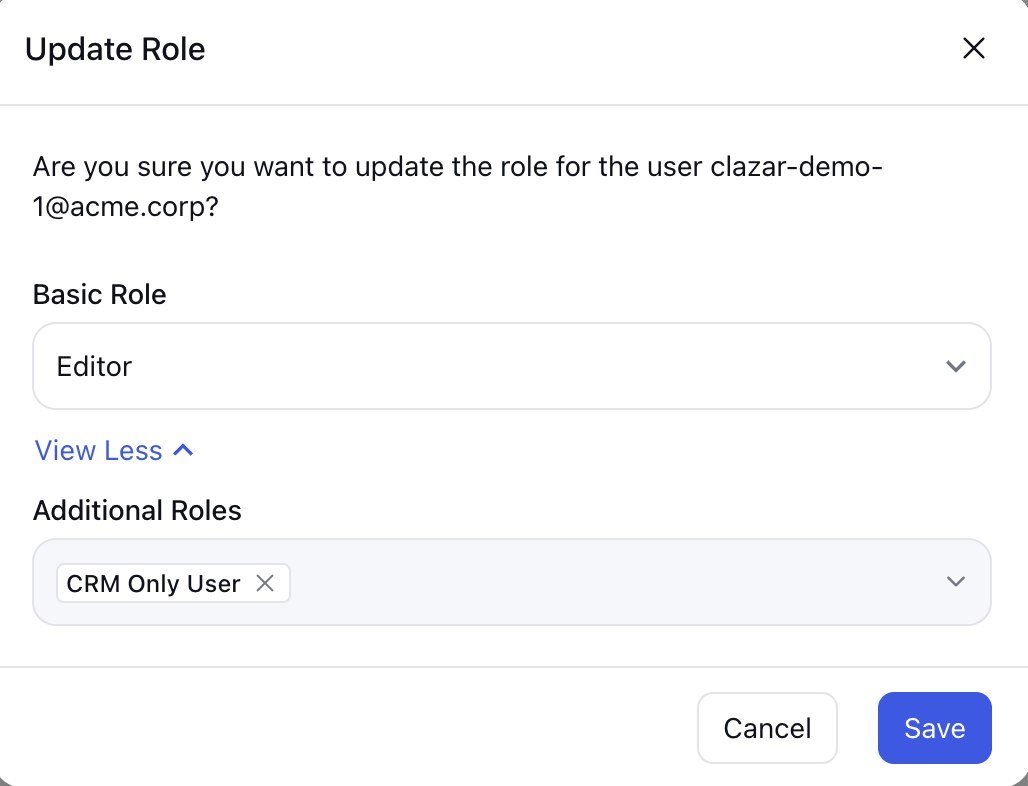
This additional role can be set by Super Admin or any Admin of the Clazar Instance.
Step 9: Enable Writebacks (Optional)
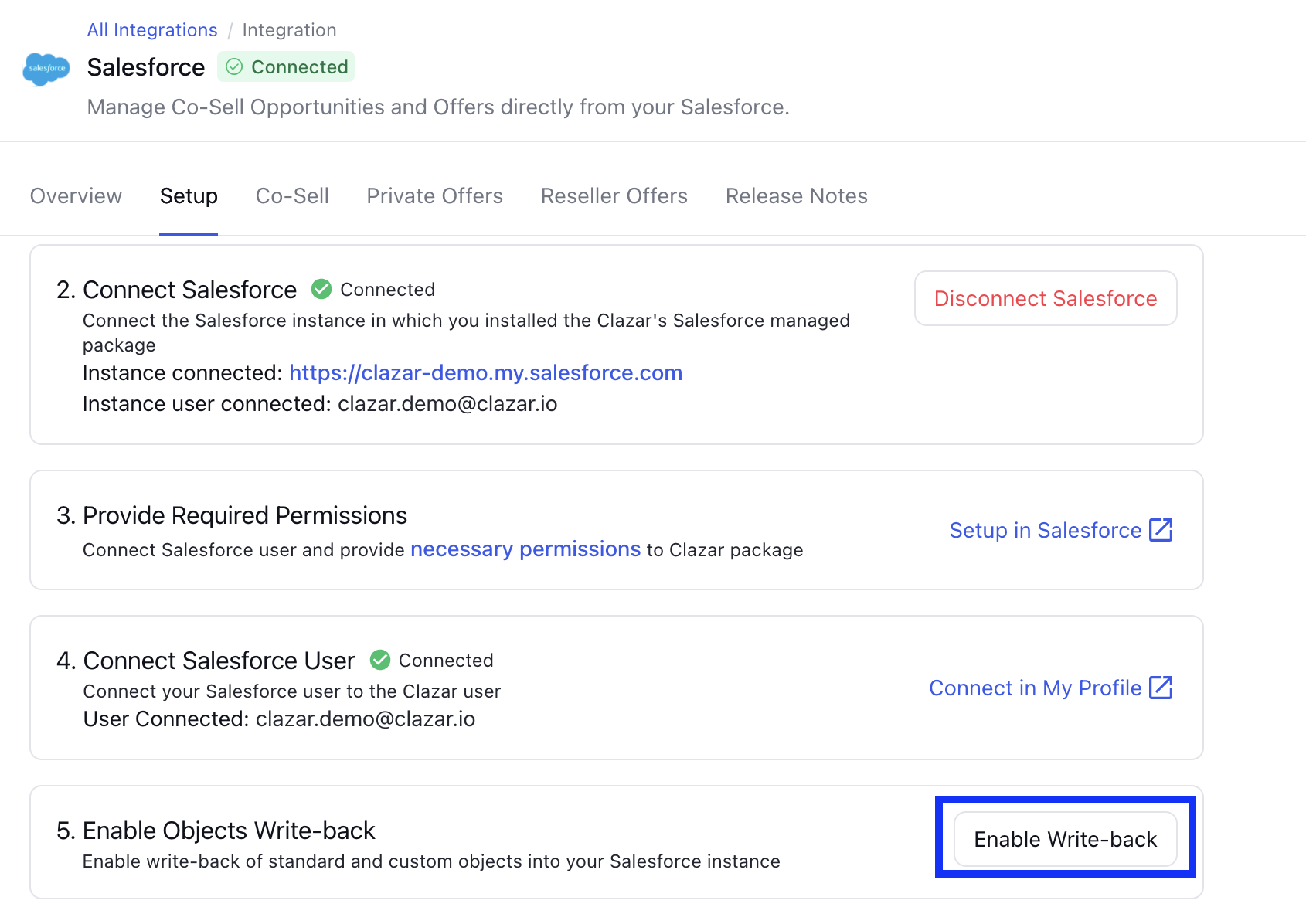
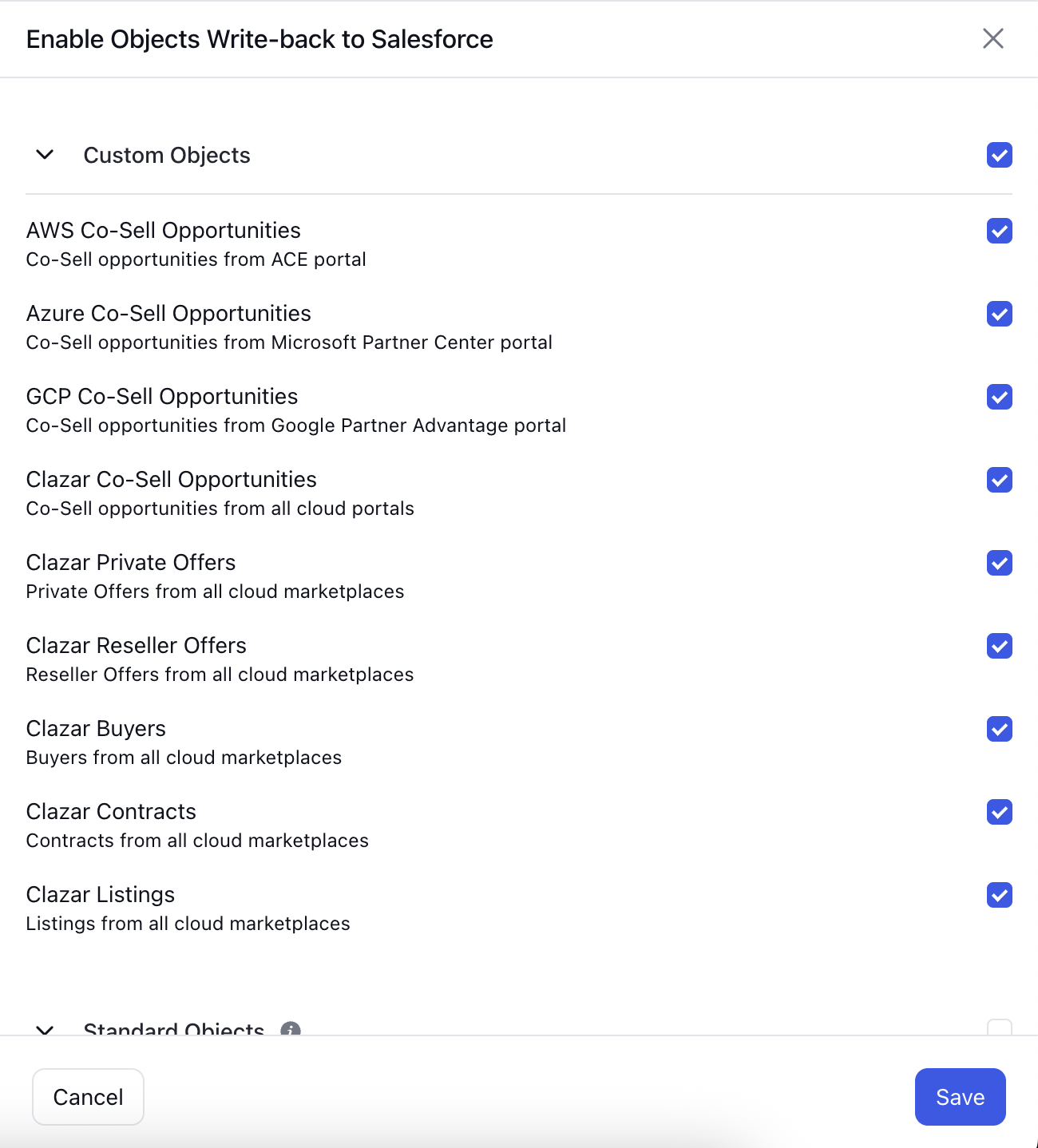
Please note that Clazar’s integration with Salesforce does not modify any standard objects. Instead, it creates custom objects—such as AWS Offers and AWS Co-sell Opportunities—to pass Marketplace-related information into Salesforce. To ensure these objects are consistently updated, please enable the appropriate writeback objects.
Step 10: Map Salesforce to Marketplace fields
To ensure the Clazar widget is pre-populated with relevant information from Salesforce, please map the appropriate Salesforce fields to the corresponding Marketplace fields. You can do this under Integrations > Salesforce > Private Offers/Co-sell > Field Mappings.
Disconnect Salesforce
To disconnect the Salesforce integration:
Click the Disconnect App button. Confirm the disconnection when prompted.
🚧 Be Careful
When you disconnect the app from Clazar, all app credentials are instantly deleted. To fully uninstall the app, you should also delete it from your Salesforce account.
All mappings will be lost upon connecting to another Salesforce instance, resulting in permanent deletion of old records.
Do you know?
Only one account can be connected to Clazar at a time. You can connect to either Salesforce Prod, Sandbox, or Developer account at a time.