Self-serve Billing Adjustment on AWS
Last updated: June 23, 2026
If you need to issue a refund or correct a billing error on one of your buyer's agreements, you can apply a billing adjustment directly from your AWS console — without raising a support case with AWS. This is the fastest way to make the correction while keeping the buyer's agreement active.
This guide walks you through the complete process, from navigating to the Agreements section through submitting the adjustment.
Prerequisites
Before you begin, make sure you have:
The agreement ID of the buyer's agreement you want to adjust (recommended). Other identifiers such as buyer AWS account ID or offer ID also work.
The invoice number and the refund amount (full or partial, pre-tax) that needs to be adjusted.
A clear reason for the adjustment — this is required during submission.
Assumption: This guide assumes you are already signed in to your AWS console and starting from the console dashboard.
Step 1: Navigate to the Agreements Section
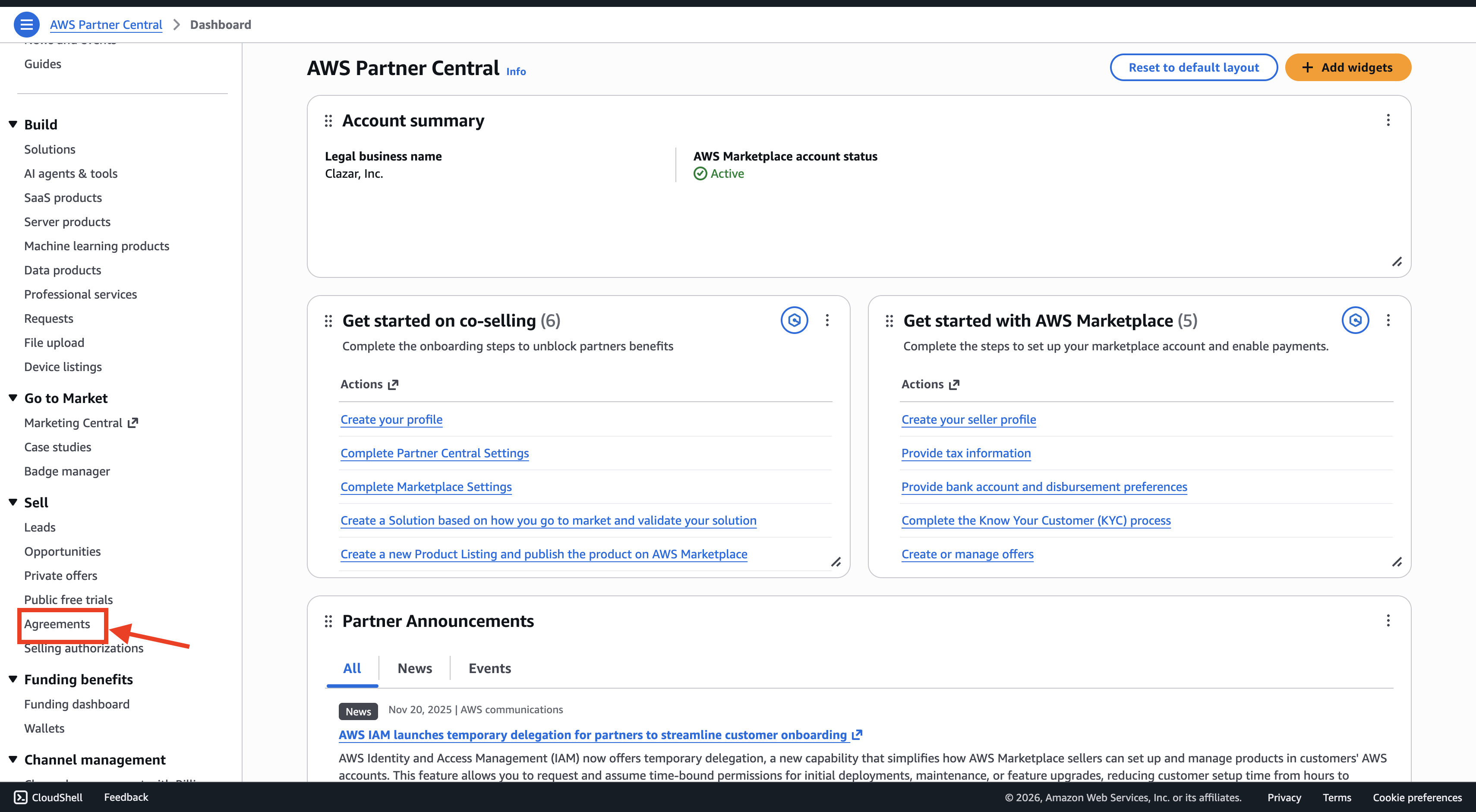
From your AWS console dashboard, navigate to the Agreements section under the Sell menu in AWS Marketplace.
This is the same Agreements section used for cancellations, so the navigation should be familiar if you've handled cancellations before. All your active and historical agreements with buyers are listed here.
Step 2: Locate the Buyer's Agreement
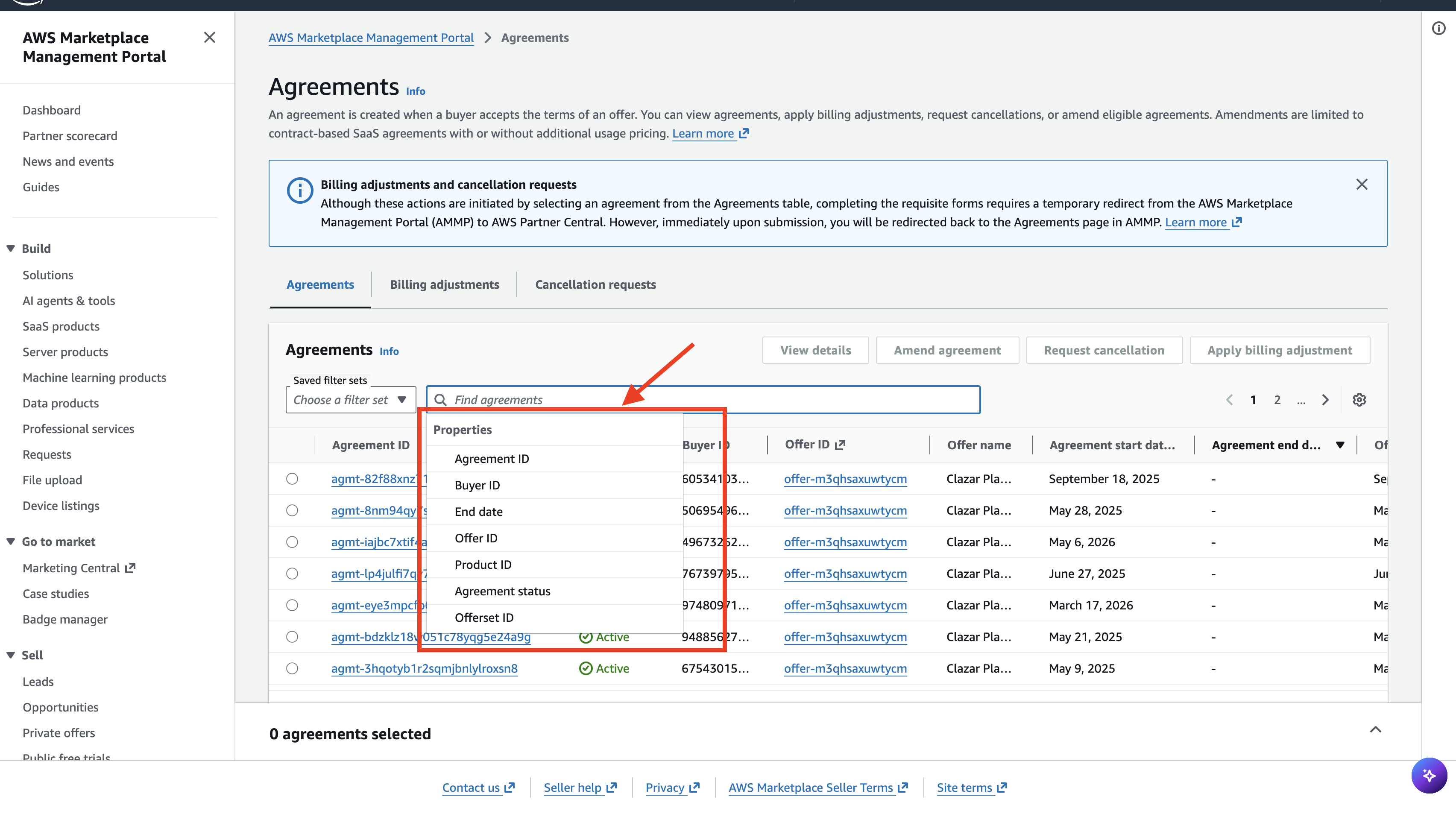
Use the filter options to find the specific agreement that needs adjustment. You can filter by:
Agreement ID (recommended)
Buyer ID
Offer ID
Other agreement-specific details
Tip: Filtering by Agreement ID is the most reliable option because it uniquely identifies a single agreement and automatically populates all related buyer and seller details. Other identifiers can return multiple matches if the buyer has more than one agreement with you.
Click on the agreement to open it.
Step 3: Click "Apply Billing Adjustments"
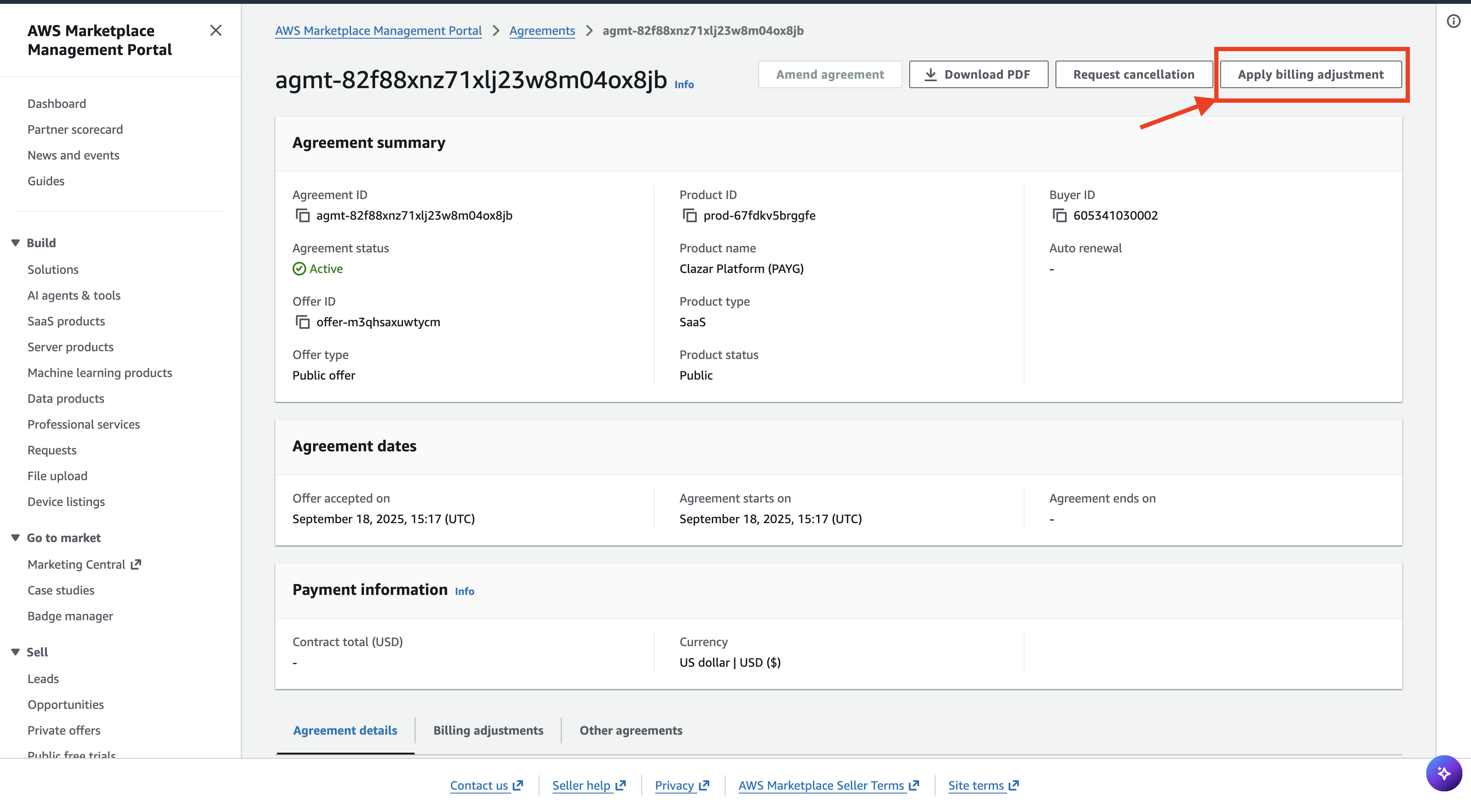
Within the agreement window, click the Apply Billing Adjustments button.
Make sure you select this option and not the cancellation option — the two actions are distinct:
Apply Billing Adjustments — issues a refund or correction against a specific invoice while keeping the agreement active.
Cancellation — terminates the agreement entirely.
If the goal is to refund the buyer without ending their subscription, billing adjustment is the correct path.
Step 4: Select the Agreement and Provide a Reason for Adjustment
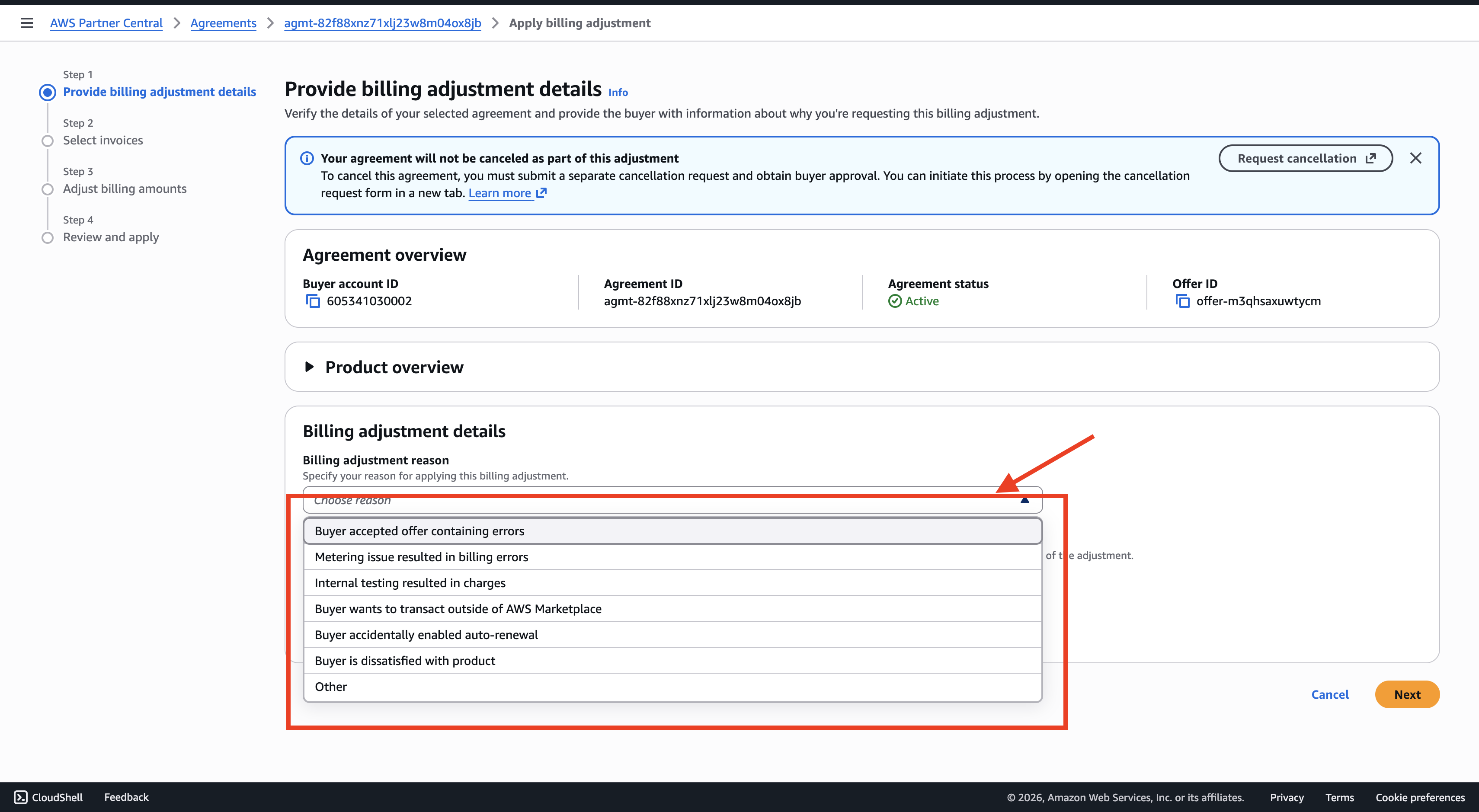
On the billing adjustment screen, confirm that the correct agreement is selected and provide a clear reason for the adjustment.
The reason should be specific and reference the underlying cause. For example:
"Duplicate charge for invoice [number]."
"ABO payment term change from upfront to monthly."
"Buyer overbilled due to incorrect usage metering."
Avoid vague reasons like "refund requested" or "buyer issue" — a specific reason makes the adjustment easier to trace later and supports any future audit or query from AWS.
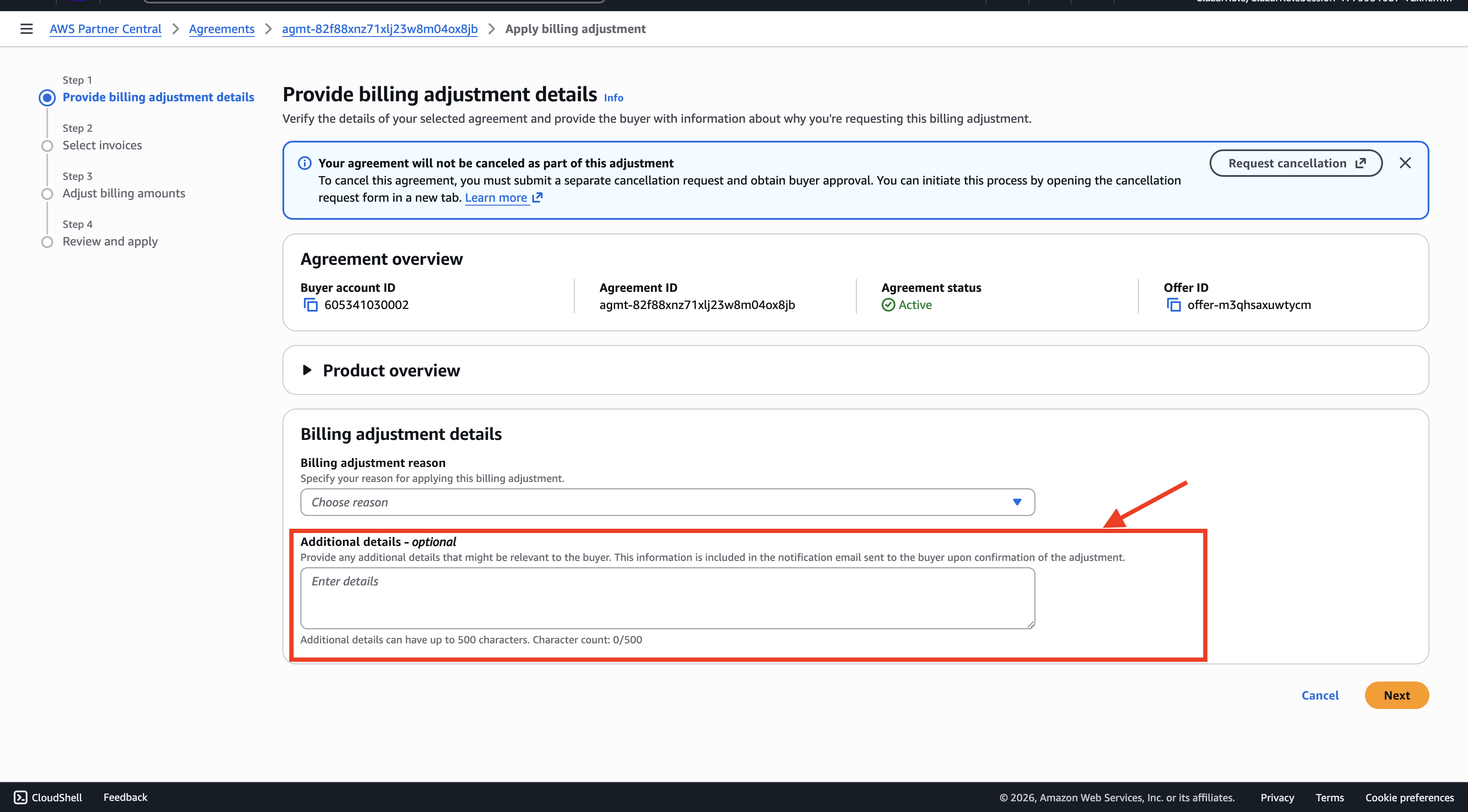
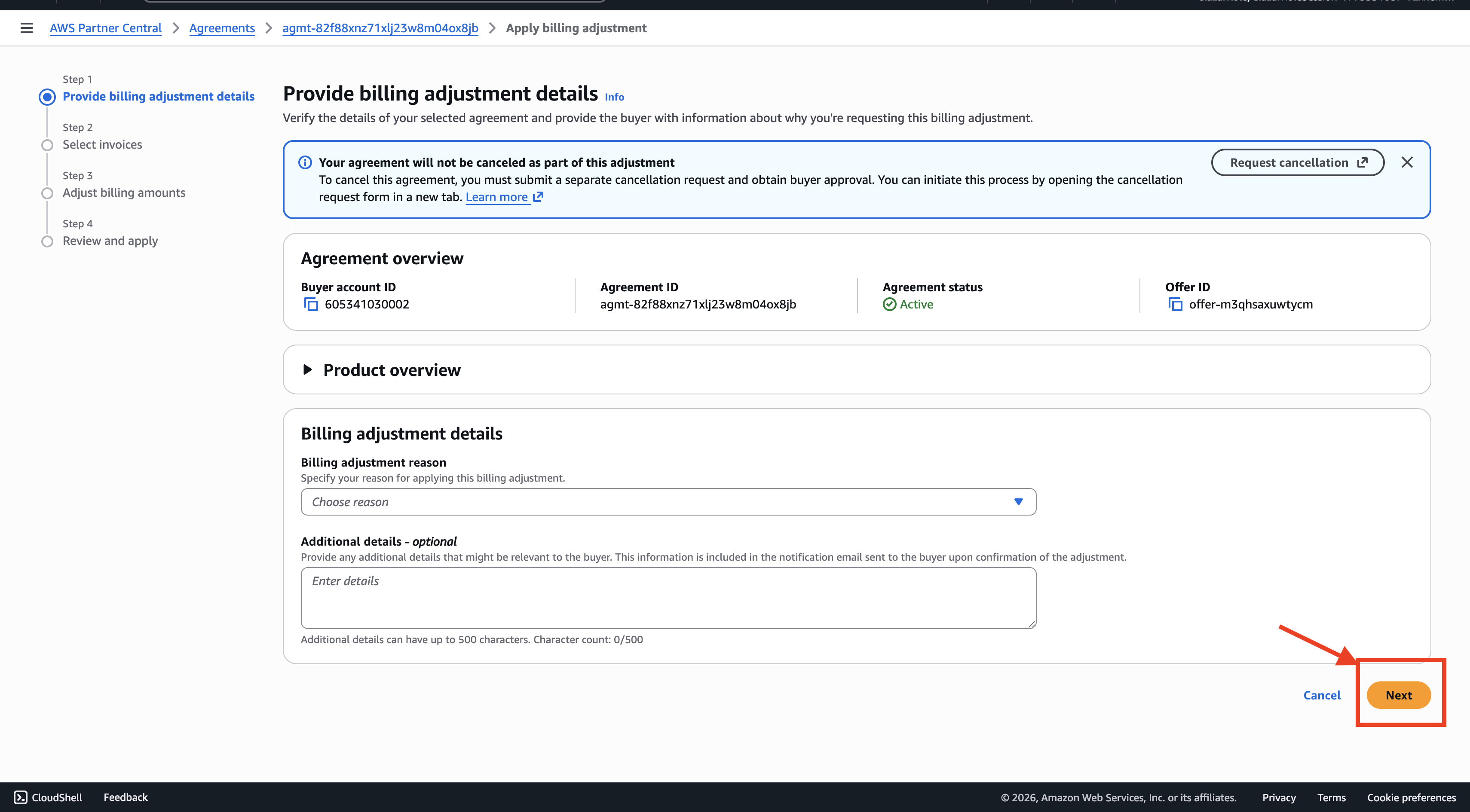
Step 5: Add Additional Details and Click Next
Fill in any additional details requested by the form, then click Next.
Additional details typically include supporting context such as:
The related support case ID (if applicable)
The buyer's request reference (email, ticket, etc.)
Notes about prior coordination with the buyer or your finance team
The more context you provide here, the easier it is to trace the adjustment later and answer any follow-up questions from the buyer.
Step 6: Select the Specific Invoice That Needs Adjustment
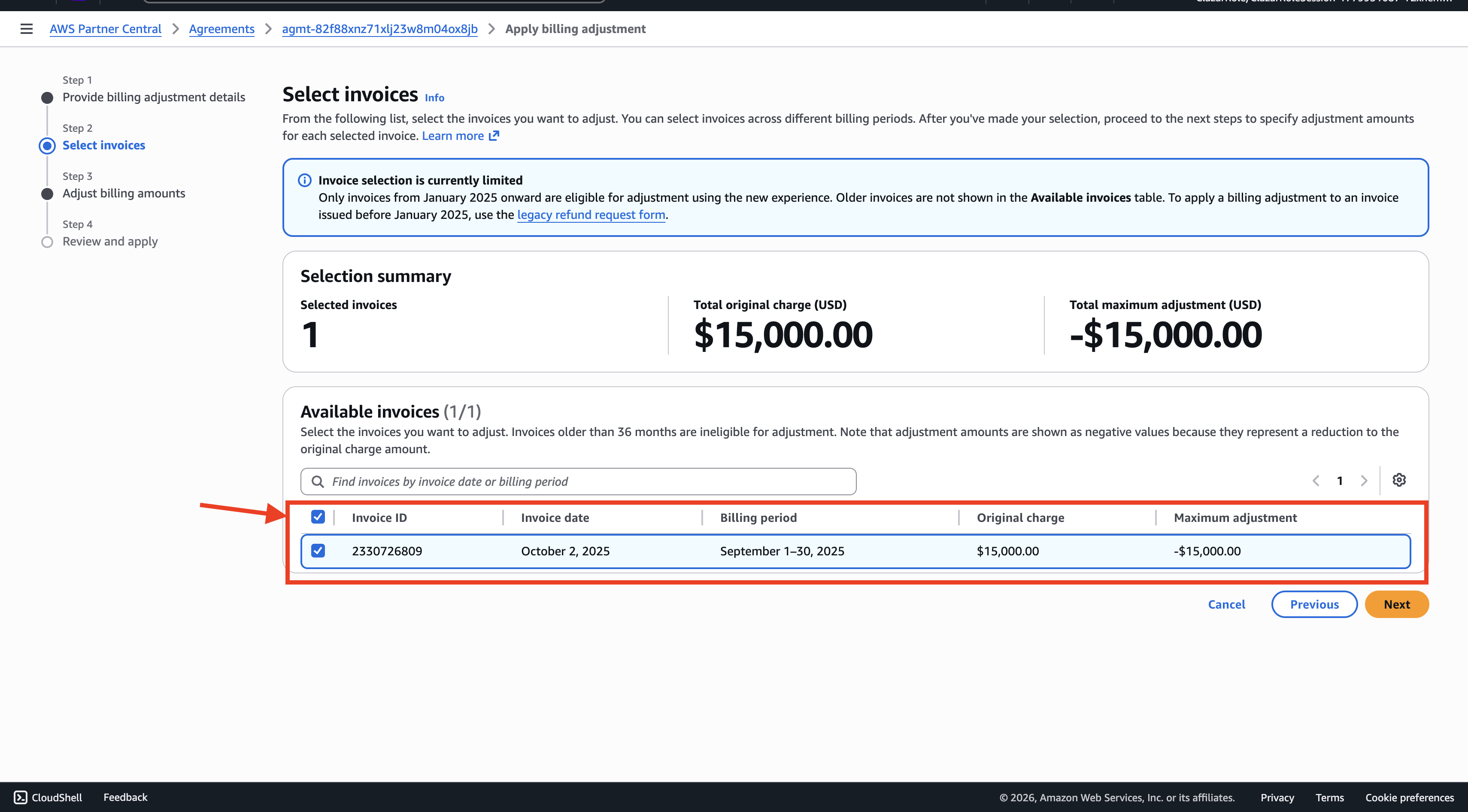
On the next screen, select the specific invoice the adjustment should be applied against.
If the buyer has multiple invoices on the agreement, make sure you pick the correct one. Verify the invoice number against your source of truth — the buyer's request, internal ticket, or finance record — before proceeding.
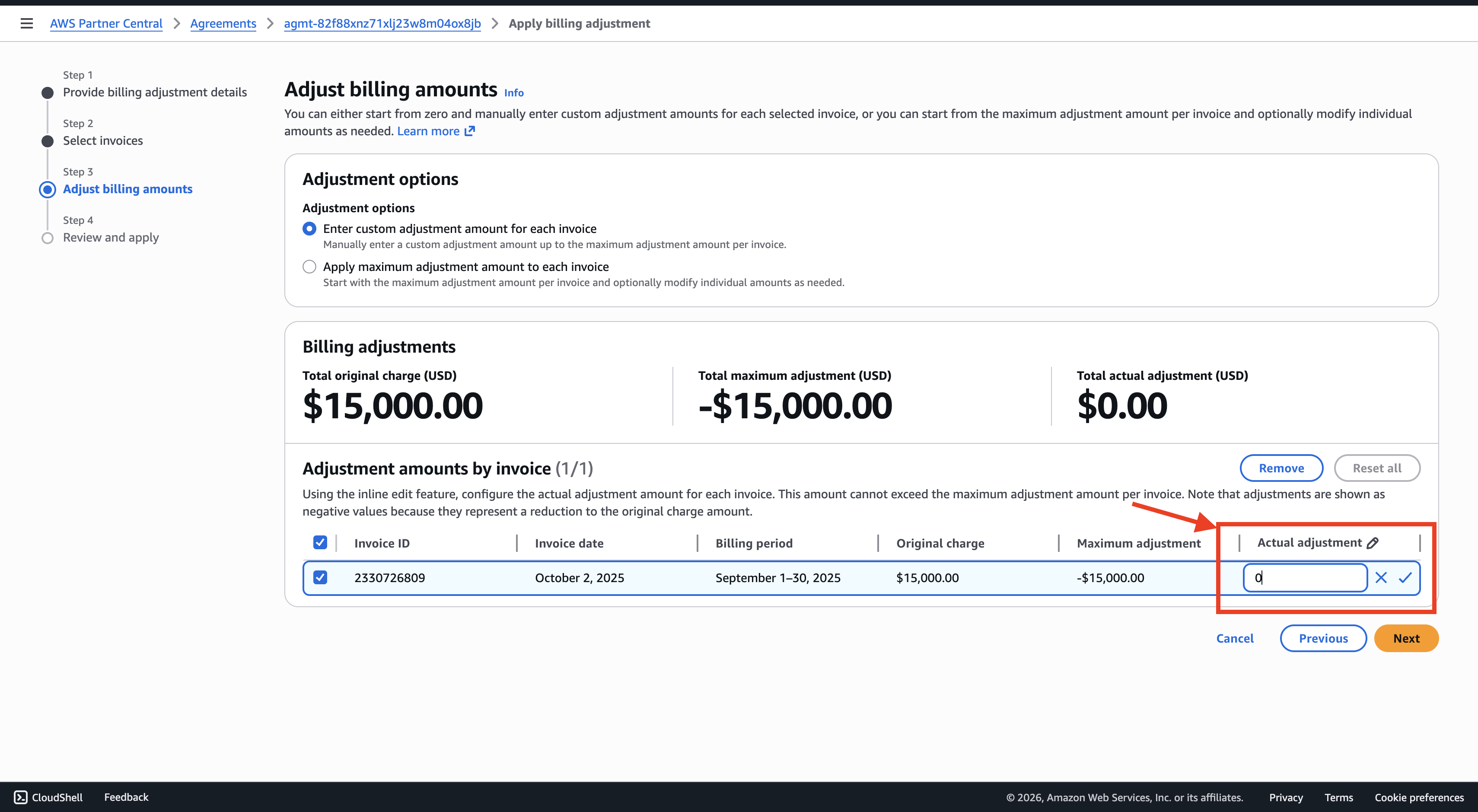
Step 7: Enter the Refund Amount
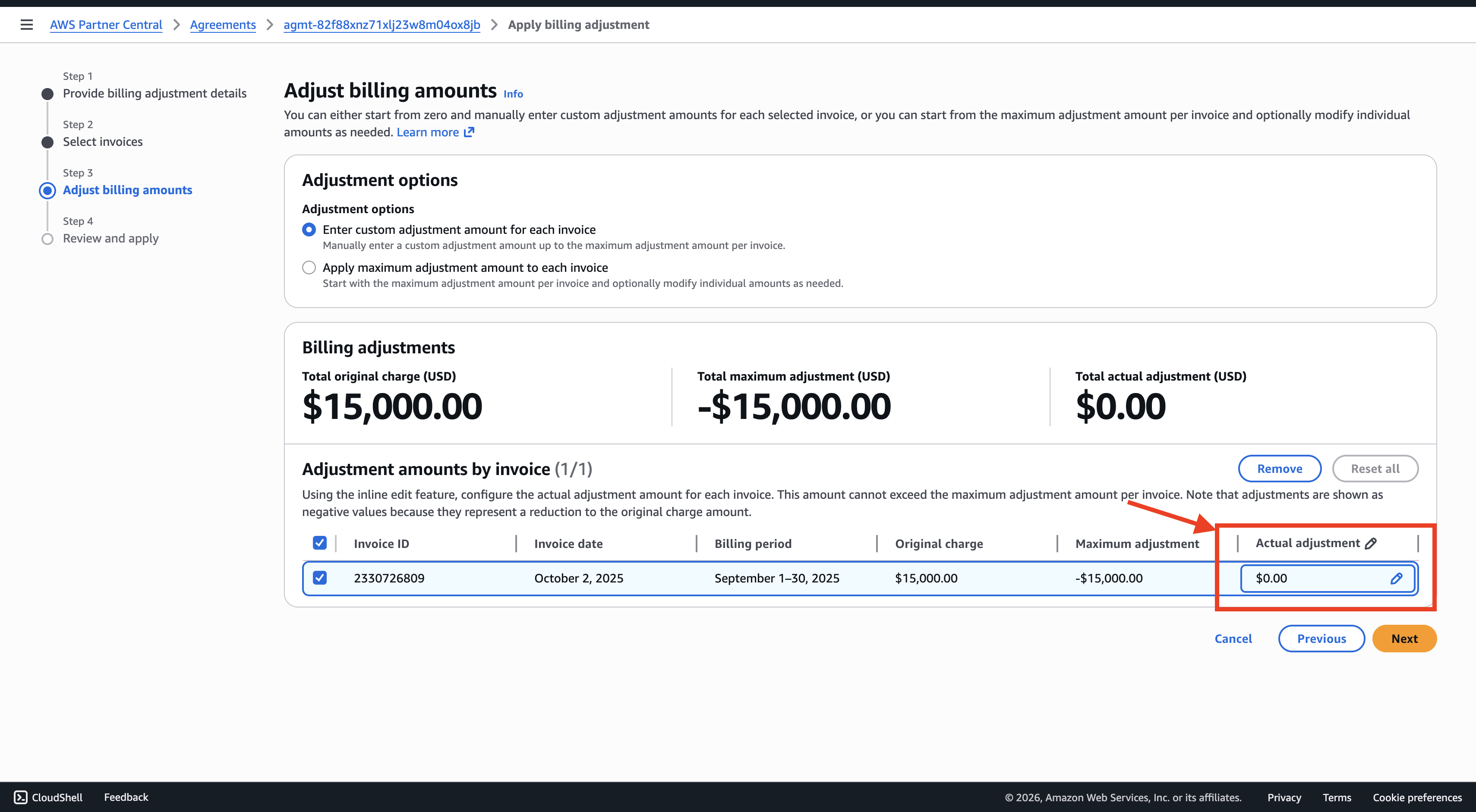
Click the pencil icon next to the selected invoice to enter the refund amount.
You can enter either:
A full refund — the entire pre-tax invoice amount.
A partial refund — any amount up to the pre-tax invoice total.
Important: The refund amount must be entered as a pre-tax value. AWS handles tax adjustments separately, so do not include tax in the amount field.
Double-check the amount before proceeding. Once submitted, reversing or modifying the adjustment requires a separate corrective action.
Step 8: Review the Preview
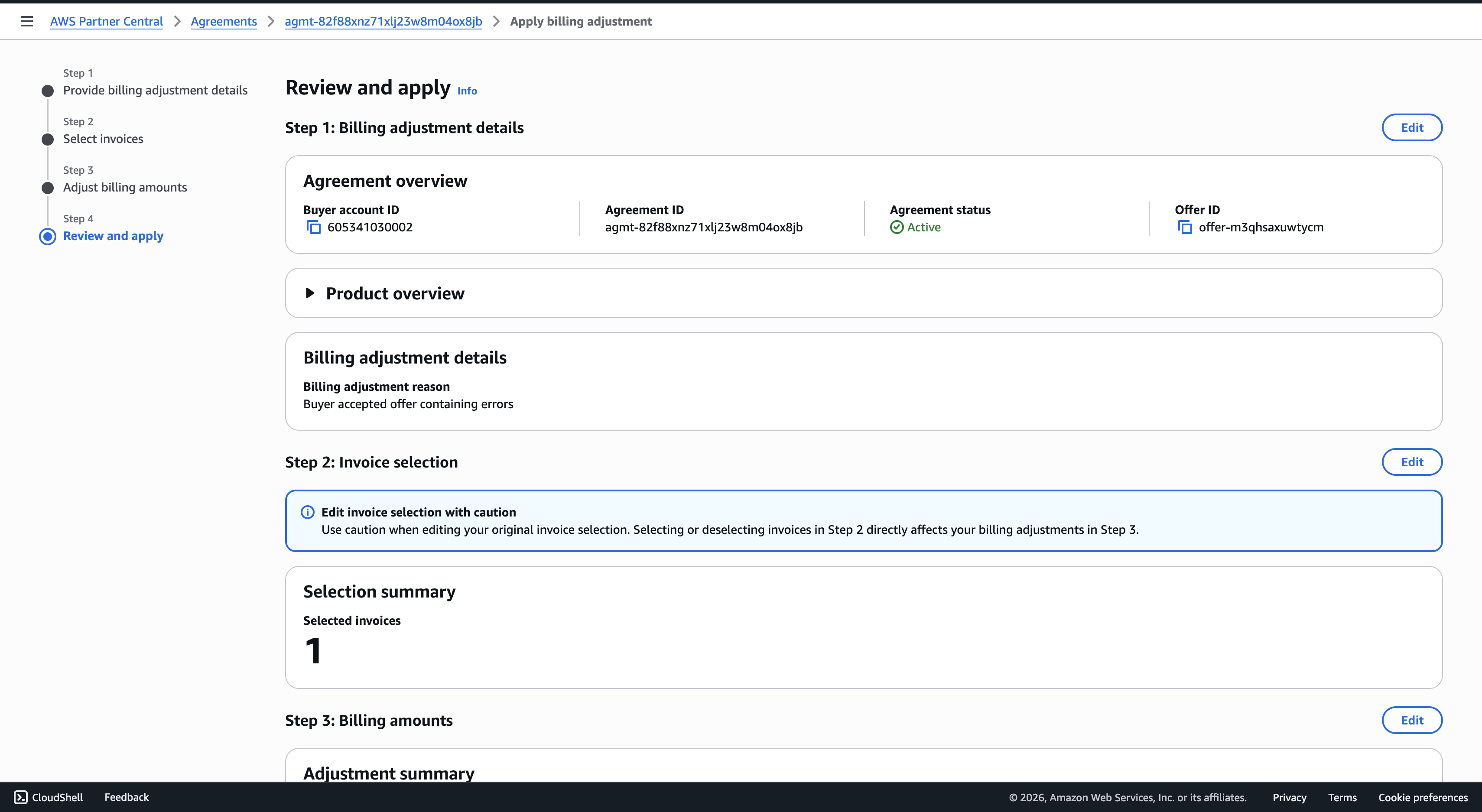
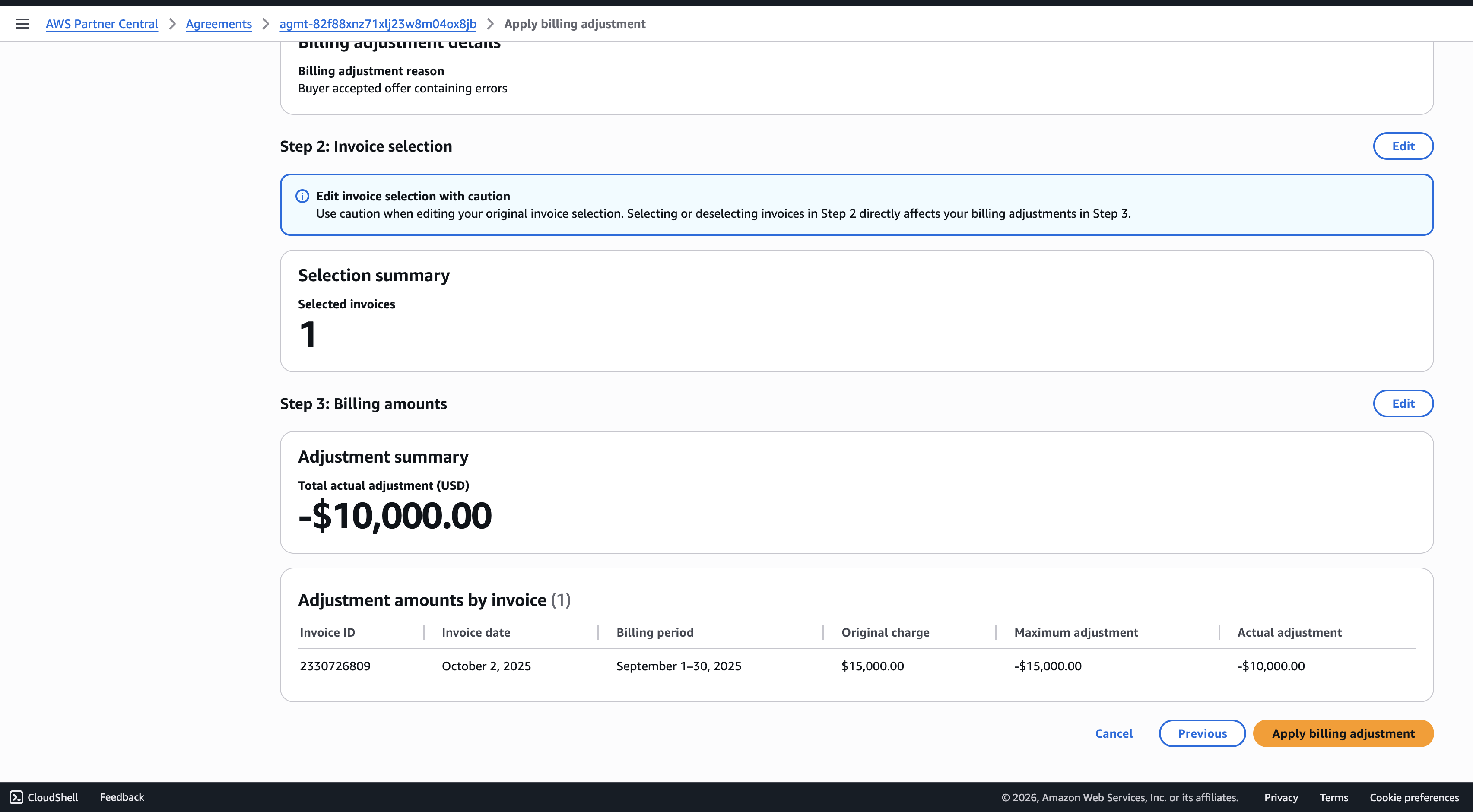
The portal displays a preview of all the details you've entered, including:
The agreement and invoice selected
The refund amount
The reason for adjustment and any additional notes
This is the last point at which you can catch a mistake before submission. Review every field carefully, paying particular attention to:
Invoice number — Is this the correct invoice?
Refund amount — Is the figure correct and pre-tax?
Reason — Is it clear and accurate?
Step 9: Click "Apply Billing Adjustments" to Submit
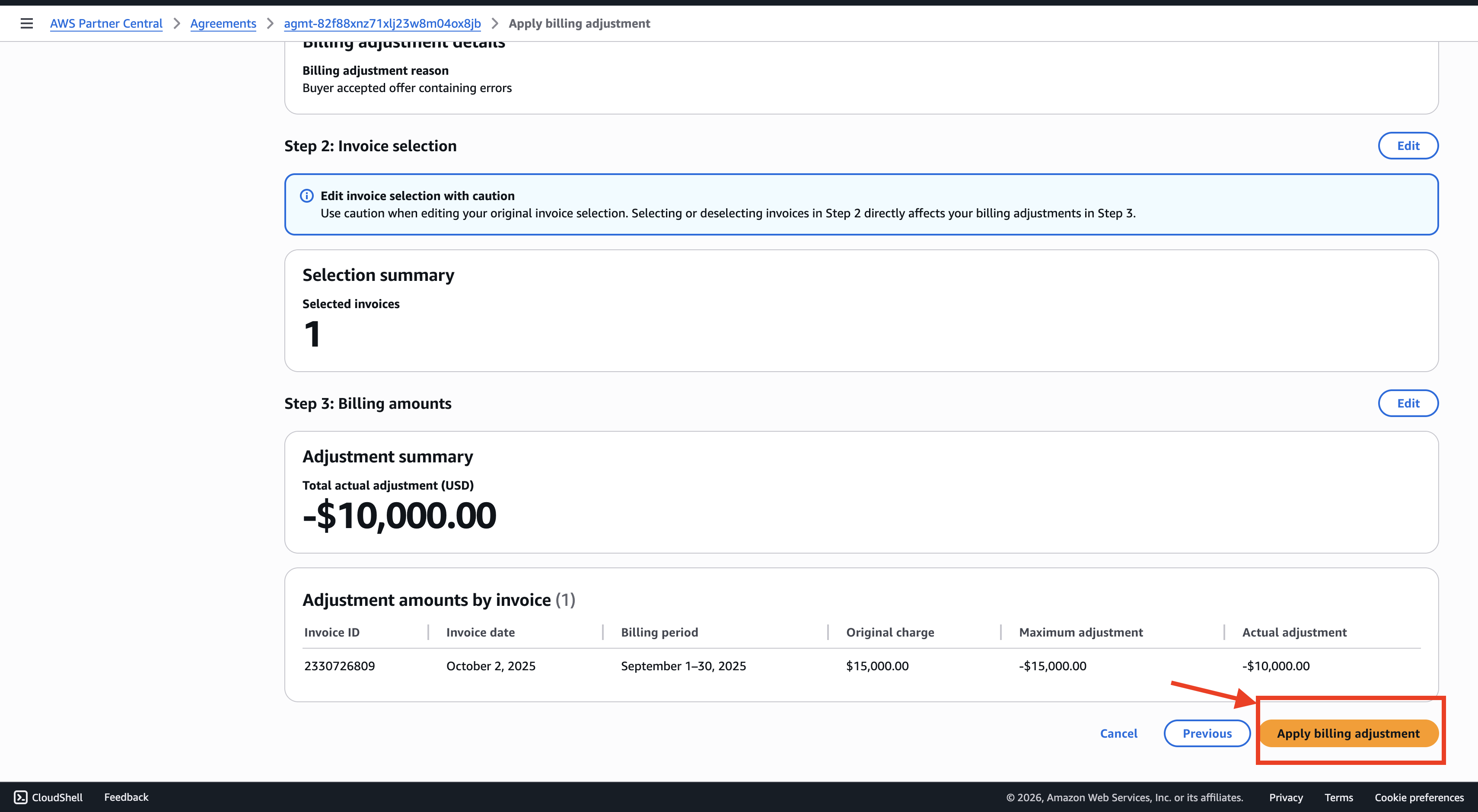
Once you've verified everything in the preview, click Apply Billing Adjustments to submit.
You'll receive a confirmation message indicating that the adjustment has been submitted to AWS for processing.
After Submission
Processing time — The adjustment is typically processed by AWS within 24–48 hours and reflected on the buyer's AWS account. It may take up to five business days for the refunded funds to settle into the buyer's bank account, depending on their payment method.
Record-keeping — Log the adjustment in your internal records, including the agreement ID, invoice number, refund amount, and the reason provided. This ensures the adjustment is traceable for reconciliation and any future buyer queries.
Important Notes
Billing adjustment ≠ cancellation. Applying a billing adjustment refunds a specific invoice but leaves the agreement active. If the buyer also wants the agreement terminated, a separate cancellation action is required.
Pre-tax amounts only. All refund amounts must be entered as pre-tax values. Tax components are handled by AWS automatically.
Use Agreement ID for filtering. It's the only filter that uniquely resolves to a single agreement.
Verify before submitting. Once submitted, modifying or reversing an adjustment requires a separate corrective action — there is no undo button.
If interested to follow the traditional method then here is the step by step guide :
How to Cancel a Purchase and Request a Refund on AWS
Step-by-Step Guide:
Gather the following information:
(You can find all of these details in Clazar Buyers -> Open the selected customer Buyer card, and Invoice in Analytics -> Billings -> Billings Record table)Buyer AWS account ID (12 digits) used to subscribe to the product. If the buyer is the payer of their organization, obtain the AWS account ID of the linked account used to subscribe.
The buyer’s email address that is associated with their AWS account.
Seller AWS account ID (12 digits).
Product ID.
Offer ID.
Billing period.
Invoice number.
Pre-tax refund amount.
Sign in to the AWS Marketplace Management Portal.
Choose Support.
Choose Request Refund.
Enter the subscriber's AWS account number, product ID, and billing period.
In the Additional comments (optional) field, enter a brief description of the request, including the product ID, refund type, and invoice number (if available). For example:
Cancel the buyer’s subscription to <product-ID> and <offer-ID> and process a full refund for invoice <invoice-number>.To submit a request for a refund, upgrade, or downgrade of an annual subscription, do the following:
Verify the buyer has purchased an annual subscription using the agreements and renewals dashboard or billed revenue dashboard.
In the Additional comments (optional) field, enter the subscription cancellation date and specify if the buyer is requesting a refund, upgrade, or downgrade.
Submit the form. AWS will be notified and will begin to process the refund and issue it to the buyer.
To manage the refund request, the AWS Marketplace buyer support team will create a corresponding support case in the Support Center Console. The status of the refund will appear in the subject line of the support case. The status can be one of the following:
Completed – The refund was processed and no further action is required.
Pending – The refund will be processed once the current billing cycle ends.
Action Required – The request could not be processed, and we need additional information from you. You can respond directly to the support case; however, you will also need to submit a new refund request form.
A refund will appear in the buyer’s account within 24–48 hours. However, it can take up to five business days for the funds to appear in the buyer’s financial account.
Refund Processing Time
- Once processed, the refund will reflect on the customer’s account within 24–48 hours.
- It may take up to five business days for the funds to appear in the customer’s financial account.
Common Scenarios Requiring Refunds
Amendment to Business Offer (ABO) Payment Term Changes
When using an ABO to change payment terms from upfront to installment payments (e.g., monthly), the original upfront payment may not be automatically canceled. If the customer has already been charged for the original offer and the ABO is accepted, you may need to manually request a refund for the original payment amount using the process outlined above.
Important considerations:
Verify that payment for the original offer has been disbursed before initiating the refund request
Ensure the ABO includes all remaining value from the original contract to avoid losing unbilled revenue
The refund request should specify that this is related to an ABO payment term change
Was this helpful? If you have any questions or run into any issue, reach out to us on Slack or at support@clazar.io - we're happy to help.