Azure Co-Sell Setup Guide
Last updated: May 7, 2025
This guide provides step-by-step instructions for implementing Azure Co-sell, which is a referral process within Azure where the solution is the listing being referred.
Prerequisites
Ensure you have the following roles before beginning the implementation:
Solution Admin
Referral Administrator
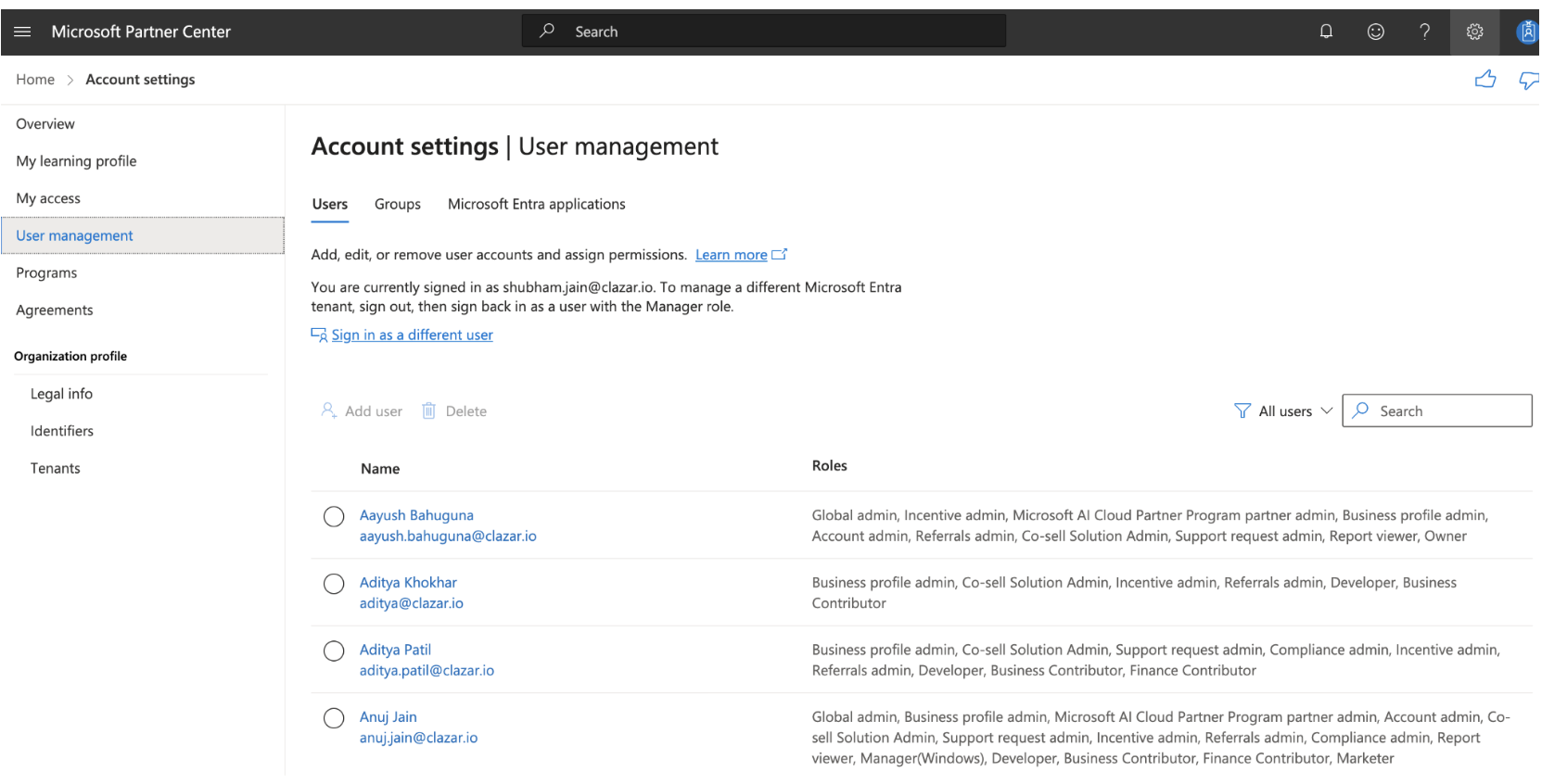
You can verify your roles by navigating to Settings → Account Settings → User Management and searching for your user profile.
Step-by-Step Process
Step 1: Verify Solution in Azure Partner Central
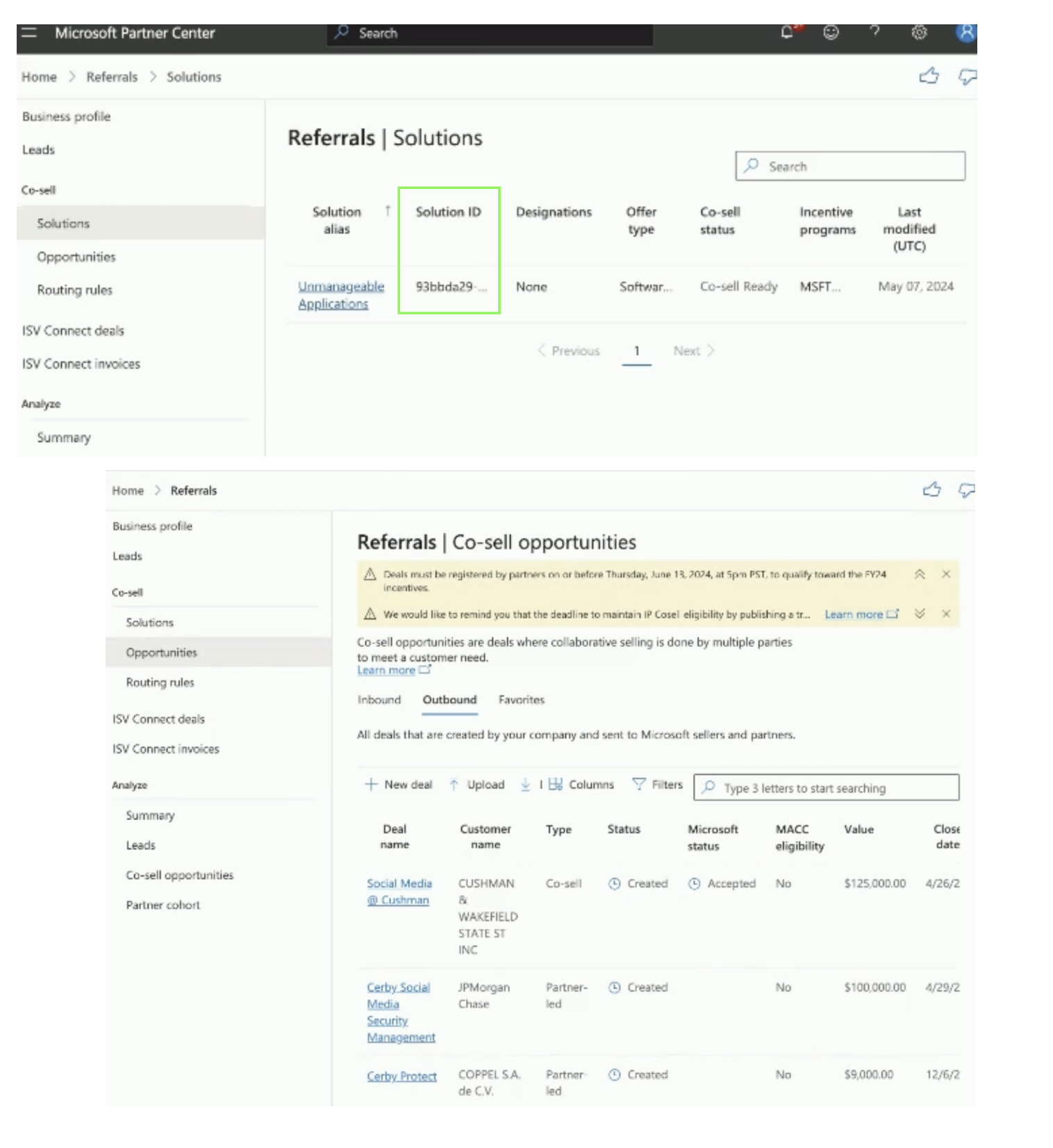
Navigate to Referral → Solutions in Azure Partner Central.
Ensure you have a solution listed, and note the Solution ID.
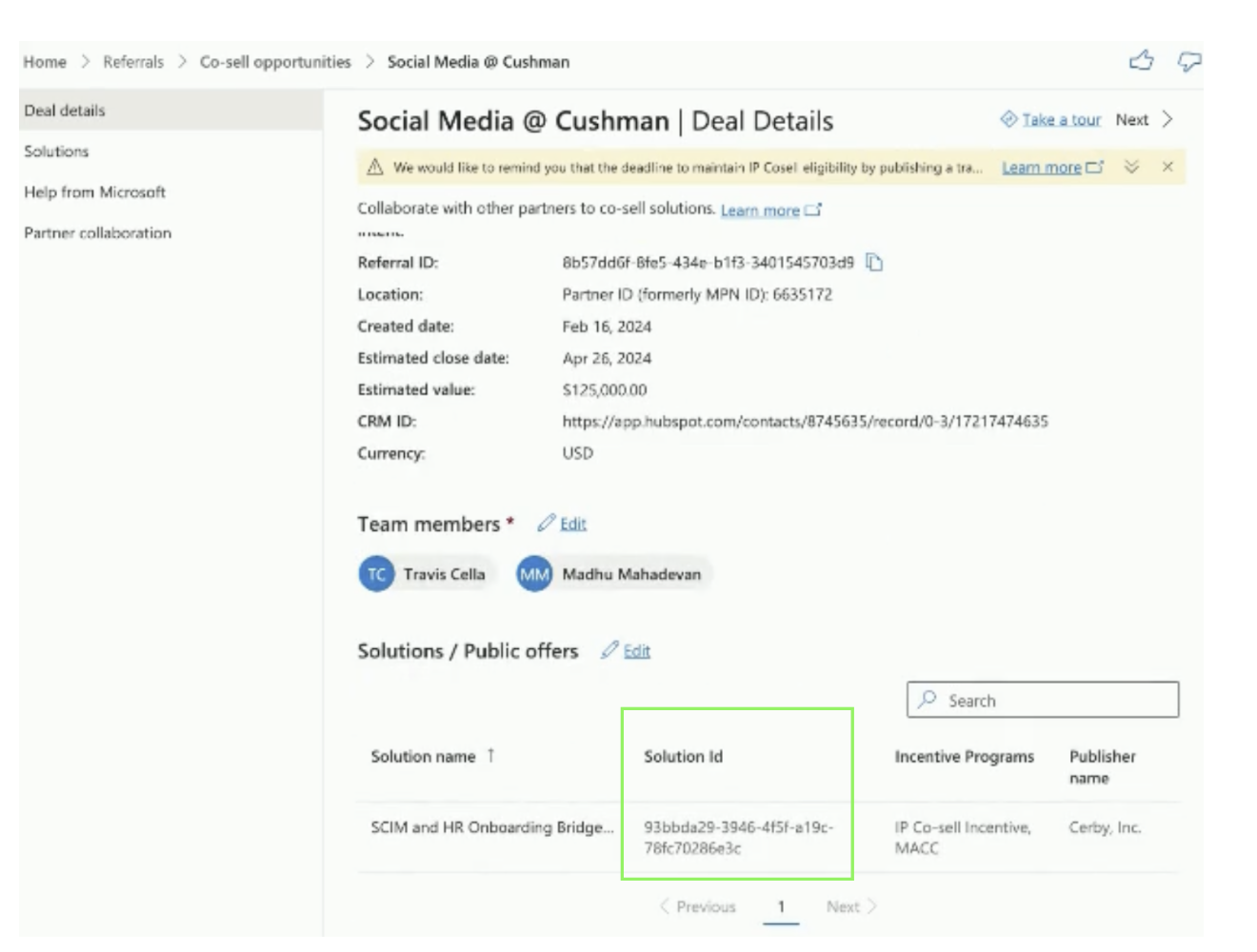
Go to Referral → Opportunity and open any opportunity.
Compare the Solution ID from the previous step with the Solution ID at the opportunity level.
Step 2: Mark Initial Cards in Clazar
If the Solution IDs match, mark the first two cards in Clazar as completed.
Step 3: Authorize in Clazar
For the third card in Clazar, click on “Authorize” and follow the steps provided in the Clazar app.
Step 4: Manage User Roles in Clazar
For the fourth card in Clazar, search for the Clazar user in User Management under Settings → Account Settings.
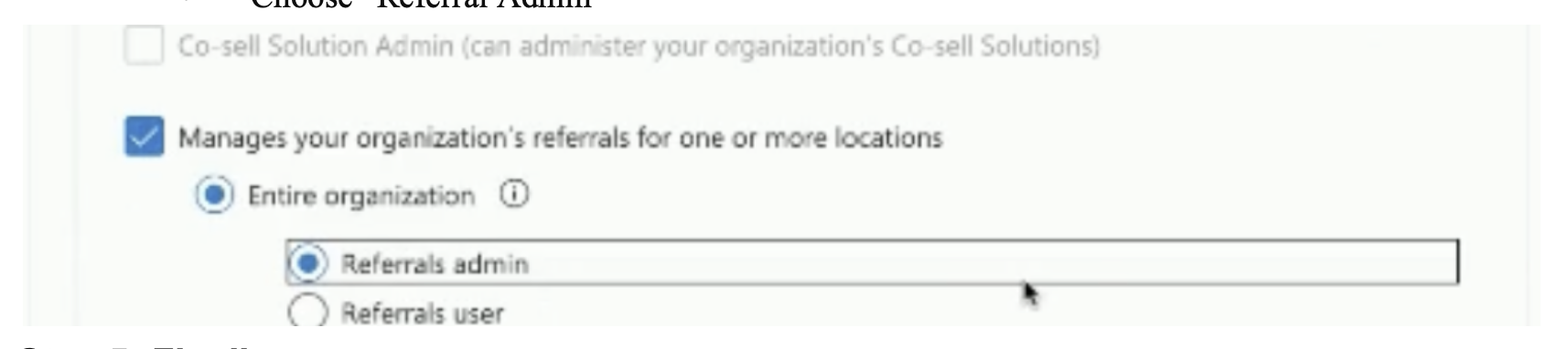
If the user exists, click on the user profile and select:
“Manage your organisation’s referral for one or more locations”
Choose “Referral Admin”
Step 5: Finalize
Checkmark the last card in Clazar to complete the process.