Port GCP Listing to Clazar
Last updated: November 18, 2024
GCP Port
The below guide provides a step-by-step process for porting GCP listing into Clazar. The process involves the GCP Project owner giving the Clazar support team the the service account email, Project Name ID, report name and completing the marketplace setup within the Clazar app.
Permissions Needed
GCP Project Owner
Ability to run cloud shell commands in GCP console
Step 1: Access the GCP Console
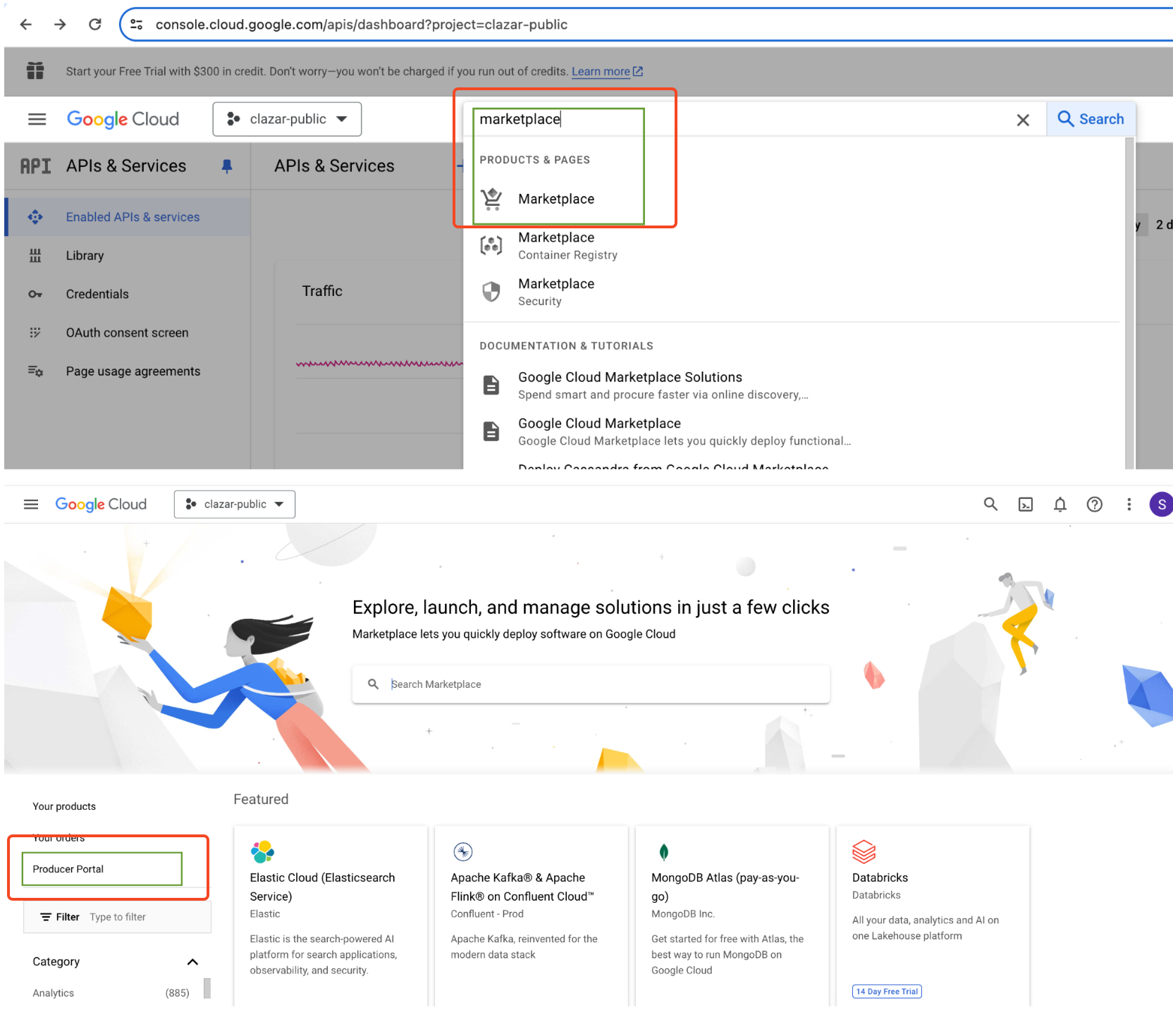
Navigate to the Google Cloud Platform Console.
Use the search bar to find “marketplace”.
On the left sidebar, locate and open the “producer portal”.
Step 2: Identify Reports name
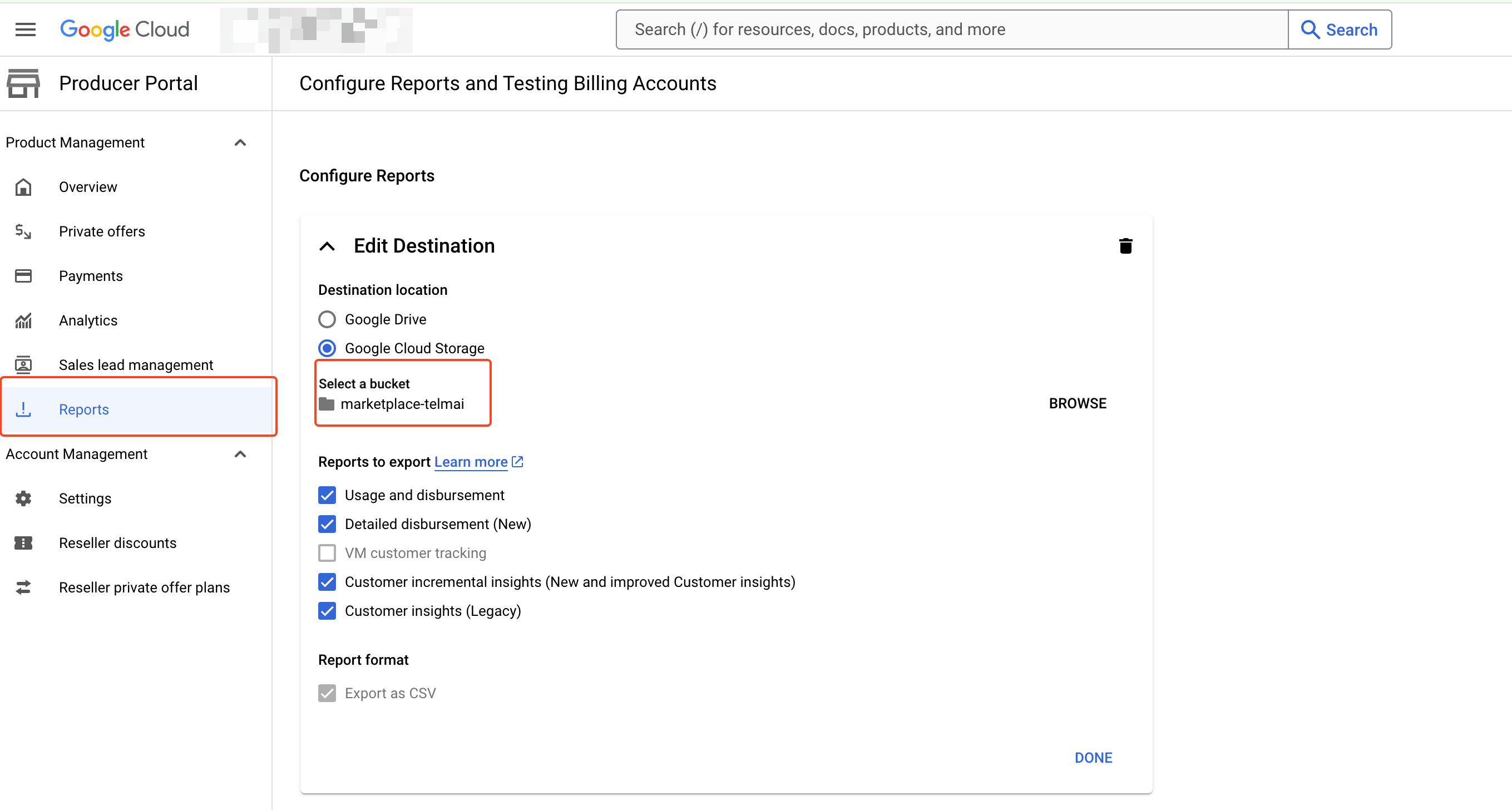
From the left sidebar, click on “reports”.
Expand the “configure reports” option.
Note down the GCP bucket name from the configuration settings.
Step 3: Find Service Account Email
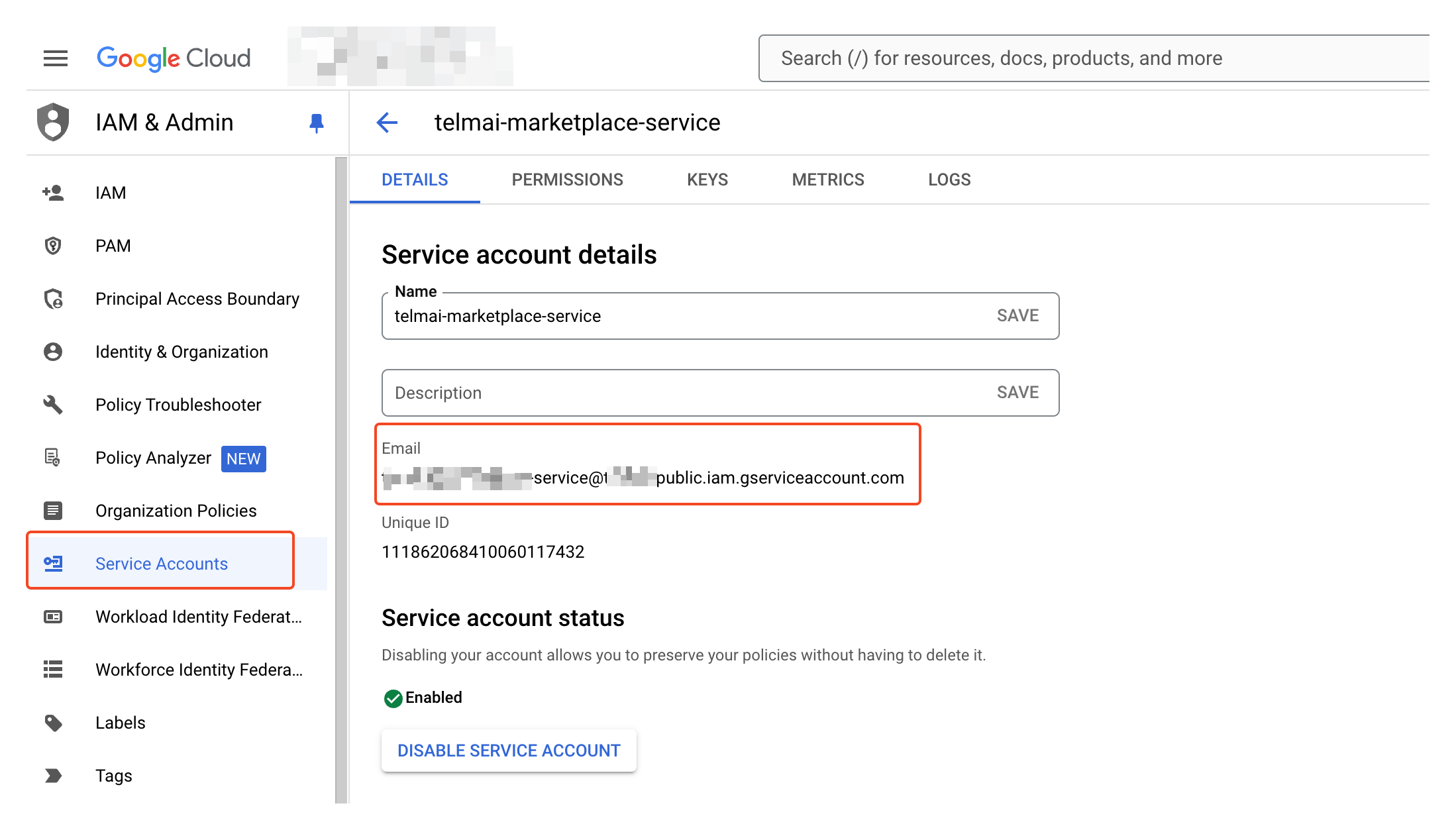
Use the search bar to find “IAM & admin”.
From the left sidebar, select “service accounts”.
Open the main service account and note down the associated email address.
Share both the service account email and report name with the Clazar Support team.
Step 4: Clazar App Configuration
Please do the next step only after the Clazar support team has saved the service account email and report name in the Clazar backend.
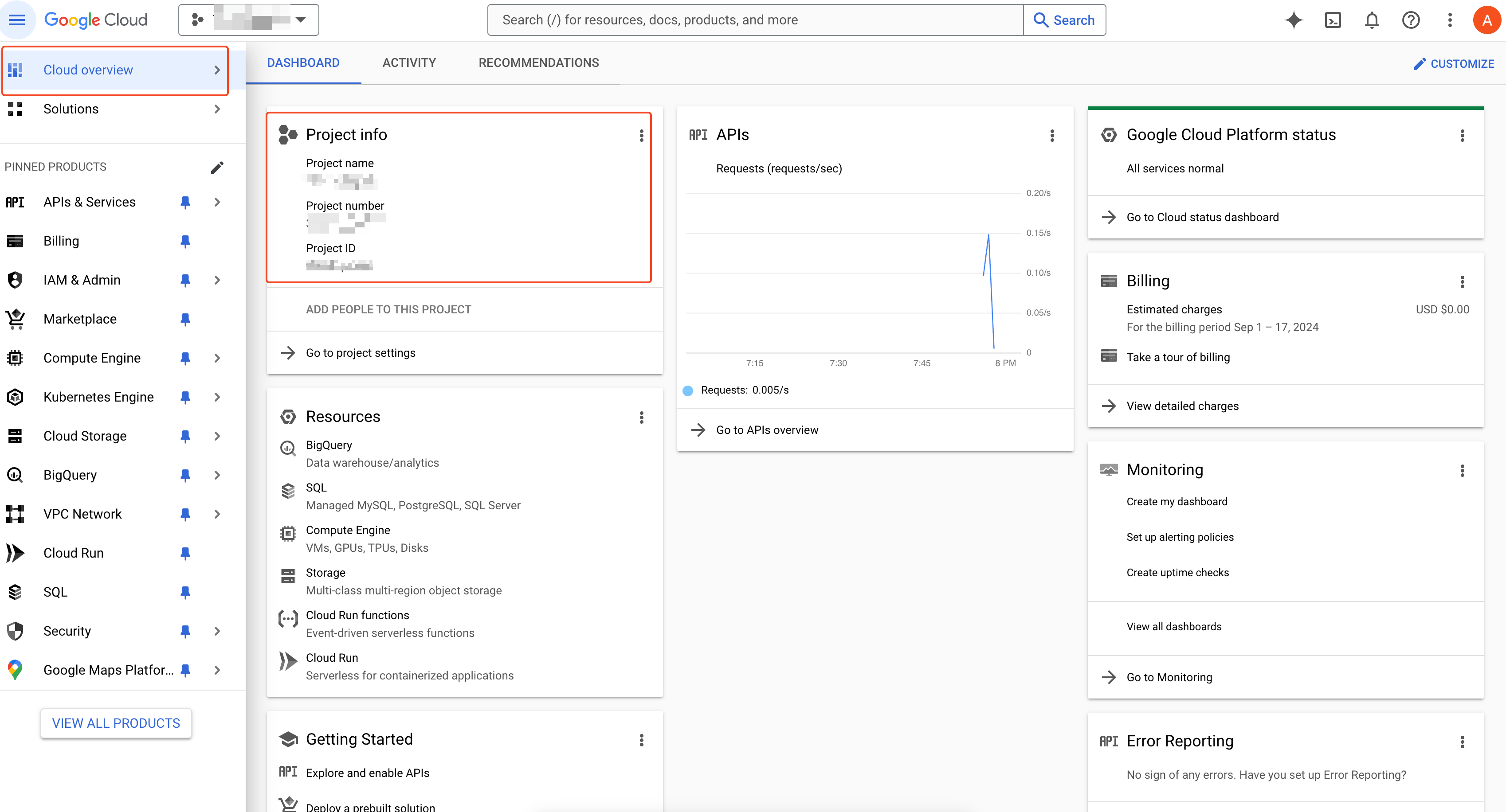
Navigate to the cloud dashboard.
Note down the project number and project ID.
Add the project number and ID in the clazar marketplace setup page
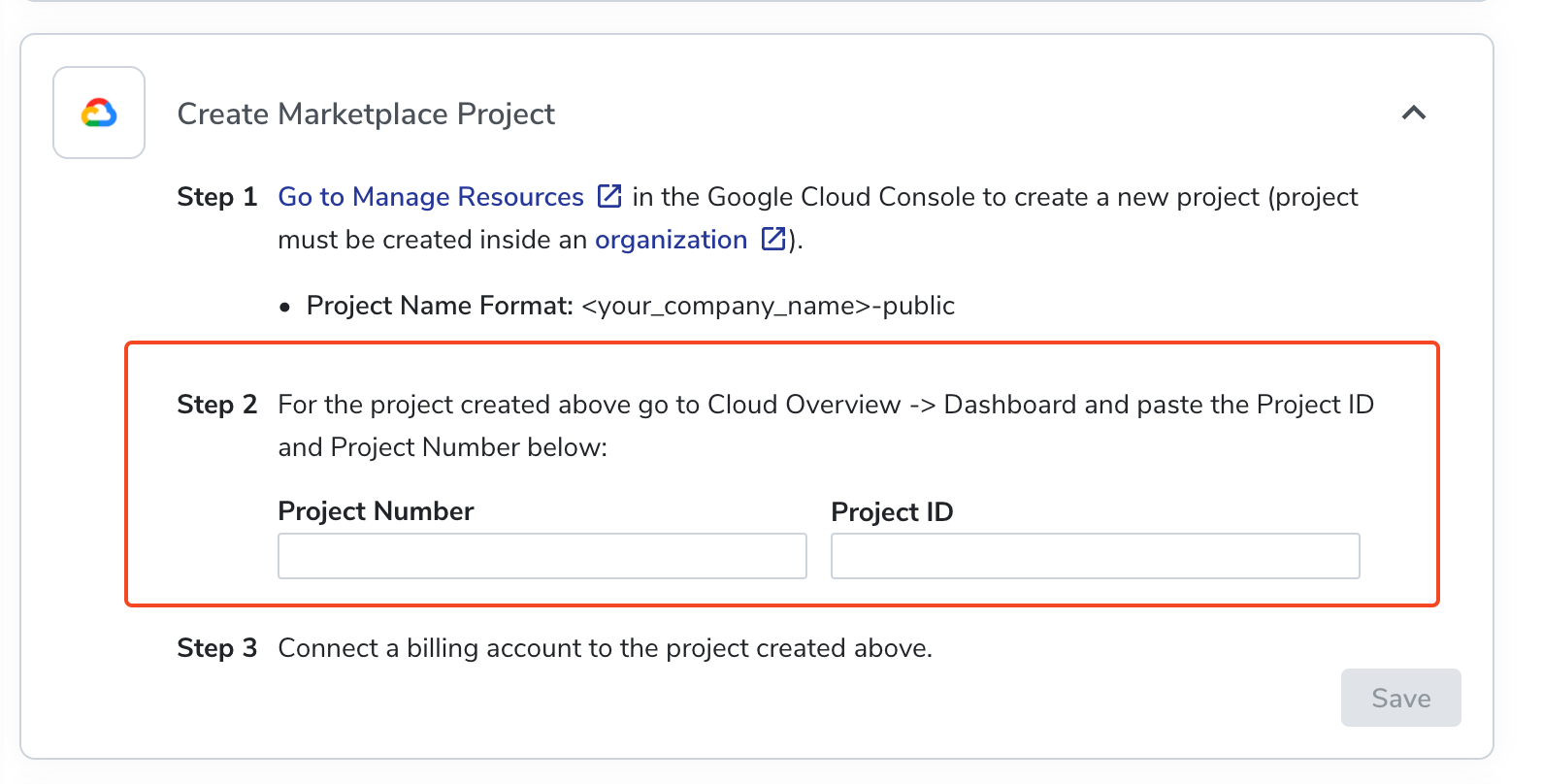
Click on “Save" after you add project number and project ID.
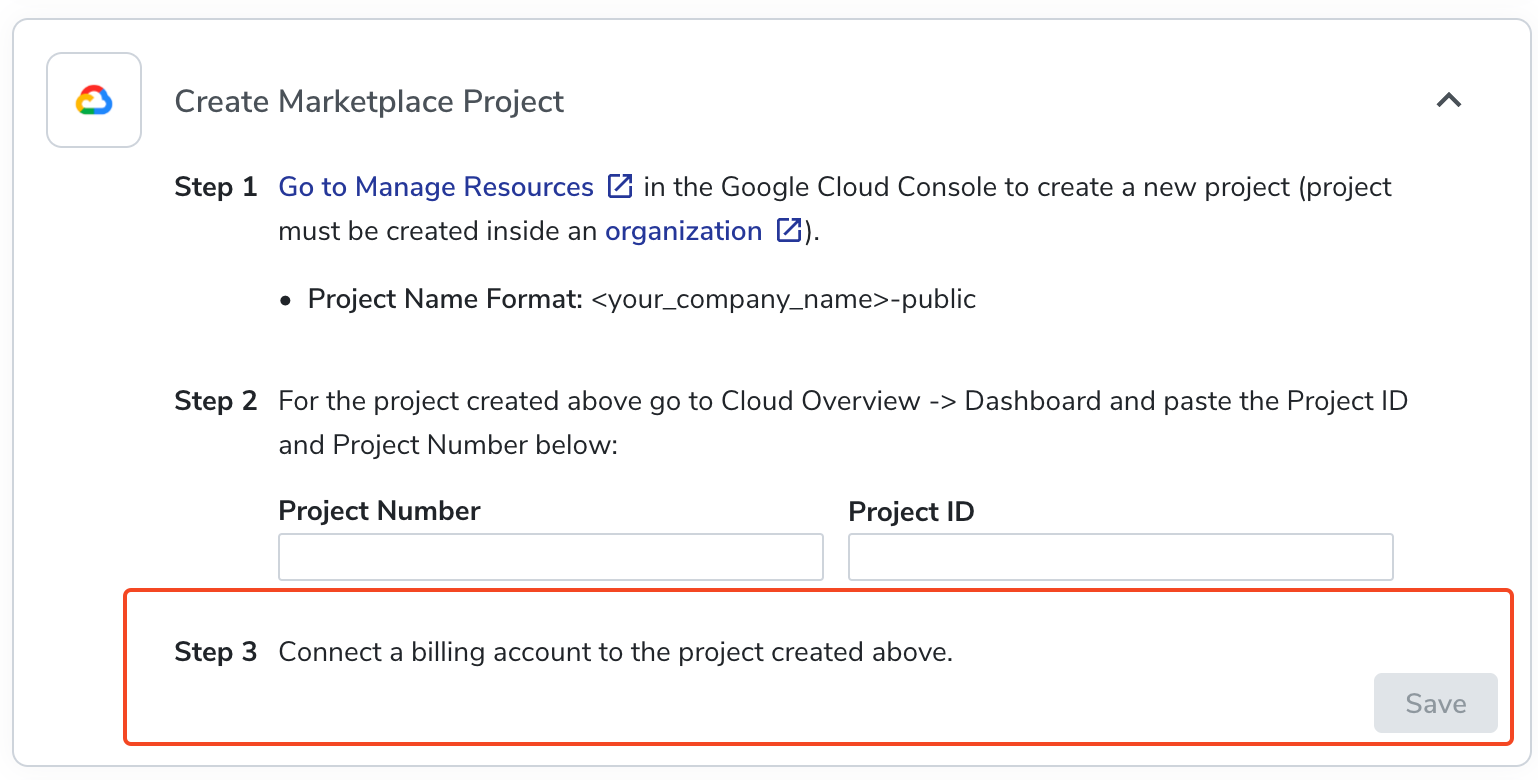
Step 5: Cloud Shell Steps
Open the Cloud Shell in the GCP console.
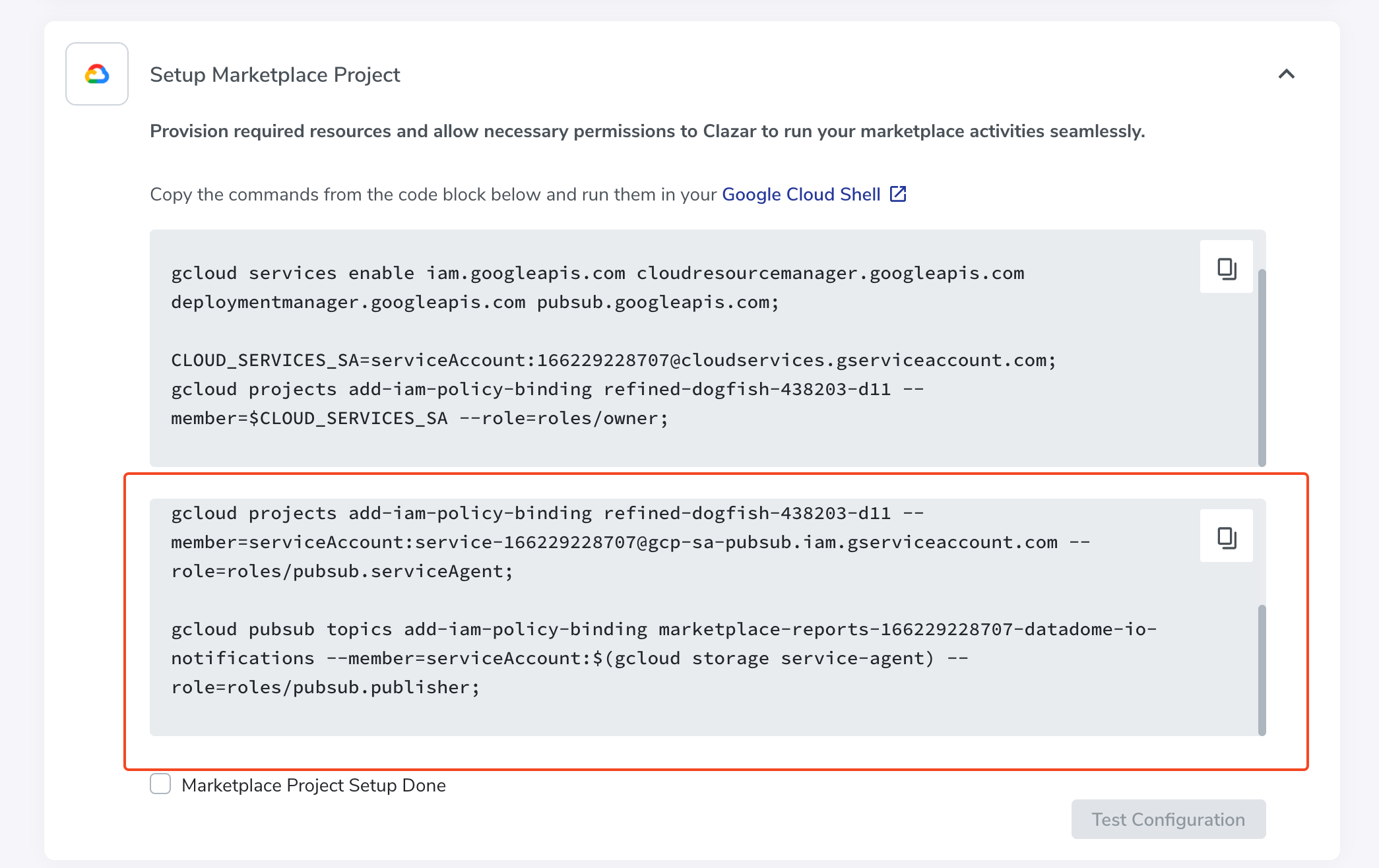
Execute the first command, provided in Clazar, in the cloud shell.
Please note below screenshot is only a reference; please access the marketplace setup page in your Clazar app for actual commands.
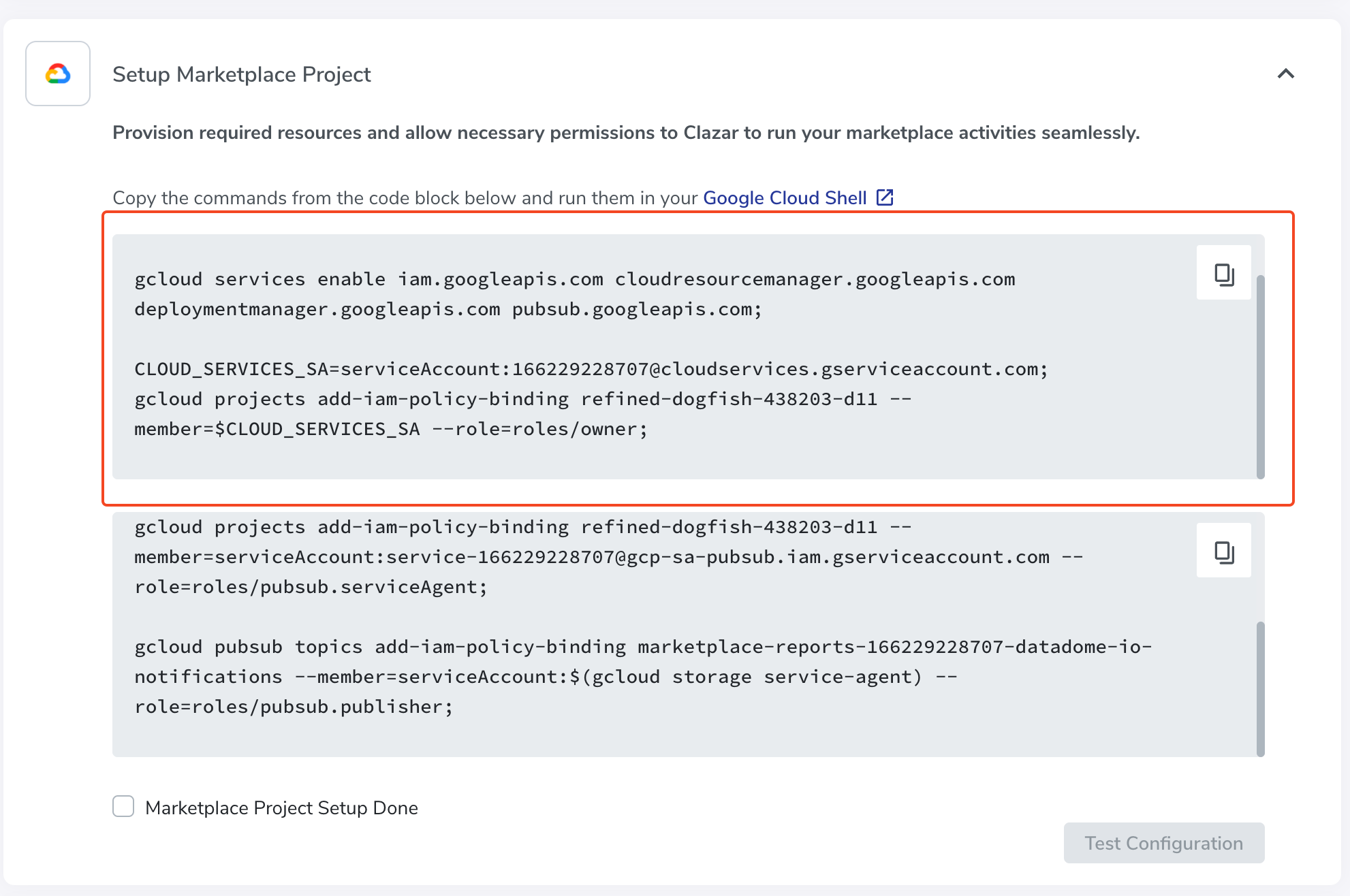
After execution, perform these additional steps:
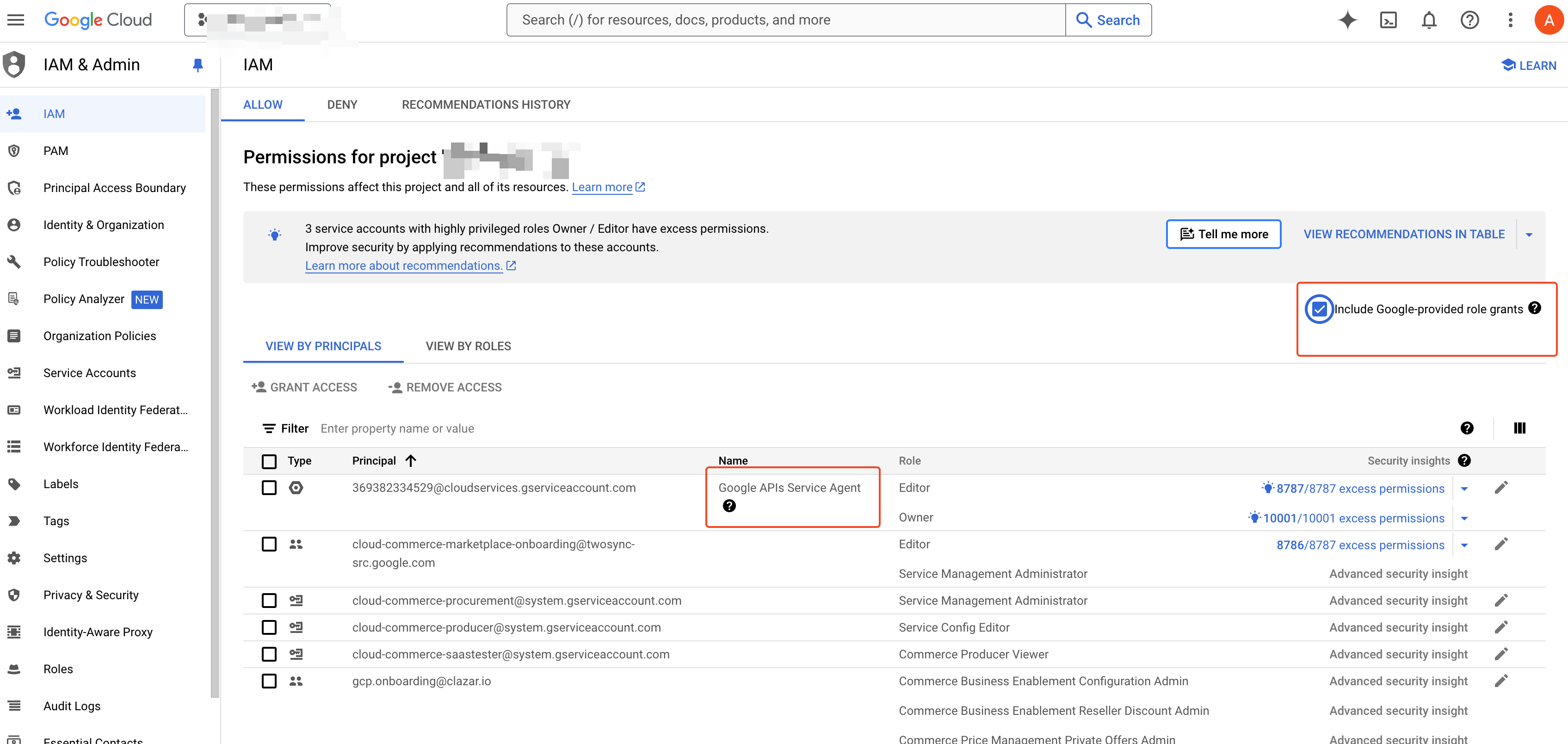
Return to the IAM page.
Check the “Include Google-provided role grants” checkbox at the top.
Find the “Google Service API Agent” role and click “Edit”.
Add the “Owner” role to the Google Service APIs Agent and save.
Optionally, remove the “Editor” role from the Google Service API Agent.
Execute the next set of commands in the Cloud Shell.
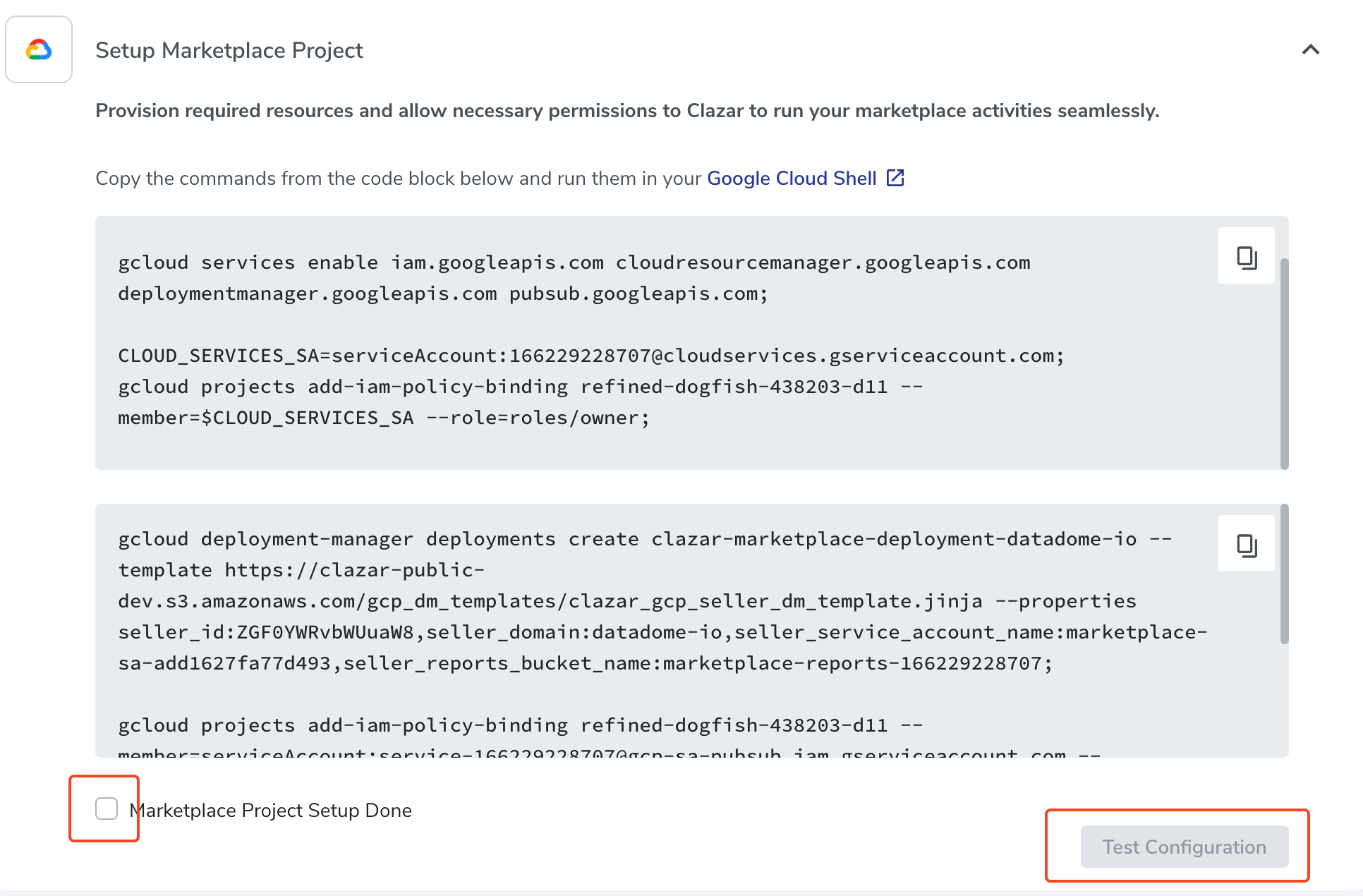
Return to Clazar.
Click on the checkbox and test the configuration.
Check all boxes in the last step "Setup Producer Portal" as you are already live with GCP.

Please reach out to Clazar support on Slack or email (support@clazar.io) for any issues you face during the port process. We recommend doing this on a 30 minute call with the Clazar team.