Agreement Cancellation on AWS
Last updated: June 4, 2026
What Is an Agreement Cancellation?
In AWS Partner Central, an agreement cancellation is the process by which the seller of record requests to terminate an active AWS Marketplace agreement. As the seller, you can initiate a cancellation to:
Stop future invoices from being generated on an active agreement, or
End a subscription that is no longer valid or was set up incorrectly.
Cancellation requests are sent to the buyer for approval — unlike billing adjustments, they are not processed automatically. The buyer has 7 days to respond. If no response is received within that window, the cancellation is automatically approved and the agreement is terminated.
ℹ Note: Cancellation only stops future charges. It does not automatically refund existing invoices. If you also need to refund past charges, submit a separate billing adjustment request after the cancellation is approved.
Before You Start
Make sure the following are in place before proceeding:
The agreement you want to cancel is currently active
There is no existing active cancellation request already open for the same agreement
You have the Agreement ID, Buyer ID, or Offer ID ready to locate the correct agreement
The agreement has no related dependent agreements (e.g. a usage agreement with an associated annual discount agreement cannot be cancelled independently)
Step-by-Step Guide:
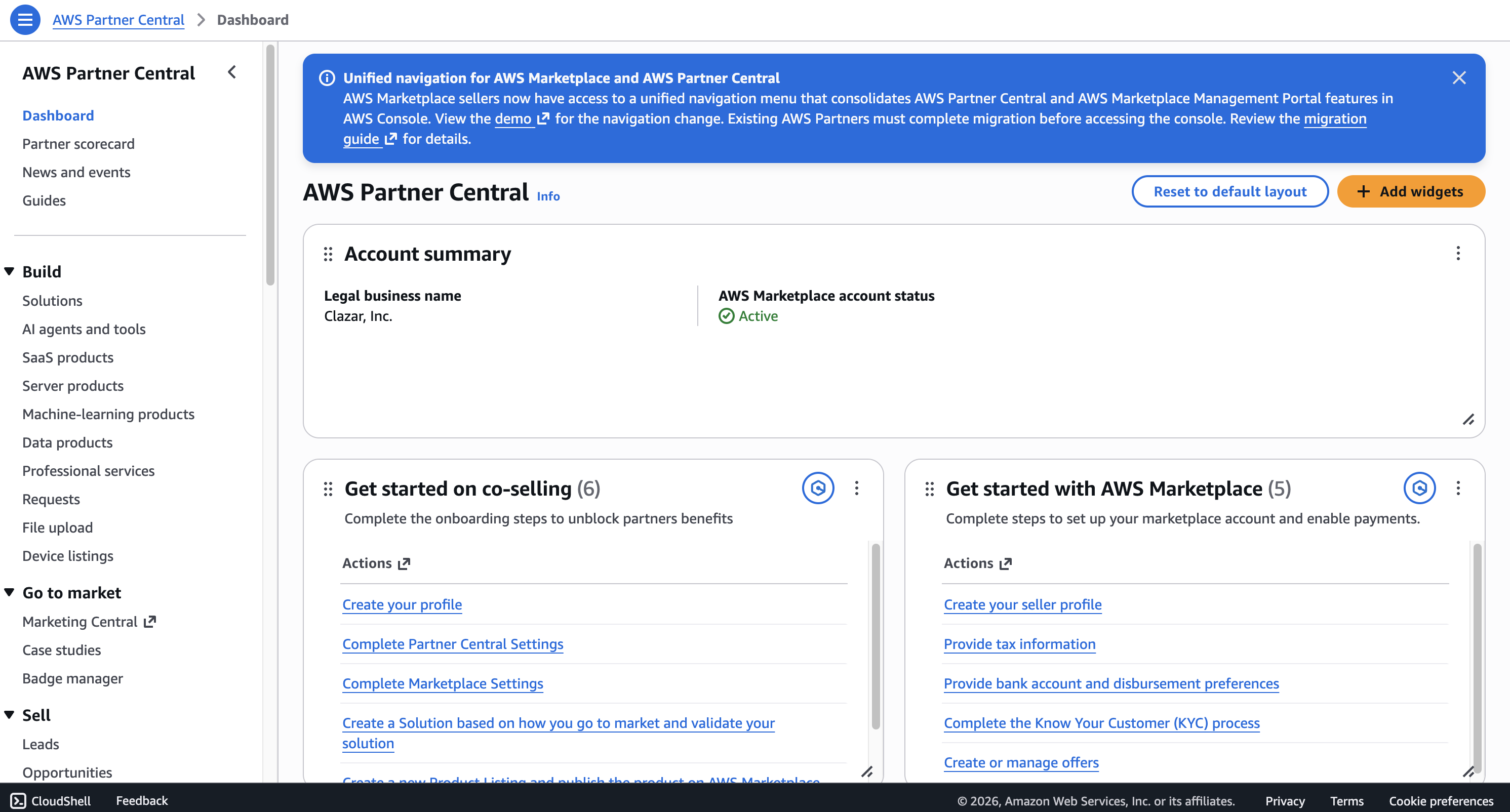
1. Open AWS Partner Central
Open the AWS Partner Central portal under the seller's account.
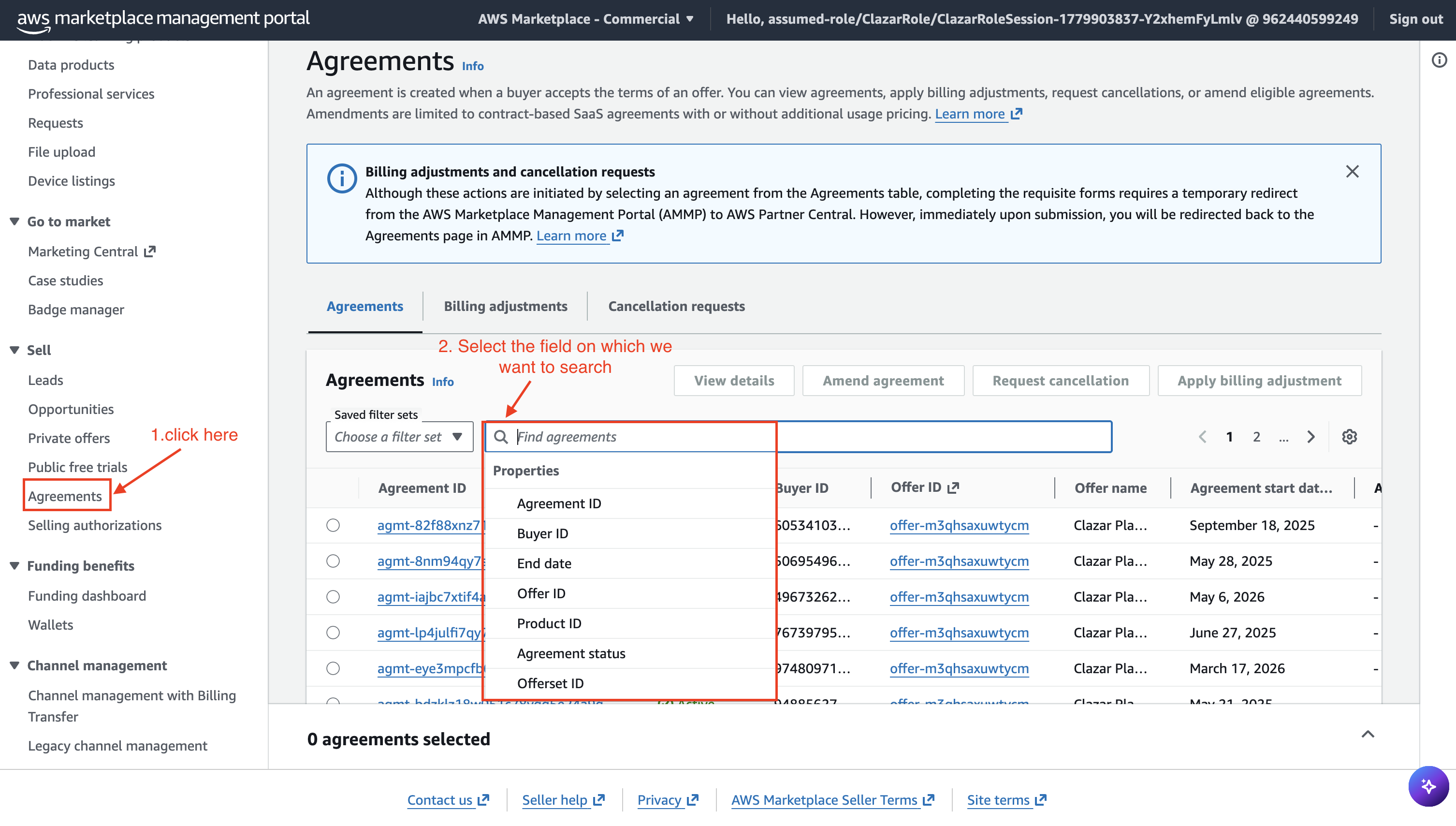
Go to the Agreements tab
From the AWS Partner Central dashboard, navigate to Sell → Agreements. Use the available filters — Agreement ID, Buyer ID, Offer ID, or other details — to locate the correct agreement.
💡 Agreement ID is the recommended filter. It auto-populates all associated customer and seller details, making it the fastest way to find the right record.
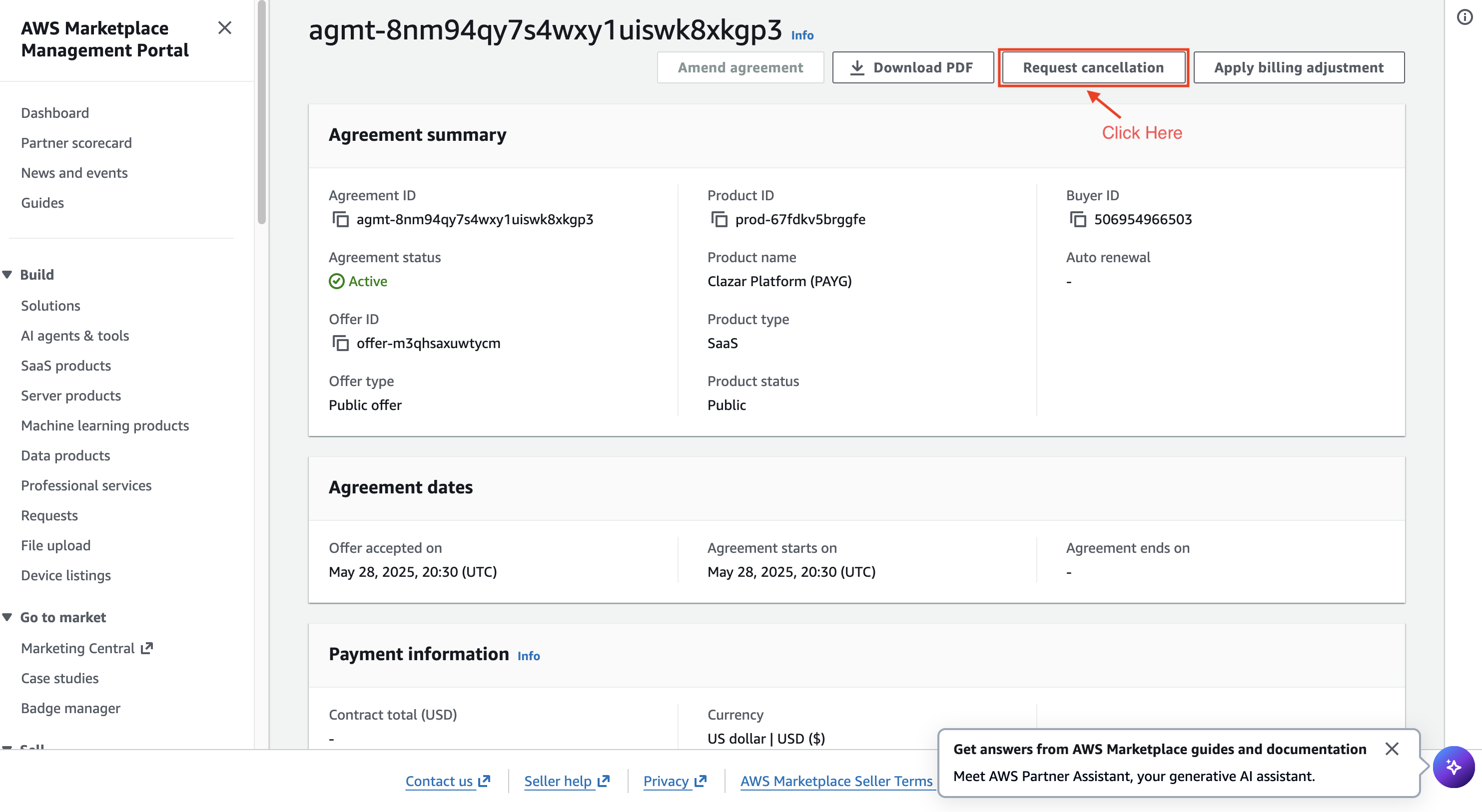
Click on the specific agreement to open the agreement window with available action.
Select the agreement and initiate cancellation Click on the agreement to open it. Confirm it matches the correct Agreement ID, Buyer ID, and Offer Name. Then click "Request Cancellation" to launch the cancellation wizard.
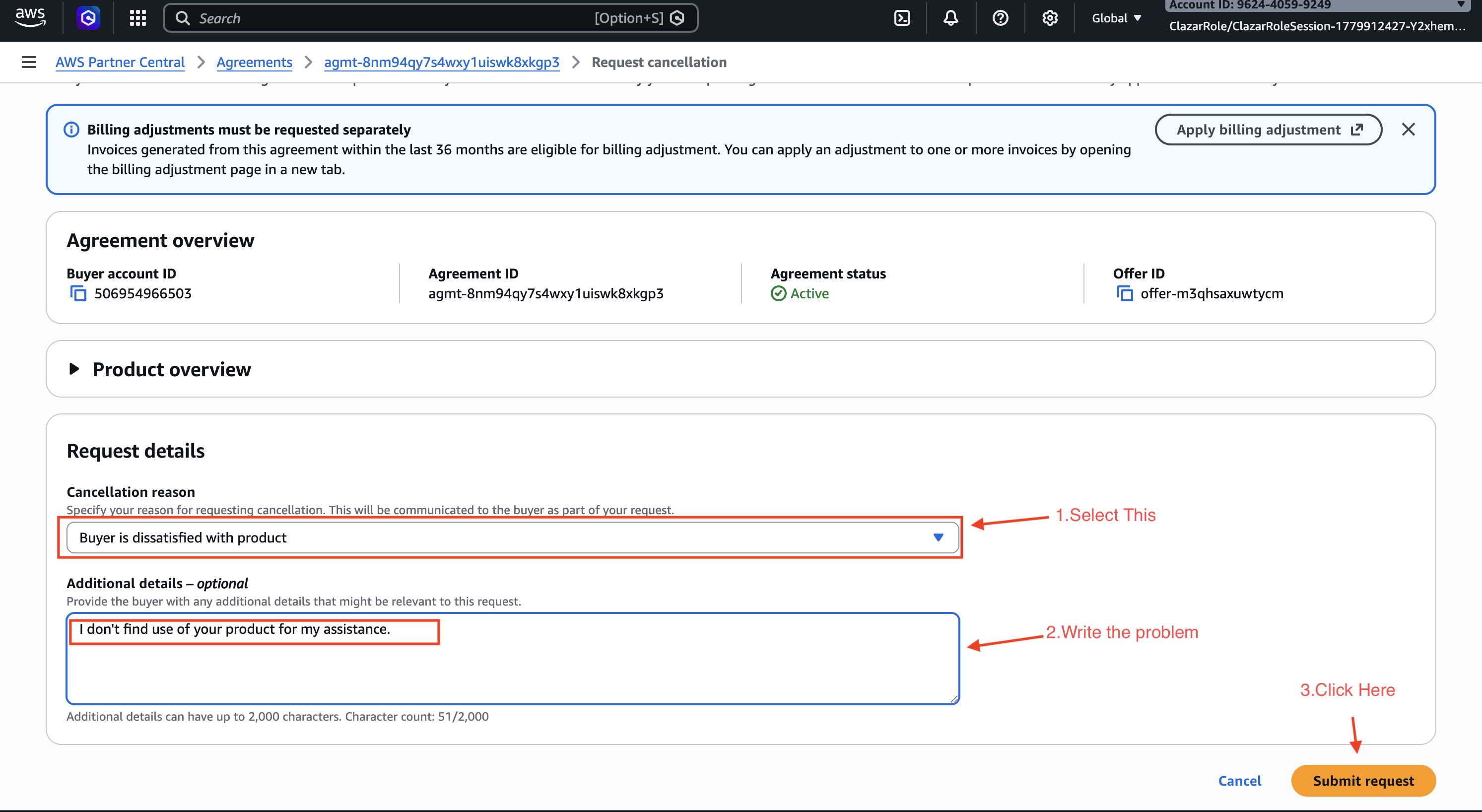
Fill in cancellation details In the wizard, complete the following fields:
Cancellation reason — select the most applicable reason from the dropdown
Additional details — optional free-text field to include a message to the buyer
Click Submit Request to continue.
Share the buyer response link (optional but recommended). Upon successful submission, you will receive a buyer response link. You can optionally share this link directly with the buyer to expedite their approval. The link can also be copied later from the Cancellation Requests tracking tab.
💡 Sharing the link directly with the buyer reduces wait time and avoids the 7-day auto-approval window.
Buyer reviews and responds The buyer receives an email notification with the cancellation request. They have 7 days to approve or deny it from their AWS Marketplace console. If they do not respond within 7 days, the cancellation is automatically approved.
✅ Done! Once approved (by the buyer or automatically), the agreement is cancelled and no further invoices will be generated. All parties receive an email notification and an Amazon EventBridge event confirming the status change.
Cancellation Reason Codes
When filling out the cancellation request, select the reason that most accurately describes the situation:
Incorrect terms accepted — the buyer signed up for the wrong offer or pricing tier
Duplicate subscription — the buyer has an existing active agreement for the same product
Customer request — the buyer has directly requested cancellation
Product no longer needed — the buyer is discontinuing use of the product
Other — use this for any scenario not covered above; add details in the Additional details field
Withdrawing a Cancellation Request
If you submitted a cancellation request by mistake or the situation has changed, you can withdraw it — but only while it is still in pending status (i.e. before the buyer responds or the 7-day window expires).
To withdraw:
Go to Sell → Agreements → Cancellation Requests tab in AWS Partner Central
Select the pending request you want to withdraw
Click "Withdraw Request"
Provide a withdrawal reason in the dialogue box and confirm
⚠ Note: Once a cancellation request has been approved — either by the buyer or automatically after 7 days — it cannot be withdrawn or reversed.
Cancellation vs. Billing Adjustment
These are two separate processes. Use the table below to understand the difference and when to use each:
Feature | Agreement Cancellation | Billing Adjustment |
|---|---|---|
What it does | Stops future invoices from being generated | Refund charges on existing invoices or reduce unpaid balances |
Buyer approval needed? | Yes — buyer has 7 days to respond | No — processed automatically |
Reversible? | Can be withdrawn before buyer responds | No — irreversible once processed |
When to use | Ending an active agreement going forward | Refunding a buyer for a past charge |
⚠ Doing both?
If you need to cancel an agreement and refund past charges, submit the cancellation request first, wait for approval, and then apply the billing adjustment as a separate step.
If you wish to do it using the traditional way, here is the guide :
How to Cancel an AWS Marketplace Subscription via the AWS Marketplace Management Portal (AMMP)
If you need to cancel a subscription purchased through the AWS Marketplace, you can do so using the AWS Marketplace Management Portal (AMMP). This guide walks you through each step to ensure your cancellation request is handled efficiently.
Step 1: Gather Necessary Information
Before you initiate a cancellation, make sure to have the following details on hand:
Subscriber’s AWS account ID
Product and offer identifiers (these can typically be found on the Agreements and Renewals or Billed Revenue dashboards)
Seller AWS account ID (if applicable)
Relevant billing period and invoice details
A clear reason for the cancellation (e.g., switching to a different offer, customer request, etc.)
Step 2: Access the AWS Marketplace Management Portal
Log in to the AWS Marketplace Management Portal using your AWS credentials.
Step 3: Open the Refund or Cancellation Request Form
Within the portal:
Navigate to the Support section
Select Request Refund – this form is used for both cancellations and refund requests
Step 4: Fill Out the Form
Provide the required information in the form, including:
Subscriber’s AWS account number
Product and offer IDs
Billing period and invoice reference
Requested refund amount (if applicable)
In the Additional Comments section, clearly specify the request for cancellation. For example:
"Please cancel this agreement effective [Insert Date]."
Include any relevant context or justification for the request.
Step 5: Submit the Request
Once completed, submit the form. A support case will be automatically created in the AWS Support Center. You can use this case to monitor progress and provide any follow-up information if needed.
Make a note of the support ticket ID for future tracking.
The support ticket ID will appear on the confirmation page immediately after submission. It's recommended to save or note this ID for future reference, as it will also be accessible within your AWS Support Center dashboard.
Step 6: Track the Request Status
The support case will reflect the current status, which may be one of the following:
Completed – The cancellation has been processed; no further action is required
Pending – Processing will occur after the current billing cycle
Action Required – Additional input is needed from your side; you can respond directly via the support case
Step 7: Final Notes and Timeline
Once approved and processed, any associated refund will appear in the customer’s AWS billing account within 24 to 48 hours. However, the refund may take up to 5 business days to be reflected in the bank account.
Note: For contract-based subscriptions—especially private offers or those beyond the initial 48-hour window—cancellation typically requires approval from both the buyer and the seller, coordinated through AWS.
Important Distinction: Vendors can only withdraw offers that are published but not yet accepted. Once an offer is accepted by a buyer, vendors cannot cancel it from their side - the cancellation must be initiated through the AWS Marketplace Management Portal following the process outlined above.
Note: For contract-based subscriptions—especially private offers or those beyond the initial 48-hour window—cancellation typically requires approval from both the buyer and the seller, coordinated through AWS.
Important: For contract-based subscriptions—especially those involving private offers or those beyond the initial 48-hour window—cancellations must be initiated by the seller through the AMMP. AWS Customer Service may engage with both the buyer and the seller to coordinate final approval.
I hope you find the information in this article helpful and relevant.