Private Offers
Last updated: August 8, 2025
In this Video, we covered how to create an Azure private offer using Clazar web UI.
Here are steps to make sure you're fully equipped after creating an Azure Private Offer via Clazar:
🔍 Where to View Your Offer (The Publisher)
Navigate to the Private Offers tab in Clazar (as shown in the video).
You’ll see your created offer listed with status like
Draft,Published, orAccepted.Use filters to quickly find offers by buyer name, expiration date, or status.
Once published, copy the Azure Offer URL from the (⋮) three dots on the right
and share it with the customer. This link opens the offer directly in the Azure Portal.
✅ How the Customer Accepts the Offer
There are two easy ways for the buyer to accept the private offer:
✔ Via Direct URL (Recommended)
Open the URL you shared
Click “Review Terms and Pricing”
Click “Accept”
🧭 Via Azure Portal
Go to https://portal.azure.com
Search for "Private Offer Management"
Click on Offers
Locate the correct offer and click Purchase and then "Review and subscribe" the product.
Note: The customer needs Billing Account Owner or Contributor permissions to accept.
🛒 What Happens After Acceptance
Once the offer is accepted, it is transacted via Azure, the product appears in the customer's subscription, and billing starts as per the configured terms.
🔁 Optional: CRM Mapping & Syncing
If you’ve integrated Clazar with Salesforce or HubSpot:
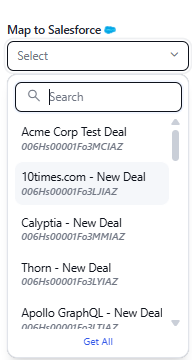
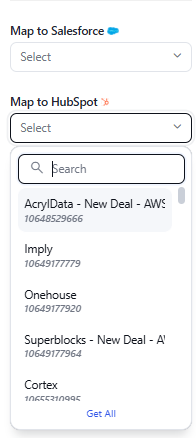
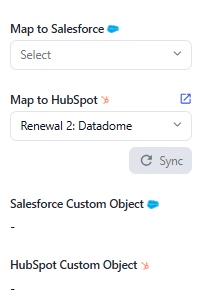
Use the Map to Salesforce/HubSpot dropdown to link a CRM deal to this offer.
Click Sync to auto-fill fields like buyer name or contact info.
This keeps your CRM and Clazar fully in sync.
🎥 YouTube Version of This Walkthrough
Watch YouTube for accepting and purchasing of private offer:
👉 Accept and Purchase Private offer Via Azure Marketplace.
📌 Common Mistakes to Avoid
Wrong Billing Account ID: Ensure you enter the correct Azure Billing Account ID. An incorrect ID means the customer won’t see the offer.
No Notification on Acceptance: Azure does not send an email when a customer accepts the offer. You must monitor the status in Clazar and add your email to keep yourself updated.
Forgetting to Set Expiry: Without an expiry date, offers may sit untouched indefinitely. Set a clear deadline.
👥Need help
Contact your Clazar representative via Slack or reach out to support@clazar.io