Prerequisites for Azure Marketplace Listing
Last updated: May 11, 2026
Before you can list your SaaS offer on the Microsoft Commercial Marketplace via Azure, several key requirements must be fulfilled. This guide outlines the essential prerequisites, including Azure setup, tax information, supplemental content submission, and developer account verification.
1. Azure Cloud Setup
Ensure your Azure cloud environment is fully set up before proceeding with your marketplace listing. A complete Azure setup is essential for deploying and managing your SaaS solution effectively.
🔗 For setup steps, refer to the guide provided in Clazar.
2. Supplemental Content Requirement
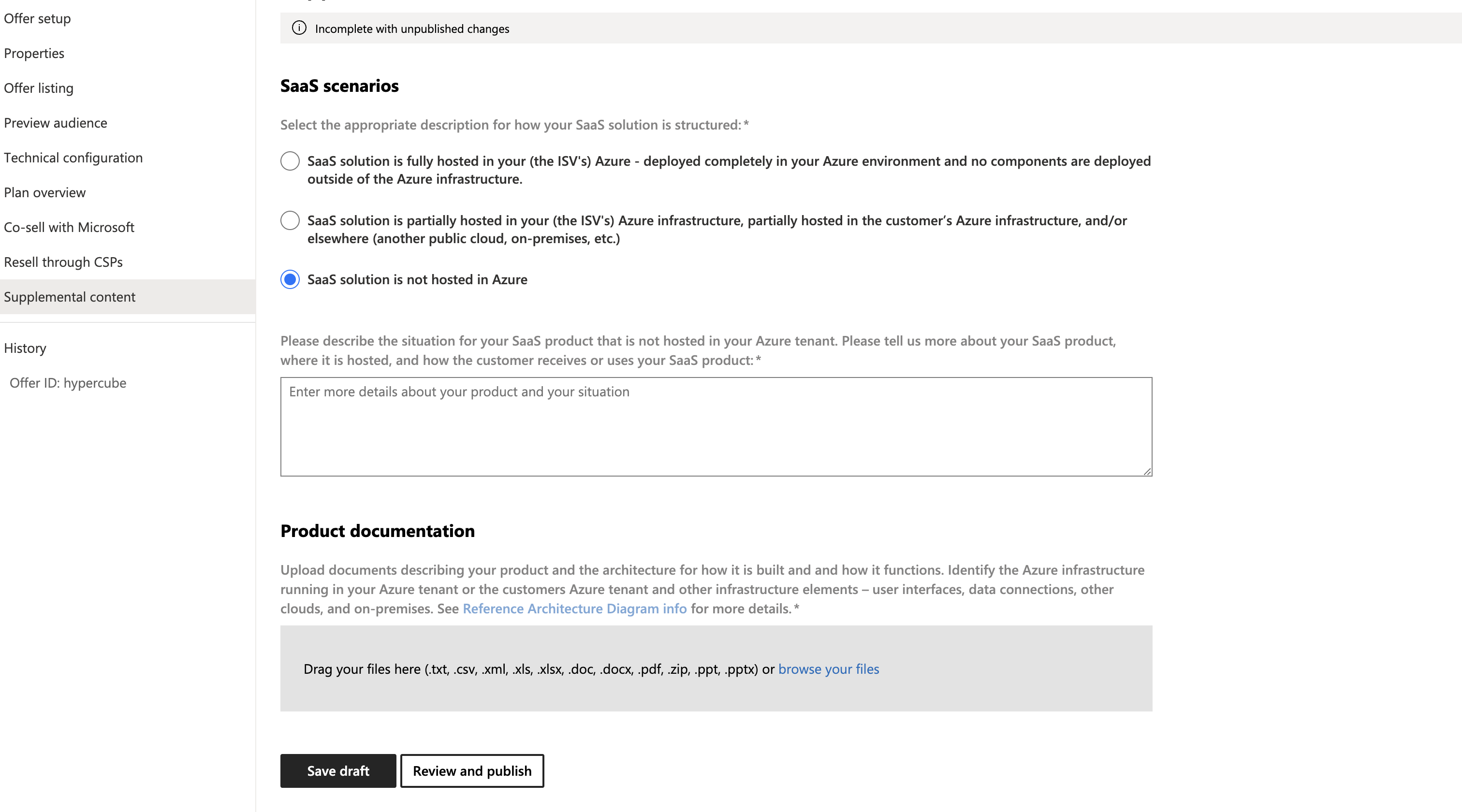
Microsoft now requires all SaaS listings to include supplemental content as part of the submission process. This content helps Microsoft understand your offer’s infrastructure and functionality.
You must classify your SaaS solution into one of the following categories:
SaaS Solution Fully Hosted in Azure
SaaS Solution Partially Hosted in Azure
SaaS Solution Not Hosted in Azure
🔗 For more information, review the Supplemental Content requirements here.
3. Tax Information Setup
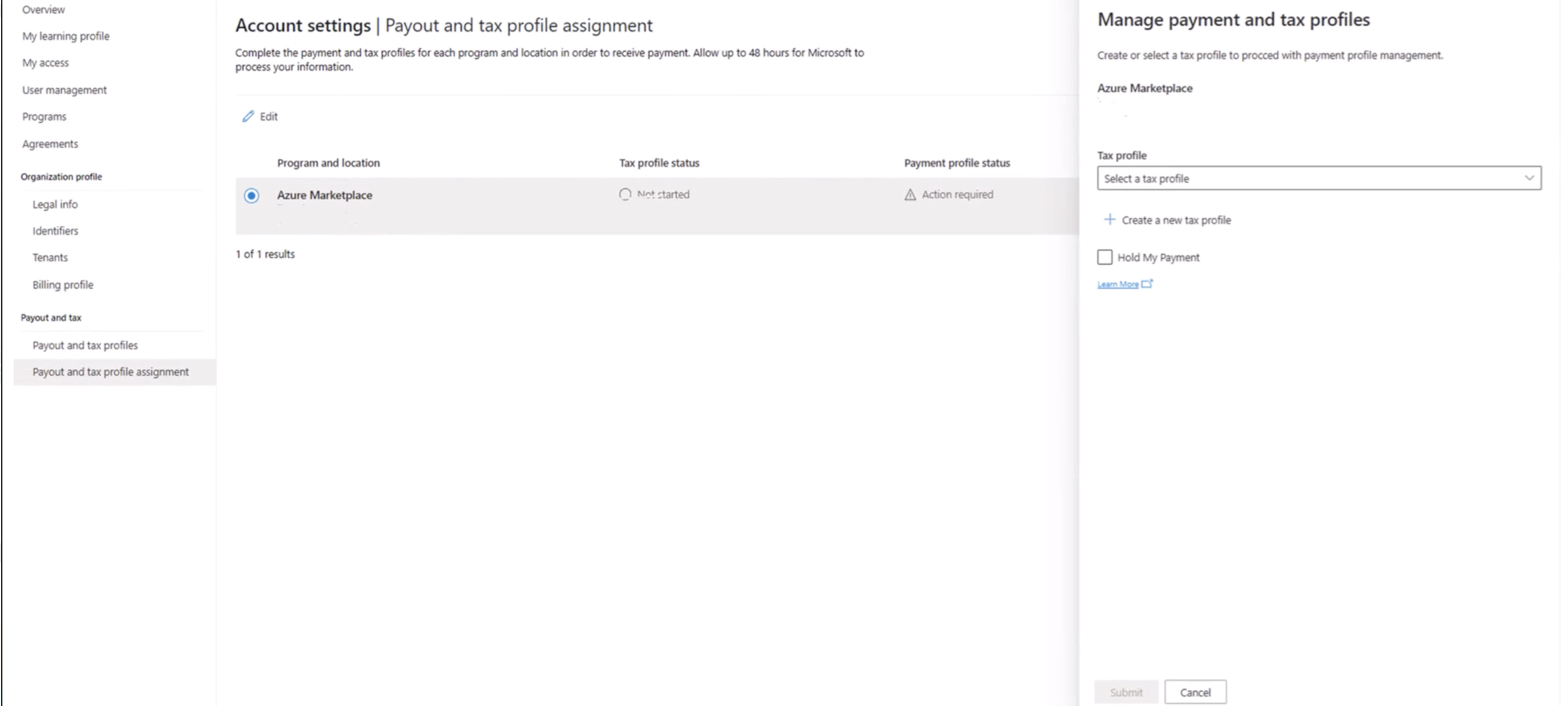
After accepting the Microsoft Publisher Agreement in Partner Center, you must configure your tax settings before publishing a transactable offer.
Steps to Complete Tax Information:
Set Up Payout Account
Microsoft requires a valid payout account to distribute proceeds from your marketplace sales.Fill Out Tax Forms
Access the Payout and Tax section in Partner Center to manage your tax profile. The visibility of certain fields depends on your organisation’s permissions.
🔗 For more information, review the steps here or check this video (from 2.00).
4. Developer Profile Verification
Your developer account must be verified to ensure your business is legitimate and secure for customers.
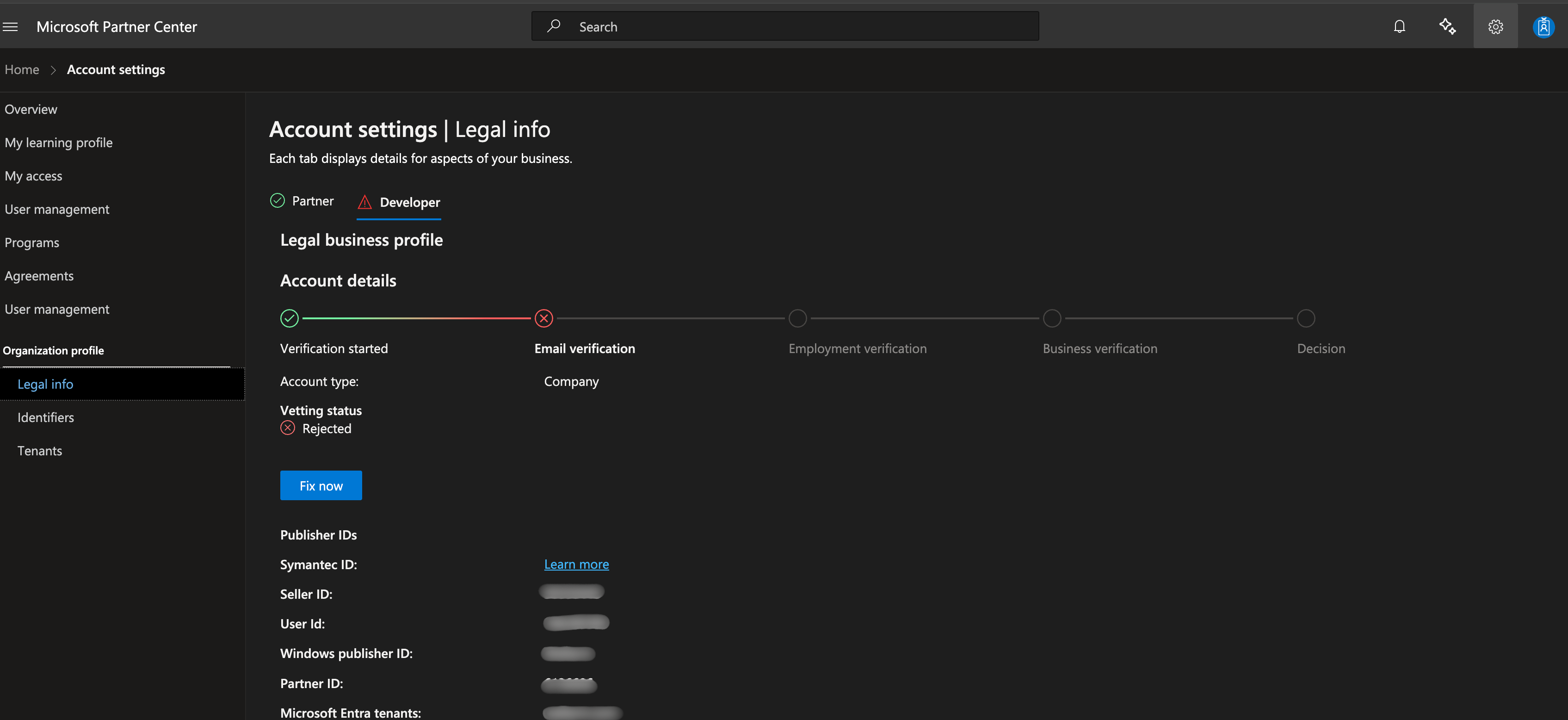
Step 1: Verify Your Account
Access Account Settings
In Partner Center, go to your account settings.Navigate to Legal Info
Locate the Legal Info section, which includes your account verification status.Click “Fix Now”
If your account is unverified, a “Fix now” option will be available.Appeal the Verification
Follow the on-screen prompts to upload necessary documentation.
Step 2: Understanding the Verification Process
Microsoft may request:
Business registration papers
Tax identification documents
Other documents verifying your company’s legitimacy
Review Time
Processing time varies. Check Partner Center periodically for updates.
Step 3: Common Reasons for Rejection
Incorrect Information: Ensure name, address, and contact info match official records.
Incomplete Submission: All required fields and documents must be filled and uploaded.
Invalid Documents: Make sure documents are valid and not expired.
Domain Mismatch: Verify that your app’s domain matches the one used for your Entra ID verification.