Troubleshooting Guide: Azure Partner Center Sign-In Error During Integration Setup
Last updated: October 30, 2025
Issue Summary
When setting up the Azure Partner Center integration in Clazar, users may encounter an error such as:
“Something went wrong”
orAADSTS65001: The user or administrator has not consented to use the application
This happens when the Marketplace App in Azure Active Directory (AD) is missing required configuration — including the redirect URI, API permissions, or admin consent — or when the user performing the action lacks the required Partner Center roles.
Root Cause
Common causes include:
Missing or incorrect Redirect URI in the Azure Marketplace App registration.
Missing user_impersonation permission under the Microsoft Partner API (not “Microsoft Partner Center”).
Missing admin consent for the app.
The user attempting authorization lacks required Partner Center roles (Developer and Finance Contributor).
Pre-requisite: Verify Roles in Azure Partner Center
Before proceeding with integration setup, ensure the user performing the sign-in has the required Partner Center roles.
Sign in to Azure Partner Center with an account that has Manager or Owner privileges.
Go to Settings → Account settings → User management.
Confirm that the user performing the setup has both roles:
Developer
Finance Contributor
⚠ If the user doesn’t have these roles, add them here before proceeding.
Without these roles, the user will not be able to authorize access to the Payout API successfully.
Step 1: Identify the Marketplace App
In Clazar, navigate to Integrations → Azure Marketplace.
Under Step 2: Clazar Azure AD App Registration, locate the App registration link — this will take you directly to your Marketplace App in Azure.
Note the App Name and App ID.
The required Redirect URI can also be found in this section:
https://api.clazar.io/integrations/azure/user_plus_app/oauth_redirect
Step 2: Add the Redirect URI
Open the App registration in Azure AD using the link from Clazar (Step 2 above).
Go to Authentication from the left-hand menu.
Under Redirect URIs, click Add a platform → Web.
Add the following URI exactly as shown:
https://api.clazar.io/integrations/azure/user_plus_app/oauth_redirectClick Save.
The redirect URI allows Azure to send authorization responses back to Clazar successfully.
Step 3: Add Required API Permissions
In the same App registration, navigate to API permissions.
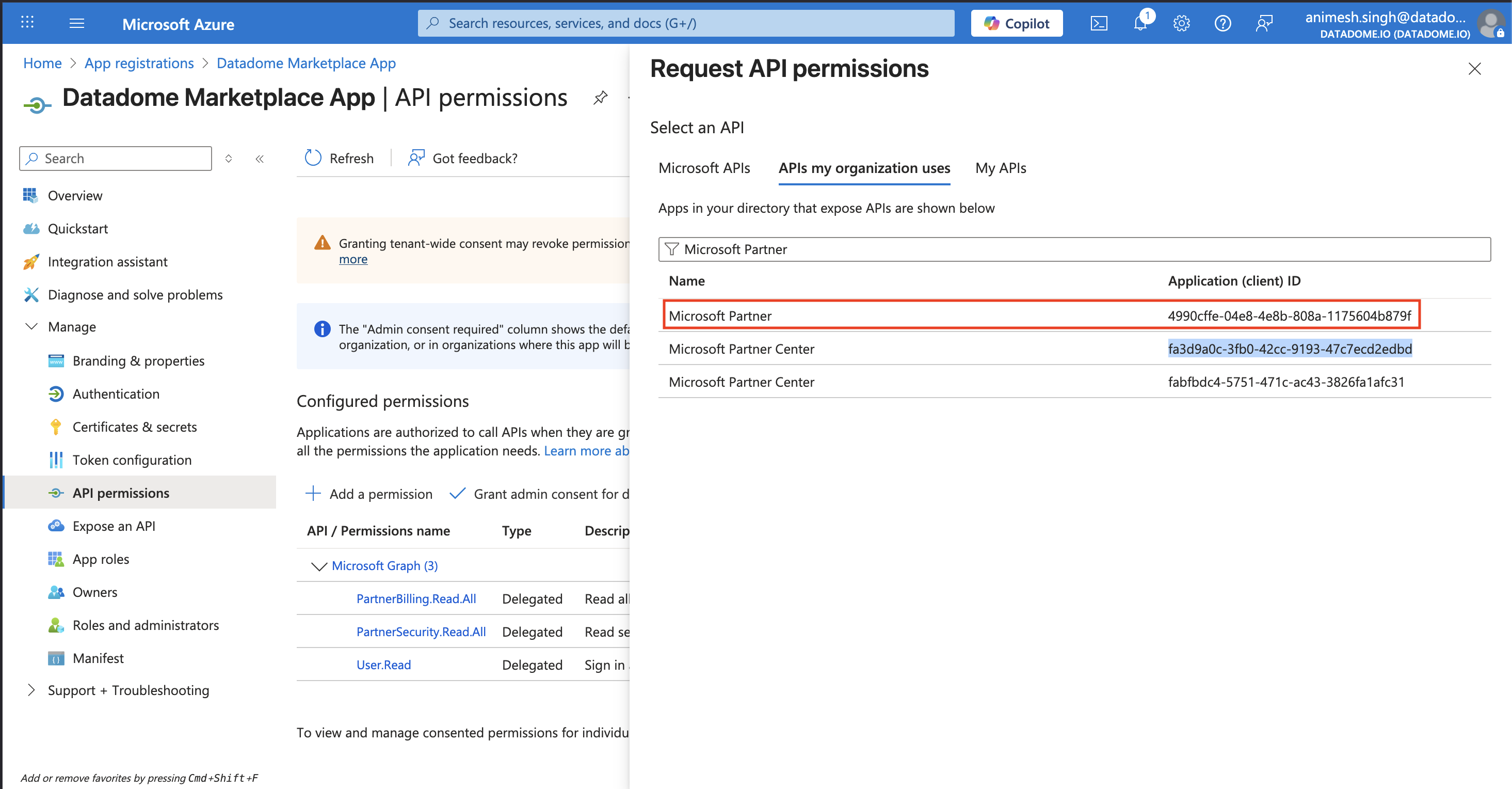
Click Add a permission → APIs my organization uses.
Search for the API named Microsoft Partner (not “Microsoft Partner Center”).
Verify the API using this Application (client) ID:
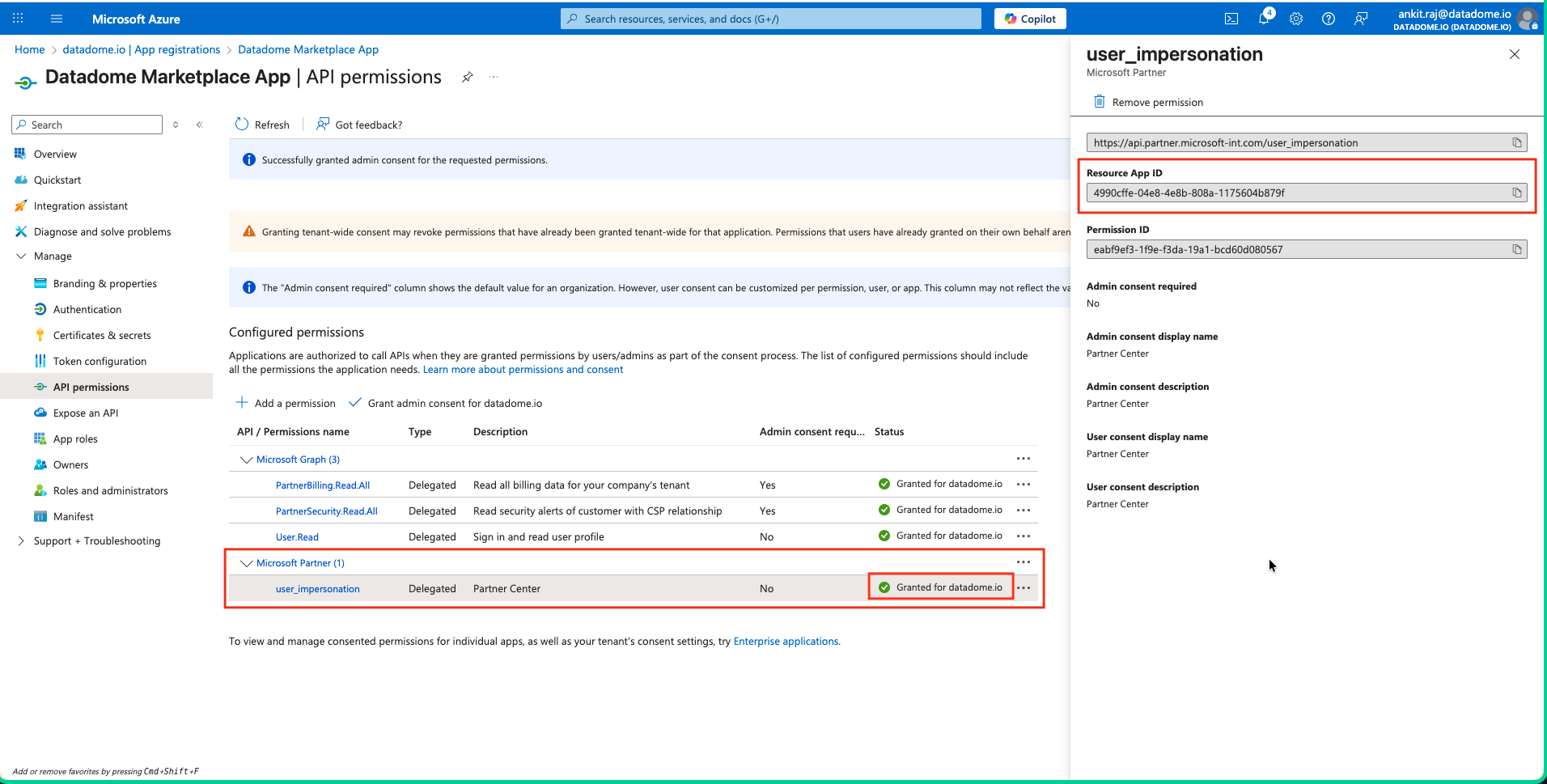
4990cffe-04e8-4e8b-808a-1175604b879fUnder Delegated permissions, enable:
user_impersonation
Click Add permissions, then Grant admin consent for your organization.
Granting consent ensures the Clazar integration can act on behalf of the signed-in user when accessing Partner Center APIs.
Step 4: Re-authorize the Integration in Clazar
Return to Clazar → Integrations → Azure Marketplace.
Click Authorize Microsoft Partner Center APIs.
Sign in using the user credentials that meet the role and permission requirements.
Approve the consent prompt when it appears.
Complete the authorization process in an incognito browser window to avoid cached session conflicts.
Verification
Once configuration and authorization are complete:
The sign-in flow should finish successfully without any errors.
The integration status in Clazar should display as Connected.
You should be able to access Payout API data without issues.
Best Practice
To prevent future authorization issues:
Use a dedicated service account with the required roles (Manager/Owner, Developer, Finance Contributor).
Avoid using individual employee accounts that may be deactivated later.