JSON Parser Action
Last updated: August 1, 2025
JSON Parser is an invocable Apex action that can be used in Salesforce Flow to parse JSON strings
Overview of What the Action Does
Parses JSON strings provided as inputs.
Extracts specific fields from JSON using field paths.
Handles list parsing for nested JSON arrays.
Converts list elements into collections for further use in the Flow.
Steps to Using the JSON Parser Action in Salesforce Flow
Use Case: Parse Custom Properties
Scenario:
Clazar custom objects we have one field called clazar_custom_properties__c, which stores JSON data like:
JSON
{
    "coupon_code": "C-500",
    "coupon_code_value": 500
}
You want to use Salesforce Flow to extract the coupon_code and coupon_code_value from this JSON data and save them into two new fields in the custom object: Coupon_Code__c and Coupon_Code_Value__c.
Step 1: Create a Salesforce Flow to Trigger on Record Changes
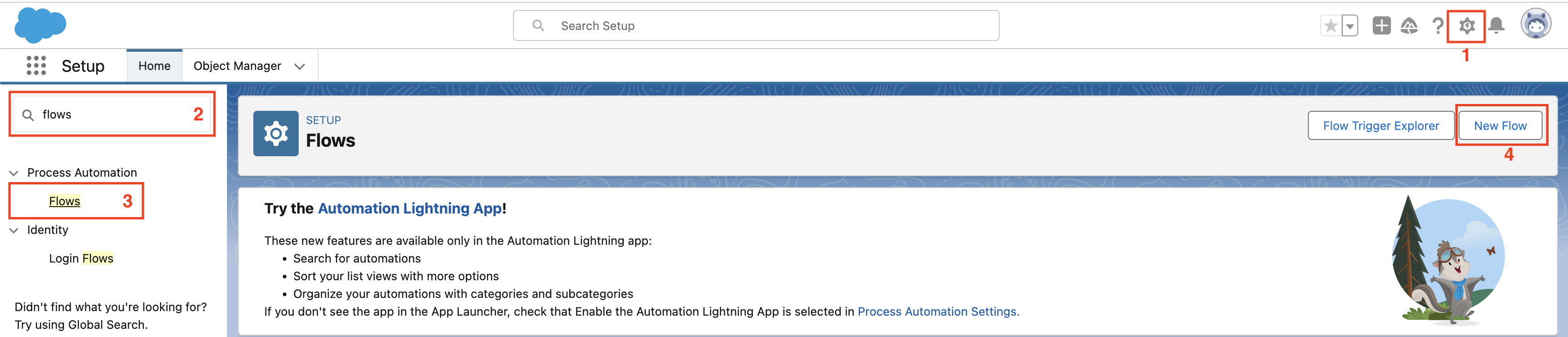
Go to Setup > Process Automation > Flows.
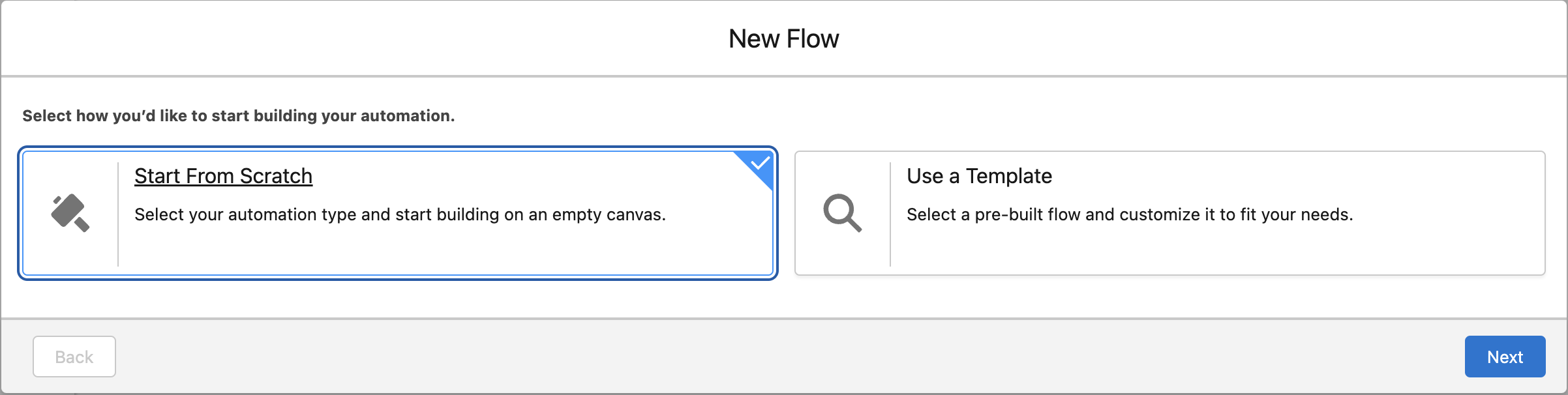
Click New Flow and select Record-Triggered Flow to run when a record in the clazar__Offer__c object is created or updated.
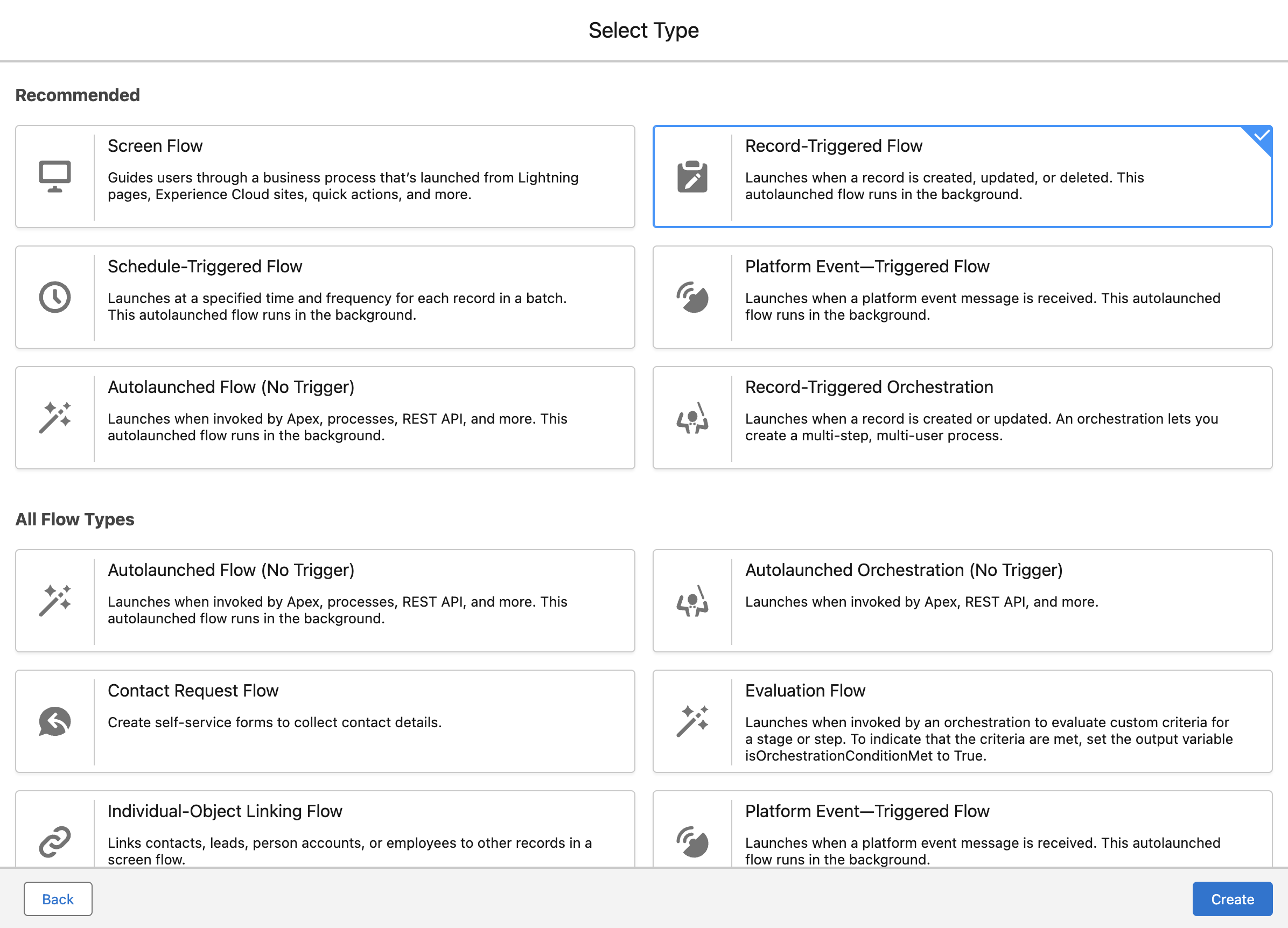
Set the Object to clazar__Offer__c and choose A record is created or updated as the trigger.
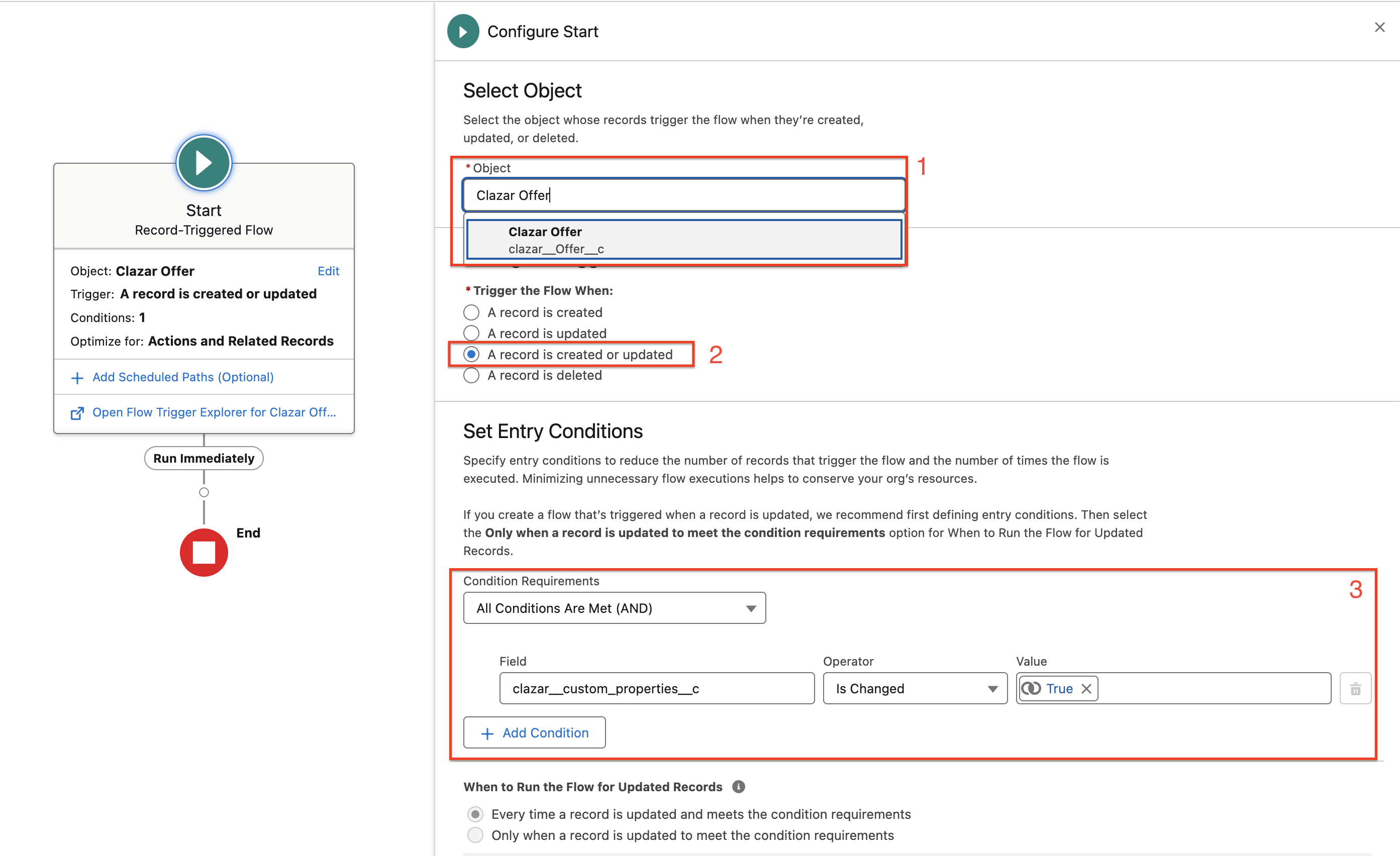
Set Entry Conditions to
clazar__custom_properties__c>is changed>True
📘
Good to Know
You can changes these options as per your need it's just an example.
Step 2: Add the JSON Parser Action to the Flow
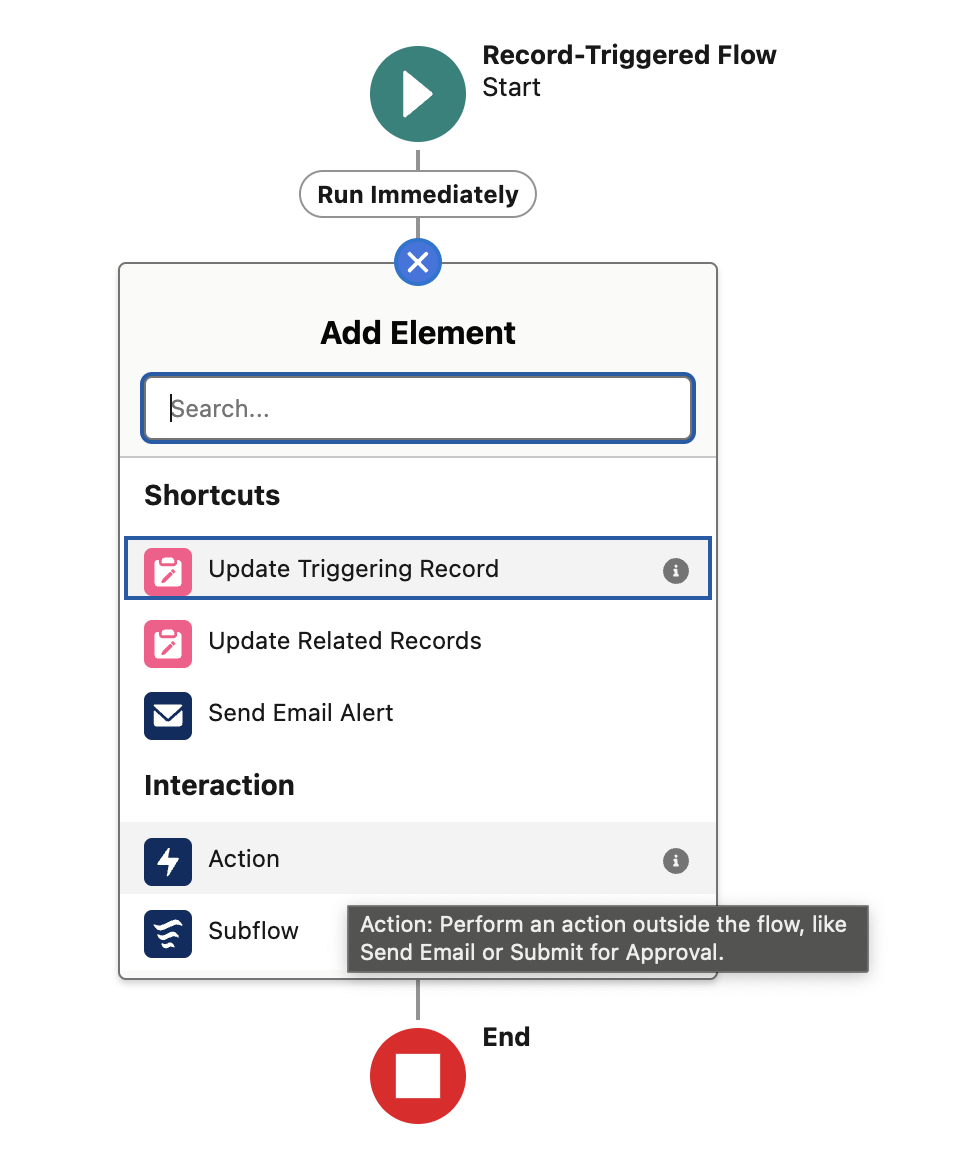
Click + to add an element in the Flow.
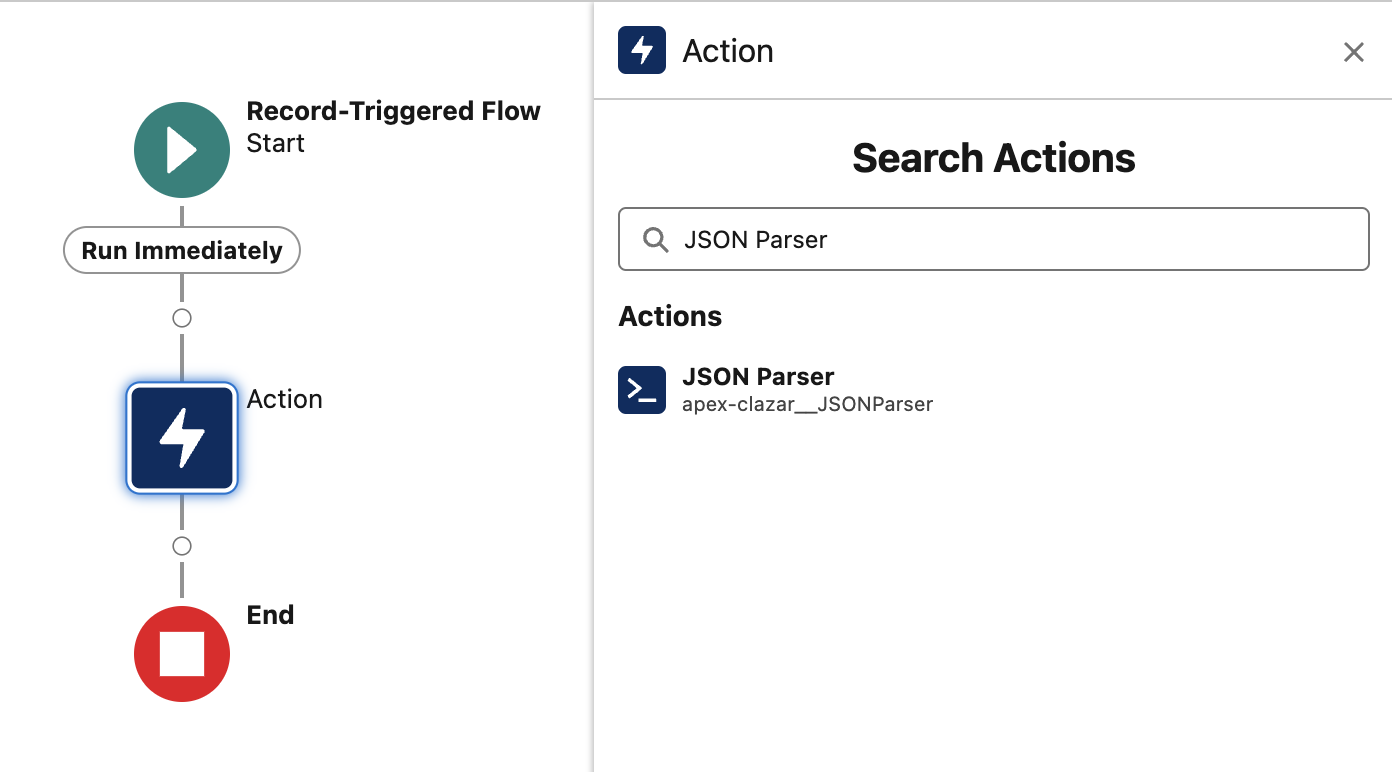
Select Action and search for the JSON Parser action.
Add the action to the Flow.
Configure the JSON Parser Action
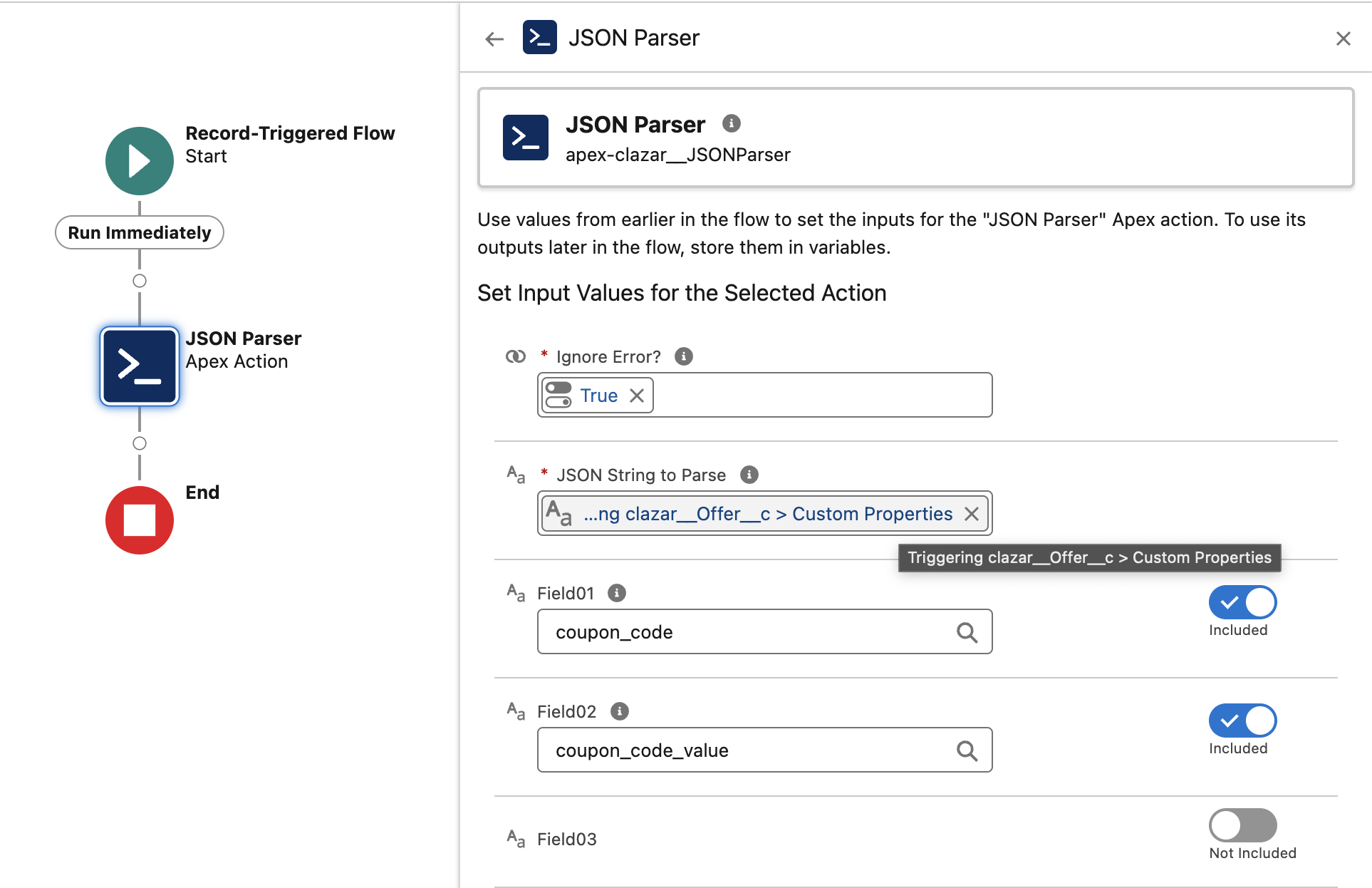
JSON String to Parse: Set this to the clazar__custom_properties__c field.
Ignore Error?: Set this to True or False based on whether you want the Flow to continue in case of parsing errors.
Field Names to Extract:
Field01: Set this to coupon_code to extract the coupon code from the JSON.
Field02: Set this to coupon_code_value to extract the coupon code value from the JSON.
Store Output Parameters from the JSON Parser
Create variables in your Flow to store the extracted values from the JSON Parser.
Variable Name: couponCode
Data Type: Text
Assign Field01 Value from the output to this variable.
Variable Name: couponCodeValue
Data Type: Text (or Number, based on your field type)
Assign Field02 Value from the output to this variable.
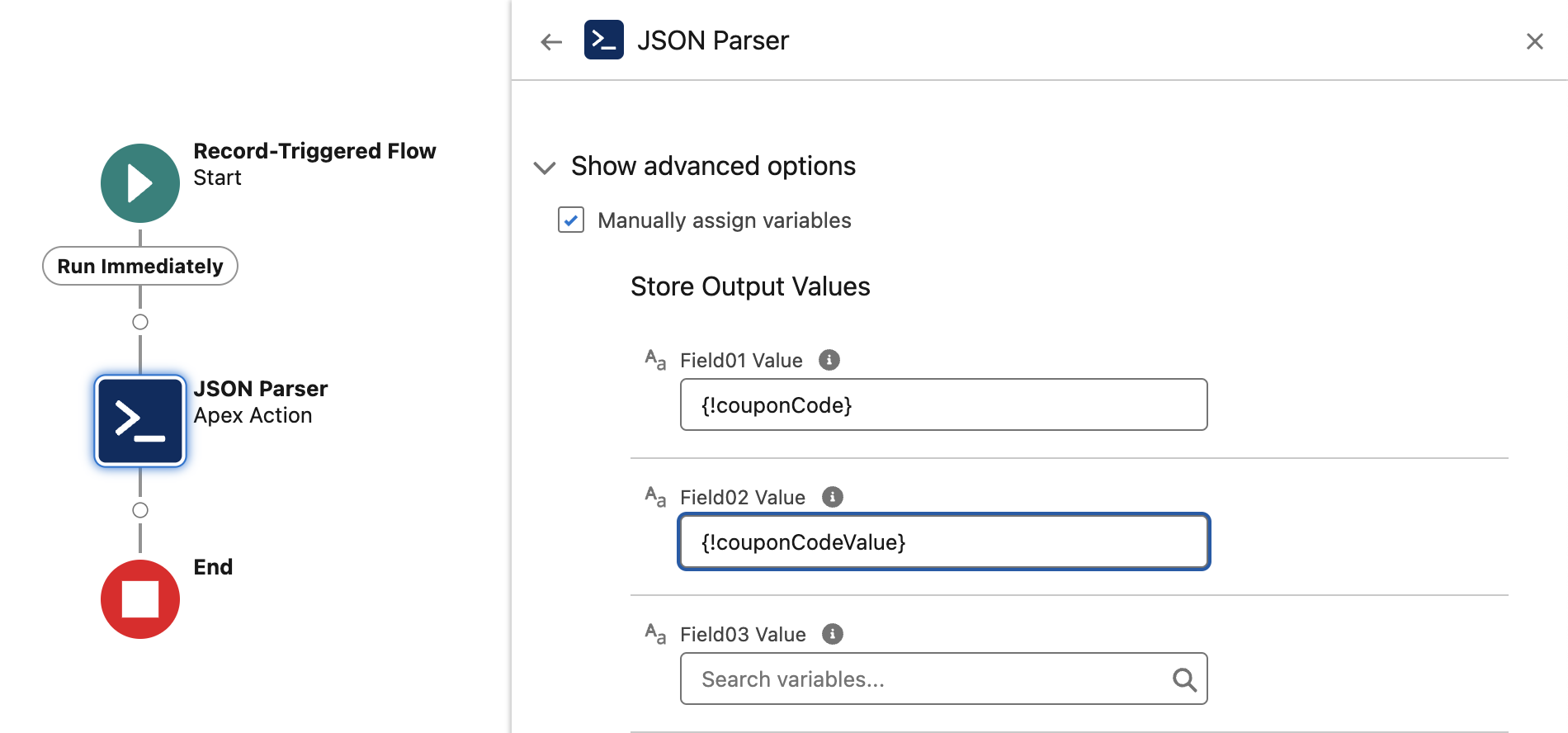
Update clazar__Offer__c Record with Extracted Data
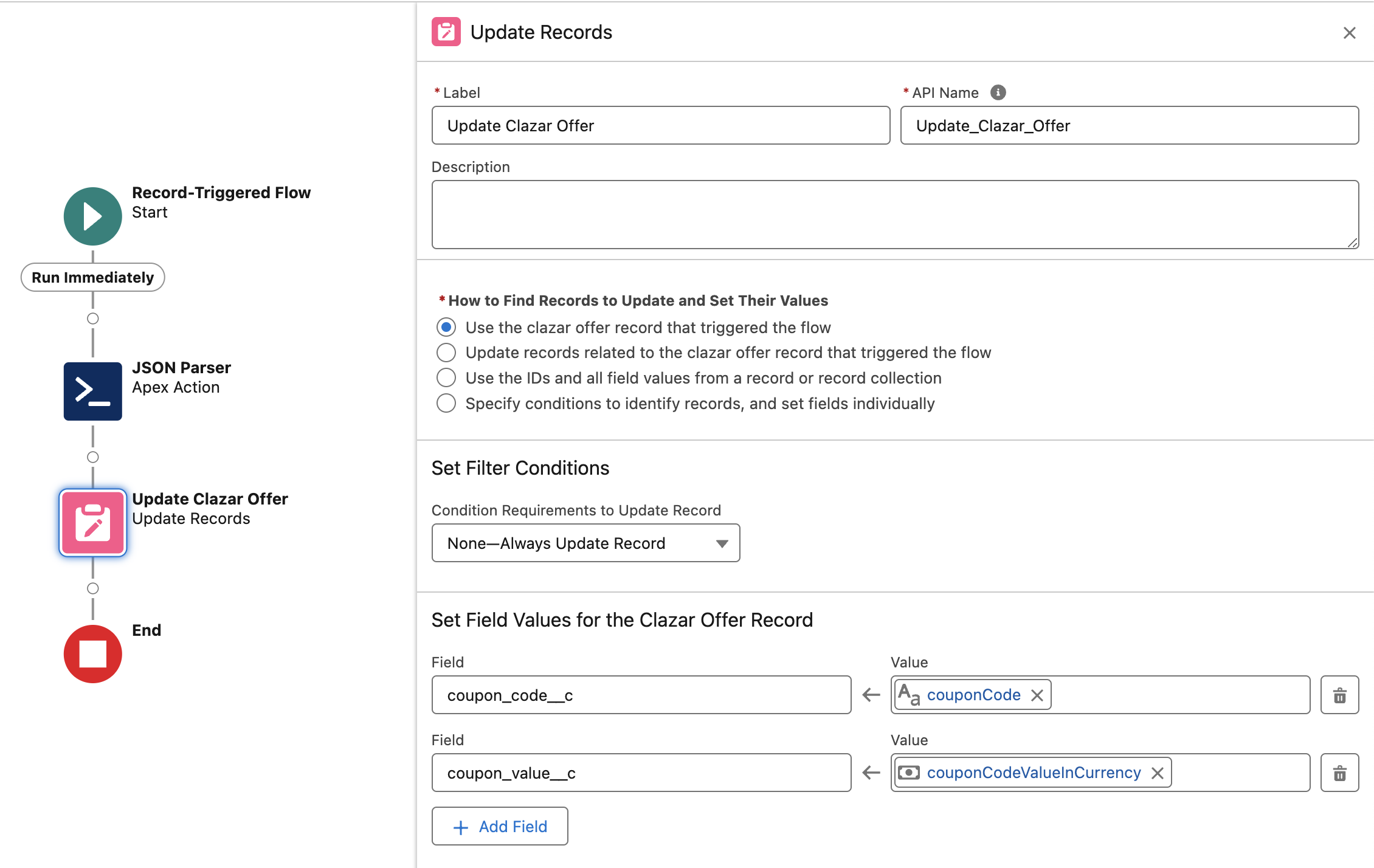
Click + to add an element and select Update Records.
Choose the record that triggered the Flow (i.e., the current clazar__Offer__c record).
Set the fields in the record:
coupon_code__c: Set this to the value of the
couponCodevariable.coupon_code_value__c: Set this to the value of the
couponCodeValuevariable.
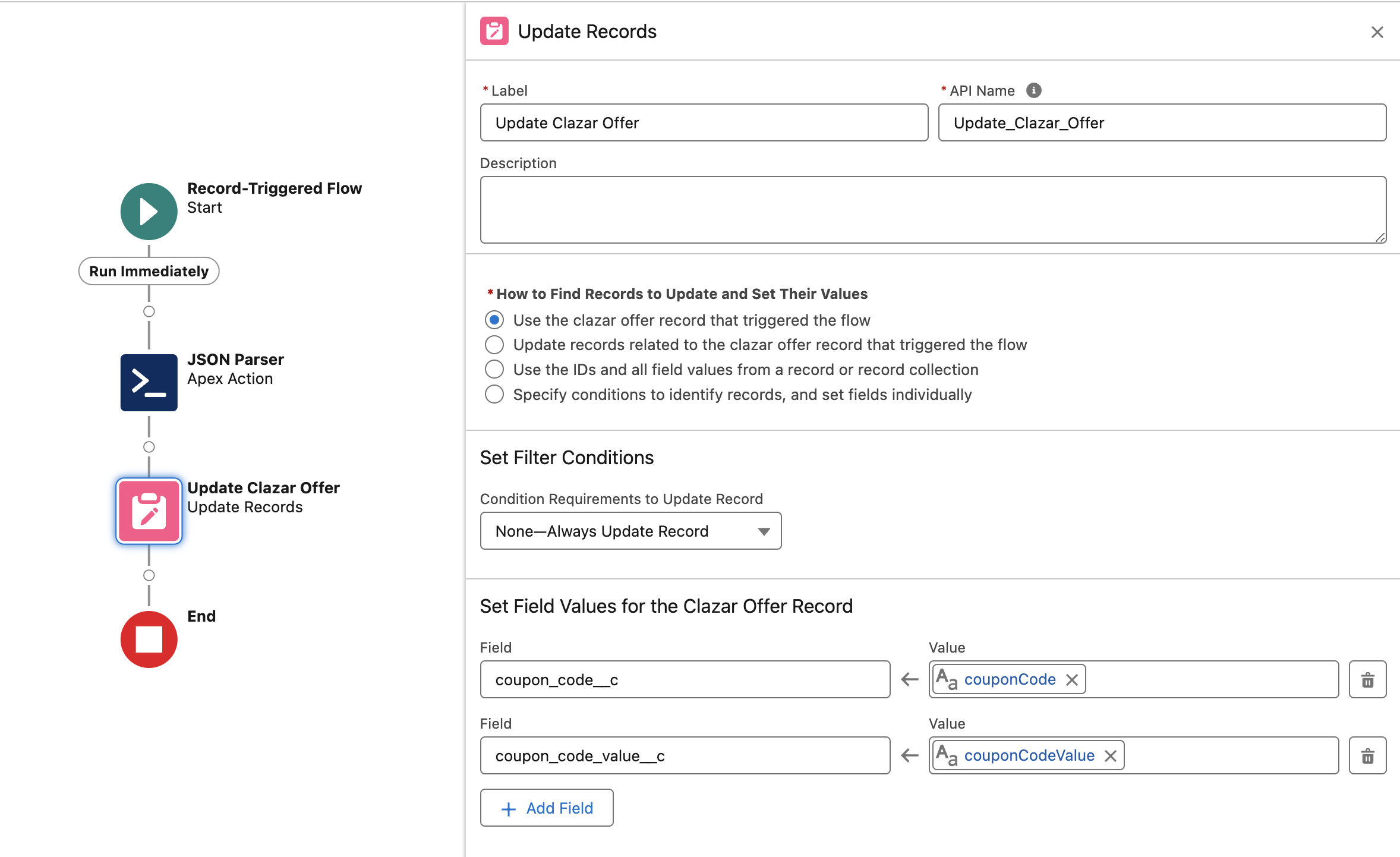
Save and Activate the Flow
Click Save, provide a meaningful name for your Flow, and activate it.
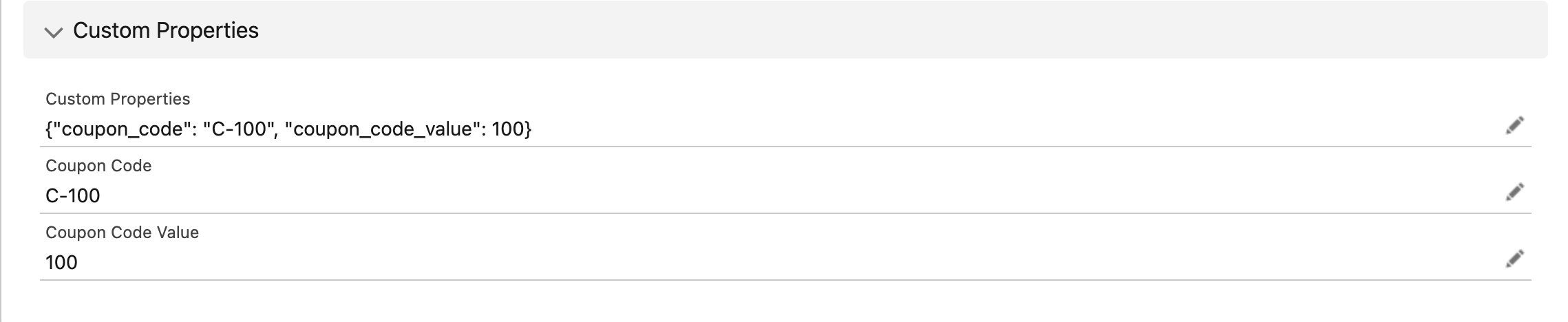
Once activated, whenever a record in clazar__Offer__c is created or updated, the Flow will parse the JSON in clazar__custom_properties__c and update the corresponding fields.
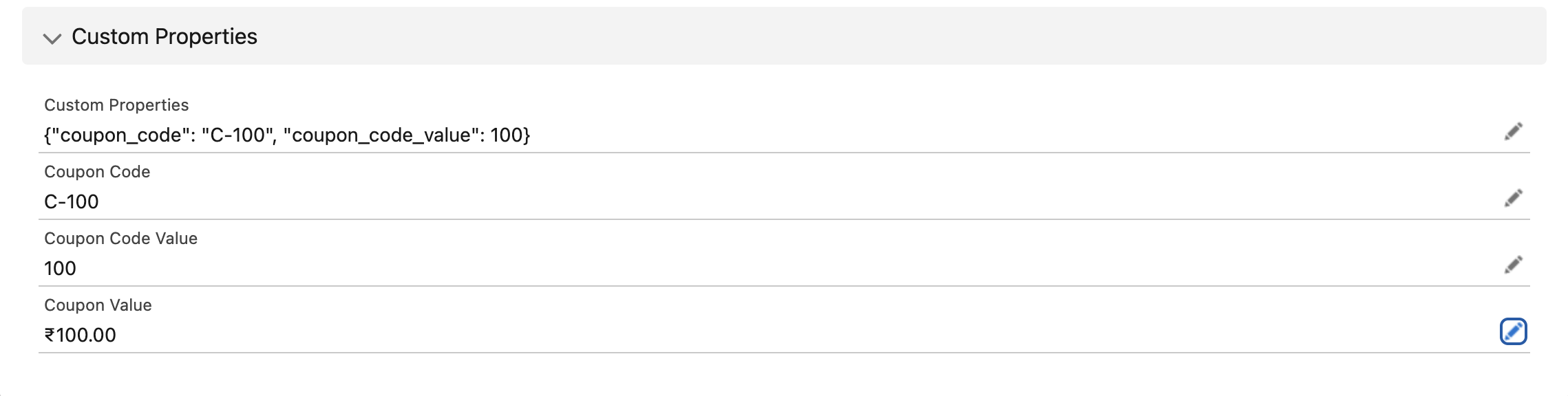
Data will look something like this
Key Note: JSON Parser Returns String Type
The JSON Parser currently returns all parsed values in the string type.
Suppose you need the data in other formats (e.g., number, currency, date). In that case, you must convert the returned string using a Salesforce Formula Field or a new resource with formula or other conversion methods.
Example: Convert CouponCodeValue into Currency Type
Let’s walk through an example of converting the parsed couponCodeValue (returned as a string) into a Currency type value, which can then be saved in a custom object.
Step-by-Step Conversion Using Salesforce Flow
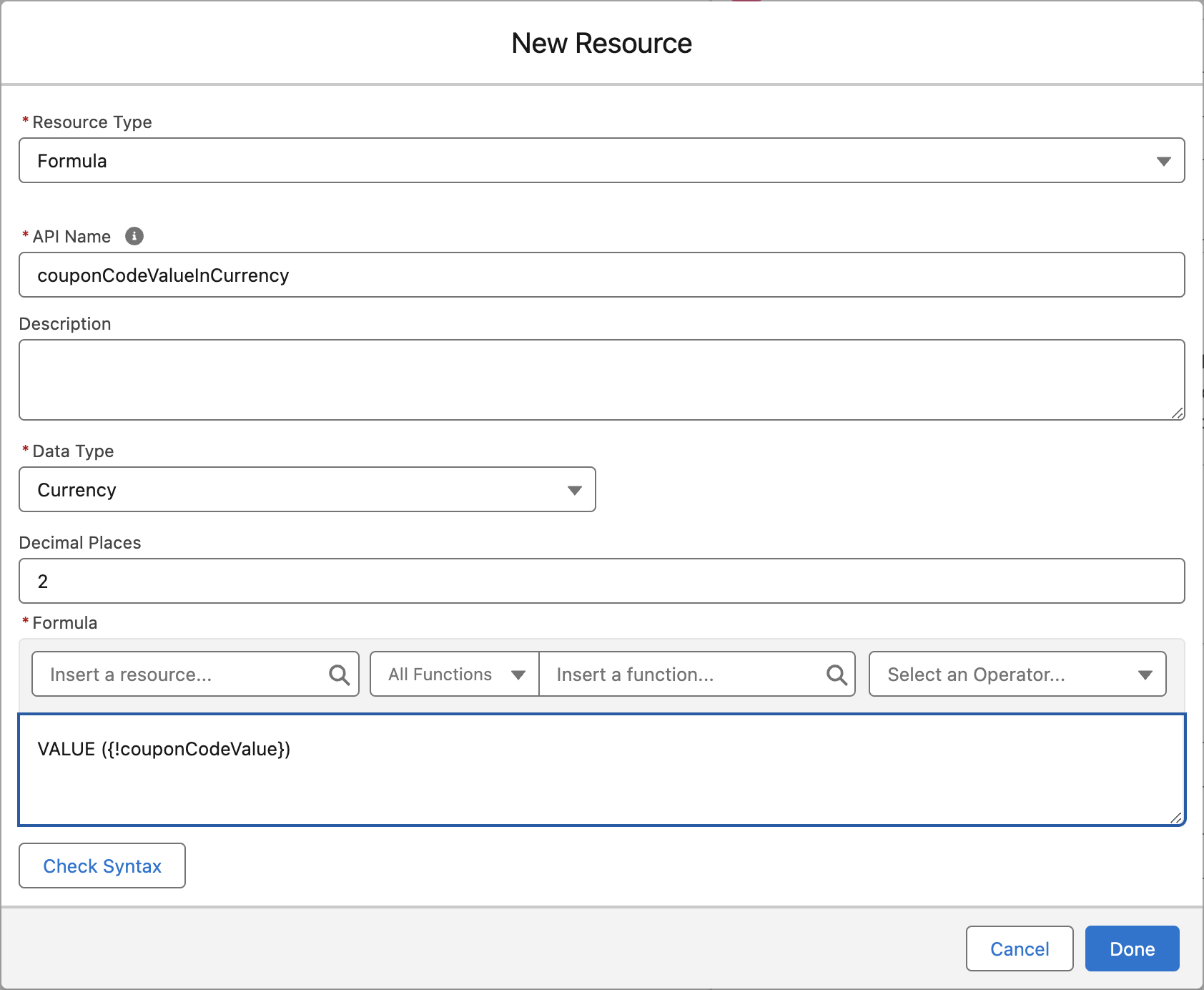
Step 1: Create a New Resource of Formula Type
To convert the
couponCodeValueinto a currency type, start by creating a new Formula resource in the Flow.This resource will take the parsed value (which is in string format) and convert it to a currency.
Steps to Create a New Resource:
Click New Resource in the Flow Builder.
Resource Type: Formula
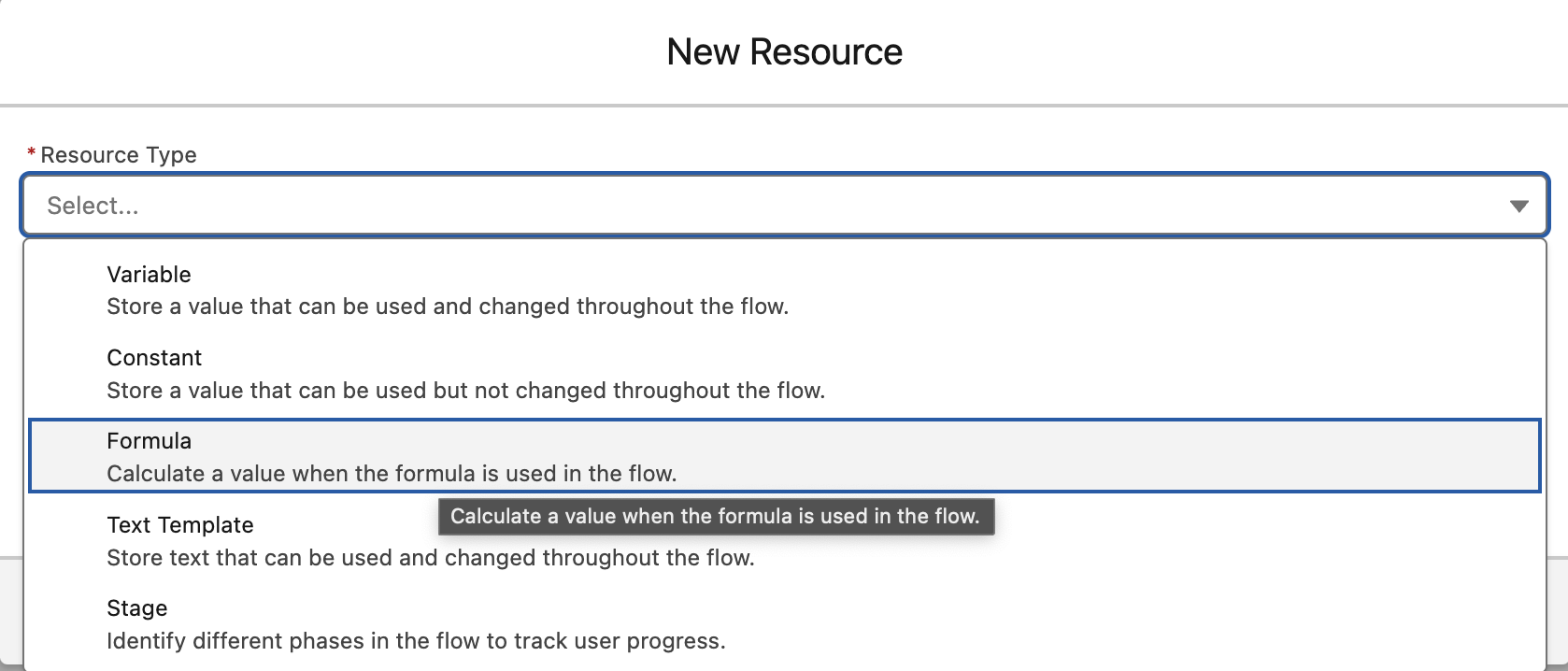
Details of the New Formula Resource
API Name: couponCodeValueInCurrency.
Data Type: Currency.
In the Formula, use the
couponCodeValueresource that was created earlier, where the string value is stored.Formula Expression:
VALUE({!couponCodeValue})
Step 3: Set the Converted Value in the Custom Object
In the
clazar__Offer__cobject, you want to set thecoupon_valuefield (which is ofCurrencytype).Use the newly created formula resource (
couponCodeValueInCurrency) as the value.
Steps to Update the Field:
In the Update Records element of the Flow.
Set the
coupon_valuefield to the value ofcouponCodeValueInCurrency.
Step 4: Result in Salesforce
After the Flow runs, the
coupon_valuein theclazar__Offer_crecord will now display with a currency symbol (e.g., ₹500.00) instead of just "500" as a string.